
1. Introduction
The LogiLink EO0009 is an adjustable under-desk PC mount designed to securely hold your computer tower, freeing up valuable desk space. This mount utilizes a robust steel frame and adjustable fabric straps to accommodate various PC sizes, ensuring stability and protection from dust and accidental impacts.
2. Safety Information
- Ensure the mounting surface (desk underside) is sturdy enough to support the weight of the PC mount and your computer.
- Do not exceed the maximum load capacity of 10 kg (22 lbs).
- Tighten all screws and straps securely during installation to prevent the PC from falling.
- Keep children and pets away from the installation area.
- Periodically check the tightness of the straps and mounting screws.
3. Package Contents
Verify that all components are present before beginning installation.
- 1 x LogiLink Under-Desk PC Mount
- 1 x Set of Mounting Screws
- 1 x User Manual

Image 3.1: Packaging of the LogiLink EO0009 PC mount, illustrating the product and its key features.
4. Setup and Installation
Follow these steps to install the LogiLink EO0009 PC mount under your desk.
- Prepare the Mount: The mount consists of a steel frame and two adjustable fabric straps. Ensure the foam pads are correctly positioned on the frame to prevent scratching your PC.
- Position the Mount: Determine the desired location under your desk. Ensure there is enough clearance for your PC and for airflow. The mount is adjustable in width/depth from approximately 340mm to 540mm.
- Secure the Mount to the Desk: Use the provided mounting screws to attach the steel frame securely to the underside of your desk. Ensure the screws are tightened firmly.
- Insert Your PC: Carefully place your computer tower into the mounted frame.
- Adjust and Secure Straps: Wrap the fabric straps around your PC. Thread the straps through the buckles and pull them tight to secure the computer firmly within the mount. It may be helpful to hold the PC in place while adjusting and tightening the straps to ensure a snug fit. The straps are designed to prevent the PC from falling and keep it stable.
- Final Check: Gently test the stability of the mounted PC. Ensure all connections are secure and the PC does not wobble.

Image 4.1: The LogiLink EO0009 PC mount, disassembled to show the metal frame and fabric straps.

Image 4.2: The PC mount installed under a desk, holding a computer tower.

Image 4.3: A computer tower fully secured within the LogiLink EO0009 mount.
5. Operation
Once installed, the LogiLink EO0009 PC mount operates passively by holding your computer tower in a suspended position under your desk. No further operational steps are required beyond ensuring the PC is securely strapped in.
6. Maintenance
- Cleaning: Wipe the metal frame with a soft, damp cloth. Avoid abrasive cleaners.
- Inspection: Periodically inspect the mounting screws and fabric straps for any signs of wear, damage, or loosening. Re-tighten screws and adjust straps as necessary.
- Load Capacity: Do not place additional items on or in the mounted PC that would exceed the 10 kg load limit.
7. Troubleshooting
- PC not held firmly: Ensure the fabric straps are pulled as tight as possible. It can be challenging to achieve maximum tension; try holding the PC in its desired position while simultaneously pulling and securing the straps.
- Mount feels unstable: Check that all mounting screws attaching the frame to the desk are fully tightened. Ensure the desk material is solid and provides adequate support.
- Scratches on PC: Verify that the foam pads are correctly positioned between the PC and the metal frame.
8. Specifications
| Model Number | EO0009 |
| Material | Alloy Steel, Fabric |
| Color | Black |
| Load Capacity | Max. 10 kg (22 lbs) |
| Adjustable Width/Depth | Approx. 340mm - 540mm |
| Product Dimensions | 34 x 54 x 54 cm (approximate, depending on adjustment) |
| Manufacturer | 2direct GmbH |
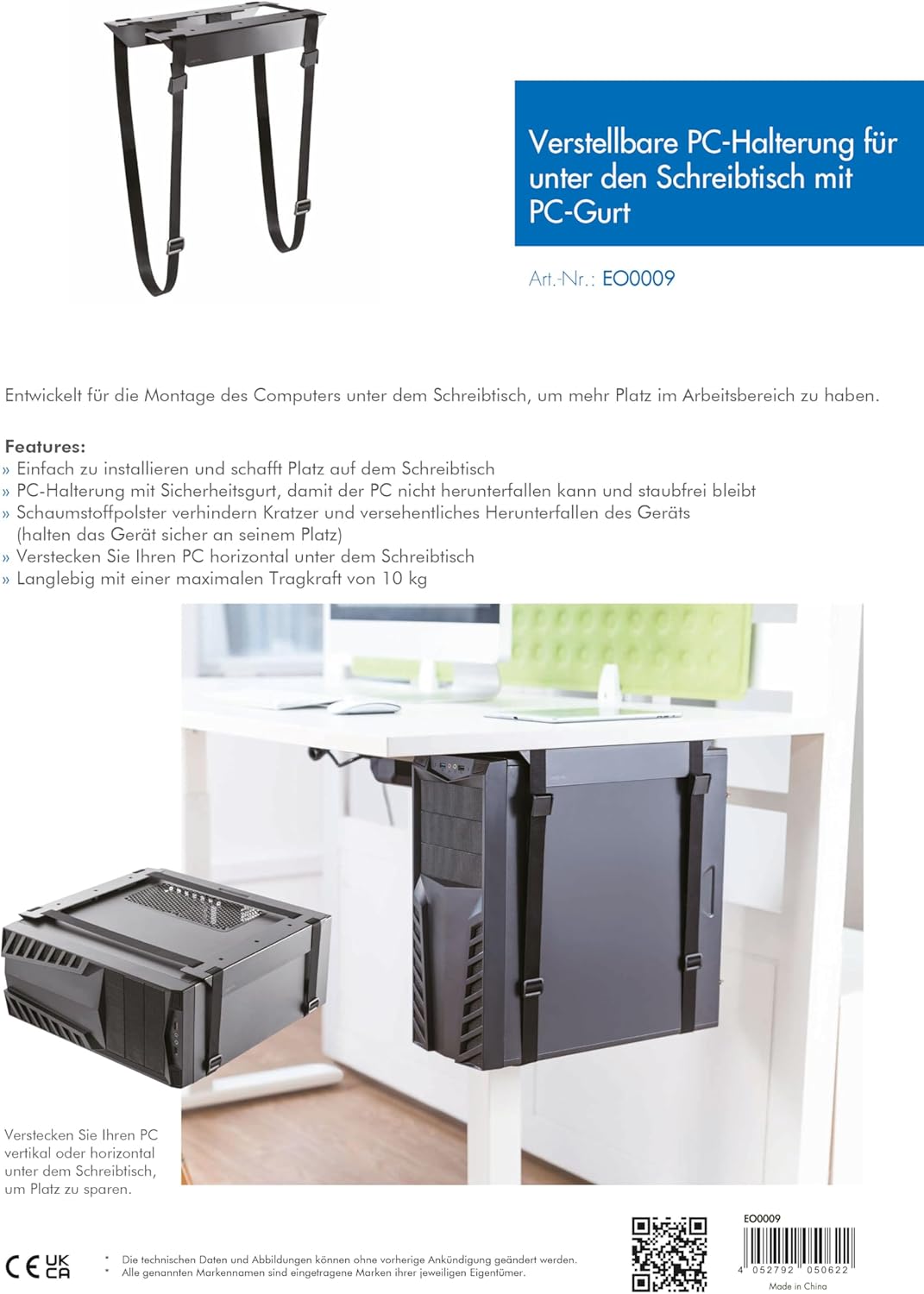
Image 8.1: Technical diagram illustrating the adjustable dimensions and features of the PC mount.
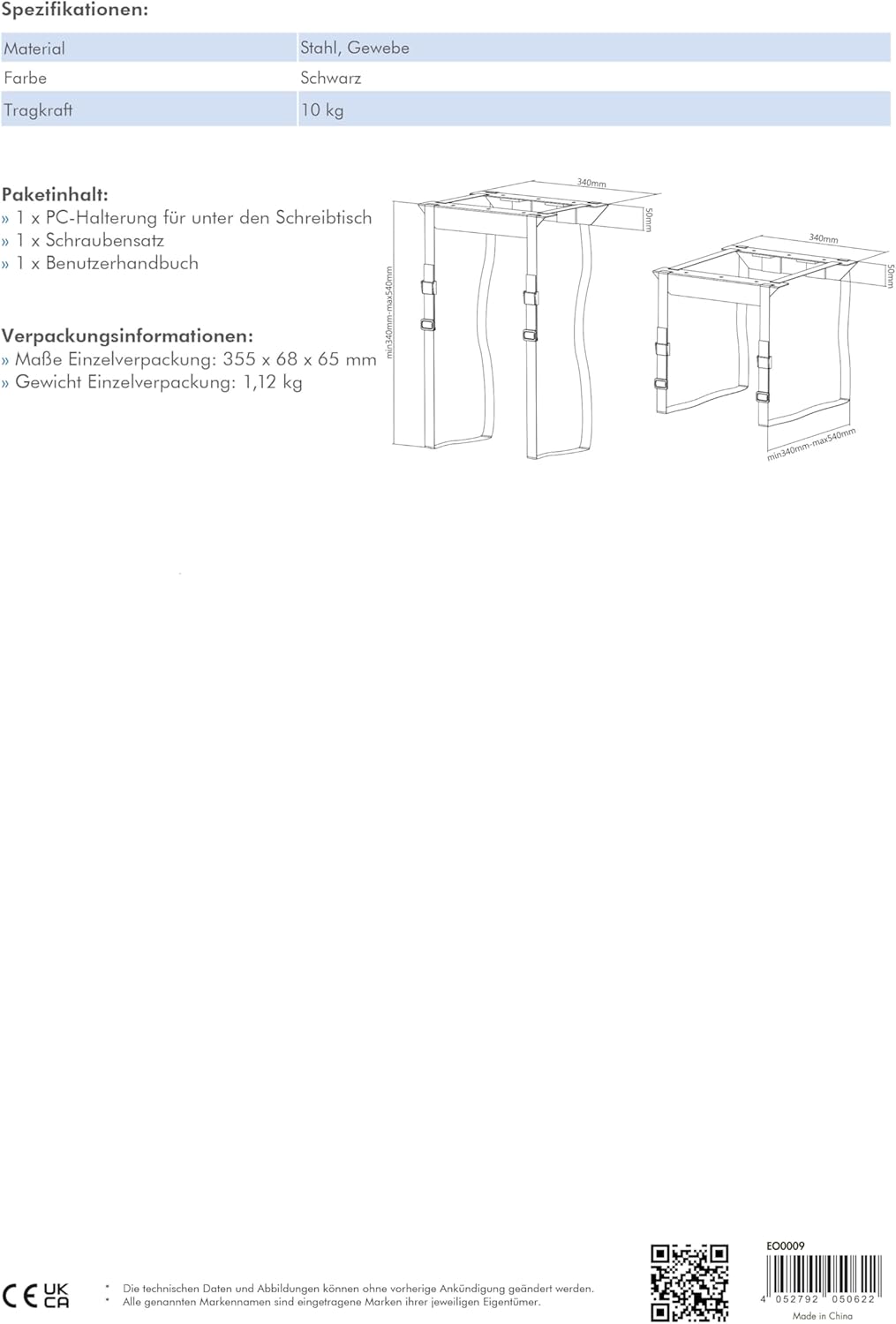
Image 8.2: Detailed diagram showing the minimum and maximum adjustable dimensions of the PC mount.
9. Warranty and Support
For warranty information or technical support, please contact your retailer or visit the manufacturer's website. You can find more product details and support resources at www.2direct.de.


