
1. Introduction
Thank you for purchasing the Yenkee YKB 3200 Gaming Keyboard. This manual provides essential information for the proper setup, operation, and maintenance of your new keyboard. Please read this manual thoroughly before using the product to ensure optimal performance and longevity.
2. Safety Information
- Keep the keyboard away from liquids and excessive moisture.
- Do not expose the keyboard to extreme temperatures.
- Avoid dropping or subjecting the keyboard to strong impacts.
- Do not attempt to disassemble or repair the keyboard yourself. Refer all servicing to qualified personnel.
- Use only a dry, soft cloth for cleaning.
3. Package Contents
Please check the package contents upon unpacking. If any items are missing or damaged, contact your retailer.
- Yenkee YKB 3200 Gaming Keyboard with integrated smartphone holder
- USB Cable (attached)
4. Product Overview
The Yenkee YKB 3200 is a robust gaming keyboard designed for an enhanced gaming experience. It features a durable metal construction, responsive rubber dome keys, and dynamic rainbow backlighting.
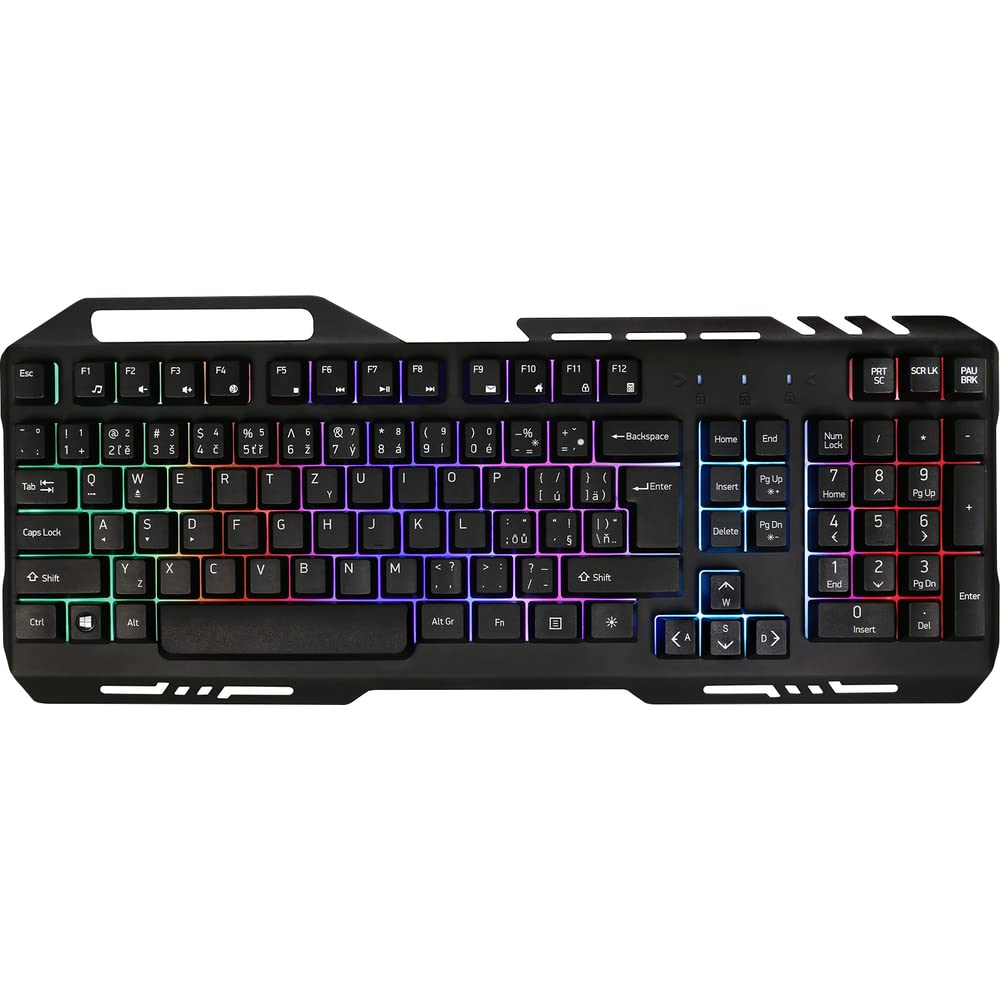
Image 1: Yenkee YKB 3200 Gaming Keyboard. This image displays the full keyboard with its metal frame and illuminated keys, highlighting the integrated smartphone holder at the top.
Key Features:
- Metal Keyboard Design: Provides enhanced durability and a premium feel.
- Integrated Smartphone Holder: Conveniently located at the top of the keyboard for easy access to your mobile device.
- Durable Rubber Dome Keys: Offers a comfortable and responsive typing experience.
- Nine Rainbow Backlight Modes: Customizable lighting effects to suit your preference and gaming atmosphere.
- USB Connectivity: Simple plug-and-play connection to your computer.
- 1.5m Cable Length: Provides ample reach for various setups.
5. Setup
- Unpack the Keyboard: Carefully remove the keyboard from its packaging.
- Connect to Computer: Locate an available USB port on your computer (PC or laptop). Insert the USB connector of the keyboard into the USB port.
- Driver Installation: The keyboard is plug-and-play and typically does not require additional driver installation. Your operating system should automatically detect and install the necessary drivers.
- Placement: Place the keyboard on a stable, flat surface. You can use the integrated smartphone holder to position your mobile device.
- Test Functionality: Open a text editor or browser to test if the keys are responding correctly.
6. Operating Instructions
Backlight Control:
The Yenkee YKB 3200 features nine distinct rainbow backlight modes. These modes can typically be cycled through using a dedicated function key combination.
- Changing Modes: Look for a key labeled 'FN' (Function) and a key with a light bulb icon or 'Scroll Lock' / 'Pause Break'. Pressing FN + Light Bulb / Scroll Lock / Pause Break (depending on keyboard layout) will cycle through the available backlight modes.
- Adjusting Brightness: Some keyboards allow brightness adjustment using FN + Up/Down Arrow keys. Refer to your specific keyboard layout for exact key combinations.
- Turning Backlight On/Off: A long press of the backlight control key or a specific FN combination might turn the backlight on or off.
Multimedia and Function Keys:
The keyboard may include additional function keys (F1-F12) that, when combined with the 'FN' key, provide multimedia control or quick access to applications. Common functions include:
- FN + F1-F12: Volume control, media playback, email, web browser, etc. (Specific functions vary by model).
7. Maintenance
Cleaning:
- General Cleaning: Use a soft, dry, lint-free cloth to wipe the surface of the keyboard.
- Dust Removal: Use compressed air to remove dust and debris from between the keys.
- Stubborn Stains: For stubborn stains, slightly dampen the cloth with water or a mild, non-abrasive cleaning solution. Ensure no liquid enters the keyboard.
Storage:
When not in use for extended periods, store the keyboard in a cool, dry place, away from direct sunlight and extreme temperatures.
8. Troubleshooting
| Problem | Possible Cause | Solution |
|---|---|---|
| Keyboard not responding | Loose USB connection, faulty USB port, driver issue. | Ensure USB cable is securely connected. Try a different USB port. Restart your computer. |
| Backlight not working | Backlight turned off, low brightness setting. | Press the backlight control key combination (e.g., FN + Scroll Lock) to cycle modes or adjust brightness. |
| Keys are sticky or unresponsive | Dirt or debris under keys. | Clean the keyboard using compressed air and a soft cloth. |
9. Specifications
| Feature | Specification |
|---|---|
| Brand | Yenkee |
| Model Number | YKB 3200 |
| Connectivity Technology | USB |
| Cable Length | 1.5 meters |
| Keyboard Description | Gaming |
| Backlight Theme | Rainbow (9 modes) |
| Compatible Devices | Laptop, PC |
| Product Dimensions | 45.2 x 20 x 3.5 cm |
| Product Weight | 841 g |
| Included Components | USB cable (attached) |
10. Warranty and Support
Yenkee products are designed and manufactured to the highest quality standards. For information regarding warranty terms and conditions, please refer to the warranty card included with your purchase or visit the official Yenkee website. For technical support or service inquiries, please contact your local retailer or the Yenkee customer support team.


