Introduction
This manual provides detailed instructions for the proper use and maintenance of your Casio MX-12 Desk Calculator. Please read this manual thoroughly before using the calculator to ensure optimal performance and longevity.
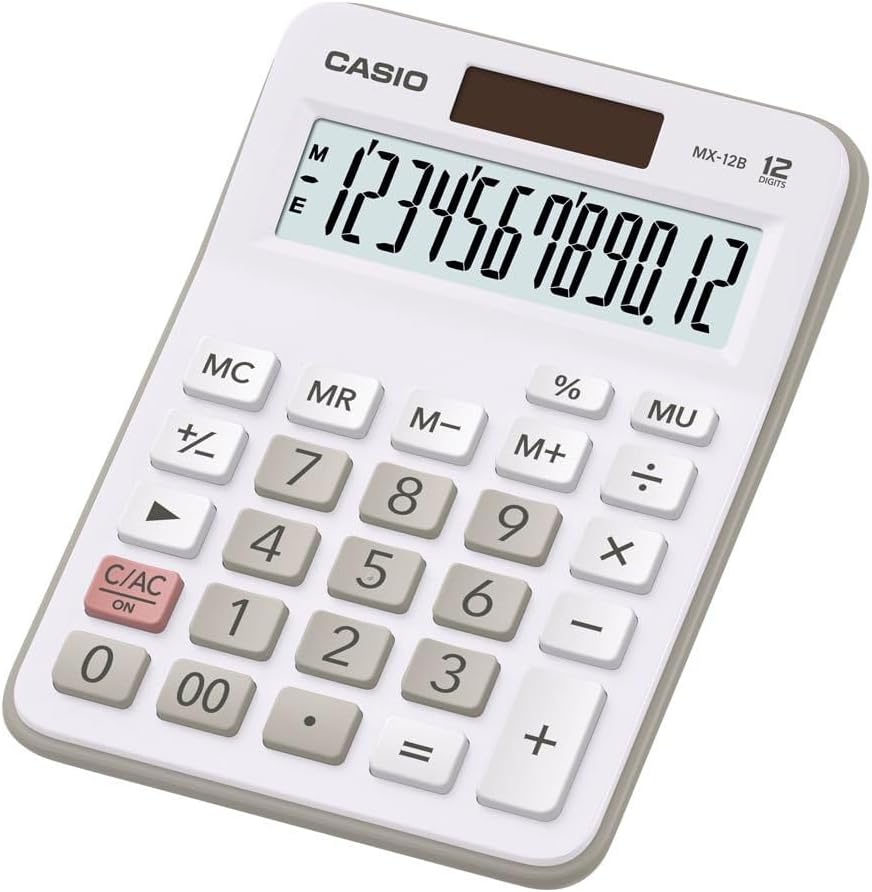
Image: The Casio MX-12 Desk Calculator, featuring a clear 12-digit display and a standard key layout for basic and advanced calculations.
Setup
Power Source
The Casio MX-12 calculator is dual-powered, operating on both solar energy and a battery backup. For optimal performance, use the calculator in a well-lit environment. The solar panel, located above the display, will power the unit and charge the internal battery.
Battery Installation/Replacement
The calculator requires one AAA battery (included) for backup power. If the display becomes dim or unresponsive in low light conditions, the battery may need replacement.
- Turn the calculator over.
- Locate the battery compartment cover.
- Remove the screw (if present) and slide the cover off.
- Insert a new AAA battery, ensuring the correct polarity (+/-).
- Replace the battery compartment cover and secure it.
Operating Instructions
The Casio MX-12 features a large, clear 12-digit display and a user-friendly key layout for various calculations.
Basic Arithmetic Operations
- Addition (+): Enter the first number, press +, enter the second number, then press =.
- Subtraction (-): Enter the first number, press -, enter the second number, then press =.
- Multiplication (×): Enter the first number, press ×, enter the second number, then press =.
- Division (÷): Enter the first number, press ÷, enter the second number, then press =.
Special Functions
- Clear/All Clear (C/AC): Press C/AC once to clear the last entry. Press it twice to clear all entries and reset the calculator.
- Percentage (%): To calculate a percentage, enter the number, press ×, enter the percentage value, then press %. For example, to find 15% of 200: 200 × 15 %.
- Change Sign (+/-): Press +/- to change the sign of the displayed number from positive to negative or vice versa.
- Mark-up (MU): The MU key is used for profit margin calculations. For example, to calculate the selling price with a 25% profit margin on a cost of 80: 80 ÷ 25 MU.
- Double Zero (00): Use the 00 key for quick entry of two zeros.
Memory Functions
The calculator includes a 4-key memory function:
- Memory Plus (M+): Adds the displayed value to the memory.
- Memory Minus (M-): Subtracts the displayed value from the memory.
- Memory Recall (MR): Recalls the value stored in memory to the display.
- Memory Clear (MC): Clears the value stored in memory.
Maintenance
Cleaning
To clean the calculator, wipe it gently with a soft, dry cloth. Do not use abrasive cleaners, solvents, or excessive moisture, as these can damage the display or internal components.
Storage
Store the calculator in a cool, dry place away from direct sunlight and extreme temperatures. Prolonged exposure to direct sunlight can affect the solar panel's efficiency and the display's longevity.
Troubleshooting
- Display is blank or dim:
- Ensure the calculator is in a well-lit area for the solar panel to function.
- Check the AAA battery. Replace it if necessary (refer to "Battery Installation/Replacement" in the Setup section).
- Incorrect calculation results:
- Press C/AC twice to clear all previous entries and memory.
- Re-enter the calculation carefully.
- Ensure you are using the correct function keys for your desired operation.
- Keys are unresponsive:
- Clean the calculator surface and keys to remove any debris.
- Ensure the calculator is adequately powered (solar or battery).
Specifications
| Model Number | MX-12B-WE-W-EC |
| Display | 12 Digits, Large LCD |
| Power Source | Dual Powered (Solar with Battery Backup) |
| Battery Type | 1 x AAA (included) |
| Dimensions (L x W x H) | 5.79 x 4.21 x 1.14 inches (14.7 x 10.7 x 2.9 cm) |
| Weight | 4.9 ounces (139 grams) |
| Functions | Basic Arithmetic, Percentage, Mark-up (MU), Change Sign, 4-Key Memory |
Warranty and Support
Casio products are manufactured to high-quality standards. For information regarding warranty coverage, service, or technical support, please refer to the warranty card included with your product or visit the official Casio website. Keep your purchase receipt as proof of purchase.
For further assistance, you may visit the Casio Store on Amazon or contact Casio customer service directly.


