
Road Angel Aura HD3
Road Angel Halo Pro Dashcam User Manual
Model: Aura HD3
1. Product Overview
The Road Angel Halo Pro is an advanced dual-channel dashcam system designed to provide comprehensive video surveillance for your vehicle. It records high-resolution footage from both the front and rear of your vehicle, offering peace of mind and crucial evidence in the event of an incident. Its compact design ensures minimal obstruction to your view.

Figure 1.1: Road Angel Halo Pro Dashcam Front and Rear Units.
Key Features:
- Dual Camera Recording: Captures 2K (1440p) footage from the front and 1080p from the rear simultaneously.
- Wide Viewing Angles: 140-degree front and 120-degree rear viewing angles for extensive coverage.
- Built-in GPS: Records speed and location data for accurate incident reconstruction.
- G-Sensor: Automatically detects impacts and sudden movements, locking the current footage to prevent overwriting.
- Parking Mode: Provides 24/7 surveillance when your vehicle is parked, protecting against bumps and vandalism.
- Wi-Fi Connectivity: Seamlessly connect to the dashcam via a smartphone app for live view, footage playback, and settings management.
- Loop Recording: Continuously records, overwriting the oldest footage when the memory card is full.
- Night Vision: Enhanced low-light performance for clear recordings in challenging conditions.

Figure 1.2: Overview of Halo Pro's main features including dual cameras, 2K quality, wide viewing angles, parking mode, and GPS/telematics.
2. Setup and Installation
Proper installation is crucial for optimal performance of your Road Angel Halo Pro Dashcam. Please follow these steps carefully.
2.1 Package Contents
Before beginning, ensure all components are present:
- Road Angel Halo Pro Front Camera Unit
- Road Angel Halo Pro Rear Camera Unit
- Rear Camera Connection Cable
- Power Cable (12V USB-C)
- Mounting Bracket with Adhesive Pad
- User Manual (this document)
2.2 Inserting the Micro SD Card
The Halo Pro supports Micro SD cards up to 128GB (sold separately). A high-speed Class 10 or U3 card is recommended for reliable recording.
- Locate the Micro SD card slot on the side of the front camera unit.
- Insert the Micro SD card with the gold contacts facing away from the screen until it clicks into place.
- To remove, gently push the card in until it clicks, then release to eject.
2.3 Mounting the Dashcam
Choose a location that does not obstruct the driver's view or interfere with airbags. The recommended position is behind the rearview mirror.
- Clean the windshield surface thoroughly where the dashcam will be mounted. Ensure it is dry and free of dust.
- Attach the adhesive pad to the mounting bracket.
- Peel off the protective film from the adhesive pad and firmly press the bracket onto the chosen location on the windshield for at least 30 seconds.
- Slide the front camera unit onto the mounted bracket until it locks securely.
- For the rear camera, mount it on the rear windshield, ensuring a clear view. Connect it to the front unit using the provided rear camera cable. Route the cable neatly along the vehicle's interior trim.

Figure 2.1: Illustration of dual front and rear dashcam placement and their respective viewing angles (140° front, 120° rear).
2.4 Power Connection
Connect the power cable to the dashcam's USB-C port and route it to your vehicle's 12V power outlet (cigarette lighter socket) or a hardwire kit (sold separately) for parking mode functionality.
- Plug the small end of the power cable into the USB-C port on the dashcam.
- Plug the other end into your vehicle's 12V power outlet.
- Start your vehicle. The dashcam should power on automatically and begin recording.
3. Operating the Dashcam
The Road Angel Halo Pro is designed for simple operation, with most functions managed via the dedicated smartphone app.
3.1 Initial Power On and Recording
Once connected to power, the dashcam will automatically power on and begin loop recording when the vehicle's ignition is on. The front and rear cameras will record simultaneously.
3.2 Smartphone App Integration
The Road Angel app allows you to control settings, view live footage, and download recordings.
- Download the "Road Angel Halo" app from your smartphone's app store (available on iOS and Android).
- Turn on the dashcam.
- On your smartphone, go to Wi-Fi settings and connect to the dashcam's Wi-Fi network (SSID and password can be found on the dashcam or in the manual).
- Open the Road Angel Halo app. You should now see the live view from the dashcam and be able to access its features.
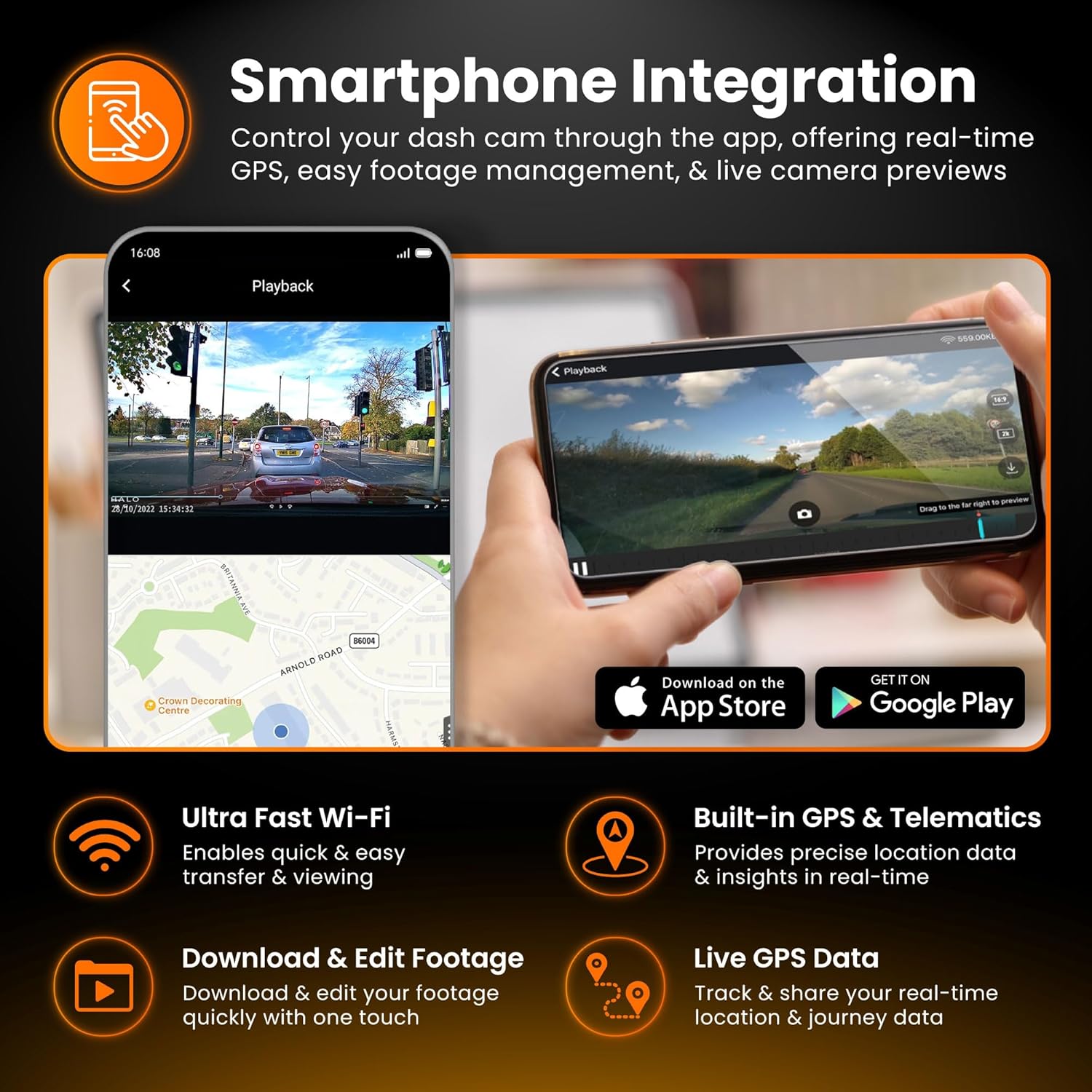
Figure 3.1: Smartphone integration showing live view, playback, and app download options for the Halo Pro.
3.3 G-Sensor and Emergency Recording
The built-in G-Sensor detects sudden impacts or rapid acceleration/deceleration. When triggered, it automatically locks the current video segment, preventing it from being overwritten by loop recording. These emergency files are stored in a separate folder on the SD card.
3.4 Parking Mode
For 24/7 surveillance, the Parking Mode feature requires a continuous power supply (e.g., via a hardwire kit). In parking mode, the dashcam will monitor for impacts or motion and record accordingly, conserving power when idle.

Figure 3.2: Parking Mode feature, illustrating G-Sensor detection and continuous surveillance for your vehicle.
3.5 Accessing and Managing Footage
Footage can be accessed and managed in two primary ways:
- Via Smartphone App: Connect to the dashcam's Wi-Fi, open the app, and navigate to the playback or gallery section. You can view, download, and share video clips directly from your phone.
- Via Micro SD Card: Remove the Micro SD card from the dashcam and insert it into a computer's card reader. Video files are typically organized into folders (e.g., Normal, Event, Parking).

Figure 3.3: Accessing and managing footage instantly on your smartphone via Wi-Fi, showing 2K front and 1080p rear capture.
4. Maintenance
Regular maintenance ensures the longevity and optimal performance of your dashcam.
4.1 Micro SD Card Management
It is recommended to format the Micro SD card regularly (e.g., once a month) using the dashcam's app or settings menu. This helps prevent data corruption and ensures smooth recording. Replace the SD card if you experience frequent errors or degraded performance.
4.2 Cleaning the Lenses
Periodically clean the front and rear camera lenses with a soft, lint-free cloth. Avoid abrasive materials or harsh chemicals that could scratch the lens or damage the coating.
4.3 Firmware Updates
Check the Road Angel website or app periodically for firmware updates. Keeping your dashcam's firmware up-to-date can improve performance, add new features, and resolve bugs.
5. Troubleshooting
If you encounter issues with your Road Angel Halo Pro, refer to the following common problems and solutions.
5.1 Dashcam Not Powering On
- Check Power Connection: Ensure the power cable is securely plugged into both the dashcam and the vehicle's 12V outlet.
- Vehicle Power: Verify that the vehicle's 12V outlet is receiving power (e.g., by testing with another device).
- Fuse: Check the fuse in your vehicle's fuse box that corresponds to the 12V outlet.
5.2 "SD Card Error" Message
- Format SD Card: Format the Micro SD card using the dashcam's app or by inserting it into a computer and formatting it to FAT32.
- Check SD Card Compatibility: Ensure you are using a Class 10 or U3 Micro SD card from a reputable brand.
- Replace SD Card: If errors persist, the SD card may be faulty and require replacement.
5.3 Wi-Fi Connection Issues
- Dashcam On: Ensure the dashcam is powered on and Wi-Fi is enabled.
- Forget Network: On your phone, 'forget' the dashcam's Wi-Fi network and try reconnecting.
- Restart Devices: Restart both your smartphone and the dashcam.
- App Permissions: Ensure the Road Angel Halo app has necessary permissions (e.g., location, local network access) on your smartphone.
5.4 Poor Video Quality
- Clean Lenses: Ensure both front and rear camera lenses are clean and free from smudges or dirt.
- Protective Film: Check if any protective film is still on the lenses.
- Resolution Settings: Verify that the recording resolution is set to the highest available (2K front, 1080p rear) in the app settings.
6. Specifications
Detailed technical specifications for the Road Angel Halo Pro Dashcam.
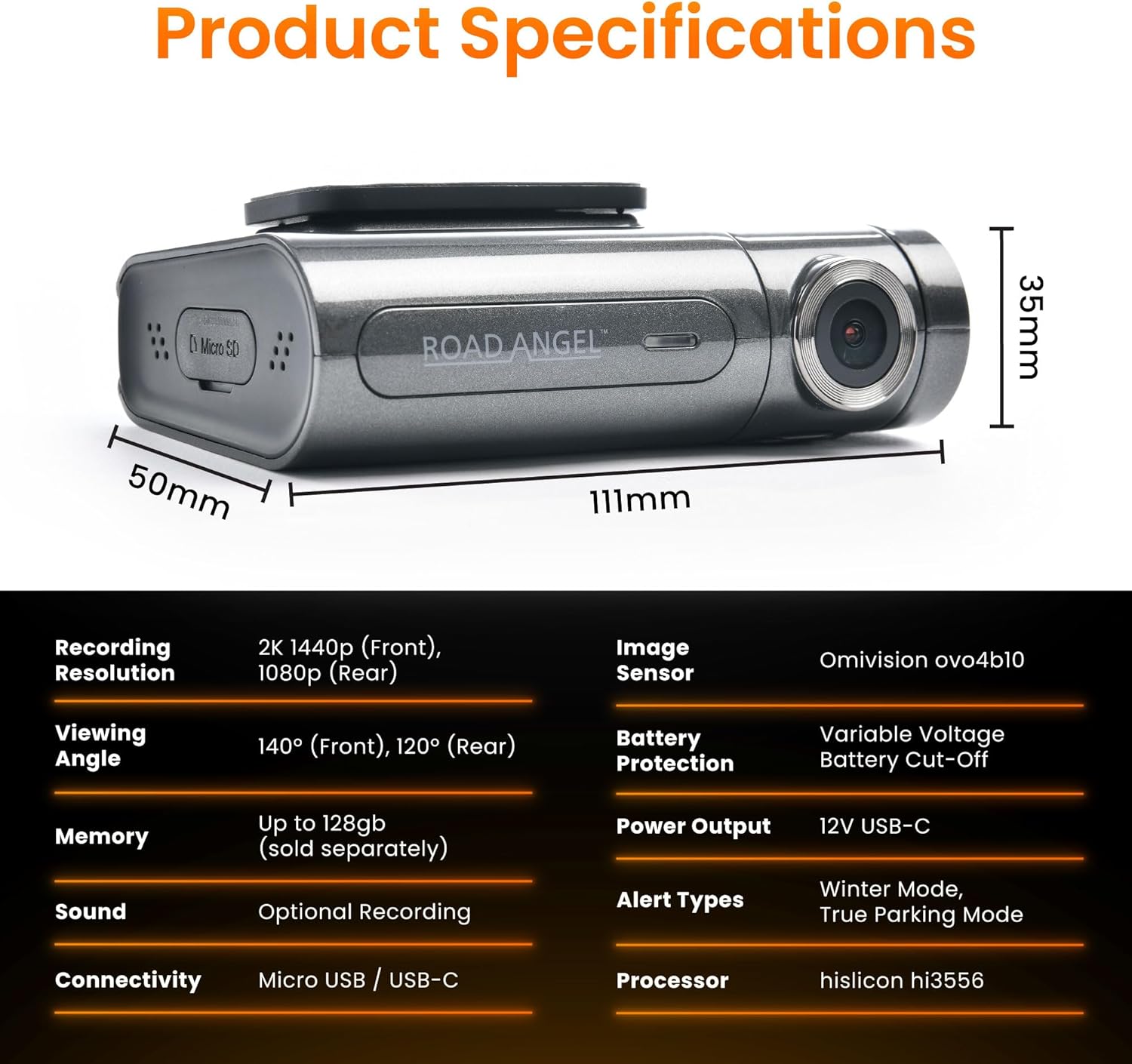
Figure 6.1: Detailed product specifications including dimensions and technical parameters.
| Feature | Specification |
|---|---|
| Model Number | Aura HD3 |
| Recording Resolution | Front: 2K (1440p), Rear: 1080p |
| Viewing Angle | Front: 140°, Rear: 120° |
| Image Sensor | Omnivision ovo4b10 |
| Processor | Hisilicon hi3556 |
| Memory Support | Up to 128GB Micro SD (Class 10/U3 recommended) |
| Connectivity | Wi-Fi, Micro USB / USB-C |
| G-Sensor | Built-in |
| GPS | Built-in |
| Display Type | LCD |
| Power Input | 12V USB-C |
| Product Dimensions (Front Unit) | 6.2 x 9.3 x 2.8 cm |
| Product Weight | 0.13 kg (130 g) |
| Operating Temperature | Refer to manufacturer's guidelines |
7. Warranty and Support
For warranty information, technical support, and frequently asked questions, please visit the official Road Angel website or contact their customer service directly. Keep your proof of purchase for warranty claims.
Road Angel Official Website: www.roadangelgroup.com
Related documentsAura HD3


Ask a question about this manual
Ask about setup, troubleshooting, compatibility, parts, safety, or missing instructions. Manuals+ will review the question and use this page’s manual context to help answer it.