
EVERSECU B07HT73LV1
EVERSECU 2K 4MP Light-Bulb Security Camera User Manual
Model: B07HT73LV1
1. Introduction
This manual provides detailed instructions for the installation, operation, maintenance, and troubleshooting of your EVERSECU 2K 4MP Light-Bulb Security Camera. Please read this manual thoroughly before using the product to ensure proper functionality and safety. Keep this manual for future reference.

Image 1.1: The EVERSECU Light-Bulb Security Camera is suitable for various indoor and outdoor environments such as offices, warehouses, shops, and homes.
2. Product Overview
The EVERSECU Light-Bulb Security Camera is a versatile surveillance device designed for easy installation and comprehensive monitoring. It features high-definition video, night vision, two-way audio, and smart motion detection capabilities.
Key Features:
- 2K 4MP Ultra HD Video Resolution: Provides clear and detailed video footage (2560×1440).
- Wireless & Easy Installation: Screws directly into standard E26/E27 light sockets (110V~240V) without drilling or complex wiring.
- Starlight Night Vision: Equipped with 4 IR LEDs and 6 white LEDs for up to 31ft black/white and 65.6ft full-color night vision.
- 360° View (Pan/Tilt/Zoom): Offers 355° pan, 110° tilt, and 4x digital zoom, controllable via the ICSEE app.
- Two-Way Audio: Built-in microphone and speaker for real-time communication.
- Motion Detection & Auto Tracking: Detects movement, tracks subjects, and sends real-time alerts.
- IP66 Weather-Proof: Durable ABS plastic casing suitable for indoor and outdoor use (-4℉~+140℉).
- Alexa Compatibility: Supports voice control through Amazon Alexa.
- Storage Options: Supports local storage via SD card and cloud storage.

Image 2.1: The EVERSECU Light-Bulb Security Camera shown alongside its mobile application interface.

Image 2.2: Visual representation of the camera's core functionalities including motion detection, PTZ, color night vision, 2.4Ghz/5Ghz WiFi, two-way audio, sound alarm, SD card support, and cloud storage.
3. Setup
3.1 Package Contents
Verify that all components are present:
- EVERSECU Light-Bulb Security Camera
- User Manual (this document)
- Mounting accessories (if applicable, check packaging)
3.2 Installation
- Ensure the power to the light socket is turned off before installation.
- Screw the EVERSECU Light-Bulb Security Camera into a standard E26 or E27 light socket (110V~240V). No drilling or additional wiring is required.
- Turn on the power to the light socket. The camera will power on and initiate its startup sequence.
3.3 App Installation and Connection
- Download the ICSEE app from the App Store (iOS), Google Play Store (Android), or the official website for Windows.
- Register for an account and log in.
- Follow the in-app instructions to add your camera. This typically involves scanning a QR code on the camera or connecting to the camera's temporary Wi-Fi hotspot.
- Connect the camera to your 2.4Ghz Wi-Fi network. Ensure your Wi-Fi password is correct.
- Once connected, you can access the live feed and control the camera remotely.

Image 3.1: The ICSEE application is available for Android, iOS, and Windows platforms, allowing remote access and control of the camera.
4. Operating Instructions
4.1 Live View and PTZ Control
Open the ICSEE app to view the live feed from your camera. Use the on-screen controls to:
- Pan: Rotate the camera horizontally up to 355°.
- Tilt: Adjust the camera vertically up to 110°.
- Zoom: Use 4x digital zoom to magnify areas of interest.

Image 4.1: The camera offers extensive pan and tilt functionality for comprehensive area coverage.
4.2 Night Vision Modes
The camera supports two night vision modes:
- Infrared Night Vision: Utilizes IR LEDs for clear black and white video in low-light conditions (up to 31ft).
- Full-Color Night Vision: Activates white LEDs to provide full-color video even in darkness (up to 65.6ft). This mode can also deter intruders.
You can switch between these modes or set them to automatic activation within the app settings.
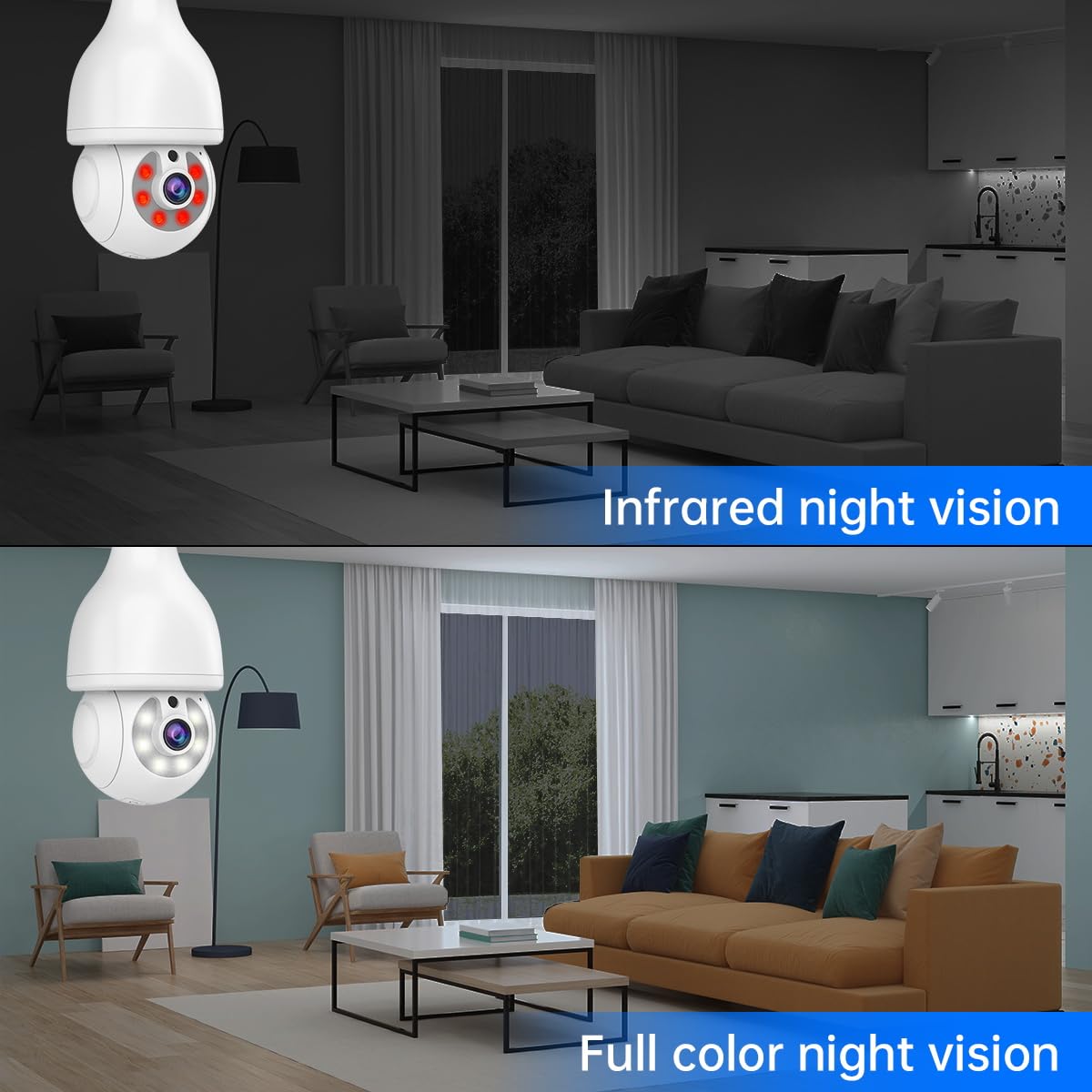
Image 4.2: A visual comparison demonstrating the clarity and detail provided by both infrared and full-color night vision capabilities.
4.3 Two-Way Audio
Use the two-way audio feature to communicate through the camera. Tap the microphone icon in the app to speak, and the camera's built-in speaker will broadcast your voice. You can also hear audio from the camera's location.

Image 4.3: The two-way audio function allows for interactive communication between the camera's location and the user's mobile device.
4.4 Motion Detection and Auto Tracking
Enable motion detection in the app to receive real-time alerts on your phone when movement is detected. The camera can automatically track the detected subject, ensuring continuous monitoring of suspicious activity. A sound alarm can also be configured to deter intruders.

Image 4.4: The camera's motion detection system triggers real-time alerts and automatically tracks moving objects, enhancing security.
4.5 Alexa Integration
The camera is compatible with Amazon Alexa. Follow the instructions in the ICSEE app or your Alexa app to link your camera and enable voice commands for viewing the camera feed on compatible Alexa devices.
5. Maintenance
5.1 Cleaning
To maintain optimal performance, periodically clean the camera lens and exterior casing with a soft, dry cloth. Avoid using harsh chemicals or abrasive materials that could damage the camera.
5.2 Firmware Updates
Regularly check for and apply firmware updates through the ICSEE app. Firmware updates often include performance improvements, new features, and security enhancements. Ensure a stable internet connection during updates to prevent interruption.
5.3 Weather Protection
While the camera is IP66 weather-proof, it is important to protect the light screw connector from direct water exposure, especially in outdoor installations, to prevent damage.
6. Troubleshooting
If you encounter issues with your camera, refer to the following common problems and solutions:
| Problem | Possible Cause | Solution |
|---|---|---|
| Camera fails to connect to Wi-Fi or frequently disconnects. | Weak Wi-Fi signal, incorrect Wi-Fi password, 5Ghz Wi-Fi network used. | Ensure the camera is within range of a 2.4Ghz Wi-Fi network. Verify the Wi-Fi password. Try resetting the camera and re-pairing it with the app. |
| Firmware update fails. | Unstable internet connection, corrupted download. | Ensure a strong and stable internet connection. Restart the app and camera, then attempt the update again. |
| No video feed in the app. | Camera offline, app issue, network problem. | Check if the camera is powered on and connected to Wi-Fi. Restart the ICSEE app. Verify your internet connection. |
| Motion detection alerts are not received. | Motion detection disabled, app notifications turned off, incorrect sensitivity settings. | Enable motion detection and push notifications in the ICSEE app. Adjust motion sensitivity settings. Check phone notification settings. |
| Two-way audio not working. | Microphone/speaker disabled in app, volume too low, network latency. | Ensure microphone and speaker functions are enabled and volume is adjusted in the app. Check network stability. |
For further assistance, please contact EVERSECU customer support.
7. Specifications
- Model: B07HT73LV1
- Video Resolution: 2560×1440 (4 Megapixel Ultra HD)
- Connectivity: Wireless 2.4Ghz WiFi
- Night Vision: 4 IR LEDs + 6 white LEDs; 31ft B/W, 65.6ft Full-Color
- Pan/Tilt Range: 355° Pan, 110° Tilt
- Digital Zoom: 4x
- Audio: Two-Way Audio (Built-in microphone and speaker)
- Weather Resistance: IP66
- Power Supply: E26 / E27 light socket (110V~240V)
- Dimensions: 4 x 4 x 8.7 inches
- Weight: 1.48 Pounds
- Compatibility: ICSEE App (Android, iOS, Windows), Amazon Alexa
- Storage: SD Card (not included), Cloud Storage (subscription may be required)
- Special Features: Motion Detection, Auto Tracking, RTSP Stream, ONVIF-conformant
8. Warranty and Support
For warranty information, please refer to the documentation provided at the time of purchase or visit the official EVERSECU website. For technical support or further inquiries, please contact EVERSECU customer service through their official channels.
Ask a question about this manual
Ask about setup, troubleshooting, compatibility, parts, safety, or missing instructions. Manuals+ will review the question and use this page’s manual context to help answer it.