
Introduction
This manual provides comprehensive instructions for the setup, operation, and maintenance of your EUG Portable WiFi Wireless Projector. Designed for home theater, outdoor movies, and gaming, this projector features an integrated Android OS, WiFi, and Bluetooth connectivity, offering a versatile entertainment experience. Please read this manual thoroughly before using the projector to ensure proper operation and to maximize its lifespan.
Safety Information
To ensure safe operation and prevent damage, observe the following precautions:
- Do not block ventilation openings. Ensure adequate space around the projector for proper airflow.
- Do not expose the projector to rain, moisture, or extreme temperatures.
- Use only the power adapter supplied with the projector.
- Avoid looking directly into the projector lens when the lamp is on, as the bright light can cause eye strain.
- Do not attempt to disassemble or modify the projector. Refer all servicing to qualified personnel.
- Keep the projector away from water and other liquids.
Package Contents
Verify that all items are present in your package:
- 1 x EUG Projector
- 1 x AV Signal Cable
- 1 x HDMI Cable
- 1 x Remote Control
- 1 x User Manual (this document)
- 1 x Power Cable
Product Overview
Physical Appearance and Portability

The EUG projector is designed for portability, easily fitting in one hand. Its compact size makes it convenient for transport and setup in various locations.

Dimensions of the projector are approximately 24.99 cm (9.8 inches) in length, 19.51 cm (7.6 inches) in width, and 8.99 cm (3.5 inches) in height, with a net weight of 1.81 kg (4.0 lbs).
Input and Output Ports

The projector features a variety of input and output ports for versatile connectivity, including USB, two HDMI inputs, AV, VGA, and an Audio Out port. These allow connection to game consoles, Blu-ray players, laptops, and other devices.
Smart Features and Connectivity

Equipped with Android OS, the projector supports Bluetooth 4.0 and 5G WiFi (802.11AC), enabling wireless connections to external speakers, headphones, gamepads, keyboards, and mice. It also allows access to various applications like YouTube and Netflix.
Setup
Placement and Projection
The optimal projection size ranges from 29 to 130 inches, with a corresponding throw distance of 0.7 to 3.3 meters (3.54 to 12.33 feet). Adjust the projector's position to achieve the desired screen size.

The projector can be set up for rear projection, mounted to the ceiling, or simply placed on a desk, offering flexibility for various environments.
Initial Power-On and Adjustments
- Connect the power cable to the projector and a power outlet.
- Press the power button on the projector or remote control to turn it on.
- Adjust the Manual Focus ring on the lens until the image is clear and sharp.
- Use the Vertical Keystone correction feature (±15°) to correct distorted images if the projector is not perfectly perpendicular to the screen.
Operating Instructions
Input Source Selection
After powering on, select your desired input source from the main menu. Options include HDMI 1, HDMI 2, USB, VGA, and AV. Use the remote control to navigate the menu.
Android OS Navigation
The projector runs on an integrated Android OS. Use the remote control or a connected mouse/keyboard to navigate the interface. You can download and install applications from the pre-installed app store (e.g., HappyCast, Play Store) or directly from APK files.
Wireless Connectivity (WiFi & Bluetooth)
- WiFi: Go to Settings > Network & Internet > Wi-Fi to connect to your wireless network. This enables internet browsing and online streaming.
- Bluetooth: Go to Settings > Connected devices > Pair new device to connect Bluetooth speakers, headphones, or input devices.
Screen Mirroring

The projector supports Miracast, AirPlay, and DLNA for wireless screen mirroring from compatible mobile devices. This allows you to project videos, photos, and games directly from your smartphone or tablet to the large screen.
To use screen mirroring, ensure both your mobile device and the projector are connected to the same WiFi network. Select the appropriate mirroring app on the projector (e.g., HappyCast) and follow the on-screen instructions on your mobile device.
Media Playback via USB
Insert a USB drive into the USB port. The projector's media player will automatically detect the drive, allowing you to browse and play supported video, audio, and image files. It supports external hard drives up to 1TB.
Maintenance
Cleaning
- Use a soft, dry cloth to clean the projector's exterior.
- For the lens, use a lens cleaning cloth and specialized lens cleaning solution. Do not use abrasive cleaners.
- Regularly clean the ventilation grilles to prevent dust buildup, which can affect cooling performance.
Lamp and Cooling System

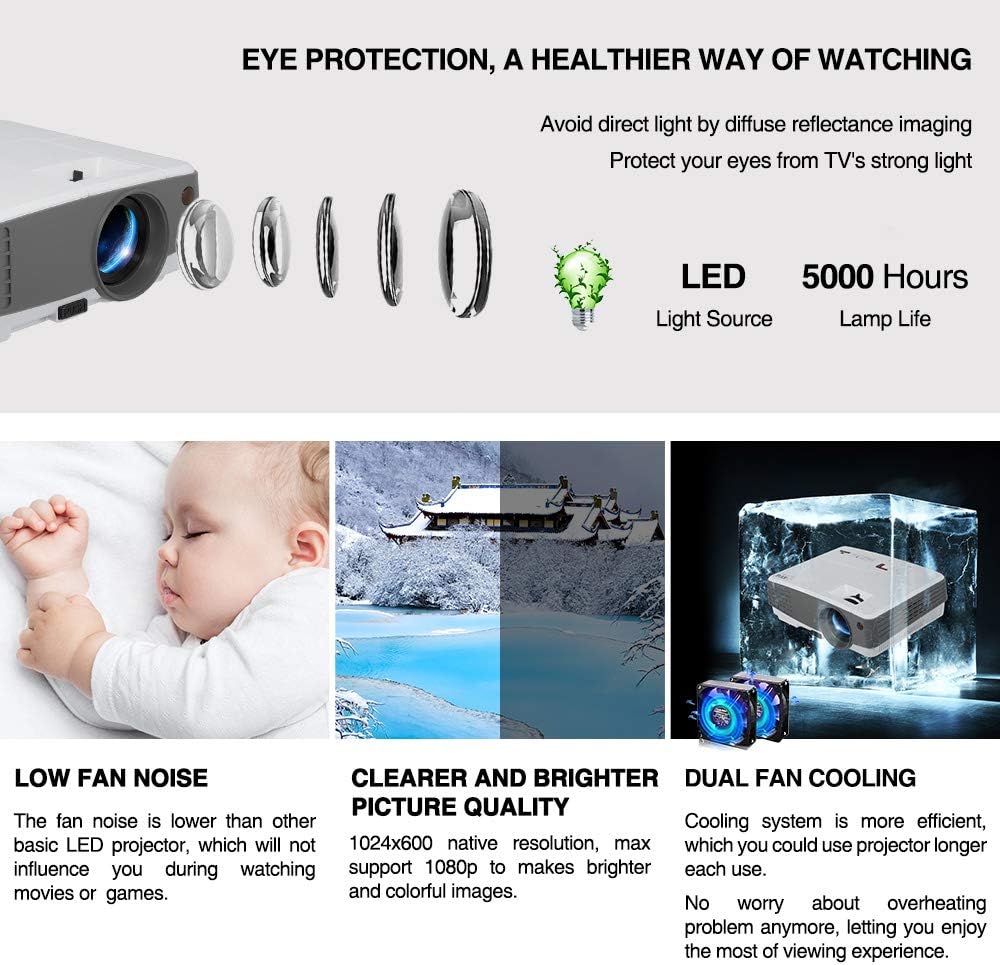
The projector utilizes an LED light source with an estimated lifespan of over 50,000 hours, significantly reducing the need for lamp replacement. It features a third-generation cooling system with Maglev fans and dual copper heat dissipation tubes to ensure efficient and quiet operation, preventing overheating.
Troubleshooting
| Problem | Possible Cause | Solution |
|---|---|---|
| No image on screen | Power cable disconnected; incorrect input source selected; lens cap on. | Check power connection; select correct input source (HDMI, USB, VGA, AV); remove lens cap. |
| Image is blurry | Focus not adjusted; projector too close/far from screen. | Adjust the manual focus ring; reposition the projector within the recommended throw distance. |
| Image is trapezoidal | Projector not perpendicular to screen. | Adjust the vertical keystone correction. |
| No sound | Volume too low; external audio device not connected properly; incorrect audio output selected. | Increase volume; ensure external speakers/headphones are connected correctly; check audio settings in Android OS. |
| WiFi/Bluetooth connection issues | Incorrect password; device out of range; interference. | Re-enter password; move device closer; reduce interference from other electronics. |
Specifications
| Feature | Detail |
|---|---|
| Model | EUG 600D+ Bluetooth Android (SP-07) |
| Brightness | 3300 Lumens |
| Contrast Ratio | 3200:1 |
| Native Resolution | 1024 x 600 (Supports 1080P) |
| Image Size | 29-130 inches |
| Throw Distance | 0.7-3.3 meters (3.54-12.33 feet) |
| Aspect Ratio | 16:9 / 4:3 |
| Display Type | LCD with 100W LED Lamp |
| Lamp Life | Up to 50,000 hours |
| Power Supply | AC 100-240V / 50-60Hz |
| Power Consumption | <90W |
| Connectivity | HDMI (x2), USB, VGA, AV, Audio Out, WiFi (802.11AC 5G), Bluetooth 4.0 |
| Operating System | Android OS |
| RAM / ROM | 1GB RAM / 8GB ROM |
| Dimensions (L x W x H) | 24.99 x 19.51 x 8.99 cm (9.8 x 7.6 x 3.5 inches) |
| Net Weight | 1.81 kg (4.0 lbs) |
Warranty and Support
Your EUG projector comes with a 1-year warranty from the date of purchase. This warranty covers manufacturing defects and ensures proper functioning under normal use. For warranty claims or technical support, please contact your retailer or the official EUG support channels.
For further assistance, please visit the EUG Brand Store on Amazon or refer to the contact information provided with your purchase documentation.
