
1. Introduction
This manual provides detailed instructions for the installation, operation, and maintenance of your Corehan 7-inch Double Din Android Car Stereo. This unit features a 7-inch touch screen, Bluetooth, WiFi, and GPS navigation, running on Android 8.1. It supports steering wheel controls (SWC), rear camera input, and FM radio. The system allows for downloading additional applications from the Google Play Store to expand its functionality.

Figure 1: Corehan 7-inch Double Din Android Car Stereo Unit
2. What's in the Box
Please verify that all items listed below are included in your package:
- Car Stereo (x1)
- Wiring Harness (x1)
- RCA Cables (x1)
- USB Cable (x1)
- GPS Antenna (x1)
- User & Installation Manual (x1)

Figure 2: All components included in the Corehan car stereo package.
3. Setup and Installation
Installation of the car stereo requires technical knowledge and should ideally be performed by a qualified professional. Refer to the included Installation Manual for detailed wiring diagrams and specific steps for your vehicle model. Ensure the vehicle's power is disconnected before beginning installation.
3.1. Basic Wiring Connections
- Power Connection: Connect the main power harness to your vehicle's power supply, ensuring correct positive, negative, and accessory wire connections.
- Speaker Connections: Connect the speaker wires from the stereo harness to your vehicle's speakers.
- GPS Antenna: Mount the GPS antenna in a location with a clear view of the sky, typically on the dashboard or under the windshield.
- USB Cables: Connect the provided USB cables for external media or device charging.
- RCA Cables: Connect RCA cables for external amplifiers, subwoofers, or video output to headrest monitors.
- Rear Camera Input: If installing a rear camera, connect its video and power cables to the designated inputs on the stereo.
- Steering Wheel Control (SWC): Connect the SWC wires to your vehicle's steering wheel control interface (if applicable) to enable control from your steering wheel.
3.2. Initial Power-Up
After all connections are secure, reconnect the vehicle's power. The unit should power on automatically or by pressing the power button. Follow any on-screen prompts for initial setup, such as language selection and time zone.
4. Operating Instructions
4.1. Bluetooth Connectivity
The unit features built-in Bluetooth for hands-free calling and audio streaming. To connect your device:
- Go to the Bluetooth settings on the stereo.
- Enable Bluetooth on your mobile device and search for available devices.
- Select the stereo's name (e.g., "Corehan Car Stereo") from your device's list.
- Confirm the pairing code on both devices.
Once paired, you can make/receive calls and stream music wirelessly.

Figure 3: Bluetooth interface on the Corehan car stereo, showing a connected smartphone.
4.2. GPS Navigation
The stereo includes a built-in GPS module and an external GPS antenna. It supports most navigation applications with offline map capabilities. This allows for navigation even in areas without mobile data signals.

Figure 4: GPS navigation displayed on the Corehan car stereo screen.
4.3. Mirror Link Functionality
The Mirror Link feature allows you to cast the screen of your Android or iOS device directly onto the head unit's display. This enables viewing content from your smartphone on the larger screen.

Figure 5: Mirror Link feature showing a smartphone screen mirrored on the car stereo.
4.4. Multimedia Playback
The unit supports various multimedia channels including USB drives, micro SD cards, and Bluetooth for music and video playback. You can also download music and video applications from the Google Play Store.

Figure 6: Music playback interface on the Corehan car stereo.
4.5. Video Output
The Android car stereo supports video output to external displays, such as headrest monitors. This allows passengers to view videos simultaneously.
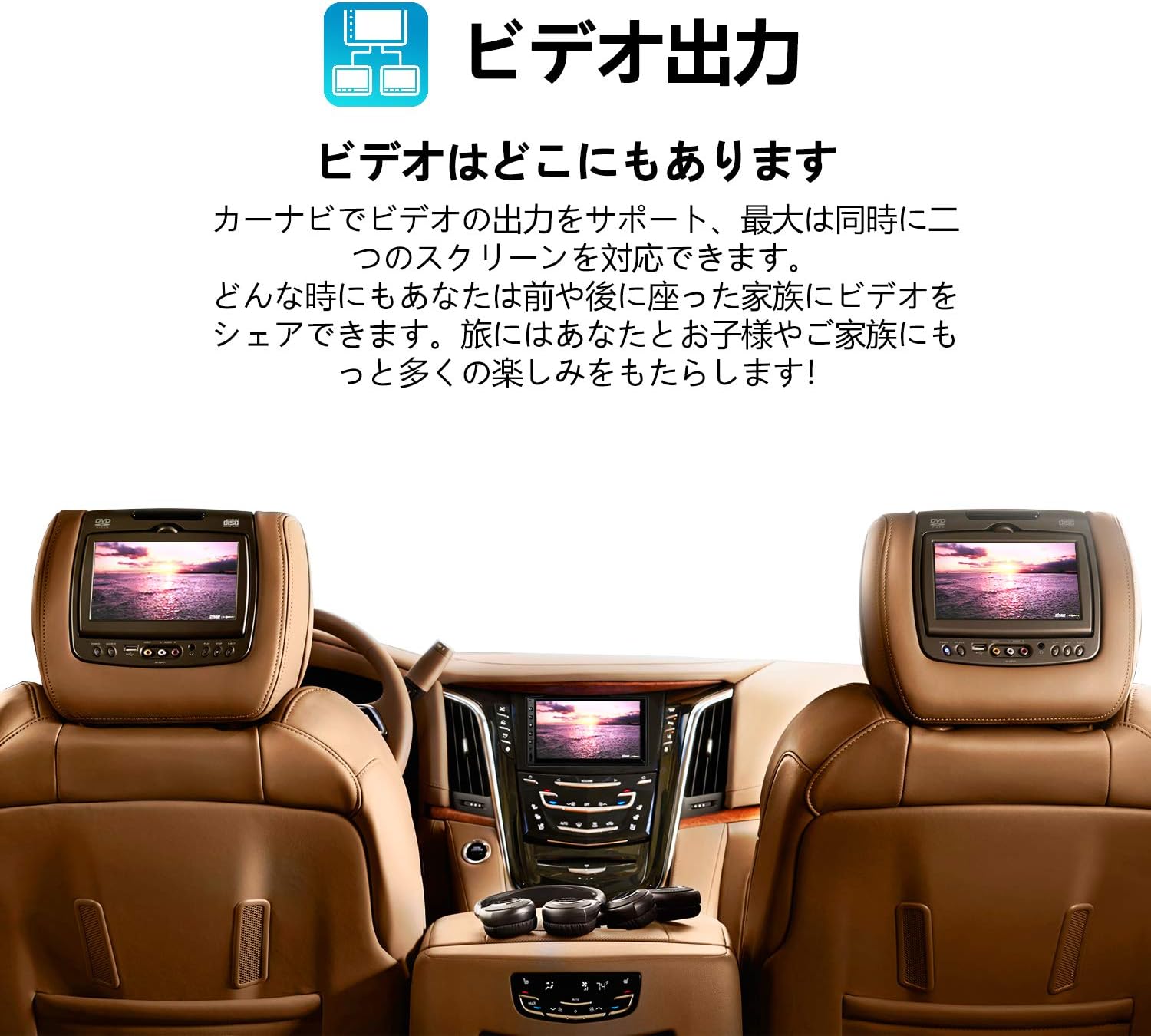
Figure 7: Car interior showing the Corehan stereo and two headrest monitors displaying the same video content.
4.6. OBDII Scanner Support
The unit supports connection to an OBDII scanner (sold separately), allowing you to monitor vehicle diagnostics and engine information directly on the stereo display.
5. Maintenance
5.1. Cleaning the Screen
Use a soft, lint-free cloth to gently wipe the touch screen. For stubborn smudges, slightly dampen the cloth with water or a screen-safe cleaner. Avoid harsh chemicals or abrasive materials.
5.2. Software Updates
Periodically check for software updates to ensure optimal performance and access to new features. Updates can typically be found through the system settings or the manufacturer's website. Follow the on-screen instructions carefully during the update process.
6. Troubleshooting
If you encounter issues with your car stereo, try the following basic troubleshooting steps:
- No Power: Check all power connections and fuses. Ensure the vehicle's ignition is on.
- No Sound: Verify speaker connections, volume levels, and audio source selection.
- Bluetooth Connection Issues: Ensure Bluetooth is enabled on both devices and try re-pairing. Clear previous pairings if necessary.
- GPS Signal Loss: Ensure the GPS antenna has a clear view of the sky and is securely connected.
- Touch Screen Unresponsive: Try restarting the unit. If the issue persists, a factory reset may be required (note: this will erase all user data).
- System Slow/Freezing: Close unnecessary applications. A system restart or factory reset can often resolve performance issues.
For more complex problems, refer to the detailed troubleshooting section in the full User & Installation Manual or contact customer support.
7. Specifications
| Feature | Specification |
|---|---|
| Product Dimensions | 5.7 x 7 x 4 inches |
| Item Weight | 1.98 pounds |
| Model Number | COCS-JD-AN-03 |
| Operating System | Android 8.1 (as per product title, though specifications list Android 7) |
| RAM | 2 GB |
| Wireless Communication | Bluetooth, Wi-Fi |
| Connectivity Technologies | Bluetooth, USB, Wi-Fi |
| GPS | Supported (Built-in module and external antenna) |
| Special Features | Bluetooth, Touchscreen, Mirror Link, Video Output, OBDII Support |
| Display Resolution | 1024 x 600 |
| Screen Size | 7 Inches |
| Manufacturer | Corehan Technology |

Figure 8: Diagram illustrating the internal hardware of the Corehan car stereo.
8. Warranty and Support
Corehan provides detailed installation instructions and video tutorials to assist with the setup of your unit. For any technical assistance, installation queries, or operational problems, 7*24 hours of after-sales technical support is available.
Please refer to the contact information provided in your product packaging or on the official Corehan website for support details.


