
1. Introduction
This manual provides essential information for setting up, operating, maintaining, and troubleshooting your HP EliteDesk 800 G4 Small Form Factor (SFF) Desktop Computer. Designed for enterprise use, this system offers high performance and robust security features in a compact design.
Your HP EliteDesk 800 G4 SFF is equipped with an Intel Core i5-8500 processor, 16GB DDR4 SDRAM, a 256GB Solid State Drive (SSD), and comes pre-installed with Windows 10 Pro 64-bit. It also includes a DVD-Writer for optical media.
2. Setup
2.1 Unpacking
Carefully remove the computer and all accessories from the packaging. Ensure all components listed in the packing slip are present. Retain the packaging for future transport or service needs.
2.2 Connecting Peripherals
Before powering on, connect your essential peripherals:
- Monitor: Connect your display to one of the available video output ports (DisplayPort, HDMI, or VGA) on the rear of the computer.
- Keyboard and Mouse: Connect your USB keyboard and mouse to any available USB ports.
- Power Cable: Connect the power cable to the power connector on the rear of the computer, then plug it into a grounded electrical outlet.
- Network Cable (Optional): For wired internet access, connect an Ethernet cable to the RJ-45 network port on the rear.
- Audio Devices (Optional): Connect speakers or headphones to the audio output jack.

Figure 2.2.1: Front Panel Overview. This image displays the front of the HP EliteDesk 800 G4 SFF, highlighting the accessible USB ports (including USB-C), audio jacks, and the power button for easy access.
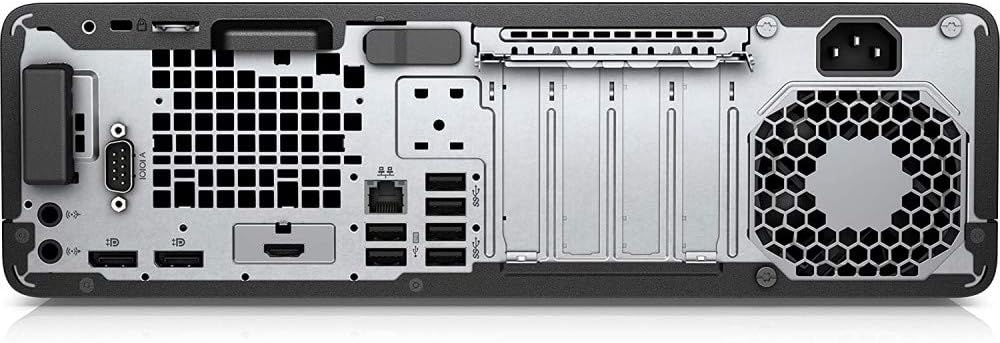
Figure 2.2.2: Rear Panel Overview. This image illustrates the back of the HP EliteDesk 800 G4 SFF, detailing the array of connectivity options including DisplayPort, HDMI, VGA, Ethernet, and additional USB ports.
2.3 Initial Power On
Press the power button located on the front of the computer. The system will boot up, and you may be guided through the initial Windows 10 Pro setup process, including language selection, network configuration, and user account creation.
3. Operating the Computer
3.1 Power On/Off
- To Power On: Press the power button on the front panel.
- To Shut Down: Click the Start button in Windows, then select Power > Shut down.
- To Restart: Click the Start button in Windows, then select Power > Restart.
- To Sleep: Click the Start button in Windows, then select Power > Sleep.
3.2 Using the Optical Drive
The HP EliteDesk 800 G4 SFF includes a DVD-Writer. To use it:
- Press the eject button on the drive tray.
- Place a CD or DVD onto the tray, ensuring it is seated correctly.
- Gently push the tray back into the drive. The operating system will typically detect the disc and prompt you for action.
3.3 Connecting USB Devices
The computer features multiple USB 3.1 ports (including USB-C) for connecting external devices such as external hard drives, printers, scanners, and other peripherals. Simply plug the device into an available USB port. Windows will usually install the necessary drivers automatically.
4. Maintenance
4.1 Cleaning
- Exterior: Use a soft, damp cloth to clean the exterior surfaces. Avoid harsh chemicals.
- Ventilation: Periodically check and clean the ventilation grilles to prevent dust buildup, which can impede airflow and cause overheating. Use compressed air to gently clear dust.
4.2 Software Updates
Regularly update your operating system (Windows Update) and device drivers (via HP Support Assistant or HP's website) to ensure optimal performance, security, and compatibility.
4.3 Data Backup
It is highly recommended to regularly back up your important data to an external drive or cloud storage to prevent data loss in case of system failure.
5. Troubleshooting
5.1 No Power
- Ensure the power cable is securely connected to both the computer and a working electrical outlet.
- Verify the power outlet is functional by plugging in another device.
5.2 No Display
- Check that the monitor is powered on and the video cable is securely connected to both the computer and the monitor.
- Ensure the monitor's input source is correctly selected (e.g., HDMI, DisplayPort).
- Try connecting the monitor to a different video port on the computer, if available.
5.3 System Slow or Unresponsive
- Close unnecessary applications running in the background.
- Check for sufficient free space on your C: drive.
- Run a full system scan for malware or viruses.
- Ensure Windows and drivers are up to date.
5.4 Peripheral Not Working
- Verify the peripheral is properly connected to the correct port.
- Try connecting the peripheral to a different port.
- Check the manufacturer's website for updated drivers for the peripheral.
6. Specifications
| Feature | Specification |
|---|---|
| Brand | HP |
| Model Name | EliteDesk 800 G4 SFF (5KD28UT#ABA) |
| Processor | Intel Core i5-8500 (8th Gen), 3 GHz (up to 4.1 GHz) |
| RAM Memory | 16 GB DDR4 SDRAM |
| Storage | 256 GB SSD (Solid State Drive) |
| Operating System | Windows 10 Pro 64-bit |
| Graphics | Integrated Intel UHD Graphics 630 |
| Optical Drive | DVD-Writer (DVD+/-RW) |
| Video Output | DisplayPort, HDMI, VGA |
| USB Ports | Multiple USB 3.1 (including USB Type-C) |
| Network | Ethernet (LAN), Wi-Fi (802.11ac), Bluetooth |
| Audio | Audio In/Out Jacks |
| Dimensions (Item) | 2 x 4 x 8 inches (approximate) |
| Weight (Item) | 13.5 Pounds |
| Color | Black |
7. Warranty and Support
7.1 Warranty Information
Your HP EliteDesk 800 G4 SFF Desktop Computer comes with a Limited Warranty. Please refer to the warranty documentation included with your product or visit the official HP website for detailed terms and conditions, including warranty duration and coverage.
7.2 Technical Support
For technical assistance, driver downloads, software updates, or further troubleshooting, please visit the official HP Support website. You will need your product's serial number or model number (5KD28UT) to access specific support resources.
HP Support Website: www.hp.com/support


