
1. Introduction
The Ambir nScan 690gt-AS is a high-speed vertical card scanner designed for efficient scanning of various card types, including ID cards, insurance cards, and business cards. Its compact design and duplex scanning capabilities make it suitable for environments with limited space, such as medical offices or busy registration desks. This manual provides essential information for setting up, operating, maintaining, and troubleshooting your scanner.
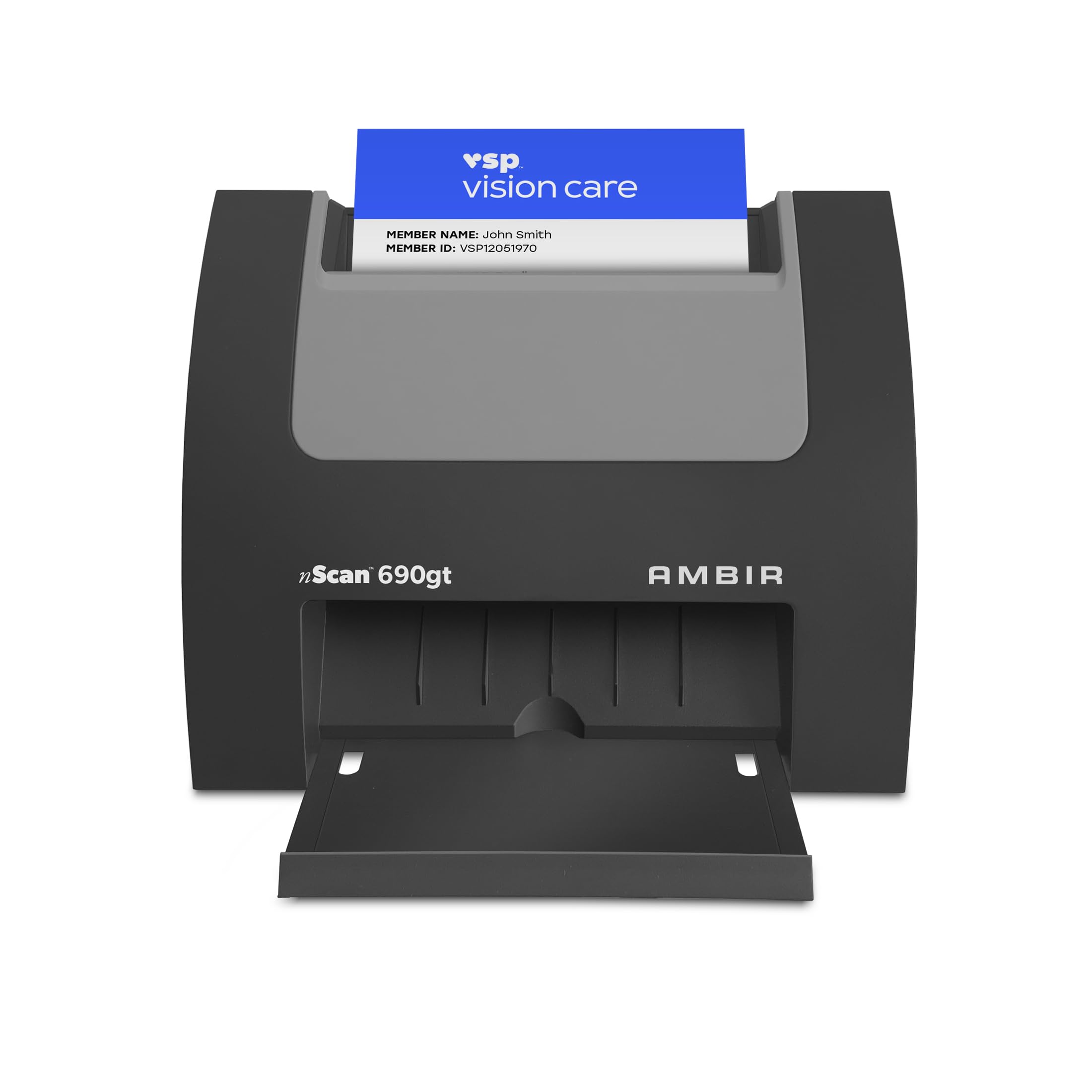
Image 1.1: The Ambir nScan 690gt-AS scanner, a compact device for high-speed card scanning.
2. Setup
2.1 Package Contents
Verify that all components are present in the package:
- Ambir nScan 690gt-AS Scanner Unit
- USB Connection Cable
- Installation Guide / Software CD (or download instructions)
2.2 System Requirements
Ensure your computer meets the minimum system requirements:
- Operating System: Windows 10, 11, Mac OS 11 or higher
- Available USB Port
2.3 Hardware Connection
- Place the scanner on a stable, flat surface.
- Connect the USB cable to the scanner's USB port and then to an available USB port on your computer.
2.4 Software Installation
Before connecting the scanner, it is recommended to install the necessary software and drivers.
- Insert the provided software CD or download the latest drivers and AmbirScan software from the official Ambir website.
- Follow the on-screen instructions to complete the installation. The included TWAIN driver ensures broad compatibility with various software applications.
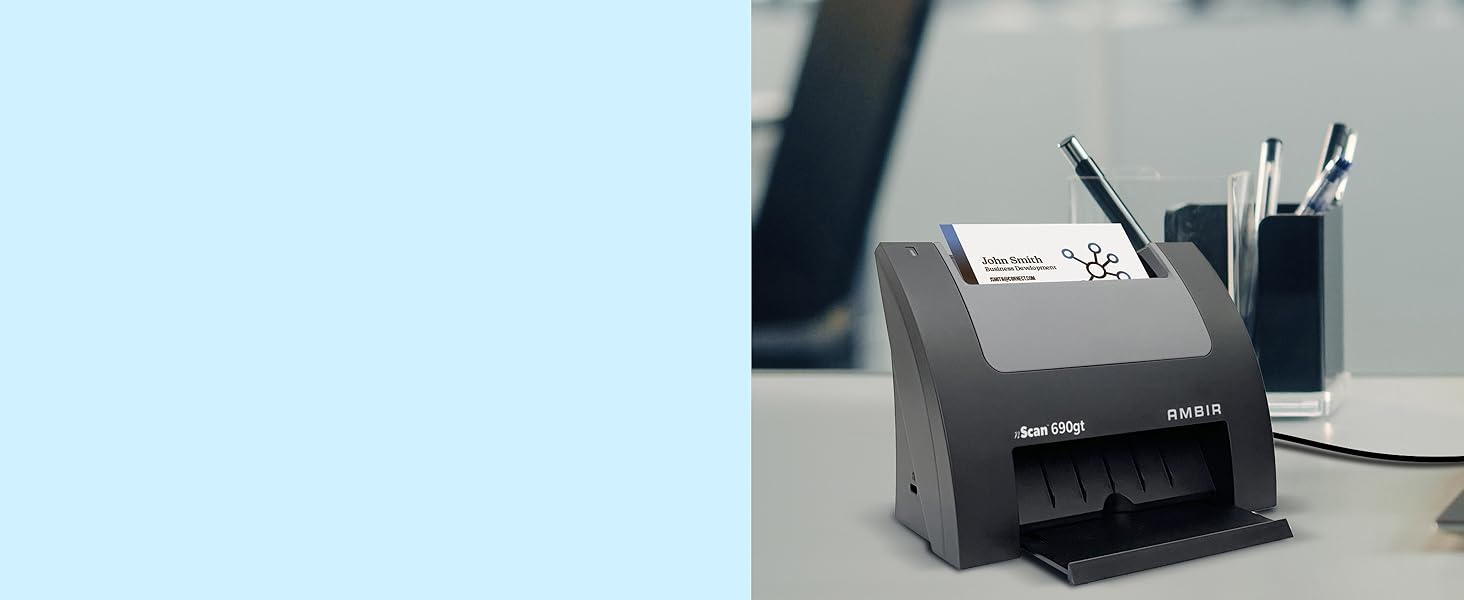
Image 2.1: The scanner connected to a laptop, illustrating its TWAIN compliance for software integration.
3. Operating Instructions
3.1 Loading Documents
The nScan 690gt-AS features a front-facing eject mode for simplified card handling.
- Ensure the scanner is powered on and connected to your computer.
- Open the AmbirScan software or your TWAIN-compatible application.
- Gently insert the card into the front slot of the scanner. The scanner will automatically feed and eject the card after scanning.

Image 3.1: A card being inserted into the scanner's front slot for optimal handling.
3.2 Scanning Process
The scanner supports double-sided scanning, capturing both sides of a card in a single pass.
- Once the card is inserted, the scanner will automatically initiate the scan.
- The scanned image will appear in the AmbirScan software or your chosen application.
- Review the scanned image for clarity and accuracy.
3.3 Saving Scans
AmbirScan capture software allows you to save scans in various formats and locations.
- File Formats: Save scans as PDFs, TIFs, or JPGs.
- Local Storage: Save directly to your computer's hard drive.
- Cloud Services: Integrate with popular cloud services such as Box, Dropbox, Evernote, Microsoft OneDrive, and Google Drive for easy storage and access.

Image 3.2: Icon representing the scanner's ability to save documents directly to cloud services.
3.4 Workflow Automation (Zapier)
The scanner supports Zapier workflow automation for advanced integration. This feature allows scanned document metadata (filename, page count, file size, cloud storage location) to trigger custom workflows in other applications like QuickBooks, DocuSign, or Slack, reducing manual data entry. This functionality requires a Zapier Professional subscription.

Image 3.3: Icon indicating Zapier integration for workflow automation.
3.5 Product Video
Video 3.1: Official product video demonstrating the Ambir nScan 690gt High-Speed Vertical Card Scanner in operation, highlighting its features and ease of use.
4. Maintenance
4.1 General Cleaning
Regular cleaning helps maintain optimal scanner performance.
- Power off and unplug the scanner before cleaning.
- Use a soft, lint-free cloth lightly dampened with water or a mild, non-abrasive cleaner to wipe the exterior of the scanner.
- For internal components, refer to the detailed cleaning instructions in the full user guide (PDF) available for download.
4.2 Roller and Separation Pad Replacement
Over time, the scanner's rollers and separation pad may wear out, affecting feeding performance. These parts are user-replaceable. Consult the comprehensive user guide for specific instructions on how to inspect and replace these components to ensure continuous optimal operation.
5. Troubleshooting
This section addresses common issues you might encounter with your Ambir nScan 690gt-AS scanner.
5.1 Scanner Not Detected
- Check USB Connection: Ensure the USB cable is securely connected to both the scanner and the computer. Try a different USB port.
- Restart Devices: Restart your computer and the scanner.
- Driver Installation: Verify that the scanner drivers and AmbirScan software are correctly installed. Reinstall if necessary.
5.2 Poor Scan Quality
- Clean Scanner: Dust or debris on the scanner's glass or rollers can affect image quality. Refer to the Maintenance section for cleaning instructions.
- Card Placement: Ensure the card is inserted correctly and flat against the feed path.
- Software Settings: Adjust scan settings (e.g., resolution, brightness) in the AmbirScan software.
5.3 Slow Scanning or Saving
- Computer Performance: Ensure your computer meets the minimum system requirements and is not running too many resource-intensive applications.
- File Size: High-resolution scans result in larger file sizes, which take longer to process and save. Consider reducing the resolution if speed is critical and image quality allows.
- Storage Location: Saving directly to cloud services or network drives may introduce delays depending on network speed.
5.4 Software Issues / Crashes
- Update Software: Ensure you have the latest version of AmbirScan software and drivers.
- Compatibility: Verify software compatibility with your operating system.
- Reinstallation: If issues persist, try uninstalling and reinstalling the AmbirScan software.
6. Specifications
| Feature | Specification |
|---|---|
| Scanner Type | Driving License, ID Card, Insurance Card |
| Brand | AMBIR |
| Model Name | nScan 690gt-AS |
| Connectivity Technology | USB |
| Product Dimensions (D x W x H) | 3.3" x 6.6" x 5" |
| Resolution | 600 dpi |
| Item Weight | 1.3 pounds |
| Color Depth | 48-bit |
| Greyscale Depth | 8-bit |
| Minimum System Requirements | Windows 10, 11, Mac OS 11 or higher |
| UPC | 835345005164 |
| Manufacturer | Ambir Technology, Inc |

Image 6.1: Visual representation of the scanner's dimensions.
7. Warranty and Support
7.1 Product Warranty
The Ambir nScan 690gt-AS scanner comes with a 2-Year Limited Warranty from the date of purchase. This warranty covers defects in materials and workmanship under normal use. Please retain your proof of purchase for warranty claims.
7.2 Technical Support
For technical assistance, troubleshooting beyond this manual, or warranty inquiries, please contact Ambir Technology customer support. Refer to the official Ambir website for the most current contact information and support resources.
Additional resources, including a detailed User Guide (PDF), may be available on the manufacturer's website.

