
iBasso DX120
iBasso DX120 Digital Audio Player User Manual
1. Product Overview
The iBasso DX120 is a high-performance digital audio player designed for audiophiles. It features an AK4495 DAC, multiple output options including 2.5mm balanced, 3.5mm, and coaxial, and supports DSD. The device incorporates advanced clock synchronization technology for ultra-low phase noise and distortion, ensuring a natural and realistic sound reproduction. Its true balanced output design and independent differential amplifier circuits contribute to superior audio quality.
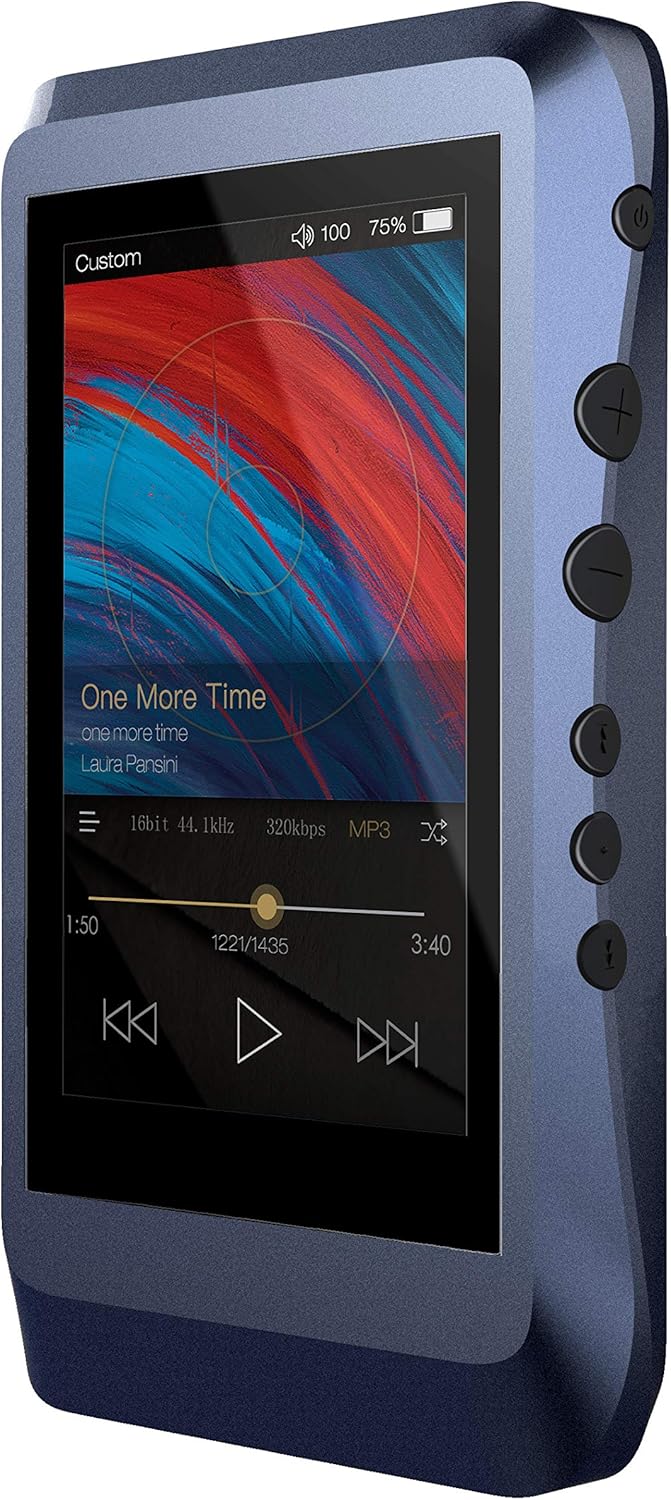
Figure 1: iBasso DX120 Digital Audio Player (Front View)

Figure 2: iBasso DX120 Digital Audio Player (Front and Back View)
Key Features
- Lowest Distortion AK4495 Player: Utilizes the AK4495 DAC for exceptional audio fidelity.
- Full Balanced Output: Features a true balanced output design with independent differential amplifier circuits for each channel.
- Full Synchronization Technology: Employs TCXO active temperature compensation crystal oscillator and phase-locked loop technology for precise clock synchronization.
- Dual Quick Charge & USB Type-C: Supports QC2.0 and MTK-PE+ dual fast charging, compatible with 5V/2A chargers.
- The New Mango OS: Runs on a highly optimized, Linux-derived pure sound system for fast and clean operation.
2. Setup Guide
2.1 Package Contents
Before you begin, please ensure all items are present in the package:
- iBasso DX120 Digital Audio Player
- USB Cable
- Micro SD Card (if included in specific bundle)
- Playback Controls (integrated)
2.2 Charging the Device
The DX120 supports QC2.0 and MTK-PE+ dual fast charging technology, as well as standard 5V/2A charging. A full charge provides over 16 hours of battery life.
- Connect the included USB Type-C cable to the charging port on the DX120.
- Connect the other end of the USB cable to a compatible USB power adapter (not included) or a computer's USB port.
- The device will indicate charging status on its screen.
2.3 Inserting Micro SD Cards
The DX120 features two Micro SD card slots for expanded storage.
- Locate the Micro SD card slots on the side of the device.
- Gently insert a Micro SD card into an available slot until it clicks into place. Ensure the card is oriented correctly.
- To remove, gently push the card inward until it springs out.
2.4 Initial Power On
To power on your DX120 for the first time:
- Press and hold the Power button (usually located on the side) for a few seconds.
- The iBasso logo will appear, and the device will boot into the Mango OS.
3. Operating Instructions
3.1 Basic Controls
The DX120 features physical buttons for easy control:
- Power Button: Press and hold to power on/off. Short press to turn screen on/off.
- Volume Up/Down Buttons: Adjust the audio output volume.
- Playback Control Buttons: Typically include Play/Pause, Next Track, and Previous Track.
3.2 Navigating the Mango OS
The new generation Mango OS is a pure sound system derived from Linux, offering a highly tailored and deeply optimized user interface.
- Touchscreen Interface: Navigate menus, select songs, and adjust settings by tapping and swiping on the screen.
- Main Menu: Access various functions such as Music Playback, File Browser, Settings, and more.
- Gestures: Specific swipe gestures may be available for quick access to certain functions (refer to on-screen prompts or detailed in-device help).
3.3 Playing Audio
To play music on your DX120:
- Ensure your music files are loaded onto the internal storage or an inserted Micro SD card.
- From the main menu, select the Music Playback or File Browser option.
- Browse your music library by artist, album, genre, or folder.
- Tap on a song to begin playback.
- Use the physical playback buttons or on-screen controls to manage playback (play, pause, skip, etc.).
3.4 USB DAC Mode
The DX120 can function as a USB Digital-to-Analog Converter (DAC) for your computer, utilizing its professional sound card chip (XMOS Xu208) and customized Thesycon drivers.
- Connect the DX120 to your computer using the USB Type-C cable.
- On the DX120, select the USB DAC mode when prompted (or navigate to it in settings).
- Your computer should recognize the DX120 as an audio output device. You may need to install specific drivers from the iBasso website for optimal performance on Windows.
- Select the DX120 as your audio output device in your computer's sound settings or media player.
4. Maintenance
4.1 Cleaning
To maintain the appearance and functionality of your DX120:
- Use a soft, dry, lint-free cloth to wipe the device.
- For stubborn smudges, slightly dampen the cloth with water or a screen cleaner designed for electronics.
- Avoid using harsh chemicals, abrasive cleaners, or solvents.
4.2 Battery Care
To prolong the life of the built-in Lithium Polymer battery:
- Avoid fully discharging the battery frequently.
- Store the device in a cool, dry place when not in use for extended periods.
- Charge the device regularly, even if not in frequent use, to prevent deep discharge.
4.3 Software Updates
iBasso may release firmware updates to improve performance, add features, or fix bugs. Check the official iBasso website for the latest firmware and instructions on how to update your device.
5. Troubleshooting
This section addresses common issues you might encounter with your iBasso DX120.
| Problem | Possible Solution |
|---|---|
| Device does not power on. | Ensure the battery is charged. Connect to a power source and try again. If unresponsive, perform a hard reset (refer to the official user guide for specific instructions). |
| No sound output. | Check volume level. Ensure headphones/speakers are properly connected. Verify the audio file format is supported. Try a different audio file. |
| Micro SD card not recognized. | Ensure the card is inserted correctly. Try reinserting the card. Test with a different Micro SD card. Format the card (this will erase all data). |
| Device freezes or becomes unresponsive. | Press and hold the Power button for an extended period (e.g., 10-15 seconds) to force a shutdown, then restart. If persistent, consider a factory reset (backup data first). |
| Poor sound quality. | Ensure audio files are high quality. Check headphone/cable connections. Try different headphones. Ensure no dust or debris in audio ports. |
6. Technical Specifications
Detailed specifications for the iBasso DX120 Digital Audio Player:
| Feature | Specification |
|---|---|
| Product Dimensions | 2.48 x 0.59 x 4.45 inches |
| Item Weight | 1.14 pounds |
| Model Number | DX120 |
| Batteries | 1 Lithium Polymer battery required |
| Manufacturer | iBasso |
| Connectivity Technology | Aux |
| Memory Storage Capacity | 16 GB (internal) |
| Color | Sky Blue |
| Screen Size | 3.2 Inches |
| Compatible Devices | Laptop (for USB DAC mode) |
| Media Type | Micro SD |
| Special Feature | Hi-Res Audio |
7. Warranty and Support
7.1 Warranty Information
The iBasso DX120 typically comes with a standard manufacturer's warranty. Please refer to the warranty card included with your product for specific terms and conditions. Additionally, a 30-day refund/replacement return policy may apply from the point of purchase. Optional protection plans (e.g., 2-Year or 3-Year) may be available for extended coverage.
7.2 Customer Support
For further assistance, technical support, or to download the latest drivers and firmware, please refer to the following resources:
- Official User Guide (PDF): For detailed instructions and diagrams, you can download the official PDF user guide here.
- iBasso Official Store: Visit the iBasso store for product information and support resources: iBasso Store on Amazon.
Related documentsDX120


Ask a question about this manual
Ask about setup, troubleshooting, compatibility, parts, safety, or missing instructions. Manuals+ will review the question and use this page’s manual context to help answer it.