1. Introduction
This user manual provides detailed instructions for the installation, configuration, operation, and maintenance of your ZYXEL XGS1930-28HP 28-Port Gigabit PoE+ Smart Managed Switch. This device is designed to provide high-performance network connectivity with Power over Ethernet capabilities for various network environments. Please read this manual thoroughly before operating the device to ensure proper usage and optimal performance.
2. Package Contents
Verify that your package contains all the following items:
- 24-port GbE Smart Managed PoE Switch with 4 SFP+ Uplink (XGS1930-28HP)
- Power Cord
- Rack Mounting Kit
3. Product Overview
The ZYXEL XGS1930-28HP is a smart managed switch featuring 24 Gigabit Ethernet PoE+ ports and 4 10G SFP+ uplink ports, offering a total power budget of 375W for connected PoE devices. It supports Zyxel NebulaFlex™, allowing flexible management via standalone mode or the Nebula cloud platform. The switch is designed for quiet operation with smart fan technology and is suitable for rackmount installations.

An angled view of the ZYXEL XGS1930-28HP switch, showcasing its compact rackmount design and port layout.

A direct front view of the ZYXEL XGS1930-28HP switch, highlighting the 24 Gigabit Ethernet PoE+ ports, 4 10G SFP+ uplink ports, and LED indicators.
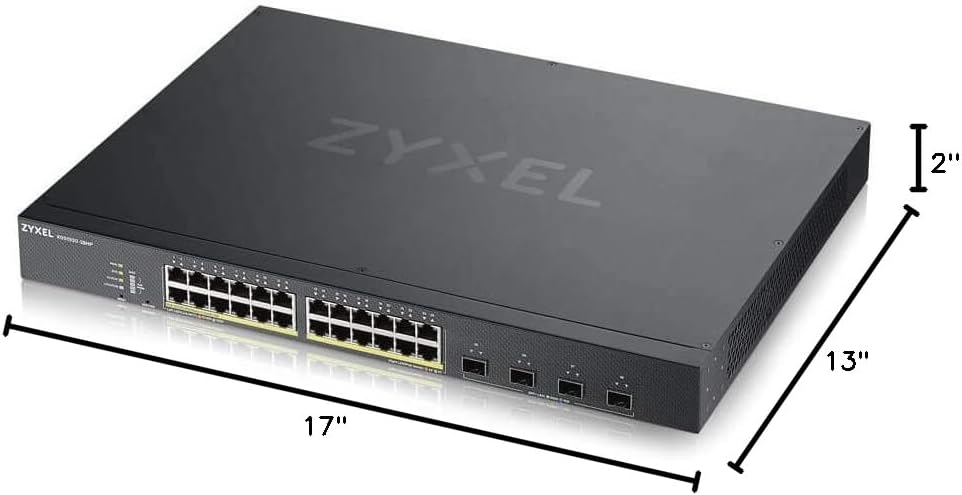
This image illustrates the physical dimensions of the ZYXEL XGS1930-28HP switch, measuring 17 inches in width, 13 inches in depth, and 2 inches in height.
4. Setup
4.1 Rack Mounting
Use the provided rack mounting kit to securely install the switch into a standard 19-inch equipment rack. Ensure adequate ventilation around the unit to prevent overheating.
4.2 Power Connection
Connect the power cord to the switch's power inlet and then to a suitable AC power source. The switch will power on automatically.
4.3 Network Connections
- Ethernet Ports: Connect your network devices (computers, IP cameras, wireless access points, etc.) to the 24 Gigabit Ethernet PoE+ ports using standard Ethernet cables. These ports provide both data and power to compatible devices.
- Uplink Ports: Use the 4x 10G SFP+ ports for high-speed connections to your core network or other switches. Insert compatible SFP+ transceivers into these slots.
4.4 Initial Configuration
The XGS1930-28HP supports both standalone and cloud-managed modes via Zyxel NebulaFlex™.
- Standalone Mode: Access the switch's web-based management interface by connecting a computer to any Ethernet port and configuring its IP address to be in the same subnet as the switch's default IP. Refer to the quick start guide for default IP address and login credentials.
- Nebula Cloud Management: For cloud management, register the device on the Zyxel Nebula platform. The switch will automatically connect to the cloud for centralized management.
5. Operating Instructions
5.1 LED Indicators
The front panel LEDs provide real-time status information:
- Power LED: Indicates power status.
- PoE Max LED: Indicates the total PoE power consumption status.
- Cloud LED: Indicates connection status to the Zyxel Nebula cloud.
- Port LEDs: Indicate link status, activity, and PoE status for individual ports.
5.2 Management Interface
Manage the switch settings, monitor network traffic, and configure advanced features through the web-based GUI in standalone mode or via the Zyxel Nebula cloud dashboard.
5.3 Zyxel ONE Network (ZON) Utility
The complimentary ZON Utility can be used to discover and configure Zyxel devices, including switches, WLANs, and gateways, within your network with a single click. This simplifies initial setup and ongoing management.
6. Maintenance
6.1 Cleaning
Regularly clean the exterior of the switch with a soft, dry cloth. Ensure ventilation openings are free from dust and obstructions to maintain proper airflow.
6.2 Firmware Updates
Periodically check the Zyxel support website for the latest firmware updates. Keeping the firmware up-to-date ensures optimal performance, security, and access to new features. Firmware updates can typically be performed via the web management interface or Nebula cloud.
6.3 Environmental Considerations
Operate the switch within the specified temperature and humidity ranges to ensure longevity and stable performance. Avoid exposing the device to direct sunlight, excessive heat, or moisture.
7. Troubleshooting
This section provides solutions to common issues you might encounter.
7.1 No Power
- Ensure the power cord is securely connected to both the switch and the power outlet.
- Verify that the power outlet is functional by plugging in another device.
7.2 No Network Connectivity
- Check the Ethernet cable connections between the switch and connected devices. Ensure cables are not damaged.
- Verify the Link/Act LED for the respective port is lit or blinking, indicating a valid connection and activity.
- Confirm that the connected device's network settings (IP address, subnet mask) are correct.
7.3 PoE Device Not Receiving Power
- Ensure the connected device is PoE compatible (802.3af/at).
- Check the PoE status LED for the port.
- Verify the total PoE power budget (375W) is not exceeded. The PoE Max LED will indicate if the budget is nearing its limit.
- Try connecting the PoE device to a different PoE port.
7.4 Cannot Access Web Management Interface
- Ensure your computer's IP address is in the same subnet as the switch.
- Verify the correct IP address for the switch. If unknown, use the ZON Utility to discover it.
- Clear your browser's cache or try a different browser.
8. Specifications
| Feature | Detail |
|---|---|
| Model Number | XGS1930-28HP |
| Number of Ports | 24 Gigabit PoE+ ports, 4 10G SFP+ uplink ports |
| PoE Power Budget | 375W |
| Data Transfer Rate | 48 Gigabits Per Second (Switching Capacity) |
| Product Dimensions | 13"L x 17"W x 2"H |
| Item Weight | 12.55 Pounds |
| Case Material | Metal |
| Maximum Power Consumption | 471 Watts |
| Operating Temperature | Up to 40 Degrees Celsius |
| Management | Smart Managed (Standalone or Nebula Cloud) |
| Compatible Devices | Camera, Desktop, Gaming Console, Laptop, Printer, Smartphone, Tablet |
9. Warranty and Support
9.1 Warranty Information
The ZYXEL XGS1930-28HP switch comes with a Limited Lifetime Hardware Warranty. This warranty covers defects in materials and workmanship under normal use and service.
9.2 Technical Support
Free technical support is available for 90 days from the date of purchase. Additionally, free firmware upgrade support is provided for the lifetime of the product. For support, please visit the official Zyxel website or contact their customer service.
Online Resources: For the latest documentation, FAQs, and support tools, please visit the Zyxel support portal.


