
Walfront UM34C
Walfront UM34C USB Meter Tester User Manual
Model: UM34C
1. Product Overview
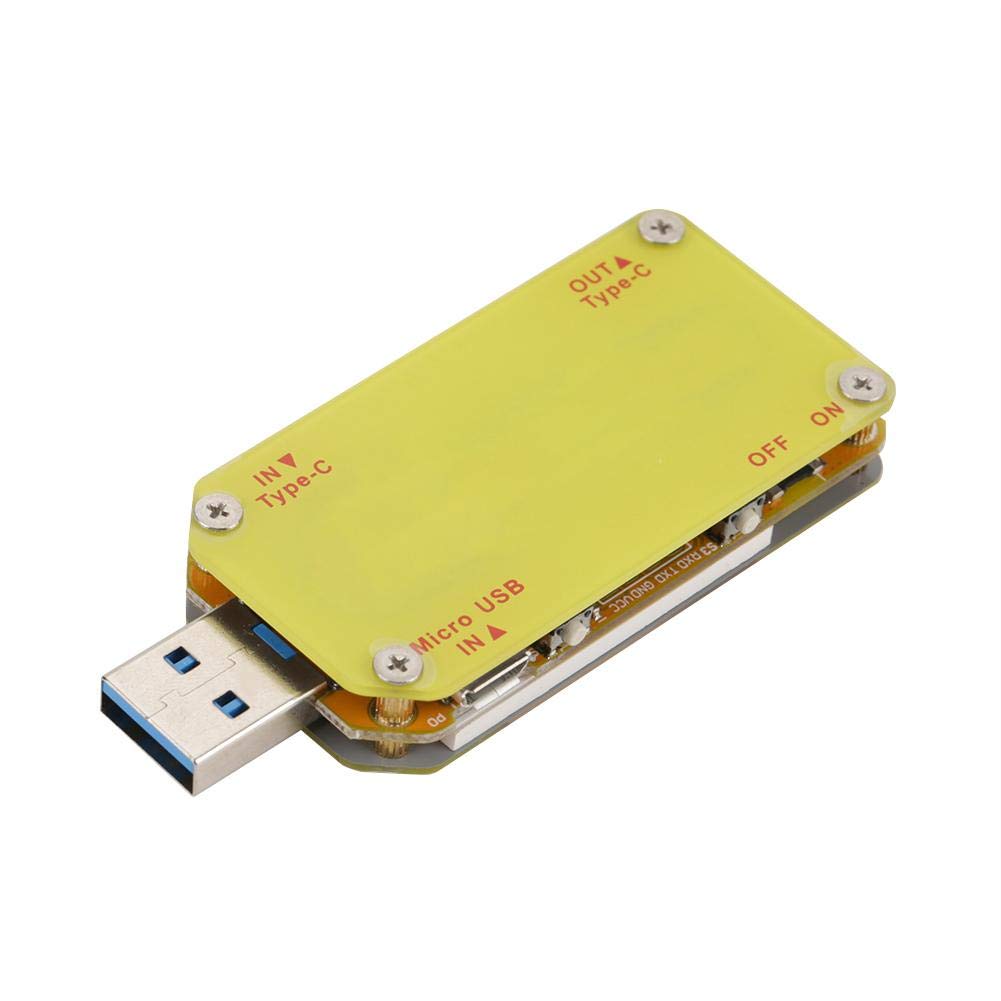
The Walfront UM34C USB Meter Tester is a versatile device designed for real-time monitoring and measurement of various USB power parameters. It features a high-definition color screen and supports Bluetooth connectivity for app-based monitoring on mobile phones. This tester is ideal for evaluating charging status, voltage, current, capacity, internal resistance, and temperature of USB power supplies and connected devices.



2. Key Features
- Convenient Bluetooth Connectivity: Download the dedicated mobile application to connect via Bluetooth for real-time monitoring of charging status, voltage, current, capacity, and other indicators directly on your smartphone.
- Data Cable Quality Detection: Utilize the voltage difference method to assess the quality and performance of various data cables. This requires a special load for accurate measurement.
- Comprehensive Display: The high-definition color screen provides real-time data on voltage, current, power, internal resistance, temperature, and timing, offering a complete overview of device performance.
- Quick Charge Identification: The tester can quickly identify common fast charging protocols such as QC2.0 and QC3.0, making it useful for verifying charger compatibility.
- Battery and Charger Quality Assessment: Evaluate the quality of charger batteries by measuring capacity and energy, helping to identify efficient and reliable power sources.
3. Setup Guide
3.1 Initial Connection
- Ensure the UM34C tester is fully charged or connected to a power source if it has an internal battery (information not specified, assume external power for operation).
- Connect the USB-A male plug of the UM34C tester into a USB power source (e.g., wall charger, power bank, computer USB port).
- Connect the device you wish to test (e.g., smartphone, tablet) to the USB-A female port on the UM34C tester. For Type-C devices, use an appropriate adapter if necessary, as the UM34C model typically does not feature a USB-C output port.
3.2 Mobile App Connection (UM34C Model)
The UM34C model supports Bluetooth connectivity for enhanced monitoring via a mobile application.
- Download the App: Search for the official "UM Meter" or "RuiDeng" app on your smartphone's app store (Google Play Store for Android, Apple App Store for iOS).
- Enable Bluetooth: Turn on Bluetooth on your mobile phone.
- Pair the Device: Open the downloaded app. The app should automatically detect the UM34C tester. Follow the in-app instructions to pair and connect to the device.
- Once connected, you can view real-time data, historical records, and configure settings directly from your phone.

4. Operating Instructions
4.1 On-Screen Navigation
The UM34C features two buttons, typically labeled "PREV" and "NEXT" (or similar icons), for navigating through different display screens and settings directly on the device.
- PREV Button: Press to cycle backward through display screens or decrease values in settings.
- NEXT Button: Press to cycle forward through display screens or increase values in settings.
- Long Press: Long-pressing either button or a combination may activate specific functions or enter/exit settings menus. Refer to the on-screen prompts for specific actions.
4.2 Measurement Functions
- Voltage and Current Measurement: Once connected, the device will automatically display real-time voltage (V) and current (A) readings.
- Power (W) and Energy (Wh) Calculation: The tester calculates and displays power consumption and accumulated energy.
- Capacity (mAh) Measurement: Monitor the accumulated capacity charged into a device over time. This is useful for evaluating battery health or charger output.
- Internal Resistance (Ω) and Temperature (°C/°F): Some screens may display the internal resistance of the power source or the device's internal temperature.
- Data Cable Detection: To test a data cable, connect the tester to a power source, then connect the data cable to the tester's output, and finally connect a load (e.g., a phone or a dedicated load resistor) to the data cable. Observe the voltage drop to assess cable quality.
- Quick Charge Protocol Identification: The tester automatically detects and displays recognized fast charging protocols (e.g., QC2.0, QC3.0) when a compatible charger and device are connected.
5. Maintenance
Proper maintenance ensures the longevity and accuracy of your Walfront UM34C USB Meter Tester.
- Cleaning: Use a soft, dry cloth to clean the device. Avoid using liquid cleaners, solvents, or abrasive materials, as these can damage the screen or internal components.
- Storage: Store the tester in a cool, dry place, away from direct sunlight, extreme temperatures, and high humidity. The provided tin case is ideal for protection during storage and transport.
- Handling: Handle the device with care. Avoid dropping it or subjecting it to strong impacts, which can damage the internal circuitry or the display.
- Avoid Overload: Do not connect the tester to power sources or loads that exceed its specified voltage and current limits to prevent damage.
6. Troubleshooting
If you encounter issues with your UM34C USB Meter Tester, refer to the following common troubleshooting steps:
- Device Not Powering On:
- Ensure the tester is properly connected to a functioning USB power source.
- Check the USB cable connecting the tester to the power source for damage.
- No Readings or Incorrect Readings:
- Verify that both the input (from power source) and output (to device under test) connections are secure.
- Ensure the device being tested is drawing power. Some devices may not draw current if fully charged or in a low-power state.
- Try a different USB cable or power source to rule out external issues.
- Bluetooth Connection Issues (UM34C):
- Make sure Bluetooth is enabled on your smartphone.
- Ensure the UM34C tester is within range of your phone.
- Restart both the UM34C (by unplugging and replugging) and your phone's Bluetooth.
- Check if the correct app version is installed and updated.
- No USB-C Output Port (UM34C Specific):
Please note that the Walfront UM34C model, as indicated by user reviews, typically does not include a USB-C output or pass-through port, despite some general product images that might show one. If you require a USB-C output, ensure you are purchasing a model explicitly stated to have this feature, or use a suitable USB-A to USB-C adapter with your UM34C.
7. Specifications
| Attribute | Detail |
|---|---|
| Brand | Walfront |
| Model Number | UM34/UM34C |
| Product Dimensions | 2.8 x 1.2 x 0.49 inches (7 x 3 x 1.25 cm) |
| Item Weight | 1.76 ounces (0.05 Kilograms) |
| Power Source | Battery Powered (operates when connected to USB power) |
| Minimum Operating Voltage | 4 Volts |
| ASIN | B07HKBQML9 |
| Date First Available | September 21, 2018 |
8. Warranty and Support
For warranty information or technical support regarding your Walfront UM34C USB Meter Tester, please contact Walfront customer service directly. You can often find support contact details on the manufacturer's official website or through the retailer where the product was purchased.
Visit the official Walfront store on Amazon for more products and information: Walfront Store
Ask a question about this manual
Ask about setup, troubleshooting, compatibility, parts, safety, or missing instructions. Manuals+ will review the question and use this page’s manual context to help answer it.