
1. Introduction
This manual provides essential information for the safe and effective use of your Samsung 4GB DDR4 PC4-21300 2666MHz 260-pin SODIMM Memory Module. Please read these instructions carefully before installation and retain them for future reference. This memory module is designed to enhance the performance of compatible laptop systems by increasing available RAM.
2. Product Overview
The Samsung 4GB DDR4 PC4-21300 SODIMM is a high-performance memory module designed for laptops. It operates at 2666MHz with a low voltage of 1.2V, ensuring efficient power consumption and stable operation. The 260-pin form factor makes it suitable for a wide range of modern portable computing devices.
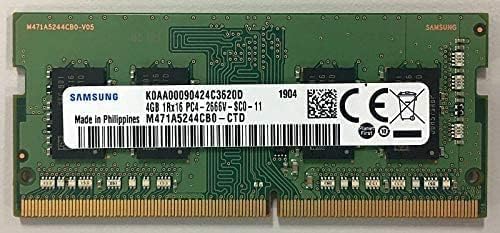
Figure 1: Top view of the Samsung 4GB DDR4 SODIMM memory module.
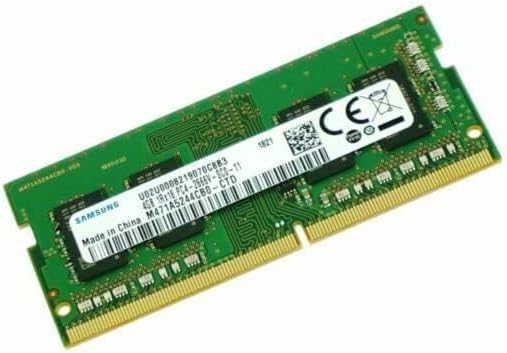
Figure 2: Angled view of the Samsung 4GB DDR4 SODIMM memory module.
3. Specifications
| Feature | Specification |
|---|---|
| Brand | Samsung |
| Computer Memory Size | 4 GB |
| RAM Memory Technology | DDR4 |
| Memory Speed | 2666 MHz (PC4-21300) |
| Compatible Devices | Laptop |
| Voltage | 1.2 Volts |
| Column Address Strobe Latency (CL) | 19 |
| Form Factor | SO-DIMM |
| Number of Pins | 260 |
| Model Name | M471A5244CB0-CTD |
4. Setup and Installation
Important Safety Information: Before beginning installation, ensure your laptop is powered off and disconnected from all power sources. Discharge any static electricity by touching a grounded metal object. Refer to your laptop's specific user manual for detailed instructions on accessing and installing RAM modules, as procedures may vary by model.
- Prepare Your Laptop: Shut down your laptop completely and disconnect the AC adapter and remove the battery (if removable).
- Access RAM Slots: Carefully open your laptop's memory compartment. This usually involves removing screws from the bottom panel.
- Remove Existing Module (if applicable): If replacing an existing module, gently push apart the small clips on either side of the RAM module. The module will pop up at an angle. You can then carefully pull it out.
- Install New Module: Align the notch on the new Samsung SODIMM module with the notch in the memory slot. Insert the module firmly at a 45-degree angle.
- Secure the Module: Push the module down until the clips on both sides snap into place, securing the module horizontally.
- Reassemble Laptop: Close the memory compartment, reinsert the battery (if removed), and reconnect the AC adapter.
- Verify Installation: Power on your laptop. Access your system's BIOS/UEFI settings or operating system's system information to confirm that the new 4GB RAM is recognized.
5. Operating Instructions
Once the Samsung 4GB DDR4 SODIMM memory module is correctly installed and recognized by your laptop's system, it operates automatically. The operating system will utilize the increased memory capacity to improve multitasking, application performance, and overall system responsiveness. No further user interaction is typically required for its operation.
6. Maintenance
- Handling: Always handle the memory module by its edges to avoid touching the gold contacts or the integrated circuits. Static electricity can damage the module.
- Cleaning: Do not attempt to clean the memory module with liquids or abrasive materials. If necessary, gently wipe the module with a dry, lint-free cloth.
- Storage: Store the module in an anti-static bag when not installed in a system to protect it from static discharge and environmental factors.
- Environment: Ensure your laptop operates in a well-ventilated area to prevent overheating, which can affect memory performance and longevity.
7. Troubleshooting
- System Does Not Boot or Beeps Repeatedly: This often indicates a memory issue. Ensure the module is fully seated in its slot. Remove and re-insert the module, ensuring the clips are securely fastened.
- Incorrect Memory Capacity Detected: Verify that your laptop model supports the installed memory type (DDR4) and capacity (4GB). Check your laptop's manufacturer specifications. Re-seat the module to ensure proper contact.
- System Instability or Crashes: If your system becomes unstable after installation, run a memory diagnostic tool (e.g., Windows Memory Diagnostic, MemTest86) to check for errors. Ensure the module is compatible with your system's existing RAM (if using multiple modules).
- Slow Performance: While adding RAM generally improves performance, ensure your operating system and drivers are up to date. Other factors like CPU, GPU, or storage speed can also impact overall system performance.
8. Warranty and Support
For warranty information and technical support, please refer to the official Samsung website or contact Samsung customer service. Warranty terms and conditions may vary by region and product. Keep your proof of purchase for warranty claims.
For further assistance, visit: Samsung Support