
1. Introduction
The Viotek GN32DB is a 32-inch curved gaming monitor designed to deliver an immersive visual experience. It features a WQHD (2560x1440p) resolution, a 144Hz refresh rate, and AMD FreeSync technology, ensuring smooth and responsive gameplay. This manual provides essential information for setting up, operating, maintaining, and troubleshooting your monitor.

Image: The Viotek GN32DB monitor showcasing its 144Hz WQHD display capabilities.
2. Setup
2.1 Unboxing and Assembly
Carefully remove the monitor and all components from the packaging. Ensure all parts are present before proceeding with assembly. Attach the stand base to the stand neck, then secure the assembled stand to the back of the monitor using the provided screws. The monitor also supports VESA mounting (75x75mm) for alternative installation options.
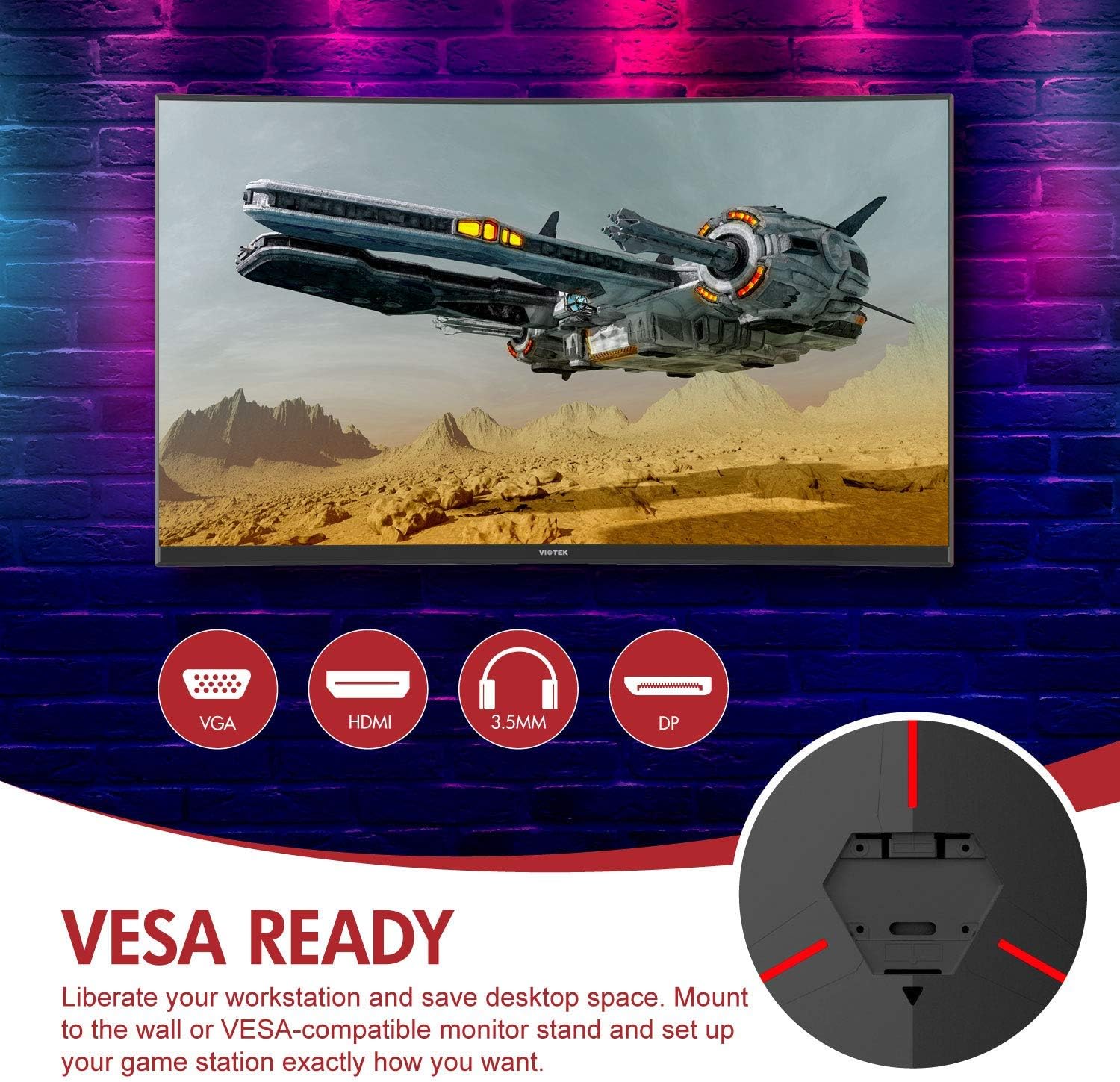
Image: Rear view of the monitor highlighting VESA compatibility and available ports.
2.2 Connecting to a Device
Connect your computer or gaming console to the monitor using one of the available input ports:
- DisplayPort (DP 1.2): For optimal performance, including 144Hz refresh rate and FreeSync.
- HDMI (HDMI 2.0): Supports high-resolution and refresh rates.
- DVI: For compatible devices.
Connect the power adapter to the monitor and then to a power outlet. The monitor also features a 3.5mm audio output jack for external sound systems.

Image: Detailed view of the monitor's rear panel with input ports.
3. Operating the Monitor
3.1 Power On/Off
Press the power button located on the monitor to turn it on or off. The power indicator light will show the monitor's status.
3.2 On-Screen Display (OSD) Menu
Navigate the OSD menu using the buttons or joystick (if present) on the monitor. The OSD allows you to adjust various settings:
- Picture Settings: Adjust brightness, contrast, sharpness, and color temperature.
- Color Modes: Select from predefined color profiles or customize your own.
- Input Source: Manually select the active input (DP, HDMI, DVI).
- Audio: Adjust volume for the 3.5mm audio output.
3.3 Gaming Features
- AMD FreeSync: This technology synchronizes the monitor's refresh rate with your GPU's frame rate to eliminate screen tearing and stuttering. Ensure FreeSync is enabled in both the monitor's OSD and your graphics card settings.
- FPS/RTS Modes: Optimize display settings for specific game genres.
- Game Plus: Activate on-screen crosshairs for improved aiming accuracy.

Image: Visual demonstration of AMD FreeSync technology in action.
3.4 Low Blue Light Mode
Activate the Low Blue Light mode to reduce blue light emissions, which can help minimize eye strain during extended use.
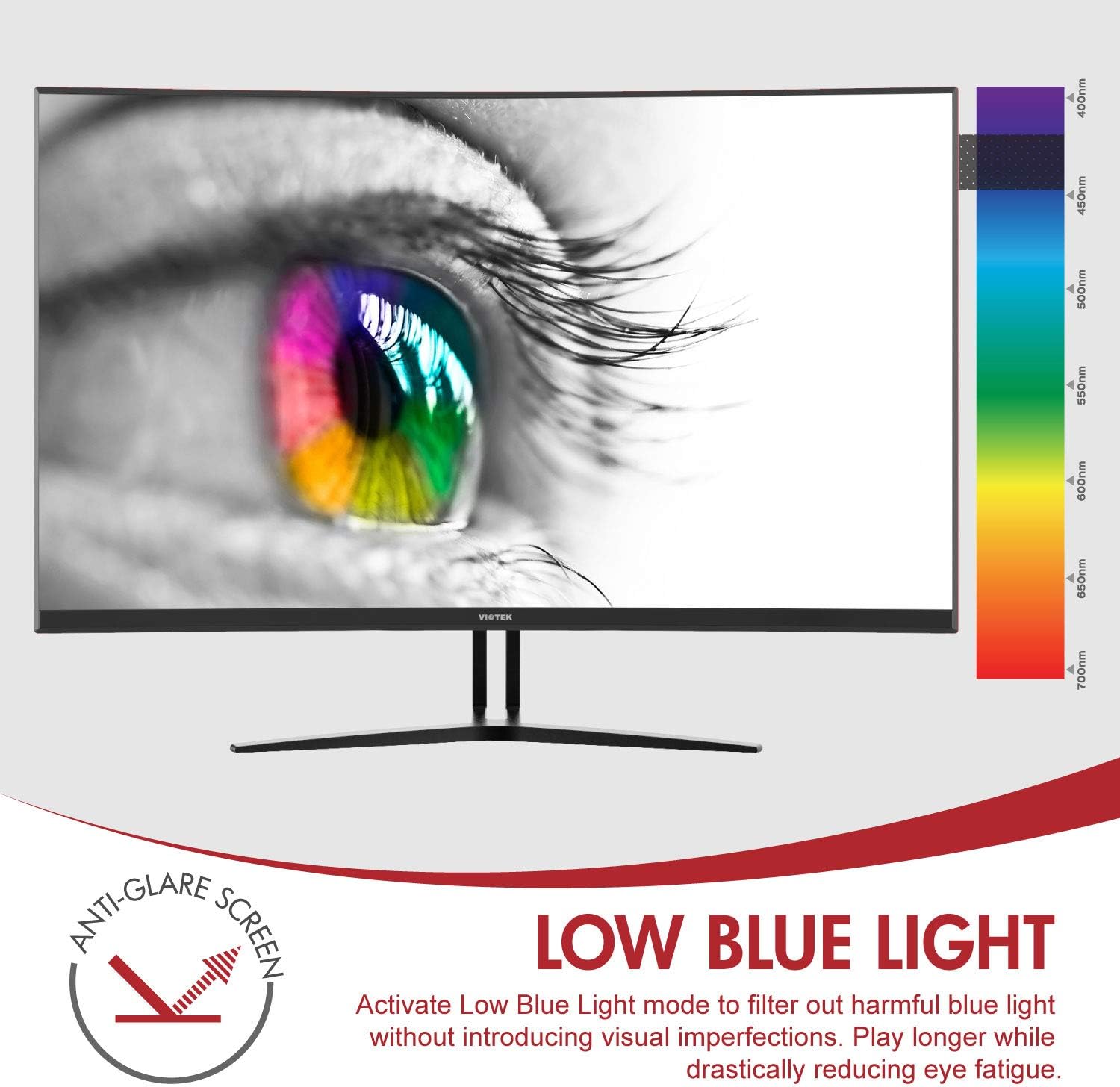
Image: The monitor's Low Blue Light feature for eye comfort.
3.5 Console Compatibility
The GN32DB is compatible with various gaming consoles, including Xbox One S/X and PlayStation 4, via DP 1.2 or HDMI connections. Enjoy FreeSync compatibility with supported Xbox consoles for smoother gameplay.

Image: Monitor compatibility with gaming consoles and adjustable tilt angle.
4. Maintenance
To ensure the longevity and optimal performance of your Viotek GN32DB monitor, follow these maintenance guidelines:
- Cleaning the Screen: Gently wipe the screen with a soft, lint-free cloth. For stubborn marks, lightly dampen the cloth with water or a screen-specific cleaning solution. Avoid using harsh chemicals or abrasive materials.
- General Cleaning: Use a soft, dry cloth to clean the monitor casing and stand.
- Ventilation: Ensure the monitor's ventilation openings are not blocked to prevent overheating.
- Storage: When not in use for extended periods, store the monitor in a cool, dry place, ideally in its original packaging.
5. Troubleshooting
If you encounter issues with your monitor, refer to the following common problems and solutions:
| Problem | Possible Cause | Solution |
|---|---|---|
| No image on screen | Power cable disconnected, incorrect input source, faulty video cable. | Check power connections. Select correct input source via OSD. Replace video cable. |
| Flickering or distorted image | Loose video cable, incorrect resolution/refresh rate, FreeSync issue. | Ensure video cable is secure. Adjust display settings on your device. Verify FreeSync settings. |
| No sound from 3.5mm audio out | Volume too low, external speakers not connected, audio source issue. | Increase monitor volume. Connect speakers correctly. Check audio settings on your device. |
| Monitor not turning on | Power supply issue, faulty power button. | Verify power outlet and adapter. Contact support if issue persists. |
If the problem persists after attempting these solutions, please contact Viotek customer support.
6. Specifications
| Feature | Detail |
|---|---|
| Brand | Viotek |
| Model Number | GN32DB |
| Screen Size | 31.5 Inches |
| Resolution | QHD Wide 1440p (2560x1440) |
| Aspect Ratio | 16:9 |
| Refresh Rate | 144 Hz |
| Response Time | 4 Milliseconds (with Automatic Overdrive) |
| Display Type | LED (Samsung VA Panel) |
| Curvature | 1800R |
| Color Gamut | 115% sRGB / 85% NTSC |
| Contrast Ratio | 3000:1 (Static), 1,000,000:1 (Dynamic) |
| Brightness | 250 cd/m² |
| Viewing Angle | 178 Degrees |
| Adaptive Sync | FreeSync |
| Connectivity | 1x DisplayPort 1.2, 1x HDMI 2.0, 1x DVI, 1x 3.5mm Audio Output |
| Mounting Type | VESA Mount (75x75mm) |
| Additional Features | Anti-Glare Screen, Low Blue Light, FPS/RTS Modes, Game Plus |
| Item Weight | 17.2 Pounds |
7. Warranty
The Viotek GN32DB monitor is protected by a 3-Year Limited Warranty. This warranty includes a Zero-Tolerance Dead Pixel Policy, ensuring that your monitor is free from dead pixels upon purchase. For detailed terms and conditions, please refer to the official Viotek warranty documentation.

Image: Viotek's 3-Year Limited Warranty and Zero-Tolerance Dead Pixel Policy.
8. Support
For any questions, technical assistance, or warranty claims, please contact Viotek's customer service. Our 100% U.S.-based customer service team is available 7 days a week to provide support.
Contact information can be found on the official Viotek website or in your product packaging.


