
1. Introduction
This manual provides detailed instructions for the setup, operation, and maintenance of your RECCAZR WC500 Wireless Keyboard and Mouse Combo. This combo offers a reliable 2.4GHz wireless connection, adjustable DPI settings for the mouse, and convenient multimedia shortcuts for enhanced productivity.
2. Package Contents
Please verify that all items are present in your package:
- RECCAZR WC500 Wireless Keyboard
- RECCAZR Wireless Mouse
- USB Nano Receiver (stored in the mouse battery compartment)
- User Manual
3. Setup Instructions
Follow these steps to set up your wireless keyboard and mouse:
- Install Batteries:
- For the mouse: Open the battery compartment on the underside of the mouse and insert one (1) AA battery (not included).
- For the keyboard: Open the battery compartment on the underside of the keyboard and insert two (2) AAA batteries (not included).
- Locate USB Nano Receiver: The USB nano receiver is conveniently stored inside the mouse's battery compartment. Carefully remove it.
- Connect Receiver: Plug the USB nano receiver into an available USB port on your computer (PC, Desktop, Laptop, Chromebook).
- Automatic Connection: The keyboard and mouse should automatically connect to your computer. No additional drivers or software installation is required.

Figure 3.1: USB Nano Receiver and Battery Compartments. The image displays the underside of the mouse with its battery cover removed, revealing the slot for the USB receiver and the AA battery. Below it, the underside of the keyboard shows its AAA battery compartments.

Figure 3.2: Plug and Play Micro Receiver. This image shows the compact USB receiver being plugged into a laptop, highlighting the ease of connection without needing additional drivers.
4. Operating Instructions
Understand how to use your RECCAZR WC500 combo effectively:
4.1 Mouse Operation
- Optical Tracking Technology: The mouse uses optical tracking for precise cursor movement on various surfaces.
- Adjustable DPI: Cycle through 3 DPI levels (800, 1200, 1600) by pressing the DPI button located on top of the mouse. This allows you to adjust cursor sensitivity to your preference.
- Symmetrical Design: The mouse features a symmetrical design, suitable for both left and right-handed users.

Figure 4.1: Adjustable Mouse DPI. This image illustrates the three adjustable DPI settings for the mouse, allowing users to switch between 800, 1200, and 1600 DPI for varied sensitivity.
4.2 Keyboard Operation
- Full-Size Layout: The keyboard features a compact full-size layout, optimizing desktop space.
- 8° Tilt Angle: Designed with an 8° tilt angle for a comfortable typing experience.
- Multimedia Shortcuts: Access 12 convenient media shortcuts using the 'Fn' key in combination with the F1-F12 keys. Note: These shortcuts are not compatible with Mac systems.
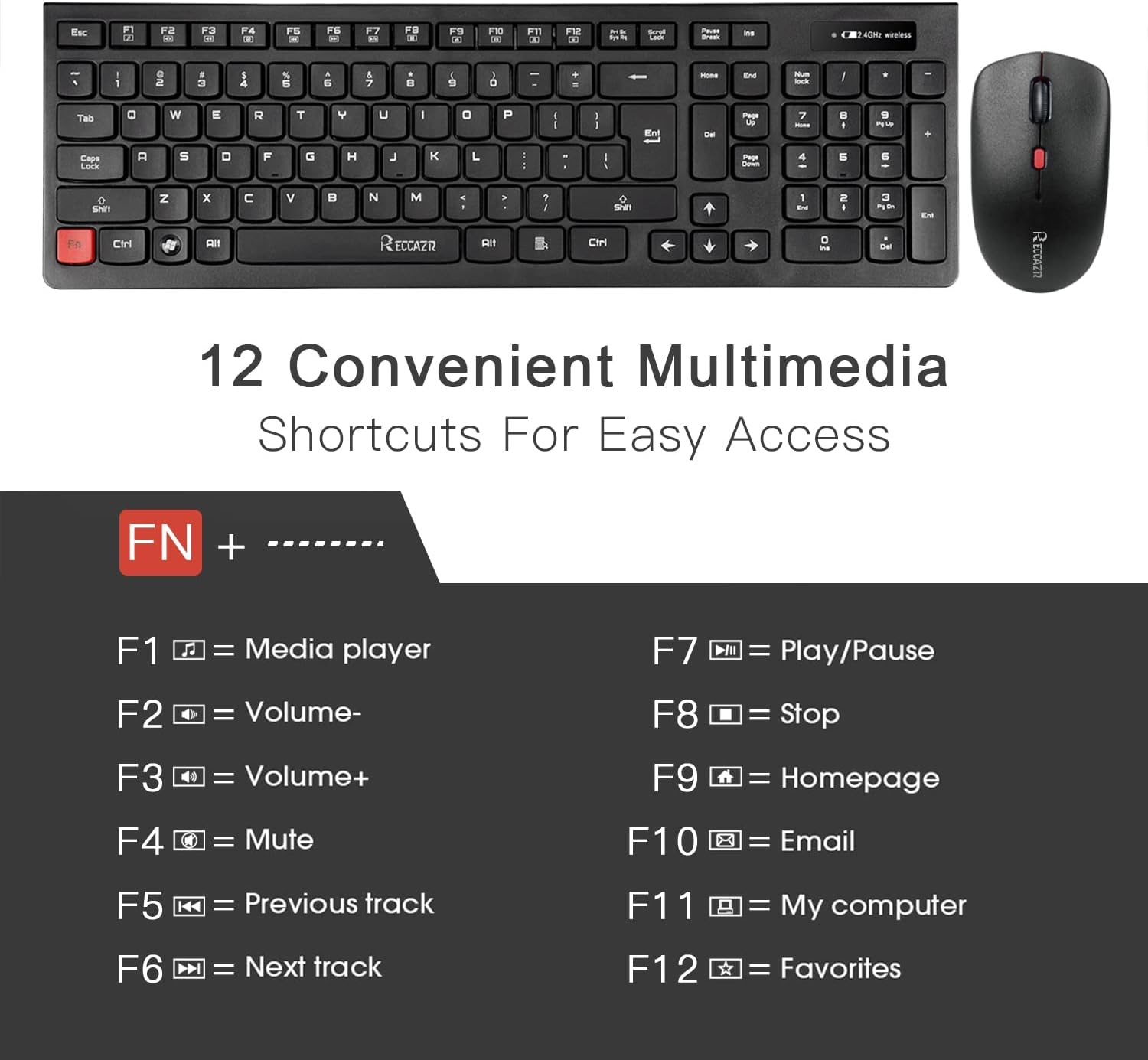
Figure 4.2: Multimedia Shortcuts. This image displays the keyboard's F1-F12 keys and their corresponding multimedia functions when used with the 'Fn' key, such as media player, volume control, mute, and homepage access.

Figure 4.3: Whisper-Quiet Keys. A close-up of the keyboard keys emphasizes the responsive and smooth typing experience, featuring a 'Volcanic-Vent' design for comfortable use.
4.3 Auto-Sleep Mode
To conserve battery life, both the keyboard and mouse feature an automatic sleep mode:
- The mouse will enter sleep mode after 8 minutes of inactivity.
- The keyboard will enter sleep mode after 10 minutes of inactivity.
- To reactivate either device, simply press any key on the keyboard or move/click the mouse.

Figure 4.4: Auto Sleep to Save Energy. This image visually explains the auto-sleep function for both the mouse (after 8 minutes) and the keyboard (after 10 minutes) to conserve battery power, with a note to press any key to activate.
5. Maintenance
To ensure the longevity and optimal performance of your RECCAZR WC500 combo, follow these maintenance guidelines:
- Cleaning: Use a soft, dry cloth to clean the surfaces of the keyboard and mouse. For stubborn dirt, a slightly damp cloth can be used, ensuring no moisture enters the devices.
- Waterproof Design: The keyboard features a waterproof design, offering protection against accidental spills. However, it is recommended to avoid submerging the device in liquid.
- Battery Replacement: Replace batteries promptly when performance degrades. Ensure correct battery type (1 AA for mouse, 2 AAA for keyboard) and polarity.
- Storage: When not in use for extended periods, store the devices in a cool, dry place. Consider removing batteries if storing for several months.
6. Troubleshooting
If you encounter issues with your RECCAZR WC500, refer to the following common solutions:
- No Connection/Unresponsive Devices:
- Ensure batteries are correctly installed and have sufficient charge. Replace if necessary.
- Verify the USB nano receiver is securely plugged into a working USB port on your computer. Try a different USB port.
- Move the keyboard and mouse closer to the USB receiver to rule out range issues (maximum 33 feet).
- Restart your computer.
- Typing Lag or Missed Keystrokes:
- This can often be resolved by checking battery levels and ensuring a clear line of sight between the devices and the USB receiver.
- Avoid using the devices on metallic surfaces, which can interfere with the wireless signal.
- Mouse Cursor Jumps or is Erratic:
- Clean the optical sensor on the underside of the mouse.
- Try using the mouse on a different surface or a mouse pad.
- No Caps Lock Indicator: Please note that this model does not feature a dedicated Caps Lock indicator light.
7. Specifications
| Feature | Specification |
|---|---|
| Model Number | WC500 |
| Connectivity Technology | 2.4GHz Wireless |
| Wireless Range | Up to 33 feet (10 meters) |
| Keyboard Battery | 2 x AAA batteries (not included) |
| Mouse Battery | 1 x AA battery (not included) |
| Mouse DPI Levels | 800 / 1200 / 1600 |
| Keyboard Dimensions | 17.5 x 5.7 x 2.6 inches |
| Item Weight | 1 pound |
| Compatible Devices | Desktops, Laptops, Computers (Windows 2000 / XP / Vista / 7 / 8 / 10, Mac and other systems) |
| Special Features | Waterproof keyboard, Auto-sleep mode, Multimedia shortcuts (not Mac compatible) |

Figure 7.1: Product Dimensions. This image provides a visual representation of the keyboard and mouse with their respective measurements in inches.
8. Warranty and Support
RECCAZR offers a 1-year worry-free warranty and a 30-day money-back guarantee for this product. If you encounter any problems during use or have questions, please contact RECCAZR customer support via Amazon Support for assistance.

Figure 8.1: RECCAZR Service Team. This image highlights the availability of 24-hour, 365-day customer support for any product-related inquiries or issues.


