
1. Introduction
Welcome to the user manual for your new OnePlus 6T Mirror Black smartphone. This guide provides essential information on setting up, operating, maintaining, and troubleshooting your device. Please read this manual thoroughly to ensure optimal performance and longevity of your smartphone.

Figure 1.1: Front view of the OnePlus 6T Mirror Black smartphone.
The OnePlus 6T features a 6.41-inch Optic AMOLED display, powered by an octa-core processor and running Android 9.0. It comes with 128GB of internal storage and 6GB of RAM, offering a smooth and responsive user experience.
2. What's in the Box
Upon opening the package, please verify that all the following items are included:
- OnePlus 6T Mirror Black Smartphone (Model A6013)
- USB Type-C Cable
- Power Adapter (Dash Charge compatible)
- SIM Ejector Tool
- Quick Start Guide
- Safety Information and Warranty Card
3. Setup
3.1. Inserting the SIM Card
The OnePlus 6T supports dual SIM cards. Use the provided SIM ejector tool to open the SIM tray.
- Locate the SIM tray on the side of the device.
- Insert the SIM ejector tool into the small hole next to the tray and push gently until the tray pops out.
- Place your Nano-SIM cards into the designated slots on the tray, ensuring the gold contacts face downwards.
- Carefully push the SIM tray back into the phone until it clicks into place.

Figure 3.1: Rear view of the OnePlus 6T, indicating the dual camera and the general area for the SIM tray (located on the side edge).
3.2. Charging the Battery
Before first use, it is recommended to fully charge your device.
- Connect the USB Type-C cable to the charging port at the bottom of the phone.
- Connect the other end of the cable to the power adapter.
- Plug the power adapter into a wall outlet.
- The charging indicator will appear on the screen.
3.3. Powering On and Initial Configuration
To power on your OnePlus 6T:
- Press and hold the Power button (located on the right side of the phone) until the OnePlus logo appears.
- Follow the on-screen instructions to complete the initial setup, including language selection, Wi-Fi connection, Google account setup, and fingerprint/face unlock configuration.
4. Operating Your Device
4.1. Basic Navigation
- Touch Gestures: Tap, swipe, pinch-to-zoom are standard gestures for interacting with the screen.
- Home Screen: Swipe left or right to navigate between home screens. Swipe up from the bottom to access the app drawer.
- Notifications and Quick Settings: Swipe down from the top of the screen to view notifications and access quick settings toggles.
4.2. Making Calls
To make a phone call:
- Tap the Phone icon on the home screen.
- Enter the phone number using the dial pad or select a contact from your address book.
- Tap the Call button to initiate the call.

Figure 4.1: Using the OnePlus 6T for a phone call.
4.3. Using the Camera
The OnePlus 6T features a dual-camera system for high-quality photos and videos.
- Open the Camera app from the home screen or app drawer.
- Select your desired mode (Photo, Video, Portrait, Nightscape, etc.).
- Tap the Shutter button to capture a photo or start/stop video recording.
5. Maintenance
5.1. Cleaning Your Device
- Use a soft, lint-free cloth to clean the screen and body of the phone.
- Avoid using harsh chemicals, abrasive cleaners, or aerosol sprays.
- Do not expose the device to excessive moisture.
5.2. Battery Care
- Avoid extreme temperatures, as they can affect battery life.
- Use only original or certified chargers and cables.
- For optimal battery health, avoid frequently draining the battery completely or keeping it at 100% for extended periods.
6. Troubleshooting
If you encounter issues with your OnePlus 6T, refer to the following common solutions:
| Problem | Possible Solution |
|---|---|
| Device does not power on. | Ensure the battery is charged. Connect the charger and wait a few minutes before attempting to power on again. |
| Screen is unresponsive. | Perform a force restart by holding the Power button for approximately 10-15 seconds. |
| Cannot connect to Wi-Fi. | Restart your Wi-Fi router. On your phone, go to Settings > Wi-Fi, turn Wi-Fi off and then on again. Forget the network and reconnect. |
| Apps are crashing or freezing. | Clear the cache of the problematic app (Settings > Apps & notifications > App info > [App Name] > Storage & cache > Clear cache). If the issue persists, consider reinstalling the app or performing a factory reset (backup data first). |
| Fingerprint reader slow/unresponsive. | Ensure your finger and the screen are clean and dry. Re-register your fingerprints in Settings > Security & lock screen > Fingerprint. |
7. Specifications
Detailed technical specifications for the OnePlus 6T (Model A6013):
| Feature | Detail |
|---|---|
| Brand | OnePlus |
| Model Number | 6T (A6013) |
| Color | Mirror Black |
| Operating System | Android 9.0 (Pie) |
| Display Type | Optic AMOLED Capacitive Touchscreen |
| Screen Size | 6.41 inches (100.9 cm2) |
| Resolution | 1080 x 2340 pixels, 19.5:9 ratio (~402 ppi density) |
| Processor | Octa-core (4x2.8 GHz Kryo 385 Gold & 4x1.7 GHz Kryo 385 Silver) |
| Internal Storage | 128 GB |
| RAM | 6 GB |
| Card Slot | No |
| Effective Still Resolution | 16 MP (Main Camera) |
| Connectivity | USB, Mobile Network (GSM, UMTS, CDMA, LTE) |
| SIM Card Slots | Dual SIM |
| Battery | Lithium-ion (requires 1 battery) |
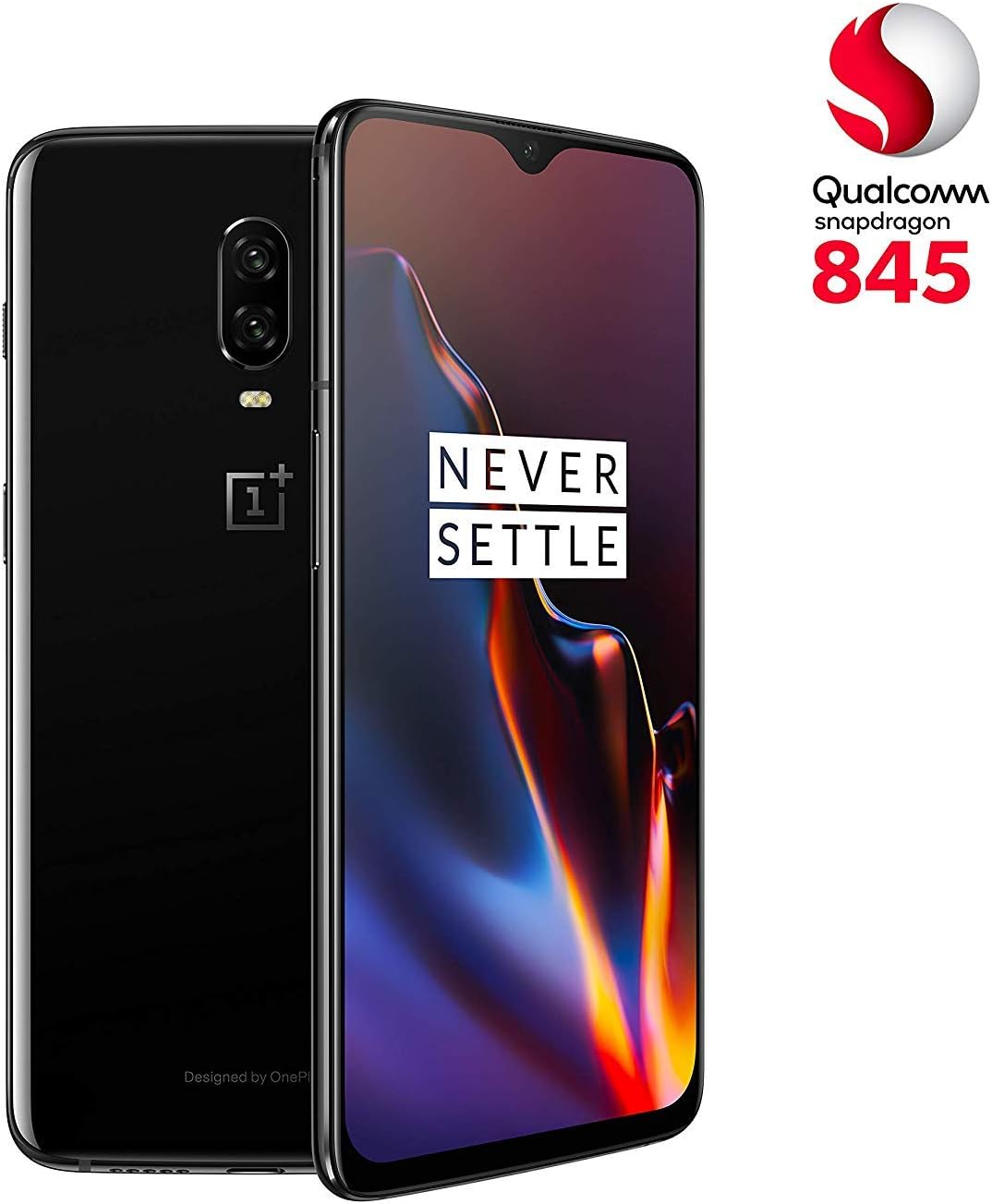
Figure 7.1: OnePlus 6T showcasing its design and Snapdragon 845 processor.
8. Warranty and Support
8.1. Warranty Information
Your OnePlus 6T is covered by a limited warranty. Please refer to the warranty card included in your product packaging for specific terms and conditions, including warranty period and coverage details. Keep your proof of purchase for warranty claims.
8.2. Customer Support
For further assistance, technical support, or service inquiries, please visit the official OnePlus support website or contact their customer service. You can often find FAQs, software updates, and additional resources online.
Note: Specific contact details and support channels may vary by region. Please check the official OnePlus website for the most accurate and up-to-date information.


