
1. Introduction
Thank you for choosing the Macally USB Type C Wired Mouse. This manual provides detailed instructions for setting up, operating, and maintaining your new mouse. Designed for simplicity and reliability, this plug-and-play mouse offers comfortable use with adjustable DPI settings for various computing needs.
2. Package Contents
- Macally USB Type C Wired Mouse
- Instruction Manual
3. Setup
The Macally USB Type C Wired Mouse is designed for easy plug-and-play functionality, requiring no additional drivers for most operating systems.
- Connect the Mouse: Locate an available USB-C port on your computer (MacBook Pro, iMac, PC, Laptop, Tablet, etc.). Insert the USB-C connector of the mouse cable firmly into the USB-C port.
- Automatic Recognition: Your operating system should automatically detect and configure the mouse. No software installation is typically required.
- Begin Use: Once recognized, the mouse is ready for immediate use.

Image: The Macally USB-C mouse connected to a laptop via its USB-C cable, demonstrating the plug-and-play setup.
Video: A demonstration of connecting the wired USB-C mouse to a laptop, highlighting its plug-and-play functionality for Type-C computers.
4. Operating Instructions
4.1 Basic Usage
The mouse features a standard 3-button layout for intuitive control:
- Left Click Button: Used for selecting items, opening files, and executing commands.
- Right Click Button: Used for accessing contextual menus and additional options.
- Scroll Wheel: Used for scrolling through documents and web pages. The scroll wheel can also be pressed as a middle click button for specific functions in some applications.

Image: A top-down view of the Macally USB-C mouse, clearly showing the left-click, right-click, and scroll wheel buttons.
4.2 DPI Adjustment
The mouse features a dedicated DPI (Dots Per Inch) switch to adjust cursor sensitivity. This allows you to change the speed and responsiveness of the cursor to suit your preference or task.
- Press the DPI button (located below the scroll wheel) to cycle through the available sensitivity settings: 800, 1200, 1600, and 2400 DPI.
- Select the DPI setting that provides the most comfortable and efficient cursor movement for your current activity.
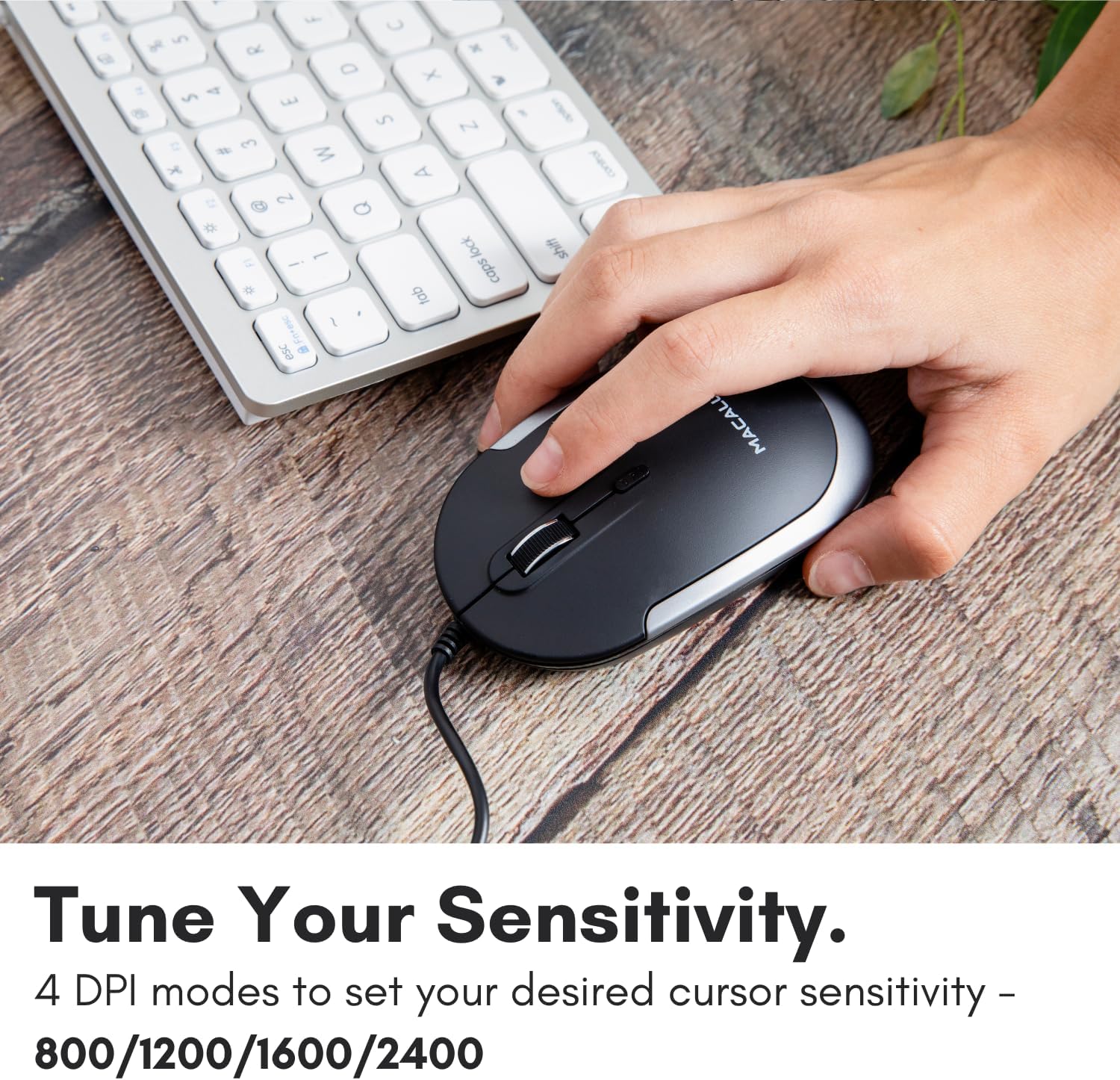
Image: A hand demonstrating how to press the DPI button on the Macally USB-C mouse to adjust sensitivity.
4.3 Compatibility
The Macally USB Type C Wired Mouse is universally compatible with a wide range of devices and operating systems:
- Mac (macOS)
- PC (Windows)
- iPadOS
- Android devices with USB-C ports

Image: The Macally USB-C mouse displayed with compatibility logos for Mac, PC, iPadOS, and Android operating systems.
5. Key Features
- USB-C Connectivity: Specifically designed for modern laptops and computers with USB-C ports, ensuring a reliable wired connection.
- Slim & Compact Design: With a height of only 1 inch, the mouse is slim, comfortable, and portable, fitting snugly in your hand.
- Quiet Click Buttons: Reduces clicking noise by 90% compared to traditional mice, providing a quieter work environment.
- Adjustable DPI: Easily switch between 800, 1200, 1600, and 2400 DPI settings for precise cursor control.
- 5-Foot Cable: Provides ample length for flexible setup and comfortable use, even with desktop computers.
- Ambidextrous Design: Suitable for both right-handed and left-handed users.

Image: The Macally USB-C mouse highlighting its elegant and slim design with dimensions.
Video: A detailed look at the Macally USB-C Optical Mouse, emphasizing its quiet click buttons and compatibility with Mac and PC.
6. Maintenance
To ensure the longevity and optimal performance of your Macally USB Type C Wired Mouse, follow these simple maintenance guidelines:
- Cleaning: Use a soft, dry, lint-free cloth to wipe the surface of the mouse. For stubborn dirt, slightly dampen the cloth with water or a mild cleaning solution. Avoid using harsh chemicals or abrasive materials.
- Optical Sensor: Keep the optical sensor on the underside of the mouse clean and free from dust or debris. Use a cotton swab or compressed air if necessary.
- Cable Care: Avoid sharp bends or excessive pulling on the USB-C cable to prevent damage. Store the cable neatly when not in use.
- Storage: When not in use, store the mouse in a clean, dry environment away from extreme temperatures.
7. Troubleshooting
If you encounter any issues with your Macally USB Type C Wired Mouse, please refer to the following common solutions:
| Problem | Solution |
|---|---|
| Mouse is not responding. |
|
| Cursor movement is erratic or jumpy. |
|
| Buttons or scroll wheel are not working. |
|
8. Specifications
| Brand | Macally |
| Model Number | UCDYNAMOUSESG |
| Connectivity Technology | USB-C Wired |
| Movement Detection Technology | Optical |
| DPI Settings | 800, 1200, 1600, 2400 |
| Cable Length | 5 feet (approx. 1.5 meters) |
| Buttons | 3 (Left, Right, Scroll Wheel/Middle Click) + DPI Switch |
| Item Weight | 2.56 ounces (approx. 72.5 grams) |
| Product Dimensions (LxWxH) | 2.8 x 4.21 x 1 inches (approx. 7.1 x 10.7 x 2.5 cm) |
| Compatibility | Mac (macOS), PC (Windows), iPadOS, Android (with USB-C) |
9. Warranty and Support
Macally provides a 1-year warranty for this product. For technical support, troubleshooting assistance, or warranty claims, please contact Macally customer service. You can find contact information and additional resources on the official Macally website:
Website: www.macally.com
Macally also offers easy returns and lifetime support with your purchase.


