
Dynavin N7-DCX
Dynavin N7-DCX 10.2 Navigation Device User Manual
Model: N7-DCX | Brand: Dynavin
Introduction
This manual provides comprehensive instructions for the installation, operation, and maintenance of your Dynavin N7-DCX 10.2 Navigation Device. Designed for Fiat Ducato 250/251 (from 2006), Citroen Jumper II 250/250d/250L (from 2006), and Peugeot Boxer II 250/251 (from 2006) vehicles, this device integrates advanced navigation, multimedia, and communication features to enhance your driving experience.

Figure 1: Dynavin N7-DCX 10.2 Navigation Device. This image shows the main unit with its large touchscreen display, integrated into a vehicle's dashboard frame, highlighting its seamless fit and user interface with icons for Radio, Navigation, Phone, and Media.
Safety Information
Please read all safety instructions carefully before operating the device. Failure to follow these instructions may result in injury or damage to the device or vehicle.
- Driving Safety: Do not operate the device in a way that distracts you from driving. Always prioritize road safety.
- Installation: Professional installation is highly recommended. Incorrect installation can damage the vehicle's electrical system or the device.
- Power Supply: Connect the device only to a 12V DC negative ground power supply.
- Temperature: Avoid exposing the device to extreme temperatures or direct sunlight for prolonged periods.
- Cleaning: Use a soft, dry cloth for cleaning. Do not use abrasive cleaners or solvents.
Product Features
The Dynavin N7-DCX offers a wide range of features designed for convenience and entertainment:
- Display: 10.2-inch Capacitive Anti-Reflective Touchscreen LCD with high resolution (1024 x 600px).
- Vehicle Integration: Compatible with steering wheel controls for seamless operation.
- Radio: FM RDS TMC Radio with DSP noise cancellation and 15 programmable memory presets.
- Media Playback: Integrated CD/DVD player, USB and SD card connectivity. Supports various media types including CD and DVD.
- Connectivity: Parrot Bluetooth for hands-free calling and audio streaming. Android Link for smartphone integration.
- Audio Output: 50 Watts output power, 2 channels.
- External Connections: AV input/output. Prepared for optional camera connection and DVB-T/DVB-T2 tuner.
- Smartphone Compatibility: Made for iPhone, iPod, iPad. Compatible with iOS and Android devices.
- Internet Services: Supports services like Pandora and Spotify (requires smartphone connection).
Setup and Installation
The Dynavin N7-DCX is designed for specific vehicle models. Due to the complexity of vehicle electronics, professional installation is strongly recommended to ensure proper functionality and to avoid damage to your vehicle or the device.
Pre-Installation Checklist:
- Ensure the vehicle's ignition is off and the battery is disconnected.
- Verify all included components are present.
- Consult your vehicle's service manual for dashboard removal procedures.
Basic Installation Steps (General Guidance):
- Carefully remove the existing factory radio or dashboard trim.
- Connect the vehicle-specific wiring harness to the Dynavin unit.
- Connect the antenna cable and any optional accessories (e.g., GPS antenna, microphone, camera input).
- Slide the Dynavin unit into the dashboard opening, ensuring all cables are clear and not pinched.
- Secure the unit in place using the provided mounting hardware.
- Reconnect the vehicle battery and test the unit's functionality before reassembling the dashboard trim.
For detailed, vehicle-specific installation instructions, please refer to the separate installation guide provided with your unit or consult a certified Dynavin installer.
Operating Instructions
This section details the primary functions and operations of your Dynavin N7-DCX device.
Main Menu Navigation:
Upon startup, the device will display the main menu, providing access to core functions such as Radio, Navigation, Phone, and Media. Tap the corresponding icon to enter the desired mode.
Radio Operation:
Access the FM radio by tapping the "Radio" icon on the main menu. You can tune to stations manually, scan, or select from presets.

Figure 2: FM Radio Interface. This screen displays available radio stations as large, touchable buttons, allowing for easy selection of presets. Controls for band selection, list view, manual tuning, and setup are visible at the bottom.
- Tuning: Use the left/right arrows to manually tune or seek for stations.
- Presets: Tap on a numbered box to save or recall a favorite station. The device supports 15 FM memory presets.
- RDS/TMC: The Radio Data System (RDS) and Traffic Message Channel (TMC) provide additional information and traffic updates where available.
Bluetooth Phone Functions:
Connect your mobile phone via Bluetooth for hands-free communication. Tap the "Telefon" (Phone) icon to access the phone interface.
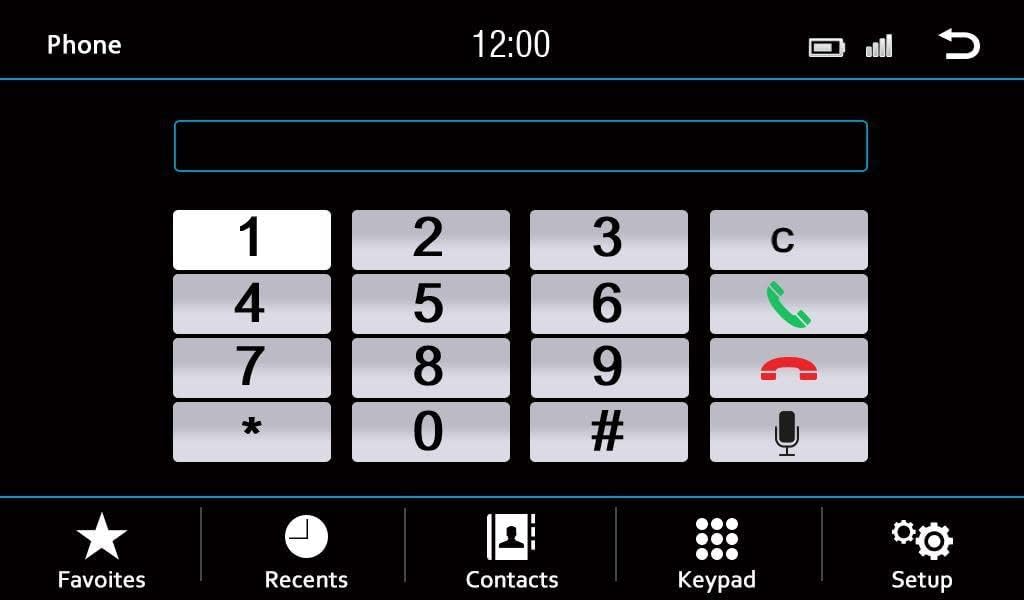
Figure 3: Bluetooth Phone Interface. This image shows a numeric dial pad for making calls, along with options for Favorites, Recents, Contacts, Keypad, and Setup at the bottom of the screen.
- Pairing: Go to the Bluetooth settings on your phone and search for the Dynavin device. Follow the on-screen prompts to complete pairing.
- Dialing: Use the on-screen keypad to dial numbers directly.
- Contacts: Access your phone's contacts (after synchronization) to make calls.
- Call Management: Answer, end, or reject calls using the on-screen controls.
Media Playback:
The device supports various media sources including CD/DVD, USB, SD cards, and connected iPod/iPhone devices. Tap the "Media" icon to select your desired source.
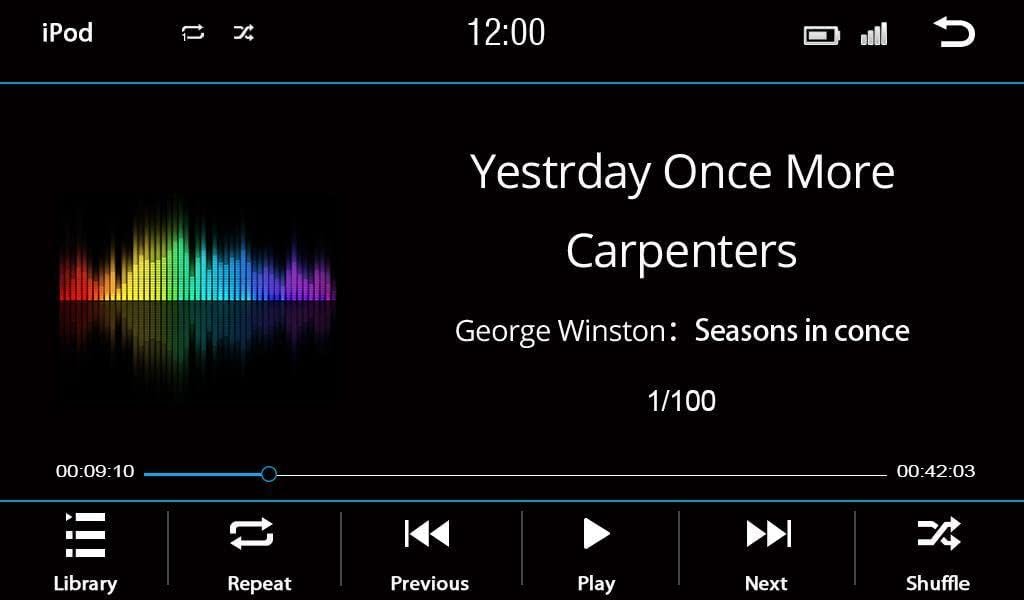
Figure 4: Media Playback Interface (iPod/USB). This screen displays the current track title, artist, and album information, along with a progress bar and playback controls (Library, Repeat, Previous, Play, Next, Shuffle).
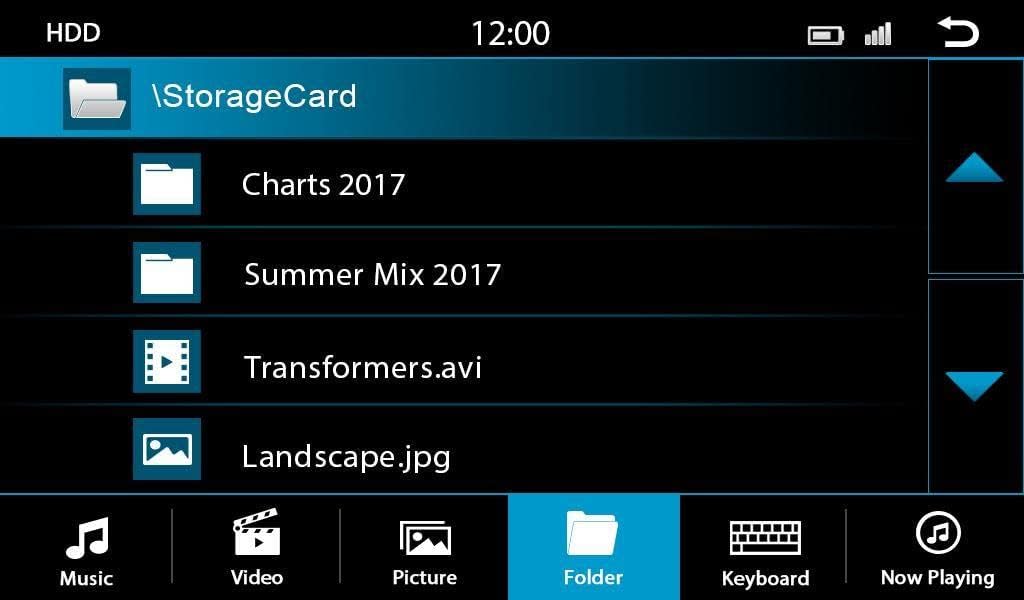
Figure 5: File Browser Interface. This screen allows users to navigate through folders and files on connected storage devices (like SD cards or USB drives), showing different file types such as music, video, and pictures.

Figure 6: USB Media Artist List. This interface displays a list of artists found on a connected USB device, allowing users to browse and select music by artist.
- CD/DVD: Insert a disc into the slot. Playback will begin automatically or can be selected from the media menu.
- USB/SD: Insert a USB drive or SD card into the designated slot. Use the file browser to navigate and select media files.
- iPod/iPhone: Connect your Apple device using a compatible USB cable. The device will automatically detect and allow control over your music library.
Audio Settings:
Customize your audio experience through the sound settings menu.

Figure 7: Fade-Balance-Delay Settings. This screen provides a visual representation of the vehicle's interior, allowing users to adjust the audio fade (front/rear), balance (left/right), and delay settings for optimal sound staging.
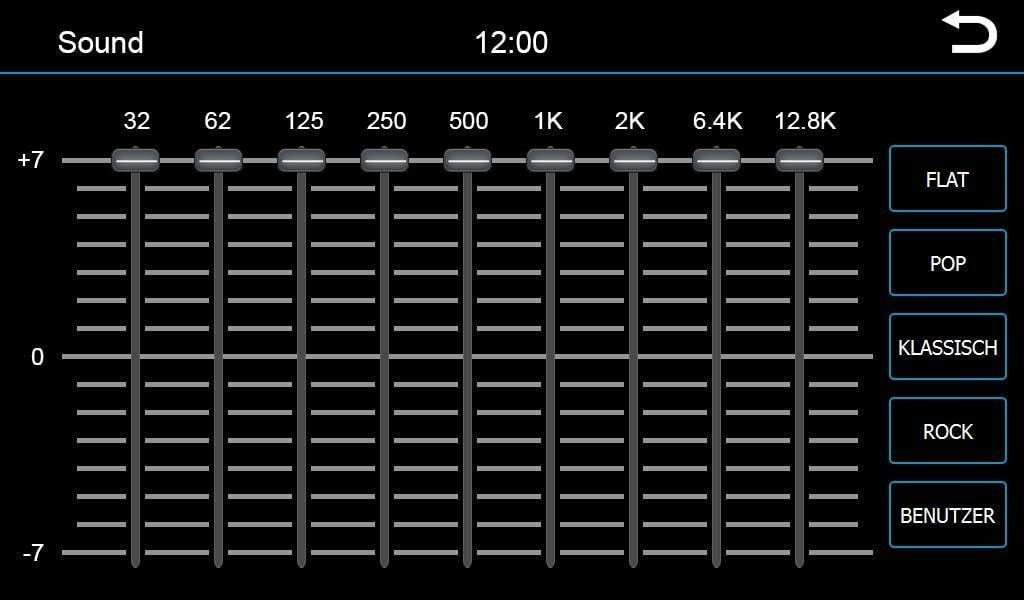
Figure 8: Graphic Equalizer Settings. This screen features a multi-band graphic equalizer, enabling precise adjustment of audio frequencies. Pre-set equalizer modes like Pop, Classical, and Rock are also available, along with a custom user setting.
- Equalizer: Adjust frequency bands to tailor the sound to your preference. Pre-set modes (e.g., Pop, Rock, Classical) are available.
- Fade/Balance: Adjust the audio output between front/rear and left/right speakers.
- DSP: Digital Signal Processing enhances audio quality and noise cancellation.
Steering Wheel Controls:
If your vehicle is equipped with steering wheel controls, the Dynavin N7-DCX is designed to integrate with them, allowing you to control volume, track changes, and other functions without taking your hands off the wheel. Configuration may be required during installation.
Maintenance
Proper maintenance ensures the longevity and optimal performance of your Dynavin N7-DCX device.
- Screen Cleaning: Use a soft, lint-free cloth to gently wipe the touchscreen. For stubborn smudges, slightly dampen the cloth with water or a screen-safe cleaner. Do not spray cleaner directly onto the screen.
- Software Updates: Periodically check the official Dynavin website for firmware updates. Updates can improve performance, add features, or fix bugs. Follow the provided instructions carefully when performing updates.
- Disc Drive: Keep the CD/DVD slot free of dust and debris. Avoid inserting damaged or non-standard discs.
- Ventilation: Ensure the device's ventilation openings are not blocked to prevent overheating.
Troubleshooting
If you encounter issues with your Dynavin N7-DCX, refer to the following common problems and solutions:
| Problem | Possible Cause | Solution |
|---|---|---|
| No Power / Device Does Not Turn On | Loose power connection, blown fuse, vehicle battery issue. | Check power cables and connections. Inspect vehicle fuses. Ensure vehicle battery is charged. |
| No Sound Output | Volume too low, mute activated, incorrect audio source, speaker wiring issue. | Increase volume. Check if mute is active. Select correct audio source. Verify speaker connections. |
| Bluetooth Connection Fails | Phone not in pairing mode, device not discoverable, interference. | Ensure phone's Bluetooth is on and in pairing mode. Restart both devices. Clear previous pairings. |
| Touchscreen Unresponsive | Software glitch, screen calibration needed, physical damage. | Perform a soft reset (refer to specific reset procedure if available). If persistent, contact support. |
| Disc Playback Errors | Dirty or scratched disc, incompatible disc format. | Clean the disc. Try a different disc. Ensure disc format is supported. |
If the problem persists after attempting these solutions, please contact Dynavin customer support or a qualified service technician.
Specifications
Detailed technical specifications for the Dynavin N7-DCX navigation device:
| Brand | Dynavin |
| Model | N7-DCX |
| Screen Size | 10.2 Inches |
| Screen Resolution | 1024 x 600px |
| Input Interface | Touchscreen |
| Connectivity Technology | Bluetooth, USB |
| Compatible Devices | Smartphone (iOS, Android) |
| Audio Output Type | Speakers |
| Output Wattage | 50 Watts |
| Number of Channels | 2 |
| Supported Media Types | CD, DVD |
| Supported Internet Services | Pandora, Spotify |
Warranty and Support
Dynavin products are manufactured to high quality standards. For information regarding warranty coverage, technical support, or service, please refer to the warranty card included with your product or visit the official Dynavin website. Keep your proof of purchase for warranty claims.
Online Resources: For the latest drivers, firmware updates, and frequently asked questions, please visit the official Dynavin support page.
Related documentsN7-DCX


Ask a question about this manual
Ask about setup, troubleshooting, compatibility, parts, safety, or missing instructions. Manuals+ will review the question and use this page’s manual context to help answer it.