
Akai Professional FIRE
AKAI Professional Fire USB MIDI Controller Instruction Manual
Model: FIRE
Brand: Akai Professional
Introduction
The Akai Professional Fire is the first dedicated hardware controller for the FL Studio DAW platform. It is designed to enhance your workflow and music creation experience, offering seamless plug-and-play integration and a comprehensive set of controls.

Figure 1: Akai Professional Fire Controller
What's in the Box
- Fire Controller
- USB Cable
- Software Download Card (for FL Studio Fruity Fire Edition)
- User Guide
- Safety & Warranty Manual
Setup
- Connect the Fire Controller: Use the supplied USB cable to connect the Akai Professional Fire controller to an available USB port on your computer (Laptop or PC). The device is designed for plug-and-play integration.
- Install FL Studio Fruity Fire Edition: Locate the Software Download Card included in the box. Follow the instructions on the card to download and install the FL Studio Fruity Fire Edition software on your computer.
- Verify Connection: Once the software is installed and the controller is connected, launch FL Studio. The Fire controller should be automatically recognized and ready for use.

Figure 2: USB Connection Port
Operating Instructions
General Controls
The Akai Fire features a 4x16 velocity-sensitive RGB pad matrix, four banks of touch-capacitive knobs, a graphical OLED display, and dedicated transport controls for intuitive operation within FL Studio.

Figure 3: Akai Fire Control Layout
Step Sequencer Mode
In Step Sequencer mode, the 64 RGB pads allow for quick input of patterns. Each pad corresponds to a step in the sequencer, and its color indicates its status. You can easily program drums, melodies, and other elements.
Video 1: Demonstrating Advanced Step Sequencing and Trap Beat Creation with Akai Fire.
Performance Mode
Switch to Performance mode to play and record notes or launch patterns using the velocity-sensitive RGB pads. This mode is ideal for live performance and expressive input.

Figure 4: Hands-on Performance Mode
Drum Mode
Transform the Fire into a beat-making essential with its MPC-style 16-pad layout in Drum Mode, allowing for intuitive drum programming.
Mixer Control
The four banks of touch-capacitive knobs provide tactile control over channel, mixer, and user-assignable parameters. Adjust volume, pan, filter, and EQ settings directly from the hardware.
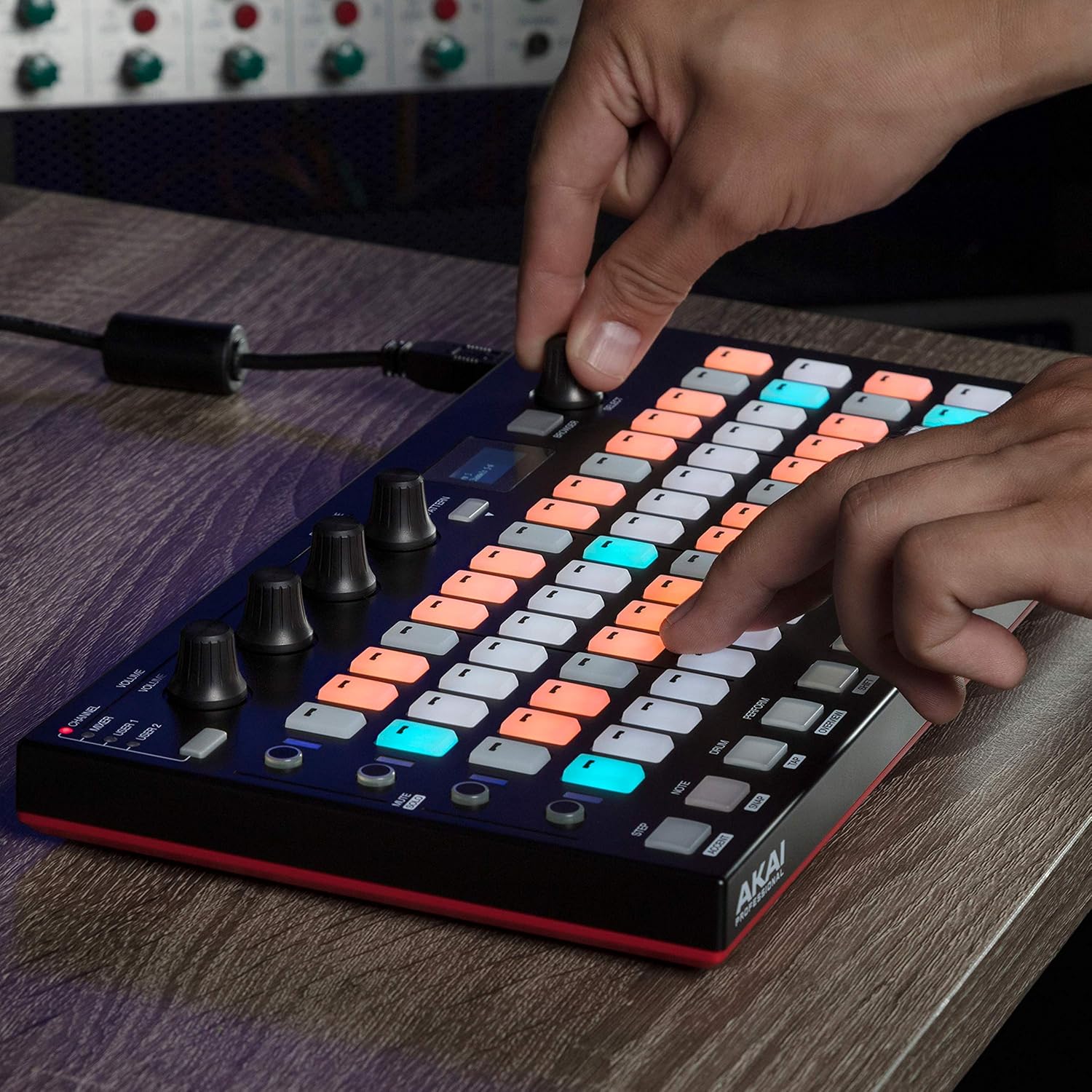
Figure 5: Adjusting Knobs for Mixer Control
Video 2: Guide to Mixing with Akai Fire, demonstrating knob functionality.
Navigation
Instantly navigate the Channel Rack, Browser, Tool Bar, and Playlist windows. The graphical OLED display provides clear feedback, allowing you to browse audio and project files without a mouse.

Figure 6: Navigating with the Browser Knob
Troubleshooting
Device Not Recognized
- Ensure the USB cable is securely connected to both the Fire controller and your computer.
- Try connecting to a different USB port on your computer.
- Restart your computer and FL Studio.
- Verify that the latest drivers for the Akai Fire are installed (usually handled automatically by plug-and-play).
No Sound Output
- Check the master volume levels on the Fire controller and within FL Studio.
- Ensure your audio output device is correctly selected in FL Studio's audio settings.
- Verify that individual track volumes and pan settings are not muted or set too low.
Pads/Knobs Unresponsive
- Confirm that the Fire controller is in the correct operating mode for the desired function (e.g., Step, Note, Drum, Perform).
- Check FL Studio's MIDI settings to ensure the Fire controller is enabled and correctly mapped.
- If specific pads are unresponsive, gently clean around them to ensure no debris is interfering.
Maintenance
- Cleaning: Use a soft, dry, lint-free cloth to clean the surface of the Fire controller. Avoid using abrasive cleaners, solvents, or strong chemicals.
- Storage: Store the device in a cool, dry environment away from direct sunlight, extreme temperatures, and high humidity.
- Protection: When not in use, consider covering the controller to protect it from dust and spills.
Specifications
| Feature | Detail |
|---|---|
| Item Weight | 1.7 pounds |
| Product Dimensions | 0.91 x 6.52 x 12.44 inches |
| Item Model Number | FIRE |
| Compatible Devices | Laptop, PC |
| Connector Type | USB |
| Hardware Interface | USB |
| Supported Software | FL Studio |
| Material Type | OLED |
| Number of Keyboard Keys | 64 |
| Connectivity Technology | USB |
| Special Feature | Velocity Sensitive Key, Keyboard Controller |
Warranty and Support
For detailed warranty information and terms, please refer to the included Safety & Warranty Manual.
Additional support resources, including user guides and installation manuals, are available:
Ask a question about this manual
Ask about setup, troubleshooting, compatibility, parts, safety, or missing instructions. Manuals+ will review the question and use this page’s manual context to help answer it.