
1. Introduction
This Rii RM400 rainbow backlit gaming keyboard and mouse combo is designed for all your gaming and daily computing needs. It features a gaming mouse with 3 preset DPI functions (1000, 1600, and 2000 DPI) for adjustable sensitivity. The wired keyboard offers mechanical-feel keys with vibrant 7-color rainbow backlighting, ideal for use in low-light conditions. This plug-and-play combo is compatible with most devices equipped with a USB port.
Key features include:
- 7-color backlit keyboard and mouse.
- Keys designed for long lifespan and satisfying tactile feedback.
- Ergonomic keyboard and mouse design for enhanced comfort during use.
- Laser-engraved keys with a special coating for comfortable typing.
- Integrated multimedia keys for music and volume control.
- Mouse with 3 preset DPI levels (1000, 1600, and 2000).

Image 1.1: The Rii RK400+ Rainbow Backlit Gaming Keyboard and Mouse Combo, showcasing its vibrant illumination.
2. Package Contents
Please ensure all items are present in the package:
- Rii RK400+ Rainbow Backlit Gaming Keyboard
- Rii Gaming Mouse (3-DPI adjustable)
- User Manual
3. Setup
The Rii RK400+ combo is designed for simple plug-and-play installation.
- Locate an available USB port on your computer.
- Connect the USB cable from the Rii keyboard to the USB port.
- Connect the USB cable from the Rii mouse to another available USB port.
- Your operating system should automatically detect and install the necessary drivers. No additional software installation is typically required.
System Requirements: PC with USB port, Windows 7/8/10/XP/Vista, or compatible Linux/Mac systems.
4. Operating Instructions
4.1 Keyboard Features
- Rainbow Backlighting: The keyboard features a dynamic 7-color rainbow backlight.
- Anti-Ghosting: Equipped with 19 anti-ghosting keys to ensure accurate input during intense gaming sessions.
- Multimedia Keys: 12 dedicated multimedia function keys for quick access to media controls and common applications.
- Ergonomic Design: Designed for comfort during extended use.

Image 4.1: The Rii RK400+ keyboard highlighting 19 anti-ghosting keys and 12 multimedia keys with their functions.
4.2 Mouse Features
- Adjustable DPI: Cycle through 3 preset DPI levels (1000, 1600, 2000) using the dedicated DPI button on the mouse to adjust cursor sensitivity.
- Optical Tracking: Provides precise and responsive cursor control.
- Ergonomic Design: Shaped for comfortable grip and reduced hand fatigue.
4.3 Backlight Control (Keyboard)
Control the keyboard's rainbow backlighting using the following key combinations:
- FN + ☀ (Sun icon key): Adjust backlight brightness.
- ☀ (Sun icon key) alone: Toggle backlight ON/OFF.
- ☀ (Sun icon key) with 2 modes: Cycle through different backlight modes.

Image 4.2: Keyboard keys for controlling backlight brightness, modes, and power.
4.4 Multimedia Keys (Keyboard)
Access multimedia functions by pressing the FN key in combination with the corresponding F-keys:
- FN + F1: Music Player
- FN + F2: Volume Down
- FN + F3: Volume Up
- FN + F4: Mute
- FN + F5: Stop
- FN + F6: Previous Track
- FN + F7: Play/Pause
- FN + F8: Next Track
- FN + F9: Email
- FN + F10: Home Page
- FN + F11: Lock Computer
- FN + F12: Calculator
5. Maintenance
To ensure the longevity and optimal performance of your Rii RK400+ combo, follow these maintenance guidelines:
- Cleaning: Use a soft, dry cloth to wipe down the keyboard and mouse. For stubborn dirt, slightly dampen the cloth with water. Avoid using harsh chemicals or abrasive cleaners.
- Spills: In case of liquid spills, immediately disconnect the device from your computer. Allow it to dry completely before reconnecting.
- Storage: Store the device in a cool, dry place away from direct sunlight and extreme temperatures.
- Avoid Impact: Do not drop or subject the keyboard and mouse to strong impacts, as this can damage internal components.
6. Troubleshooting
If you encounter issues with your Rii RK400+ combo, please refer to the following common solutions:
- Keyboard/Mouse Not Responding:
- Ensure both USB cables are securely connected to your computer's USB ports.
- Try connecting the devices to different USB ports.
- Restart your computer.
- Test the keyboard and mouse on another computer to rule out a system-specific issue.
- Backlight Not Working:
- Press the ☀ (Sun icon key) to toggle the backlight ON/OFF.
- Use FN + ☀ to adjust brightness.
- Mouse Cursor Movement is Erratic or Slow:
- Clean the optical sensor on the bottom of the mouse.
- Press the DPI button on the mouse to cycle through different sensitivity settings.
- Ensure you are using the mouse on a suitable surface (e.g., a mouse pad).
- Keys Not Registering or Double-Typing:
- Check for any debris or foreign objects lodged under the keys.
- Ensure the keyboard is firmly connected via USB.
7. Specifications
| Feature | Specification |
|---|---|
| Brand | Rii |
| Model Number | RM400 |
| Connectivity | Wired USB |
| Color | Black |
| Keyboard Layout | QWERTY |
| Special Features | Wrist Rest, Rainbow Backlit |
| Compatible Devices | Personal Computer |
| Operating Systems | Windows 2000/98/Me/XP/Vista/7/8/10, Linux, Mac |
| Mouse DPI Levels | 1000, 1600, 2000 |
| Mouse Tracking Technology | Optical |
| Keyboard Key Lifespan | Up to 5 million clicks |
| Mouse Button Lifespan | Up to 3 million clicks |
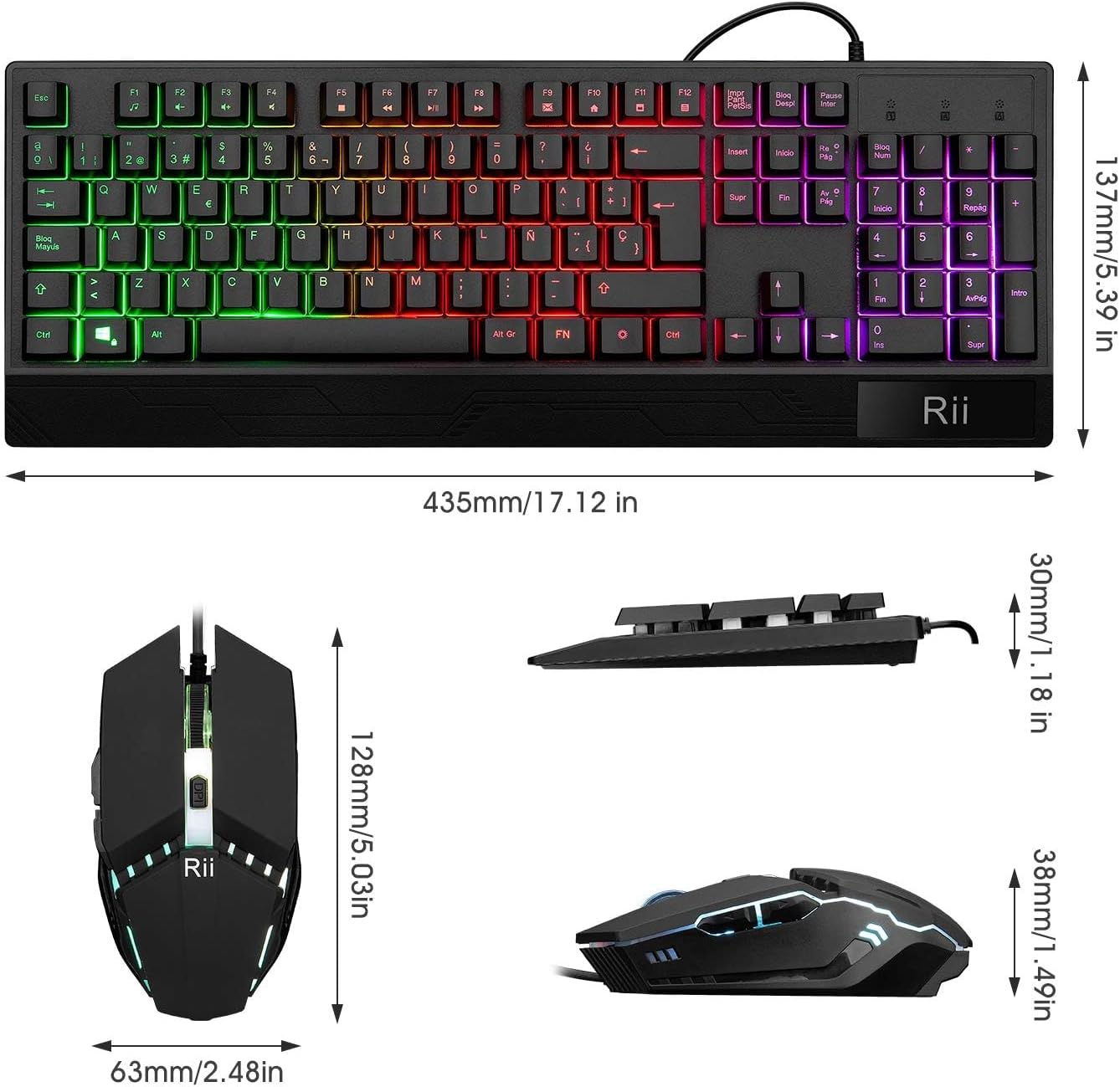
Image 7.1: Dimensions of the Rii RK400+ keyboard and mouse.

Image 7.2: Indication of keyboard key lifespan (up to 5 million clicks) and mouse button lifespan (up to 3 million clicks).
8. Warranty Information
Rii products are manufactured to high-quality standards. Specific warranty details may vary by region and retailer. Please retain your proof of purchase for any warranty claims. For detailed warranty information, refer to the documentation provided with your purchase or contact your retailer.
9. Support
For further assistance, technical support, or inquiries regarding your Rii RK400+ Gaming Keyboard and Mouse Combo, please visit the official Rii website or contact your point of purchase. Support resources may include FAQs, driver downloads, and contact information for customer service.


