
1. Introduction
The SteelSeries Rival 650 Quantum Wireless Gaming Mouse offers lag-free performance with its advanced dual sensor system, TrueMove3+. Designed for competitive gaming, it features a rapid-charging battery, customizable lift-off distance, and 256 weight configurations for personalized balance. This manual provides essential information for setting up, operating, and maintaining your Rival 650 mouse.

Image: SteelSeries Rival 650 mouse on a gaming desk with other peripherals.
2. Package Contents
Ensure all items are present in your package:
- SteelSeries Rival 650 Wireless Gaming Mouse
- USB Wireless Adapter
- USB Cable for Play & Charge
- USB Extender
- Weight System (8x 4g weights)
- Quick Start Guide
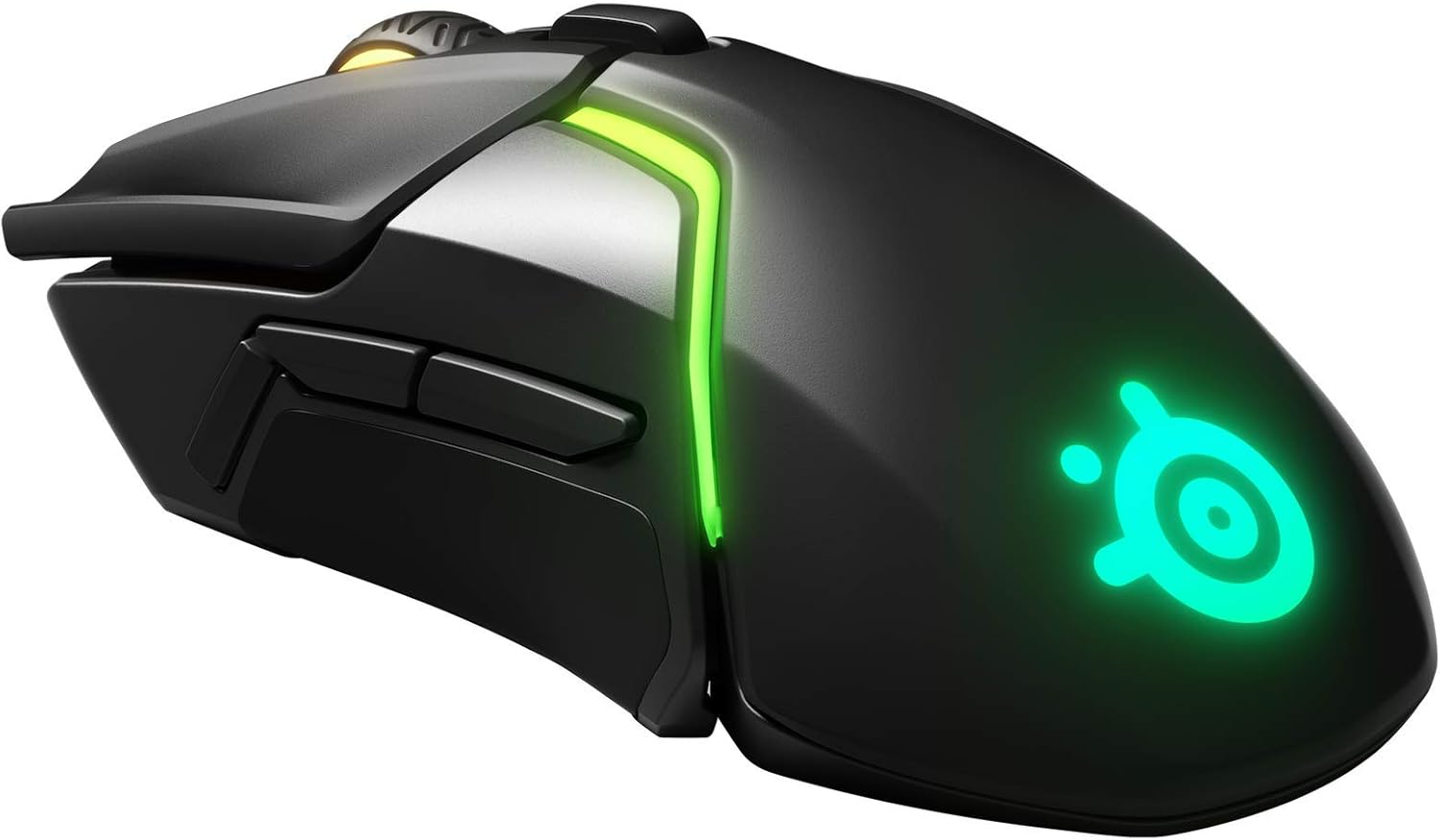
Image: The Rival 650 mouse disassembled, showing its modular weight system and side panels.
3. Setup
Follow these steps to set up your SteelSeries Rival 650 mouse:
- Charge the Mouse: Connect the USB cable to the mouse and a powered USB port on your computer. Allow the mouse to charge fully before first use.
- Connect Wirelessly: Plug the USB Wireless Adapter into an available USB port on your computer. For optimal signal, use the USB Extender to position the adapter closer to the mouse.
- Install SteelSeries Engine: Download and install the SteelSeries Engine software from the official SteelSeries website (steelseries.com/engine). This software is essential for customizing settings, updating firmware, and managing profiles.
- Power On: Turn on the mouse using the switch located on the underside. The RGB lighting will illuminate.

Image: The SteelSeries Rival 650 mouse positioned on a mousepad, indicating readiness for operation.
Setup Video Guide
Video: A user demonstrates the setup process for a SteelSeries keyboard and mouse, including connection and software configuration.
4. Operating the Mouse
The Rival 650 is designed for intuitive and customizable operation:
- Basic Functions: The left and right click buttons, along with the scroll wheel, function as standard mouse controls.
- Programmable Buttons: The mouse features 7 programmable buttons. Use the SteelSeries Engine software to assign custom functions, macros, or keybinds to these buttons for enhanced gaming and productivity.
- DPI/CPI Adjustment: The TrueMove3+ optical sensor offers up to 12,000 CPI (Counts Per Inch) with 350 IPS (Inches Per Second) tracking. You can adjust the CPI settings through the SteelSeries Engine to match your preferred sensitivity.
- Customizable Lift-Off Distance: The mouse allows for a customizable lift-off distance from 0.5mm to 2mm, ensuring precise tracking even when repositioning the mouse.
- Weight Tuning: Personalize the mouse's balance and weight using the included 4g weights. The Rival 650 supports up to 256 center-of-gravity weight tuning configurations. Remove the magnetic side panels to access the weight slots.

Image: The SteelSeries Rival 650 mouse with its magnetic side panels detached, showing the internal compartments for adding or removing 4g weights.
5. Battery and Charging
The Rival 650 is equipped with a long-lasting, rapid-charging battery:
- Battery Life: Enjoy over 24 hours of battery life on a full charge.
- Rapid Charging: A quick 15-minute charge can provide over 10 hours of gameplay.
- Charging: Connect the mouse to your computer using the provided USB cable to charge. You can continue to use the mouse while it charges.

Image: The SteelSeries Rival 650 mouse connected to a charging cable, with its RGB lighting active.
6. Maintenance
To ensure the longevity and optimal performance of your Rival 650 mouse:
- Cleaning: Regularly clean the mouse with a soft, dry cloth. Avoid using harsh chemicals or abrasive materials. For optical sensor cleaning, use a cotton swab lightly dampened with isopropyl alcohol.
- Firmware Updates: It is recommended to regularly update the mouse firmware using the SteelSeries Engine software to benefit from performance improvements and new features.
- Cable Care: Handle the USB cable with care to prevent damage. Avoid sharp bends or excessive pulling.
7. Troubleshooting
If you encounter issues with your SteelSeries Rival 650, try the following:
- No Power/Not Responding: Ensure the mouse is charged and powered on. Check the USB cable connection or try a different USB port.
- Wireless Connectivity Issues: Ensure the USB Wireless Adapter is securely plugged in and within range of the mouse. Try repositioning the adapter using the USB Extender. Re-pair the mouse with the adapter if necessary (refer to SteelSeries Engine for pairing instructions).
- Tracking Problems: Clean the optical sensor on the underside of the mouse. Ensure you are using the mouse on a suitable surface (e.g., a mousepad). Adjust CPI settings in SteelSeries Engine.
- Software Not Detecting Mouse: Ensure SteelSeries Engine is updated to the latest version. Restart your computer and the software.
- Buttons Not Working: Check button assignments in SteelSeries Engine. Ensure no physical obstructions are present.
For further assistance, visit the SteelSeries support website.
8. Specifications
| Feature | Detail |
|---|---|
| Brand | SteelSeries |
| Model | Rival 650 |
| Sensor System | TrueMove3+ Dual Optical Sensor |
| CPI | 100–12,000 in 100 CPI Increments |
| IPS | 350+ (on SteelSeries QcK surfaces) |
| Acceleration | 50G |
| Lift-Off Distance | Customizable 0.5mm–2mm |
| Connectivity | 2.4GHz Quantum Wireless / Wired USB |
| Battery Life | 24+ hours (full charge), 10 hours (15 min rapid charge) |
| Buttons | 7 Programmable |
| Weight | 121g–153g (with customizable weights) |
| Dimensions (LxWxH) | 5.16 x 2.72 x 1.69 inches |
| Operating System | Windows, macOS, Linux |

Image: Technical drawing illustrating the length (5.16 inches) and width (2.72 inches) of the Rival 650 mouse.
9. Warranty and Support
Your SteelSeries Rival 650 mouse comes with a manufacturer's warranty. For detailed warranty information, product registration, and technical support, please visit the official SteelSeries support website:
It is recommended to keep your proof of purchase for warranty claims.


