
1. Introduction
This manual provides instructions for installing, configuring, and troubleshooting your ARRIS SURFboard SBG7600AC2 Cable Modem Router Combo. This device integrates a DOCSIS 3.0 cable modem with an AC2350 Wi-Fi router, designed to deliver high-speed internet and Wi-Fi connectivity to your home.
1.1. Package Contents
- ARRIS SURFboard SBG7600AC2 Cable Modem Router Combo
- Power Supply
- Ethernet Cable
- Quick-Start Guide
- 2-Year Warranty Card
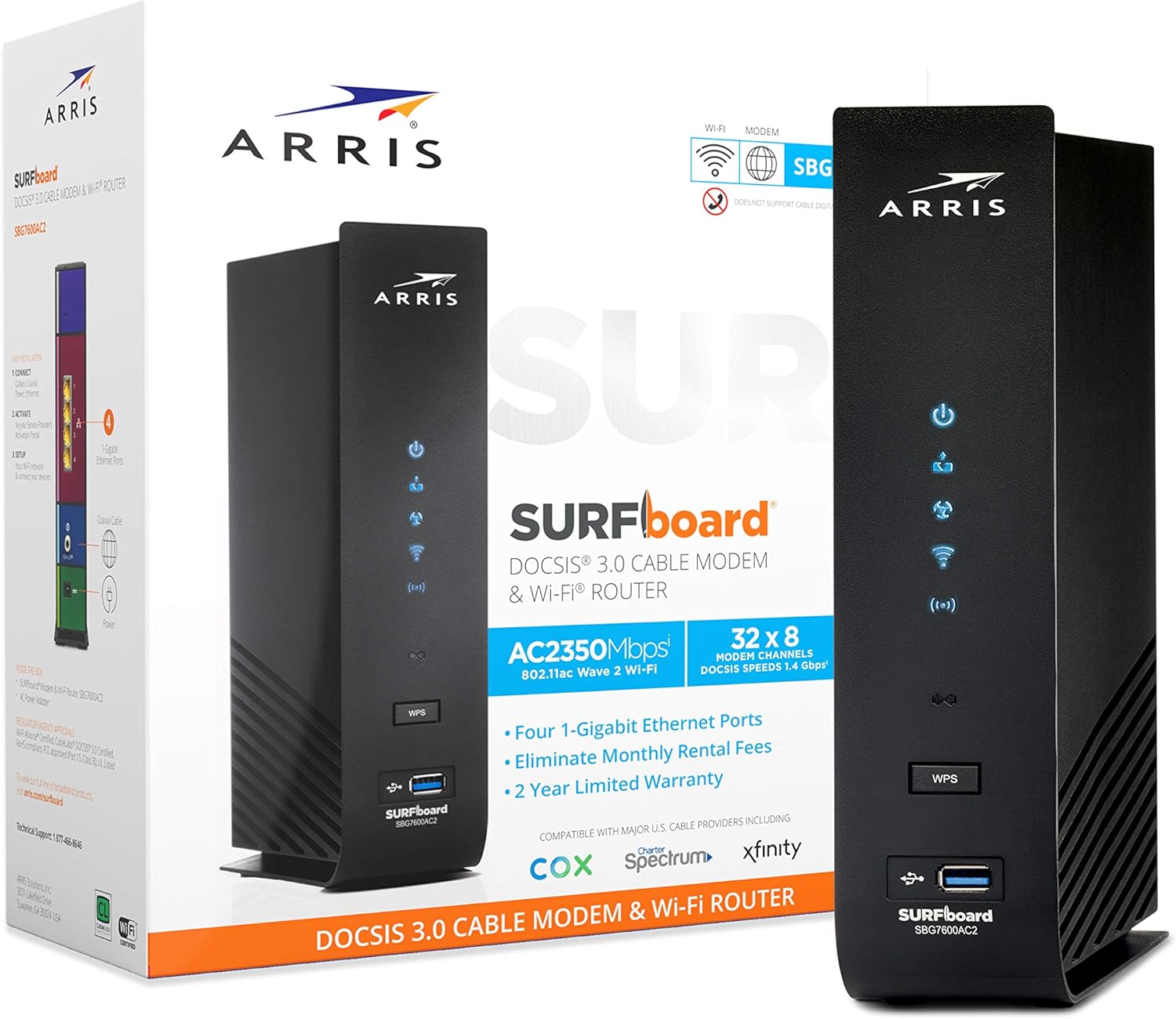
Image 1.1: ARRIS SURFboard SBG7600AC2 device and its retail packaging, showing the modem router combo unit alongside its box.
2. Setup Instructions
Follow these steps to set up your ARRIS SURFboard SBG7600AC2 and establish an internet connection.
2.1. Connecting the Hardware
- Connect Coaxial Cable: Connect a coaxial cable from your cable wall outlet to the Cable port on the back of your SBG7600AC2. Ensure the connection is finger-tight.
- Connect Power: Connect the power supply to the Power port on the back of your SBG7600AC2 and then plug it into an electrical outlet. The device will begin its startup sequence.
- Connect Ethernet (Optional): For a wired connection, connect an Ethernet cable from one of the Ethernet ports on the back of your SBG7600AC2 to the Ethernet port on your computer or network device.

Image 2.1: Rear view of the ARRIS SBG7600AC2, highlighting the coaxial cable input, four Gigabit Ethernet ports, and the power input.
2.2. Device Activation
After connecting the hardware, you must activate the device with your Internet Service Provider (ISP).
- Wait for Indicator Lights: Allow several minutes for the SBG7600AC2 to power on and connect to the cable network. The Power, Receive, Send, and Online indicator lights on the front panel should become solid.
- Contact Your ISP: Call your ISP (e.g., Comcast Xfinity, Cox) to activate your new modem. You will need to provide the MAC address and serial number, typically found on a label on the bottom or back of the device.
- SURFboard Central App: Download the SURFboard Central App for iOS or Android. This app can guide you through activation, Wi-Fi setup, and network management.

Image 2.2: Icon representing the SURFboard Central mobile application, used for device setup and management.
3. Operating Instructions
Understanding the indicator lights and basic functions of your SBG7600AC2.
3.1. Front Panel Indicator Lights

Image 3.1: Front view of the ARRIS SBG7600AC2, displaying the vertical row of indicator lights and the WPS button.
| Light | Status | Description |
|---|---|---|
| Power | Solid Green | Power is on. |
| Receive | Solid Green | Downstream channel connected. |
| Send | Solid Green | Upstream channel connected. |
| Online | Solid Green | Internet connection established. |
| Wi-Fi (2.4 GHz) | Solid Green | 2.4 GHz Wi-Fi is enabled. |
| Wi-Fi (5 GHz) | Solid Green | 5 GHz Wi-Fi is enabled. |
| WPS | Flashing Green | WPS pairing in progress. |
3.2. Wi-Fi Protected Setup (WPS)
The WPS button on the front of the device allows for easy connection of WPS-compatible Wi-Fi devices without entering the network password. Press the WPS button on the SBG7600AC2, then activate WPS on your client device within two minutes.
4. Compatibility
The ARRIS SURFboard SBG7600AC2 is designed for use with specific Internet Service Providers and connection types.
- Compatible ISPs: Certified for use with major U.S. cable internet providers including Cox and Xfinity. Always verify compatibility with your specific ISP and service plan before purchase.
- Not Compatible With: This device is not compatible with Spectrum, DSL, Fiber, or Satellite internet services. It also does not support cable digital voice service.

Image 4.1: Visual representation of ISP compatibility, showing logos for Cox and Xfinity, and indicating non-compatibility with DSL, Fiber, Satellite, and digital voice services.
5. Features
Key features of the ARRIS SURFboard SBG7600AC2 Cable Modem Router Combo.
- DOCSIS 3.0 Technology: Supports high-speed internet plans up to 800 Mbps.
- AC2350 Wi-Fi Router: Dual-band Wi-Fi (2.4 GHz and 5 GHz) for broad coverage and fast wireless speeds.
- Four 1 Gigabit Ethernet Ports: Provides reliable wired connections for devices such as computers, gaming consoles, and smart TVs.
- Cost Savings: Owning your modem can eliminate monthly rental fees from your ISP.
- SURFboard Central App: Offers simplified setup, network monitoring, and parental controls.
- Parental Controls: Manage internet access and set time limits for connected devices.
- Access Point Mode: Can function as a Wi-Fi access point in existing network configurations.

DOCSIS 3.0

Modem + Router

Cost Savings
6. Troubleshooting
Common issues and solutions for your SBG7600AC2.
6.1. No Internet Connection
- Check Cables: Ensure all coaxial and power cables are securely connected.
- Indicator Lights: Verify that the Power, Receive, Send, and Online lights are solid green. If not, refer to Table 3.1.
- Restart Device: Unplug the power cord from the SBG7600AC2, wait 10 seconds, then plug it back in. Allow several minutes for the device to restart and reconnect.
- ISP Status: Contact your Internet Service Provider to confirm there are no service outages in your area and that your modem is properly provisioned.
6.2. Slow Internet Speeds
- Wi-Fi Interference: Move the SBG7600AC2 away from other electronic devices that may cause interference (e.g., cordless phones, microwaves).
- Network Congestion: Reduce the number of devices actively using the network or bandwidth-intensive applications.
- ISP Plan: Confirm your internet plan supports the speeds you expect.
- Firmware: Ensure your modem's firmware is up to date. Firmware updates are typically managed by your ISP.
6.3. Wi-Fi Connection Issues
- Check Wi-Fi Lights: Ensure both 2.4 GHz and 5 GHz Wi-Fi indicator lights are solid green.
- Network Name/Password: Verify you are connecting to the correct Wi-Fi network (SSID) and using the correct password.
- Distance/Obstacles: Move closer to the SBG7600AC2 or remove obstacles that may block the Wi-Fi signal.
7. Specifications
| Feature | Detail |
|---|---|
| Model Number | SBG7600AC2 |
| DOCSIS Standard | 3.0 |
| Wi-Fi Standard | 802.11ac (AC2350) |
| Frequency Band Class | Dual-Band (2.4 GHz, 5 GHz) |
| Ethernet Ports | 4 x 1 Gigabit Ethernet |
| Max Internet Speed | Up to 800 Mbps (ISP dependent) |
| Dimensions (H x W x D) | 9.72 x 4.06 x 9.5 inches |
| Item Weight | 2.64 pounds |
| Color | Black |
| Special Features | Access Point Mode, Parental Control |
8. Warranty and Support
Your ARRIS SURFboard SBG7600AC2 comes with a 2-year limited warranty. For technical assistance, warranty claims, or additional support, please refer to the contact information provided in your Quick-Start Guide or visit the official ARRIS support website.
It is recommended to register your product to receive updates and support information.


