
1. Introduction
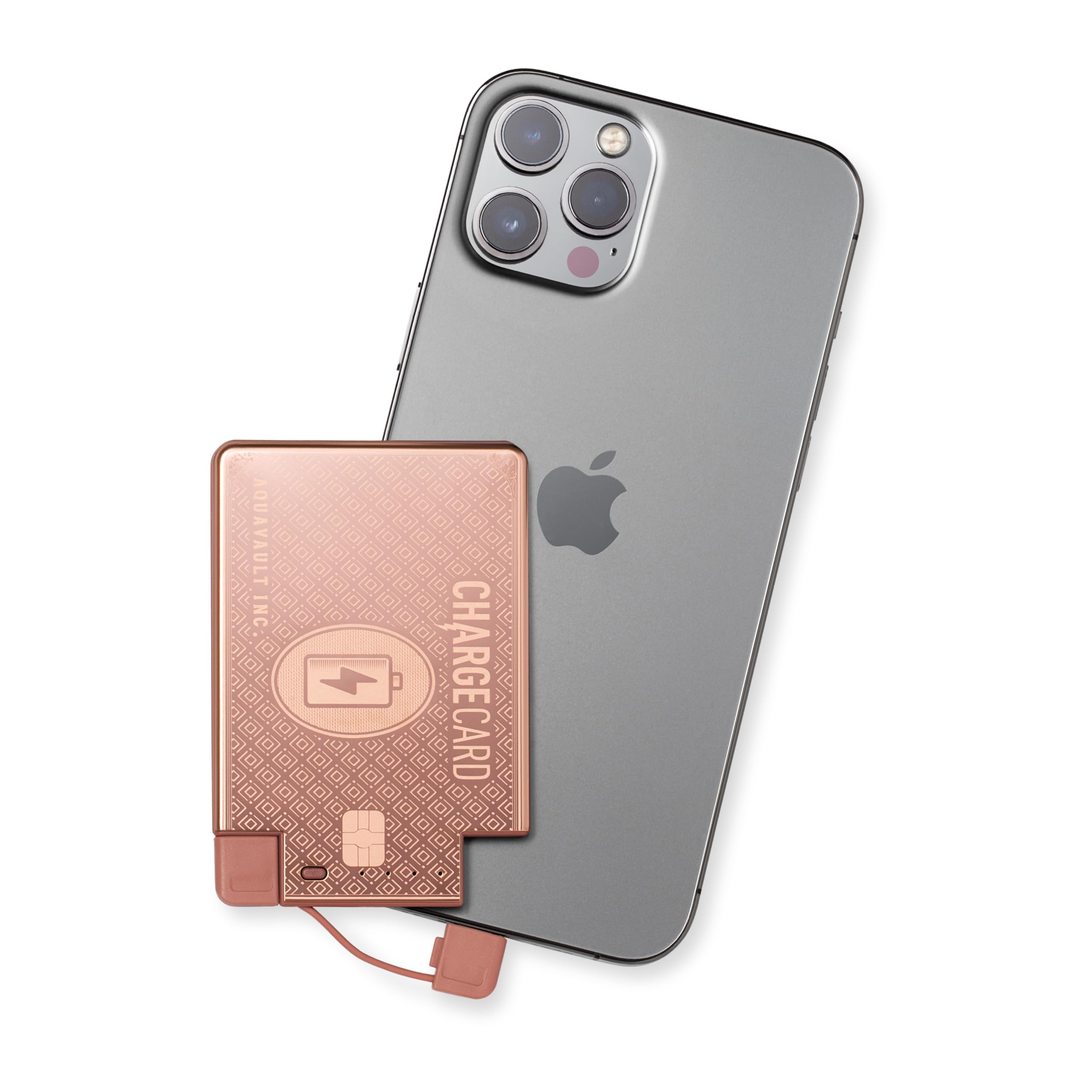
Thank you for choosing the AquaVault ChargeCard. This ultra-slim emergency power bank is designed for convenient, on-the-go charging of your mobile devices. Its compact size allows it to fit easily into a wallet or pocket, ensuring you always have backup power when you need it most. This manual provides essential information for the safe and efficient use of your ChargeCard.
2. Product Overview
Key Features:
- Ultra-Slim Design: Measures 3.3" x 2.2" x 0.18" and weighs 2.1 oz, designed to fit in a wallet or cardholder.
- Integrated Charging Cables: Features built-in USB-C and Micro-USB connectors for broad compatibility with Android, tablets, and other devices. Compatible with iPhones (iPhone 6 and newer) using their standard adapter.
- Emergency Power: 2300mAh battery capacity provides a crucial power boost for your devices.
- Durable Construction: Engineered with a stainless steel frame for enhanced durability.
- LED Power Indicators: Four LED lights display the remaining battery charge.
- Flight-Safe: Meets airline safety guidelines for carry-on travel.

What's Included:
- AquaVault ChargeCard (AV10-ChargeCard)
- USB-C to USB-A charging cable (for recharging the ChargeCard)
- Micro-USB adapter
- Lightning adapter (for Apple devices)
- Small carrying pouch
3. Safety Information
To ensure safe operation and prolong the life of your AquaVault ChargeCard, please adhere to the following safety guidelines:
- Do not expose the ChargeCard to extreme temperatures, direct sunlight, or fire.
- Avoid dropping, puncturing, or disassembling the device.
- Keep out of reach of children.
- Do not use if the device appears damaged or swollen.
- Use only the provided or certified compatible charging cables.
- The ChargeCard is flight-safe and can be carried in your carry-on luggage.
4. Setup
Initial Charge:
Before first use, fully charge your AquaVault ChargeCard for optimal performance.
- Connect the included USB-C to USB-A cable to the ChargeCard's input port (usually located on the side).
- Plug the USB-A end into a compatible USB wall adapter (not included) or a computer's USB port.
- The LED indicator lights on the ChargeCard will illuminate to show charging progress. All four lights will be solid when fully charged.
5. Operating Instructions
Checking Battery Level:
Press the small button on the side of the ChargeCard. The LED indicator lights will illuminate to show the current battery level:
- 1 LED: 0-25% charge
- 2 LEDs: 25-50% charge
- 3 LEDs: 50-75% charge
- 4 LEDs: 75-100% charge
Charging Your Device:
- Identify the correct connector for your device:
- USB-C: For most modern Android phones and other USB-C compatible devices.
- Micro-USB: For older Android phones and various other Micro-USB devices.
- Lightning Adapter: Attach the Lightning adapter to the USB-C connector for iPhone (iPhone 6 and newer) and other Apple devices.
- Gently pull out the integrated charging cable from the ChargeCard.
- Connect the appropriate end of the cable (or adapter) to your mobile device's charging port.
- The ChargeCard will automatically begin charging your device. The LED indicators will show the ChargeCard's remaining power.
- Once your device is sufficiently charged, disconnect it from the ChargeCard.
- Carefully re-insert the integrated cable back into its slot on the ChargeCard.

6. Maintenance
Proper maintenance ensures the longevity and optimal performance of your ChargeCard.
- Cleaning: Wipe the ChargeCard with a soft, dry cloth. Do not use harsh chemicals or abrasive materials.
- Storage: Store the ChargeCard in a cool, dry place away from direct sunlight and moisture.
- Regular Use: To maintain battery health, it is recommended to fully charge and discharge the ChargeCard at least once every three months if not in regular use.
7. Troubleshooting
| Problem | Possible Cause | Solution |
|---|---|---|
| ChargeCard not charging. | Cable not properly connected; faulty charging cable or adapter. | Ensure all connections are secure. Try a different charging cable or USB adapter. |
| Device not charging from ChargeCard. | ChargeCard battery is depleted; incorrect adapter used; device charging port issue. | Recharge the ChargeCard. Ensure the correct adapter (USB-C, Micro-USB, or Lightning) is securely connected to your device. Check your device's charging port for debris. |
| LED indicators not working. | ChargeCard is completely depleted or damaged. | Attempt to charge the ChargeCard. If still unresponsive, contact customer support. |
8. Specifications
| Feature | Detail |
|---|---|
| Model Number | AV10-ChargeCard |
| Battery Capacity | 2300 mAh |
| Product Dimensions | 3.3 x 2.2 x 0.18 inches |
| Item Weight | 3.84 ounces |
| Connector Types | USB-C, Micro USB (with Lightning adapter included) |
| Special Features | LED Indicator Lights, Durable Steel Body, Ultra-Slim Design |
| Manufacturer | AquaVault Inc. |
9. Warranty and Support
The AquaVault ChargeCard comes with a standard return policy of 30 days for refund/replacement. For specific warranty details, product support, or to inquire about replacement parts, please visit the official AquaVault website or contact their customer service directly.
AquaVault Store: Visit the AquaVault Store on Amazon