
1. Introduction
This manual provides detailed instructions for the installation, operation, maintenance, and troubleshooting of your REOLINK Smart 5MP 8CH Home Security Camera System (Model: RLK8-520D4-5MP). This system is designed to provide comprehensive surveillance with advanced features like smart person/vehicle detection and 24/7 recording.
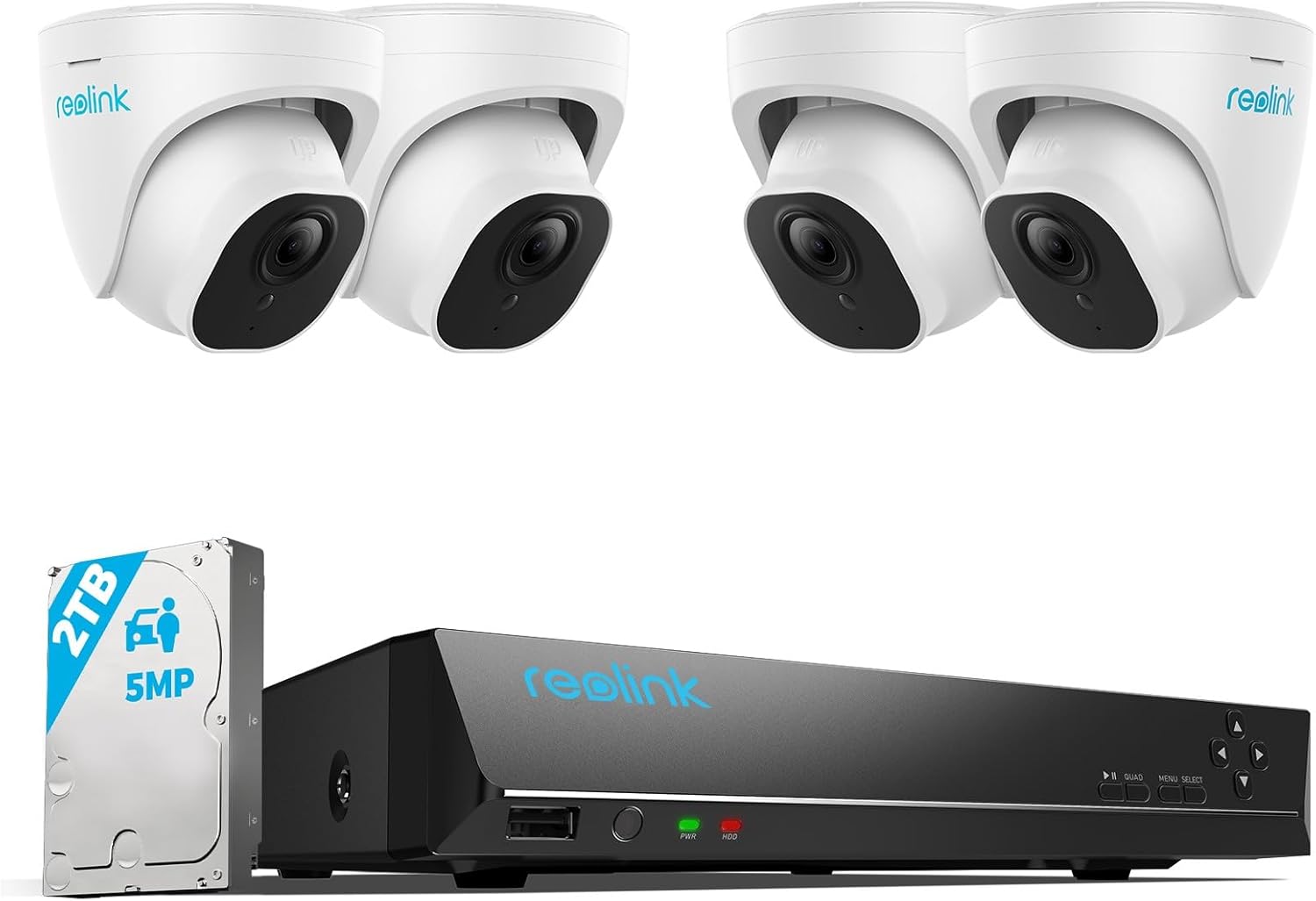
Figure 1: REOLINK RLK8-520D4-5MP System Overview
2. What's in the Box
- RLN8-410 NVR (Network Video Recorder) x 1
- D500 Dome Cameras x 4
- NVR Power Adapter x 1
- HDMI Cable x 1
- USB Mouse x 1
- 1m Network Cable x 1
- 18m Network Cable x 4
3. Setup
The REOLINK PoE security camera system is designed for easy plug-and-play installation. Follow these steps to set up your system:
- Connect NVR: Connect the NVR to your router using the provided network cable. Plug in the NVR power adapter.
- Connect Cameras: Connect each PoE camera to the PoE ports on the back of the NVR using the provided 18m network cables. The cameras will receive both power and data through these cables.
- Connect Display: Connect the NVR to a monitor or TV using the HDMI or VGA cable for local viewing and configuration.
- Power On: Power on the NVR. The system will automatically detect and configure the connected cameras.

Figure 2: Easy Plug & Play PoE System Diagram

Figure 3: NVR and Camera Port Overview
4. Operating the System
Your REOLINK security system offers various features for effective surveillance:
4.1 Accessing the System
- Local Monitor: Use the connected monitor/TV and USB mouse to navigate the NVR interface.
- Mobile App: Download the free Reolink app from the App Store or Google Play for remote access on your smartphone or tablet.
- PC Client: Install the Reolink Client software on your Windows or Mac computer for comprehensive control and viewing.

Figure 4: Remote Access via Reolink App and Client
4.2 Smart Detection
The cameras feature intelligent detection capabilities to minimize false alarms:
- Person Detection: Identifies human figures, reducing alerts from swaying branches or insects.
- Vehicle Detection: Recognizes vehicles, useful for monitoring driveways or parking areas.
- Pet Detection: Distinguishes pets from other moving objects.
You can configure alert preferences (push notifications, email, FTP) and customize motion zones within the app or client software.

Figure 5: Smart Person/Vehicle Detection in Action
4.3 Recording and Playback
The system supports 24/7 continuous recording to the pre-installed 2TB HDD. You can expand storage with an additional 6TB external HDD via the e-SATA port.
- Continuous Recording: Records footage constantly without overwriting for approximately ten days with the included 2TB HDD.
- Scheduled Recording: Set specific times for recording.
- Motion-Triggered Recording: Records only when motion is detected, saving storage space.
- Playback: Easily review recorded footage through the NVR, mobile app, or PC client. The system allows you to jump to specific events marked by smart detection.

Figure 6: 24/7 Recording and Storage
4.4 Audio Monitoring and Night Vision
- Built-in Microphone: Cameras include a built-in microphone to capture audio, providing additional context to video footage. This feature can be enabled or disabled as needed.
- Stunning Night Vision: Advanced IR lights provide clear black and white night vision up to 100 feet, ensuring surveillance even in complete darkness.

Figure 7: 5MP Super HD Night Vision
4.5 Official Product Videos
Below are official product videos from REOLINK demonstrating various features and capabilities of the security camera system:
Video 1: Product Introduction - 5MP 8CH Home Security Camera System. This video provides a general overview of the system and its main features.
Video 2: Reolink 5MP Camera Outdoor Video Show Case. This video demonstrates the outdoor video quality of the 5MP cameras.
Video 3: Bike Theft Caught in the Act - Reolink Captures. An example of real-world footage captured by a Reolink camera during an incident.
Video 4: It's Spanish Water Dog - Reolink Camera Captures. A demonstration of the camera's ability to capture clear footage of animals.
Video 5: Reolink Captures - Halloween Dancer. An entertaining clip showcasing the camera's motion capture capabilities.
Video 6: Security Footage - Attempt Vehicle Break. Real security footage demonstrating the system's effectiveness in deterring or capturing criminal activity.
Video 7: Reolink Captures - Top Videos. A compilation of various interesting and useful clips captured by Reolink cameras.
Video 8: Security Camera Outdoor, Reolink RLC-520 PoE Turret. A detailed look at the RLC-520 PoE Turret camera, highlighting its outdoor capabilities.
5. Maintenance
Proper maintenance ensures the longevity and optimal performance of your security system:
- Camera Cleaning: Regularly wipe the camera lenses with a soft, damp cloth to remove dust, dirt, or water spots that may obstruct the view. Avoid harsh chemicals.
- Firmware Updates: Periodically check for and install the latest firmware updates for your NVR and cameras. Updates often include performance improvements, new features, and security enhancements.
- HDD Management: Monitor the storage capacity of your NVR's hard drive. The system will automatically overwrite older footage when the disk is full, but you can back up important recordings to external storage if needed.
- Environmental Considerations: Ensure cameras are installed within their specified operating temperature range (-10°C/14°F to 55°C/131°F) and are protected from direct, prolonged exposure to extreme weather conditions, despite being IP67 waterproof.

Figure 8: Camera Environmental Resistance
6. Troubleshooting
If you encounter issues with your REOLINK security system, consider the following common troubleshooting steps:
- No Video/Offline Camera:
- Check all network cable connections between the camera, NVR, and router.
- Ensure the NVR is powered on and functioning correctly.
- Verify that the camera's PoE connection is active (check NVR port indicator lights).
- Restart the NVR and the affected camera.
- No Recording:
- Check if the HDD is properly installed and recognized by the NVR.
- Verify recording schedules and motion detection settings are correctly configured.
- Check the HDD status for errors or full capacity.
- Poor Image Quality:
- Clean the camera lens.
- Ensure sufficient lighting for optimal image capture, especially at night.
- Check network bandwidth if experiencing lag or pixelation during live view.
- False Alarms:
- Adjust motion detection sensitivity.
- Refine motion detection zones to exclude areas with frequent irrelevant movement (e.g., swaying trees, busy roads).
- Ensure firmware is up to date for improved smart detection algorithms.
For more detailed troubleshooting or issues not covered here, please refer to the official REOLINK support website or contact customer service.
7. Specifications
| Feature | Description |
|---|---|
| Brand | REOLINK |
| Connectivity Technology | Wired (PoE) |
| Video Capture Resolution | 5MP (2560 × 1920) |
| Special Features | Adjustable, Easy to Install, Smart Person/Vehicle Detection & Motion Zone, App Control, IP67 Waterproof, 100ft Night-Vision |
| Number of Channels | 8 |
| NVR Storage | Pre-installed 2TB HDD (expandable up to 6TB via e-SATA) |
| Operating Temperature | -10°C to 55°C (14°F to 131°F) |
8. Warranty and Support
REOLINK is committed to providing reliable products and excellent customer service.
- 30-Day Money Back Guarantee: If you are not satisfied with your purchase, you may return it within 30 days for a full refund.
- 2-Year Limited Warranty: Your REOLINK product is covered by a 2-year limited warranty from the date of purchase, protecting against defects in materials and workmanship.
- 24/7 Online Support: Access 24/7 online support for any technical assistance or inquiries. Visit the official REOLINK website for support resources, FAQs, and contact information.

Figure 9: REOLINK After-Sales Support
For the latest information and support, please visit the official REOLINK website: reolink.com


