
1. Introduction
The OrCam MyEye Pro is an advanced wearable assistive device designed to enhance independence for individuals who are blind or visually impaired. This compact, lightweight device attaches to virtually any pair of eyeglasses and uses artificial intelligence to convert visual information into audio feedback in real-time. It can read text, recognize faces, identify products, money notes, and colors, providing a seamless and intuitive user experience.
This manual provides detailed instructions on setting up, operating, and maintaining your OrCam MyEye Pro device, along with troubleshooting tips and product specifications.
2. Device Overview
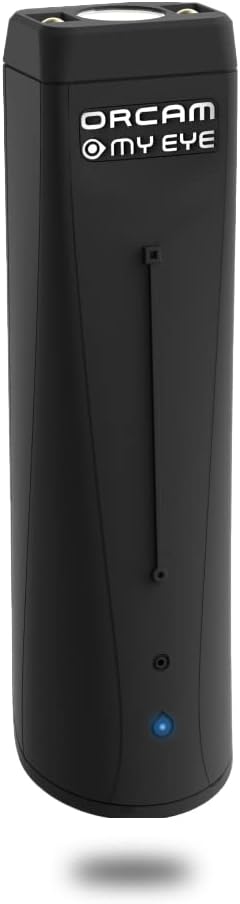
Figure 2.1: The OrCam MyEye Pro device. This small, black, rectangular unit features a camera lens at one end and a blue indicator light at the other, designed to attach discreetly to eyeglasses.

Figure 2.2: Close-up of the OrCam MyEye Pro attached to eyeglasses. The image highlights the smart camera lens and the illuminating LEDs for dimly lit areas, along with the touch/swipe area and built-in HD mini speaker.
3. Setup
3.1 Charging the Device
Before initial use, fully charge your OrCam MyEye Pro. Connect the device to a power source using the provided USB cable. A blue indicator light will show charging status. Charging typically takes approximately 40 minutes for a full charge.
3.2 Attaching to Eyeglasses
The OrCam MyEye Pro is designed for easy attachment to most eyeglass frames. It magnetically connects to the side of your glasses. Ensure the camera lens is positioned correctly to capture the user's field of vision.

Figure 3.1: The OrCam MyEye Pro magnetically attaches to the arm of eyeglasses, ensuring a secure and comfortable fit for the user.
4. Operating Instructions
The OrCam MyEye Pro offers intuitive operation through simple hand gestures and voice commands (English version only). The device processes visual information and provides audio feedback through its built-in speaker, positioned near the ear.
4.1 Reading Text
To read text, simply point at the text with your finger or follow the text with your gaze. The device will instantly and discreetly read printed and digital text aloud from any surface, including books, newspapers, menus, and signs.

Figure 4.1: A user reading a restaurant menu with the OrCam MyEye Pro, demonstrating the device's ability to read text by following the wearer's gaze.

Figure 4.2: A user reading a book with the OrCam MyEye Pro, highlighting how the device enables access to printed materials.
4.2 Face Recognition
The device can seamlessly recognize faces of pre-programmed individuals. This feature provides audio announcements of who is in front of you, enhancing social interactions.
4.3 Product and Money Identification
OrCam MyEye Pro can identify products, barcodes, and money notes, providing audio descriptions to assist with shopping and financial transactions.

Figure 4.3: A user pointing at a product box to have the OrCam MyEye Pro identify it, illustrating the intuitive pointing gesture for object recognition.
4.4 Voice Commands
For English users, many features can be activated and controlled using voice commands. Simply say "Hey OrCam" followed by your desired action.
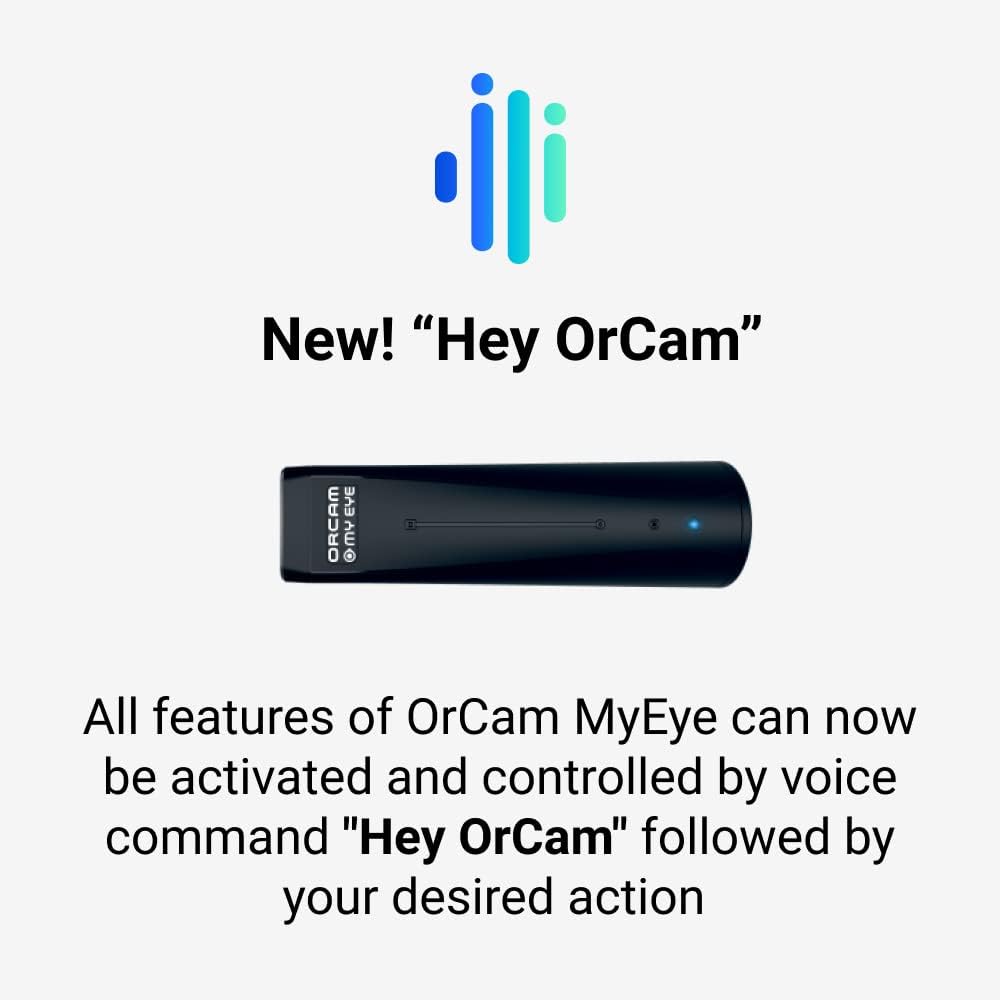
Figure 4.4: An illustration of the "Hey OrCam" voice command feature, allowing hands-free activation and control of the device's functions.
4.5 Key Benefits in Action
The following video demonstrates the OrCam MyEye Pro's features in various real-world scenarios, showcasing its capabilities for daily independence.
Video 4.1: OrCam MyEye 2 features for the blind and visually impaired. This video highlights the device's ability to read text, recognize faces, identify products, and improve daily independence for users.
5. Maintenance
To ensure the longevity and optimal performance of your OrCam MyEye Pro, follow these maintenance guidelines:
- Cleaning: Gently wipe the device, especially the camera lens, with a soft, dry, lint-free cloth. Avoid using harsh chemicals or abrasive materials.
- Storage: Store the device in a cool, dry place away from direct sunlight and extreme temperatures. When not in use, it is recommended to keep it in its protective case.
- Battery Care: To maintain battery health, avoid fully discharging the device frequently. Charge it regularly, even if not in daily use.
- Software Updates: Periodically check for and install software updates to ensure your device has the latest features and performance improvements. Updates often require an internet connection (Wi-Fi setup via PC).
6. Troubleshooting
If you encounter issues with your OrCam MyEye Pro, refer to the following common troubleshooting steps:
| Problem | Possible Cause / Solution |
|---|---|
| Device not turning on or charging. | Ensure the charging cable is securely connected to both the device and a working power source. Check if the charging indicator light is active. Try a different USB port or power adapter. If the issue persists, contact customer support. |
| Text not being read accurately. | Ensure adequate lighting. Make sure the text is clear and not obscured. Hold the text steady and at an appropriate distance. For handwritten text or complex layouts (like flyers), accuracy may vary. |
| Voice commands not responding. | Ensure you are speaking clearly and directly to the device. Confirm that the voice command feature is enabled and that your device's language setting supports voice commands (currently English only). Check for background noise. |
| Device not recognizing faces/products. | Ensure the faces or products have been properly programmed into the device's memory. Make sure the object is clearly visible to the camera. |
For further assistance, please refer to the official OrCam online video tutorials or contact OrCam customer support.
7. Specifications
| Feature | Detail |
|---|---|
| Product Dimensions | 2.99 x 0.83 x 0.59 inches |
| Item Weight | 0.79 ounces |
| Item Model Number | OrCam MyEye 2 |
| Batteries | 1 Lithium Ion battery required (included) |
| Manufacturer | OrCam |
| Hardware Interface | USB |
| Headphones Jack | 3.5 millimeters |
| Microphone Operation Mode | Speech Recognition |
8. Warranty and Support
OrCam provides online video tutorials and user support to assist you with your device. For detailed warranty information, please refer to the documentation included with your purchase or visit the official OrCam website.
You can also download the full user manual in PDF format: User Manual (PDF)


