
1. Overview
The BlackBerry KEY2 LE is an Android-powered smartphone designed for everyday use, offering a genuine BlackBerry experience. It combines a physical QWERTY keyboard with a modern touch screen interface, running on Android 8.1 Oreo.

Image: Front view of the BlackBerry KEY2 LE smartphone.
2. Setup
2.1. What's in the Box
- 9V 2A Charger
- Type C USB 2.0 Cable
- WH35 Headset
- SIM Tray Ejector
- Front Cling
- Bat-cov cling
- User manual/QSG (Quick Start Guide)
2.2. Inserting SIM and MicroSD Cards
Locate the SIM tray on the side of the device. Use the provided SIM tray ejector tool to open the tray. Carefully place your Nano SIM card(s) and MicroSD card (up to 256GB) into the designated slots on the tray. Ensure they are seated correctly before reinserting the tray into the phone. The device supports Dual SIM functionality.

Image: Right side view of the BlackBerry KEY2 LE, illustrating the SIM tray location.
2.3. Initial Power On and Setup
Press and hold the power button located on the right side of the device until the BlackBerry logo appears. Follow the on-screen prompts to complete the initial setup, including language selection, Wi-Fi connection, Google account login, and security settings.
3. Operating Instructions
3.1. Physical Keyboard Usage
The redesigned smart keyboard offers tactile feedback and precise typing. Utilize the Speed Key for customizable shortcuts, allowing quick access to apps and functions from any screen. The keyboard also supports touch navigation and flick typing for faster predictive text input.

Image: Close-up of the BlackBerry KEY2 LE keyboard, highlighting the Speed Key.
3.2. Display and Navigation
The 4.5-inch 2K HD touch screen display (2560 x 1440 resolution) provides clear visuals. Navigate the Android 8.1 Oreo interface using touch gestures or the physical keyboard for scrolling and selection. Corning Gorilla Glass offers enhanced screen protection.
3.3. Camera Functions
The device features a 13MP + 5MP dual rear camera with dual-tone LED flash, capable of 4K video recording. The 8MP fixed-focus front camera includes a selfie flash and supports 1080p video recording. Access various shooting modes and settings through the camera application.

Image: Rear view of the BlackBerry KEY2 LE, showing the dual camera setup.
3.4. Security Features (DTEK by BlackBerry)
The BlackBerry KEY2 LE includes DTEK by BlackBerry, a security application that monitors and protects your device from malware and privacy breaches. It provides a security rating for your device and offers recommendations to enhance privacy.
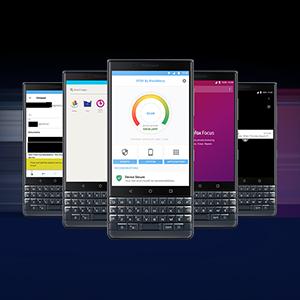
Image: Screen display of the DTEK by BlackBerry security application.
4. Maintenance
4.1. Battery Management
The 3000mAh battery supports Quick Charge 3.0 for rapid charging. To optimize battery life, manage app usage, adjust screen brightness, and utilize power-saving modes. The device is designed for extended use, with an average battery life of up to 48 hours.
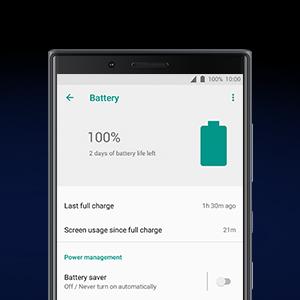
Image: Screen display showing the battery status and power management options.
4.2. Software Updates
Regularly check for and install software updates to ensure optimal performance, security, and access to the latest features. Updates are typically found in the device's settings menu under 'System' or 'About phone'.
4.3. Cleaning and Care
Clean the screen and body of the phone with a soft, lint-free cloth. Avoid using harsh chemicals or abrasive materials. The device features a lightweight polycarbonate design with a soft-textured non-slip back and an impact-resistant frame for durability.
5. Troubleshooting
5.1. Common Issues and Solutions
- Device not powering on: Ensure the battery is charged. Connect the device to the charger and wait a few minutes before attempting to power on again.
- Apps freezing or crashing: Try restarting the app. If the issue persists, clear the app's cache and data in Settings > Apps. As a last resort, uninstall and reinstall the app.
- Poor network connectivity: Check if airplane mode is off. Restart the device. Verify your SIM card is properly inserted. Contact your service provider if issues continue.
- Keyboard unresponsiveness: Ensure the keyboard is clean and free of debris. A device restart can often resolve minor software glitches affecting input.
- Battery draining quickly: Review app usage in battery settings to identify power-hungry apps. Reduce screen brightness, disable unnecessary features like GPS or Bluetooth when not in use, and enable battery saver mode.
6. Specifications
| Feature | Detail |
|---|---|
| Operating System | Android 8.1 Oreo |
| Processor | Qualcomm Snapdragon 636 |
| RAM | 4 GB |
| Internal Storage | 64 GB |
| Expandable Storage | Micro SD up to 256 GB |
| Display | 4.5-inch 2K HD Touch Screen (2560 x 1440) with Corning Gorilla Glass |
| Rear Camera | 13 MP + 5 MP Dual Camera with Dual Tone LED Flash, 4K Video Recording |
| Front Camera | 8 MP Fixed Focus with Selfie Flash, 1080p Video Recording |
| Battery | 3000 mAh with Quick Charge 3.0 (up to 48 hours average life) |
| SIM Card | Dual Nano SIM |
| Connectivity | USB Type-C, USB 3.0, USB OTG, Wi-Fi (802.11 a/n/ac 5GHz, b/g/n 2.4 GHz), 4G Mobile Hotspot, Wi-Fi Direct, Bluetooth 5.0 LE, NFC |
| Security | Embedded Fingerprint Sensor, DTEK by BlackBerry |
| Dimensions | 5.91 x 0.32 x 2.82 inches |
| Weight | 0.34 Pounds |
| Material | Lightweight Polycarbonate, Series 7 Aluminum Shell |
7. Warranty and Support
7.1. Warranty Information
This BlackBerry KEY2 LE smartphone comes with a U.S. Warranty. For specific terms and conditions, please refer to the warranty documentation included with your product or visit the official BlackBerry support website.
7.2. Customer Support
For further assistance, technical support, or service inquiries, please visit the official BlackBerry support website or contact their customer service. Keep your product's serial number and proof of purchase readily available when seeking support.


