
Bluesound PULSE 2i WHT
Bluesound Pulse 2i Wireless Multi-Room Smart Speaker User Manual
Model: PULSE 2i WHT
Introduction
The Bluesound Pulse 2i is a premium, high-resolution streaming music speaker designed to fill large spaces with rich, clear audio. As part of the Bluesound ecosystem, it offers unparalleled sound quality and versatile connectivity options for a seamless multi-room audio experience. This manual provides detailed instructions for setting up, operating, maintaining, and troubleshooting your Pulse 2i speaker.

Figure 1: Front view of the Bluesound Pulse 2i Wireless Smart Speaker.
Setup Guide
1. Unboxing
Carefully remove all components from the packaging. The box should contain:
- Speaker
2. Initial Placement
Place your Pulse 2i speaker on a stable, flat surface. For optimal sound performance, ensure it is not obstructed and has clear space around it. The speaker is designed to deliver powerful audio in large rooms.

Figure 2: The Pulse 2i speaker positioned on a surface, ready for use.
3. Power Connection
Connect the provided power cable to the AC input on the back of the Pulse 2i speaker, then plug the other end into a wall outlet. The speaker will power on automatically.
4. Network Connection
The Pulse 2i supports both Wi-Fi and Gigabit Ethernet for network connectivity. For the most stable connection, especially when streaming high-resolution audio, a wired Ethernet connection is recommended.
- Wi-Fi: The speaker features leading-class dual-band Wi-Fi to ensure zero dropouts or delays. Follow the instructions in the BluOS Controller App to connect to your wireless network.
- Ethernet: Connect an Ethernet cable from your router or network switch to the LAN/USB port on the back of the speaker.
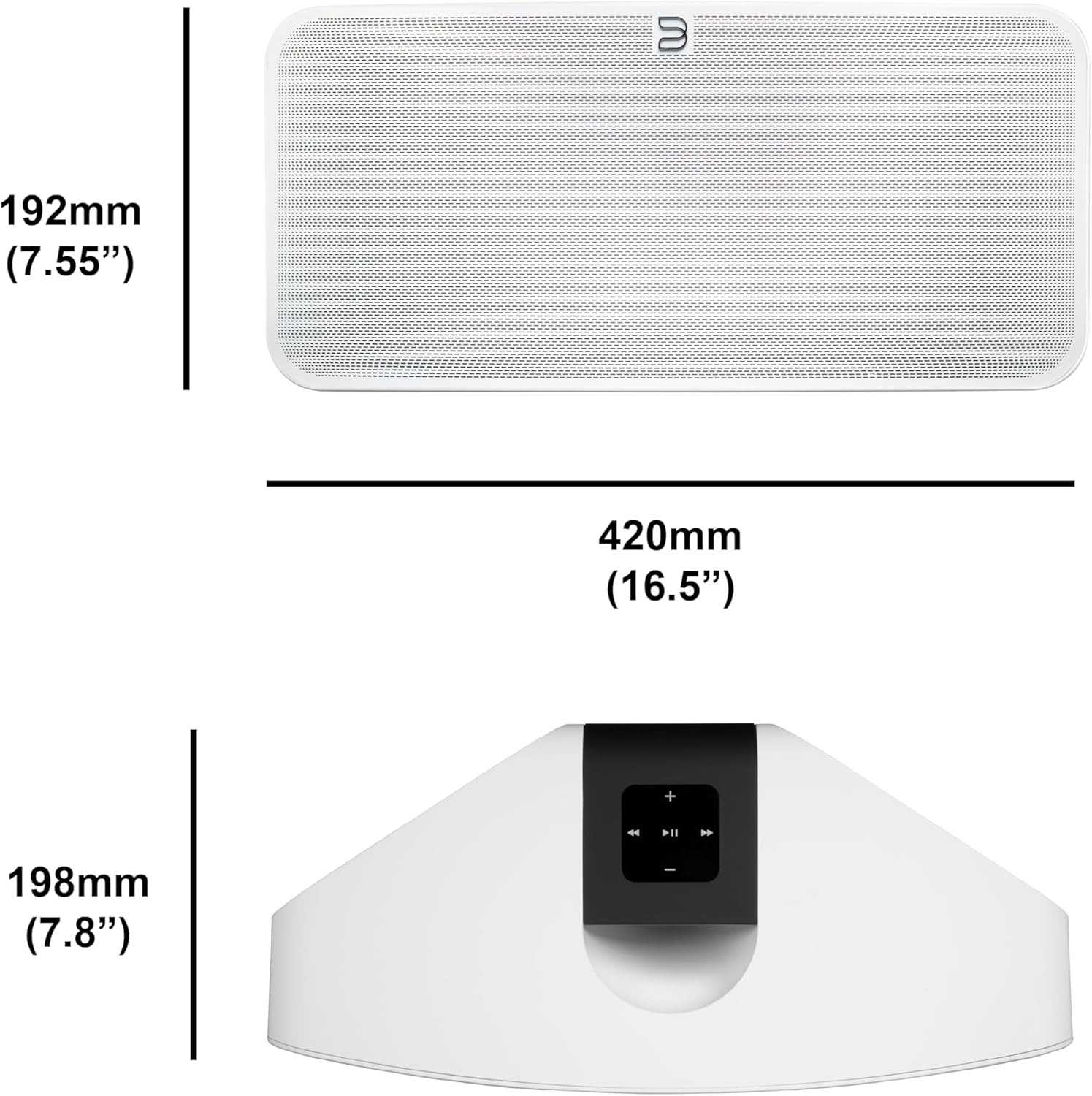
Figure 3: Rear panel of the Pulse 2i, highlighting the power input, LAN/USB, and optical/analog input ports.
Product Overview Video
Official product video demonstrating the features and capabilities of the Bluesound Pulse 2i speaker, including its design and connectivity options.
Operating Instructions
1. BluOS Controller App
The primary method for controlling your Pulse 2i is through the BluOS Controller App, available for smartphones, tablets, and desktop computers. This app allows you to:
- Browse and play music from various streaming services (Spotify, Tidal, Amazon Music HD, Qobuz, etc.)
- Access your local music library and internet radio stations.
- Group multiple Bluesound players for a synchronized multi-room audio experience.
- Adjust volume, playback, and sound settings.

Figure 4: Top panel of the Pulse 2i with touch controls for playback, volume, and track navigation.
2. Music Streaming
The Pulse 2i supports high-resolution audio playback up to 24-bit/192 kHz. You can stream directly from Apple devices using AirPlay 2 or connect via two-way Bluetooth with Qualcomm aptX HD for high-quality wireless audio.
3. Voice Control
The speaker is compatible with Amazon Alexa and Apple Siri, allowing for hands-free voice control of your music playback. Simply enable the Bluesound skill/action in your voice assistant app and link your account.
4. Multi-Room Audio
Expand your audio system by adding more Bluesound players throughout your home. Use the BluOS app to group speakers and play the same music in multiple rooms, or different music in each room.

Figure 5: The Pulse 2i seamlessly integrates into a kitchen environment, providing background music.

Figure 6: The Pulse 2i enhances the audio experience in a social setting.
Maintenance and Care
To ensure the longevity and optimal performance of your Pulse 2i speaker, follow these care guidelines:
- Cleaning: Use a soft, dry cloth to wipe the exterior surfaces. Do not use liquid cleaners, aerosols, or abrasive chemicals, as they may damage the finish.
- Placement: Avoid placing the speaker in direct sunlight, near heat sources, or in areas with high humidity.
- Ventilation: Ensure proper ventilation around the speaker to prevent overheating. Do not block any ventilation openings.
- Power: Disconnect the power cable during lightning storms or when unused for long periods.
Troubleshooting
If you encounter issues with your Pulse 2i speaker, refer to the table below for common problems and their solutions.
| Problem | Possible Cause | Solution |
|---|---|---|
| No power/No lights | Power cable disconnected or faulty outlet. | Check power cable connection. Try a different power outlet. |
| No sound | Volume too low, incorrect input selected, or network issue. | Increase volume. Verify correct input in BluOS app. Check network connection. |
| Cannot connect to Wi-Fi | Incorrect Wi-Fi password, router too far, or network interference. | Re-enter Wi-Fi password. Move speaker closer to router. Reduce interference from other devices. |
| Music playback interruptions | Weak Wi-Fi signal or network congestion. | Ensure strong Wi-Fi signal. Consider using a wired Ethernet connection. |
If the problem persists after trying these solutions, please contact customer support.
Technical Specifications
| Feature | Detail |
|---|---|
| Model Name | PULSE 2i WHT |
| Speaker Type | Multi Room |
| Connectivity Technology | Bluetooth, Wi-Fi |
| Audio Output Mode | Stereo |
| Speaker Maximum Output Power | 25 Watts |
| Item Weight | 11.11 Pounds |
| Product Dimensions | 16"D x 8"W x 7"H |
| Compatible Devices | Smartphone |
| Control Method | Voice |
| Manufacturer | Lenbrook Group |
Warranty Information
The Bluesound Pulse 2i comes with a limited warranty. Please refer to the warranty card included with your product or visit the official Bluesound website for detailed terms and conditions regarding warranty coverage and service.
Customer Support
For further assistance, technical support, or service inquiries, please contact Bluesound customer support through their official website or the contact information provided in your product packaging. Ensure you have your model number (PULSE 2i WHT) and serial number ready when contacting support.
Related documentsPULSE 2i WHT


Ask a question about this manual
Ask about setup, troubleshooting, compatibility, parts, safety, or missing instructions. Manuals+ will review the question and use this page’s manual context to help answer it.