
Polk Audio AM6214-A
Polk Audio Signa S2 Sound Bar & Wireless Subwoofer User Manual
Model: AM6214-A
Brand: Polk Audio
Introduction
The Polk Audio Signa S2 universal TV sound bar and wireless subwoofer system is designed to deliver an enhanced home theater audio experience. This low-profile system provides room-filling sound that significantly surpasses the audio quality of typical built-in TV speakers. It is compatible with both 4K and HD televisions, ensuring clear and impactful sound for your favorite content.
Key features include Polk's patented VoiceAdjust technology for clear dialogue, Dolby Digital decoding for immersive surround sound, and a wireless subwoofer for deep bass. The system also supports Bluetooth for wireless music streaming from compatible devices.
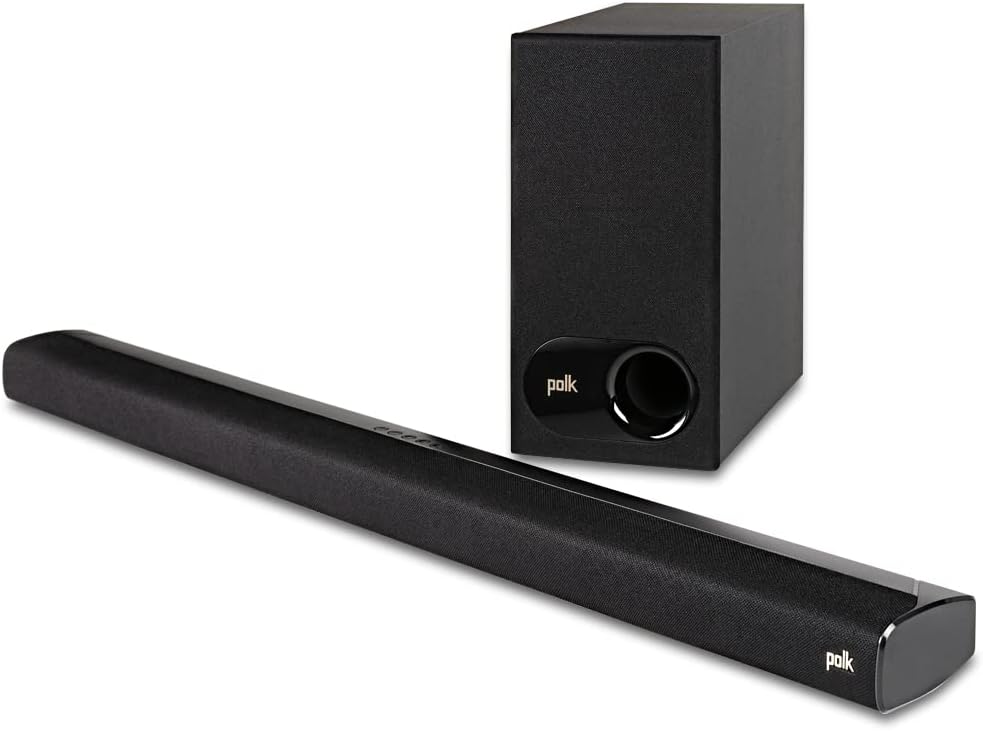
Image: The Polk Audio Signa S2 Sound Bar and its accompanying wireless subwoofer, both in black, showcasing their sleek design.
What's in the Box
Upon unboxing your Polk Audio Signa S2 system, please verify that all the following components are included:
- Polk Audio Signa S2 Sound Bar
- Wireless Subwoofer
- Remote Control
- Two Power Cords (for sound bar and subwoofer)
- 5' (1.5m) HDMI Cable
- 5' (1.5m) Optical Cable
- Literature (User Manual, Quick Start Guide, etc.)

Image: A visual representation of the Polk Audio Signa S2 system components, including the sound bar, wireless subwoofer, and remote control.
Setup
Setting up your Polk Audio Signa S2 is designed to be quick and straightforward. Follow these steps for optimal performance.
1. Placement
Place the sound bar directly in front of your TV, centered, ensuring it does not block the TV's remote sensor. The ultra-slim design (just over 2 inches tall) allows it to fit most spaces. The wireless subwoofer can be placed anywhere in the room, ideally within 30 feet of the sound bar, for the best bass response.

Image: The Polk Audio Signa S2 sound bar positioned below a television, with the wireless subwoofer placed on the floor beside a media console, demonstrating a typical home setup.
2. Connections
The Signa S2 offers multiple connection options to your TV. HDMI ARC is recommended for the best audio quality and ease of control.
- HDMI ARC (Recommended):
Connect one end of the included HDMI cable to the HDMI ARC port on your TV and the other end to the HDMI ARC port on the sound bar. This connection allows your TV remote to control the sound bar's volume.
- Optical:
If your TV does not have an HDMI ARC port, connect one end of the included optical cable to the Optical Out port on your TV and the other end to the TV (Optical) port on the sound bar.
- AUX:
For devices with a 3.5mm audio output, connect an AUX cable (not included) from your device to the AUX port on the sound bar.

Image: A close-up view of the rear connection panel of the Polk Audio Signa S2 sound bar, highlighting the HDMI ARC, Optical, and AUX input ports.

Image: The HDMI and Optical cables that are included with the Polk Audio Signa S2 system, ready for easy setup.
3. Power Connection
Connect the power cords to the sound bar and the wireless subwoofer, then plug them into a wall outlet. The sound bar will automatically power on.
4. Wireless Subwoofer Pairing
The wireless subwoofer is pre-paired at the factory. If the subwoofer does not automatically connect (indicated by a solid green LED on the back of the subwoofer), press the "Connect" button on the back of the subwoofer and the "Connect" button on the back of the sound bar simultaneously. The LED on the subwoofer will blink green during pairing and turn solid green once connected.

Image: A close-up of the Polk Audio Signa S2 wireless subwoofer, highlighting its port and the Polk logo, indicating its role in delivering deep bass.
Operating Your Sound Bar
Remote Control Functions
The included remote control provides full command over your Signa S2 system. Insert the two AAA batteries (included) into the remote before use.
- Power Button: Turns the sound bar on or off.
- Source Selection: Buttons for HDMI, Optical, AUX, and Bluetooth to switch input sources.
- Volume Up/Down: Adjusts the overall system volume.
- Mute: Mutes or unmutes the sound.
- Bass Up/Down: Adjusts the subwoofer's bass level.
- VoiceAdjust (1, 2, 3): Increases or decreases the dialogue clarity. Level 1 is standard, Level 3 provides maximum clarity.
- Sound Modes (Movie, Music, Night):
- Movie Mode: Optimized for cinematic experiences with dynamic sound.
- Music Mode: Balanced audio for music playback.
- Night Mode: Reduces dynamic range to prevent disturbing others, ideal for late-night listening.

Image: The compact remote control for the Polk Audio Signa S2, featuring dedicated buttons for volume, bass, input selection, and VoiceAdjust technology.
Bluetooth Streaming
To stream audio wirelessly from your smartphone, tablet, or other Bluetooth-enabled device:
- Press the Bluetooth button on the sound bar's top panel or the remote control. The Bluetooth indicator light on the sound bar will blink.
- Enable Bluetooth on your device and select "Polk Signa S2" from the list of available devices.
- Once connected, the Bluetooth indicator light on the sound bar will turn solid. You can now play audio from your device through the sound bar.

Image: A close-up of the top-mounted control buttons on the Polk Audio Signa S2 sound bar, including power, input selection, volume, and Bluetooth pairing.
Maintenance
To ensure the longevity and optimal performance of your Polk Audio Signa S2 system, follow these simple maintenance guidelines:
- Cleaning: Use a soft, dry cloth to clean the surfaces of the sound bar and subwoofer. Avoid using liquid cleaners, aerosols, or abrasive cleaning agents, as they may damage the finish or internal components.
- Ventilation: Ensure that the sound bar and subwoofer have adequate ventilation. Do not block any ventilation openings.
- Environment: Keep the system away from direct sunlight, heat sources (like radiators or stoves), and excessive moisture. Avoid placing it in extremely dusty environments.
- Cables: Periodically check all connected cables for any signs of wear or damage. Replace any damaged cables immediately to prevent potential issues.
Troubleshooting
If you encounter issues with your Polk Audio Signa S2, refer to the following common problems and their solutions:
| Problem | Possible Cause & Solution |
|---|---|
| No Sound from Sound Bar |
|
| No Sound from Subwoofer |
|
| Bluetooth Pairing Issues |
|
| Remote Control Not Working |
|
| Dialogue Not Clear (VoiceAdjust) |
|
Specifications
Detailed technical specifications for the Polk Audio Signa S2 Sound Bar and Wireless Subwoofer system:
| Feature | Detail |
|---|---|
| Model Name | SIGNA S2 |
| Item Model Number | AM6214-A |
| Mounting Type | Bar Mount, TV Sound Bar |
| Material | Plastic |
| Speaker Type | Soundbar, Subwoofer |
| Special Feature | VoiceAdjust |
| Recommended Uses | For Surround Sound Systems, For Smartphones or Tablets, For Televisions |
| Compatible Devices | Television, Tablet, Smartphone |
| Subwoofer Diameter | 5.25 Inches (Woofer) |
| Unit Count | 1.0 Count |
| Controller Type | Corded Electric |
| Surround Sound Channel Configuration | 5.1 (Dolby Digital Decoding) |
| Color | Black |
| Product Dimensions (Sound Bar) | 3.31"D x 35.43"W x 2.15"H |
| Item Weight | 3.9 Pounds (Sound Bar) |
| Maximum Range (Bluetooth) | 10 Meters |
| Control Method | Remote |
| Wireless Communication Technology | Bluetooth |
| Speaker Size | 2 Inches (Sound Bar Drivers) |
| Power Source | AC |
| Tweeter Diameter | 2.54 Centimeters |
| Subwoofer Connectivity Technology | Wireless |
| Connectivity Protocol | Bluetooth |
| Specific Uses For Product | Home Theatre |
| Speaker Maximum Output Power | 25 Watts |
| Frequency Response | 20 KHz (Upper limit, typical for soundbars) |
| Connectivity Technology | Wired, Wireless |
| Audio Output Mode | Surround |
Warranty and Support
Polk Audio products are designed and manufactured to the highest quality standards. Your Polk Audio Signa S2 Sound Bar and Wireless Subwoofer system comes with a limited warranty. Please refer to the included literature for specific warranty terms and conditions applicable to your region.
For technical support, troubleshooting assistance, or to inquire about warranty service, please visit the official Polk Audio support website or contact their customer service. You can also refer to the comprehensive User Guide (PDF) available online for more detailed information.
For additional resources and product information, visit the Polk Audio Store on Amazon.
Related documentsAM6214-A


Ask a question about this manual
Ask about setup, troubleshooting, compatibility, parts, safety, or missing instructions. Manuals+ will review the question and use this page’s manual context to help answer it.