
1. Introduction
The Nulaxy TM185G is a 2.4G wireless vertical ergonomic mouse designed to promote a natural 'handshake' wrist and arm position, reducing strain during extended use. This manual provides detailed instructions for the setup, operation, maintenance, and troubleshooting of your Nulaxy TM185G mouse.

Figure 1.1: Nulaxy TM185G Wireless Vertical Ergonomic Mouse
2. Package Contents
- 1 x Nulaxy TM185G Wireless Vertical Ergonomic Mouse
- 1 x USB Receiver (stored in the mouse battery compartment)
- 1 x User Manual
3. Setup Instructions
3.1 Battery Installation
- Locate the battery compartment on the bottom of the mouse.
- Open the battery compartment cover.
- Insert two (2) AAA batteries (not included) according to the polarity indicators (+/-) inside the compartment.
- Close the battery compartment cover securely.
3.2 USB Receiver Connection
- The USB receiver is stored inside the battery compartment for safekeeping. Remove it before use.
- Plug the USB receiver into an available USB port on your computer or laptop.
- The computer should automatically detect and install the necessary drivers. No additional software installation is required.
3.3 Powering On the Mouse
- Locate the Power Switch on the bottom of the mouse.
- Slide the switch to the 'ON' position.
- The mouse is now ready for use.

Figure 3.1: Bottom view with Power Switch, Receiver Slot, and Battery Slot
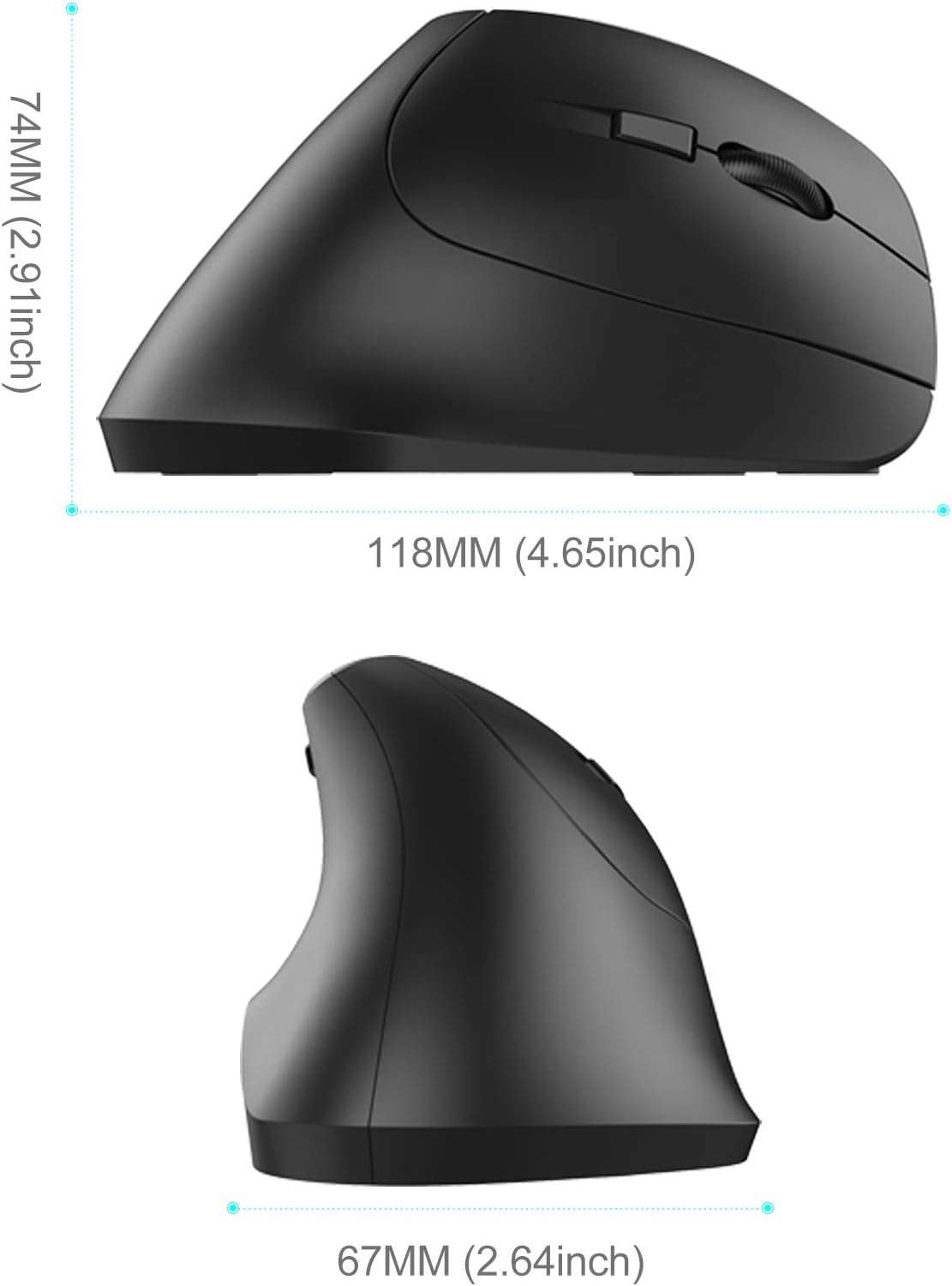
Figure 3.2: Nulaxy TM185G Mouse and USB Receiver
4. Operating Instructions
4.1 Ergonomic Design
The vertical design of the Nulaxy TM185G mouse promotes a neutral wrist posture, similar to a handshake, which can help prevent wrist pronation and reduce muscle tension compared to traditional horizontal mice.

Figure 4.1: Vertical Mouse vs. Standard Mouse Hand Position

Figure 4.2: Proper Hand Grip on the Vertical Mouse
4.2 Button Functions
The Nulaxy TM185G mouse features 6 buttons for enhanced productivity:
- Left Button: Standard left-click function.
- Right Button: Standard right-click function.
- Scrolling Wheel: Scroll up/down, and click for middle-button function.
- DPI Switch Button: Adjusts cursor sensitivity (DPI).
- Forward Button: Navigates forward in web browsers or file explorers.
- Backward Button: Navigates backward in web browsers or file explorers.

Figure 4.3: Multi-functional Buttons Overview
4.3 DPI Adjustment
The DPI (Dots Per Inch) switch button allows you to change the cursor speed and sensitivity. Press the DPI button to cycle through the available settings:
- 800 DPI: Lower sensitivity, suitable for precise tasks.
- 1200 DPI: Medium sensitivity, standard for general use.
- 1600 DPI: Higher sensitivity, for faster cursor movement.
5. Maintenance
- Cleaning: Use a soft, dry cloth to clean the mouse. For stubborn dirt, slightly dampen the cloth with water or a mild cleaning solution. Avoid harsh chemicals.
- Battery Replacement: Replace batteries when the mouse performance degrades or stops responding. Always use fresh AAA batteries.
- Storage: When not in use for extended periods, turn off the mouse using the power switch to conserve battery life. Store the USB receiver inside the battery compartment to prevent loss.
6. Troubleshooting
- Mouse not responding:
- Ensure the mouse is powered on (switch on the bottom).
- Check if the batteries are correctly installed and have sufficient charge. Replace if necessary.
- Verify that the USB receiver is securely plugged into a working USB port on your computer.
- Try plugging the USB receiver into a different USB port.
- Restart your computer.
- Cursor movement is erratic or imprecise:
- Clean the optical sensor on the bottom of the mouse.
- Ensure you are using the mouse on a suitable surface. Avoid highly reflective or transparent surfaces.
- Adjust the DPI setting using the DPI switch button to find a comfortable sensitivity.
- Forward/Backward buttons not working:
- Note that the Forward/Backward buttons are generally not supported in Mac OS X.
- Ensure your application supports these navigation buttons.
7. Specifications
| Feature | Detail |
|---|---|
| Brand | Nulaxy |
| Model | TM185G |
| Connectivity | 2.4G Wireless (USB Receiver) |
| DPI Settings | 800 / 1200 / 1600 |
| Number of Buttons | 6 (Left, Right, Scroll Wheel, DPI Switch, Forward, Backward) |
| Hand Orientation | Right |
| Power Source | 2 x AAA Batteries (not included) |
| Dimensions (L x W x H) | 11.81 x 6.71 x 7.39 cm (4.65 x 2.64 x 2.91 inches) |
| Weight | 118 g |
| Movement Detection Technology | Optical |
| Compatible Operating Systems | Windows 2000 / XP / Vista / 7 / 8 / 10, Linux, Mac (Forward/Backward buttons unavailable) |

Figure 7.1: Mouse Dimensions (Side View)

Figure 7.2: Mouse Dimensions (Front View)

Figure 7.3: Mouse Dimensions (Top View)
8. Warranty and Support
For warranty information, technical support, or any inquiries regarding your Nulaxy TM185G mouse, please refer to the product packaging or contact Nulaxy customer service directly through their official website or the retailer where the product was purchased.