
1. Introduction
This manual provides detailed instructions for the installation, operation, and maintenance of your Kinan 1U Rack Mount KVM Console, Model XL1908. This all-in-one solution integrates an 8-port VGA KVM switch, a 19-inch LCD monitor, a keyboard, and a touchpad into a compact 1U rack-mountable drawer. It is designed to manage up to 8 computers from a single console, offering compatibility with various operating systems including Windows, Linux, Mac, and Sun.
2. Safety Information
- Read all instructions carefully before operating the device.
- Ensure the device is properly grounded to prevent electrical shock.
- Do not expose the device to moisture or extreme temperatures.
- Use only the power adapter provided with the unit.
- Avoid blocking ventilation openings to prevent overheating.
- Do not attempt to service the unit yourself. Refer all servicing to qualified personnel.
3. Package Contents
Verify that all items are present and in good condition upon unpacking. If any items are missing or damaged, contact your vendor.
- 1 x 8-Port KVM Console (Model XL1908)
- 8 x USB+VGA KVM Cables
- 1 x Power Cord
- 2 x Rail Mount Brackets
- 1 x User Manual

Image: The Kinan 1U Rack Mount KVM Console (Model XL1908) with its complete set of accessories, including the console unit, eight USB+VGA KVM cables, a power cord, two rail mount brackets, and the user manual.
Video: An unboxing and installation guide for the Kinan 8-Port Rack Mount KVM Console, demonstrating the contents of the package and initial setup steps.
4. Product Overview
The Kinan 1U Rack Mount KVM Console is an integrated solution for server management, combining a 19-inch LCD monitor, a full-size keyboard, and a touchpad in a single 1U rack-mountable drawer. It features an 8-port VGA KVM switch for controlling multiple computers.
Key Features:
- All-in-One Design: 1U rack space integration of 19" LCD, keyboard, touchpad, and 8-port VGA KVM switch.
- High Resolution Display: 19" LCD monitor with 1280x1024@60Hz resolution, 16.7M display colors, and a 1000:1 contrast ratio.
- Flexible Switching: Supports switching between connected computers via front panel buttons, keyboard hotkeys, or On-Screen Display (OSD) menu.
- Universal Compatibility: Compatible with Windows, Linux, Mac, and Sun operating systems.
- Auto-Lock Slide Rails: Ensures stability during use and secure storage within the rack.

Image: A comprehensive view of the Kinan 1U Rack Mount KVM Console, highlighting its 1U form factor, 19-inch LCD monitor, integrated keyboard and touchpad, and the auto-lock slide rails mechanism.
Front and Rear Panel Layout:

Image: Detailed diagrams of the KVM console's front and rear panels, with numbered labels indicating components such as the LED module, OSD controls, keyboard, touchpad, power input, power switch, ground connection screw, console ports, and PC ports.
5. Setup and Installation
Proper installation is crucial for the optimal performance of your KVM console. Follow these steps carefully:
5.1 Rack Mounting
The KVM console is designed for standard 19-inch wide rack cabinets. Before installation, measure your cabinet's depth to ensure compatibility. The mount depth should be between 28.2 inches and 32.5 inches (distance between front and rear columns).

Image: An illustration showing how to measure cabinet width and depth for KVM console installation, along with a diagram of the rack mounting process, indicating the required mount depth.
5.2 Connecting Computers
Use the provided USB+VGA KVM cables to connect your computers to the KVM console. Each cable connects one computer's VGA output and USB ports to a corresponding PC port on the KVM console.

Image: A connection diagram illustrating how to connect multiple PCs to the KVM console using VGA and USB cables, along with power and external monitor/keyboard/mouse connections.
5.3 Initial Operation
Once mounted and connected, the console is ready for use. The auto-lock slide rails ensure the drawer stays securely in place when extended or retracted.
- Release the [UNLOCK] latch next to the handle, then hold the handle and slide the KVM drawer out.
- Pull the KVM console all the way out until it clicks into place. The slide rails will automatically lock once fully extended, securing it in place during use.
- Flip the LCD screen upward and adjust its angle for comfortable viewing. The LCD module can rotate up to 108°.
- After use, release the locks on both the left and right slide rails and simultaneously push the KVM drawer back into the cabinet.
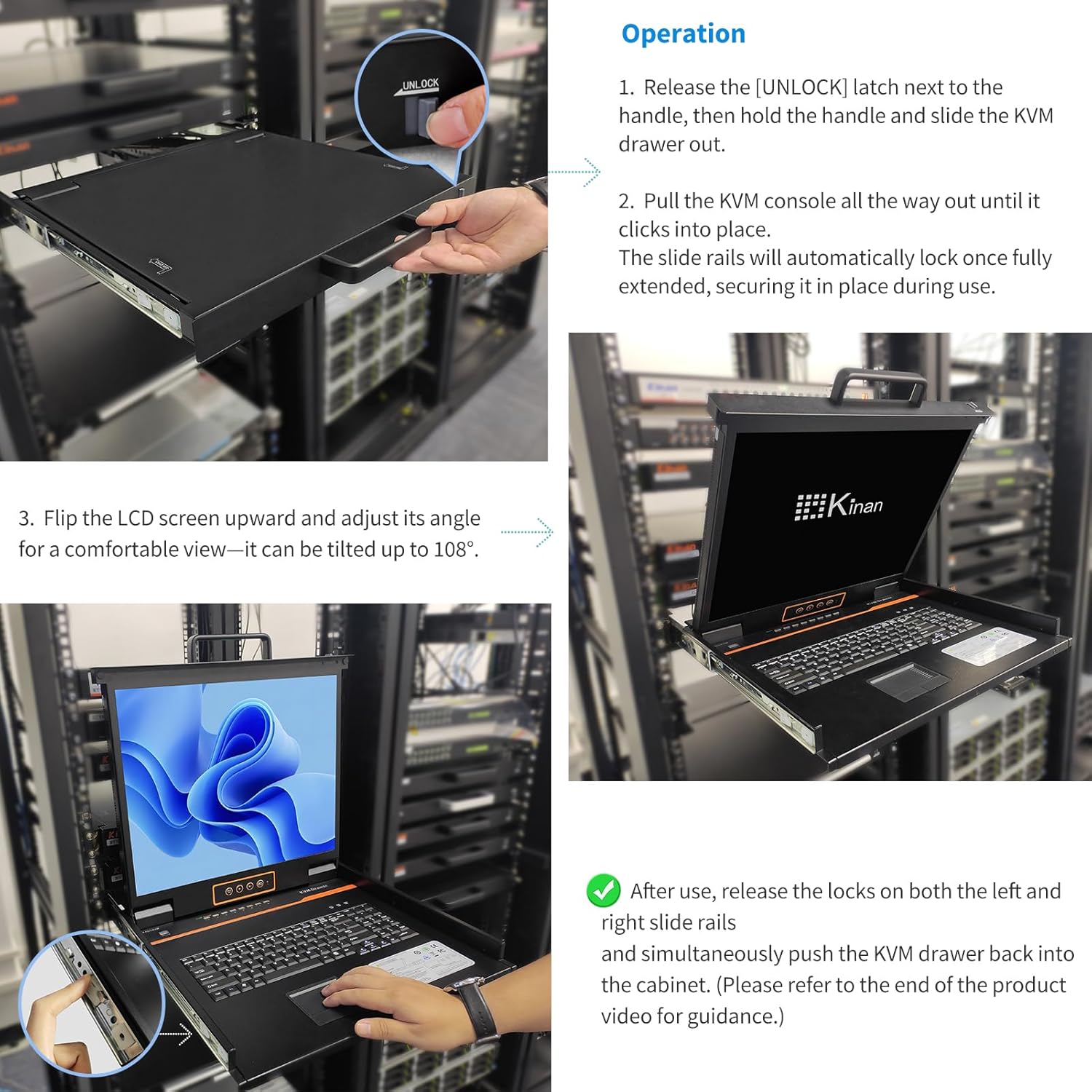
Image: A visual guide demonstrating the steps for operating the KVM console, including unlocking and pulling out the drawer, adjusting the screen, and retracting the unit back into the rack.
Video: A demonstration of the Kinan 1U 19-inch Rack Mount KVM Console, showing its physical features, installation into a rack, and basic operation.
6. Operating Instructions
The KVM console offers three methods for switching between connected computers:
6.1 Front Panel Button Switching
Press the corresponding numbered button on the front panel of the KVM console to switch to the desired computer (PC1-PC8).
6.2 Keyboard Hotkey Switching
Use keyboard hotkey combinations to switch between computers. The default hotkey for switching is typically a double-click of the [Ctrl] key followed by the number corresponding to the desired port (e.g., [Ctrl] + [Ctrl] + [1] for PC1).
6.3 On-Screen Display (OSD) Switching
The OSD menu provides advanced management functions. To access the OSD, typically double-click the right mouse button or use a specific hotkey combination. Navigate the menu using arrow keys and press [Enter] to select a computer or function.
- Auto Scan: Monitors selected computers automatically.
- BRC Mode: Allows simultaneous monitoring of multiple computers.
- Load Default: Resets OSD settings to factory defaults.

Image: Visual representation of the three switching methods: front panel buttons, keyboard hotkeys, and the On-Screen Display (OSD) menu, along with universal operating system compatibility icons.

Image: A close-up view of the KVM console's On-Screen Display (OSD) menu, showing options for selecting ports and managing settings.
7. Maintenance
- Keep the KVM console clean by wiping it with a soft, dry cloth. Do not use liquid or aerosol cleaners.
- Regularly check cable connections to ensure they are secure.
- Ensure adequate airflow around the unit to prevent heat buildup.
- Perform firmware updates as recommended by the manufacturer to ensure optimal performance and security.
8. Troubleshooting
If you encounter issues with your KVM console, refer to the following common troubleshooting steps:
- No Display: Check all VGA cable connections. Ensure the KVM console is powered on and the monitor is flipped up. Verify the selected port corresponds to an active computer.
- Keyboard/Mouse Not Responding: Check USB cable connections from the computers to the KVM. Ensure the KVM console's USB ports are functioning. Try reconnecting the keyboard and mouse.
- Cannot Switch Computers: Verify that the hotkey sequence is correct. Ensure the front panel buttons are not stuck. Check OSD settings for any restrictions.
- Intermittent Issues: Ensure all cables are securely connected. Check for any loose power connections. Restart the KVM console and connected computers.
For persistent issues, consult the support section or contact customer service.
9. Specifications
| Feature | Description |
|---|---|
| Model | XL1908 |
| Mounting Type | 1U Rack Mount |
| KVM Ports | 8-Port VGA |
| Monitor Size | 19 inches |
| Resolution | 1280x1024@60Hz |
| Aspect Ratio | 5:4 |
| Display Colors | 16.7 Million |
| Contrast Ratio | 1000:1 |
| Response Time | 5ms |
| Viewing Angles (L/R/U/D) | 85/85/80/80 |
| Switching Methods | Front panel buttons, Hotkeys, OSD menu |
| Compatibility | Windows, Linux, Mac, Sun |
| KVM Drawer Size (W x D x H) | 17.6" x 23.8" x 1.67" |
| Mount Depth | 28.2" to 32.5" |
| Material | Alloy Steel |
| Weight | 15 Kilograms |
| Wattage | 21 watts |
| Certifications | UL, FCC, CE, CB, UKCA, PSE, SAA, RoHS2.0, ISO9001:2015, ISO14001:2015 |
10. Warranty
This Kinan KVM console comes with a 2-year manufacturer's warranty. Please retain your proof of purchase for warranty claims. The warranty covers defects in materials and workmanship under normal use.
11. Support
For technical assistance, troubleshooting, or warranty inquiries, please contact Kinan Direct customer support. You can typically find contact information on the official Kinan website or through your purchase platform.
For additional resources and product information, visit the Kinan Store on Amazon.
