
1. Introduction
This manual provides essential information for the installation, operation, and maintenance of your HP Quadro GV100 Graphic Card. Please read this manual thoroughly before installing and using the product to ensure proper functionality and safety.
The HP Quadro GV100 is a high-performance professional graphics card designed for demanding visual computing workloads, including scientific visualization, deep learning, and complex design and engineering tasks.
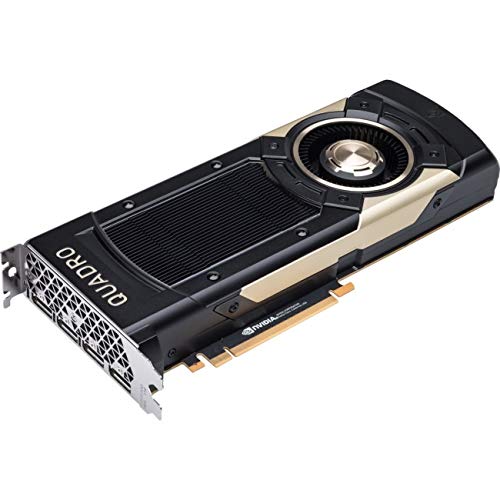
Figure 1: HP Quadro GV100 Graphic Card. This image shows the front view of the graphics card, highlighting its cooling solution and the four DisplayPort outputs.
Safety Information
- Always disconnect power from your computer before installing or removing any components.
- Handle the graphics card by its edges to avoid touching sensitive components.
- Ensure proper grounding to prevent electrostatic discharge (ESD) damage.
- Install the card in a well-ventilated computer case to prevent overheating.
2. Setup and Installation
2.1 Hardware Installation
- Prepare Your System: Power off your computer and disconnect the power cable. Open the computer case.
- Locate PCIe Slot: Identify an available PCI Express x16 slot on your motherboard.
- Install the Card: Carefully align the graphics card with the PCIe slot and press it firmly until it is seated correctly. Secure the card with the retaining clip or screw.
- Connect Power: Connect the necessary PCIe power cables from your power supply to the graphics card. Refer to your power supply and graphics card documentation for specific power requirements.
- Close Case: Close your computer case and reconnect the power cable.
2.2 Driver Installation
- Power On: Power on your computer. The system may boot with a basic display driver.
- Download Drivers: Visit the official HP support website or NVIDIA's professional driver download page. Search for the latest drivers compatible with the Quadro GV100 and your operating system.
- Install Drivers: Run the downloaded driver installer and follow the on-screen instructions. A system restart may be required after installation.
- Verify Installation: After restarting, open your operating system's device manager or the NVIDIA Control Panel to confirm that the Quadro GV100 is recognized and functioning correctly.
2.3 Connecting Displays
The HP Quadro GV100 features four DisplayPort outputs. Connect your monitors using DisplayPort cables. Adapters may be used for other display types (e.g., HDMI, DVI), but native DisplayPort connections are recommended for optimal performance.
3. Operating the Graphics Card
3.1 NVIDIA Control Panel
The NVIDIA Control Panel provides comprehensive settings for managing your graphics card. Access it by right-clicking on your desktop and selecting "NVIDIA Control Panel." Here you can configure:
- Display resolution and refresh rates.
- Multiple display setups (e.g., extended desktop, duplicate displays).
- 3D application settings for performance and quality.
- CUDA and OpenCL settings for compute applications.
3.2 Professional Applications
The Quadro GV100 is optimized for professional applications such as CAD/CAM, DCC (Digital Content Creation), scientific simulation, and deep learning. Ensure your applications are configured to utilize the Quadro GV100 for GPU acceleration where applicable.
4. Maintenance
4.1 Driver Updates
Regularly check the HP or NVIDIA website for updated drivers. Driver updates often include performance improvements, bug fixes, and compatibility enhancements for new software and operating system versions.
4.2 Cleaning
Over time, dust can accumulate on the graphics card's heatsink and fans, potentially affecting cooling performance. Periodically clean the card:
- Power off your computer and disconnect the power cable.
- Carefully remove the graphics card from its slot.
- Use compressed air to gently blow dust from the heatsink fins and fan blades. Hold the fan blades to prevent them from spinning rapidly during cleaning.
- Reinstall the card and close the computer case.
5. Troubleshooting
5.1 No Display Output
- Ensure the monitor is powered on and connected securely to the graphics card.
- Verify that the graphics card is fully seated in the PCIe slot and all power connectors are attached.
- Test with a different monitor or cable if possible.
- If your CPU has integrated graphics, try booting with the integrated graphics to check if the system POSTs.
5.2 Driver Issues or Errors
- Perform a clean installation of the graphics drivers. Uninstall existing drivers using a utility like Display Driver Uninstaller (DDU) in Safe Mode, then install the latest drivers.
- Ensure your operating system is up to date.
5.3 Performance Problems
- Check for overheating. Monitor GPU temperatures using software utilities. Ensure proper case airflow and clean the card if necessary.
- Verify that your applications are configured to use the dedicated graphics card.
- Ensure your power supply meets the minimum wattage requirements for your system, including the graphics card.
6. Specifications
| Feature | Detail |
|---|---|
| Model Name | Quadro GV100 |
| Part Number | 3ME26AT |
| Brand | HP |
| Graphics Processor Manufacturer | NVIDIA |
| Graphics RAM Size | 32 GB HBM2 |
| Video Output Interface | 4 x DisplayPort |
| Graphics Card Interface | PCI Express |
| Maximum Display Resolution | 3840x2160 |
| Compatible Devices | Desktop PC |
| Item Weight | 1 Pound (approximately 0.45 kg) |
| GTIN / UPC | 192018857889 |
Note: Specifications are subject to change without notice. For the most current information, please refer to the official HP product page.
7. Warranty and Support
7.1 Product Warranty
Your HP Quadro GV100 Graphic Card is covered by a limited warranty provided by HP. The terms and conditions of this warranty may vary by region and purchase date. Please retain your proof of purchase for warranty claims.
For detailed warranty information, including coverage period and specific terms, please visit the official HP support website or consult the warranty documentation included with your product.
7.2 Technical Support
If you encounter issues that cannot be resolved using the troubleshooting steps in this manual, or require further assistance, please contact HP Technical Support.
- Online Support: Visit the official HP Support website (www.hp.com/support) for drivers, documentation, and troubleshooting guides.
- Contact Support: Refer to the HP support website for regional contact numbers and support options.
When contacting support, please have your product model (Quadro GV100) and serial number ready.


