
SAM4s ER-925
SAM4s ER-925 Cash Register User Manual
Model: ER-925
Introduction
This manual provides comprehensive instructions for the setup, operation, and maintenance of your SAM4s ER-925 Cash Register, including its integrated Metrologic Fusion Barcode Scanner. Please read this manual carefully to ensure proper use and to maximize the lifespan of your equipment.
Product Overview
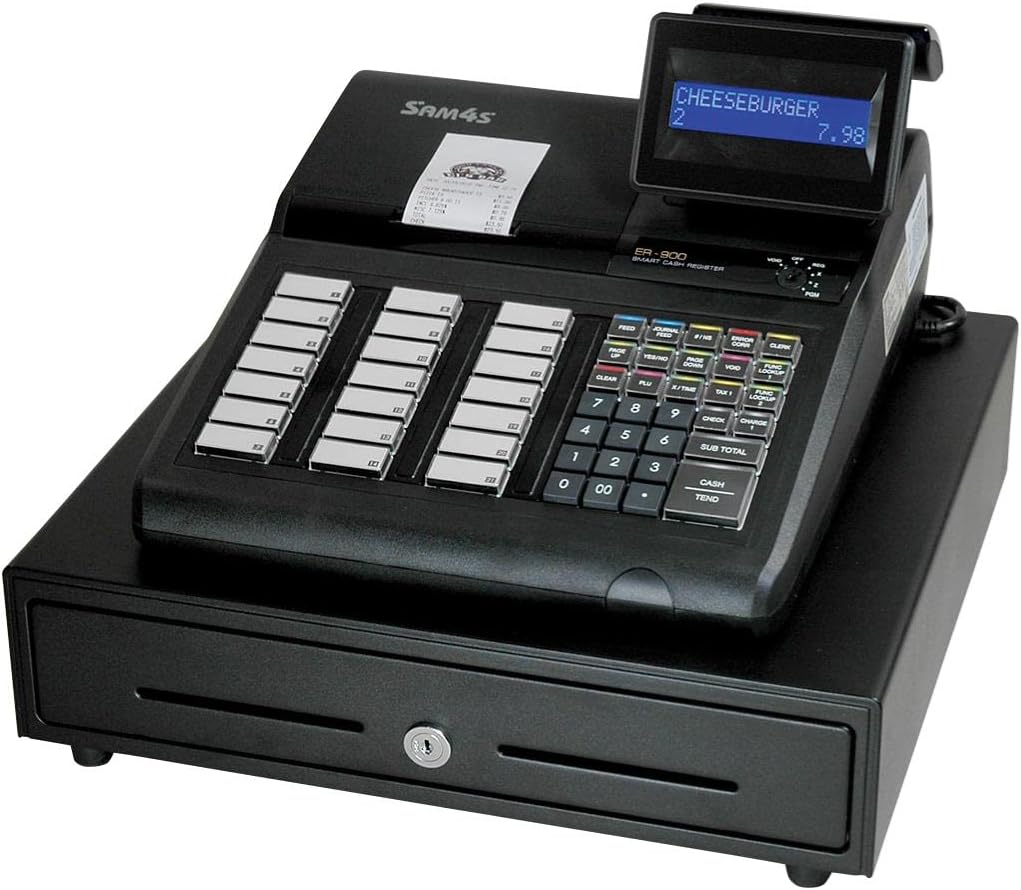
Figure 1: SAM4s ER-925 Cash Register with Metrologic Fusion Barcode Scanner. The image shows the main unit with a display showing "CHEESEBURGER 2 7.98", a receipt printer, a numeric keypad, function keys, and a cash drawer below.
The SAM4s ER-925 is a robust cash register designed for efficient transaction processing. It comes pre-configured with a Metrologic Fusion Barcode Scanner, enabling fast and accurate item entry. The system is designed for ease of use and reliability in various retail environments.
Setup
Unpacking and Inspection
Carefully remove all components from the packaging. Verify that all items are present and undamaged. The package should contain the ER-925 cash register unit, the Metrologic Fusion Barcode Scanner, power cord, and any included documentation.
Placement
Place the cash register on a stable, flat surface. Ensure adequate ventilation around the unit. Avoid placing it in direct sunlight or near heat sources.
Power Connection
Connect the power cord to the cash register's power input, then plug it into a standard electrical outlet. It is recommended to use a surge protector.
Scanner Connection
The Metrologic Fusion Barcode Scanner is pre-configured for plug-and-play operation with the ER-925. Connect the scanner's USB cable to the designated USB port on the cash register. The scanner should be recognized automatically upon power-up.
Initial Configuration
The system comes with basic configuration. For specific item programming and keyboard layout adjustments, refer to the "Programming" section or contact customer support for assistance. SAM4s offers free telephone support for programming items and keyboard layouts, and configuration setup at no charge.
Operating Instructions
Powering On/Off
To power on, ensure the power cord is connected and press the power button. To power off, follow the proper shutdown procedure outlined in the register's internal menu to prevent data loss, then disconnect power.
Basic Transaction
- Item Entry: Use the Metrologic Fusion Barcode Scanner to scan product barcodes. The item name and price will appear on the display. Adding items with this scanner is very fast and simple.
- Manual Entry: For items without barcodes, use the numeric keypad to enter the item code or price, then press the appropriate department or PLU key.
- Quantity Entry: To enter multiple quantities of an item, input the quantity using the numeric keypad, then press the 'X' key (if available) followed by scanning the item or entering its code.
- Subtotal: Press the SUB TOTAL key to view the current transaction total.
- Payment: Enter the amount received from the customer using the numeric keypad, then press the CASH or TEND key. The change due will be displayed.
Error Correction
If an incorrect item is entered, use the VOID or ERROR CORRECT key as per the register's specific programming. Consult the on-screen prompts or the programming guide for detailed steps.
End of Day Procedures
At the end of each business day, perform a Z-report to clear daily sales data and print a summary. Consult your programming guide for specific steps to generate reports.
Maintenance
Cleaning
Regularly clean the exterior of the cash register and scanner with a soft, damp cloth. Do not use abrasive cleaners or solvents. For the scanner's reading window, use a lint-free cloth and a mild glass cleaner if necessary.
Paper Roll Replacement
When the receipt paper runs low, replace it with a new thermal paper roll of the correct size. Refer to the diagram inside the printer cover for proper loading direction.
Data Backup
Periodically back up your sales data and programming settings to an external device if your model supports it. This protects against data loss in case of power outages or system malfunctions.
Troubleshooting
| Problem | Possible Cause | Solution |
|---|---|---|
| Register does not power on. | Power cord not connected; power outlet issue. | Ensure power cord is securely connected. Test the outlet with another device. |
| Scanner not reading barcodes. | Scanner cable loose; barcode damaged; scanner lens dirty. | Check scanner cable connection. Try scanning a different barcode. Clean the scanner lens. |
| Printer not printing. | No paper; paper jammed; printer cover not closed. | Replace paper roll. Clear any paper jams. Ensure printer cover is securely closed. |
| Incorrect item prices. | Incorrect programming. | Verify item programming. Contact customer support for programming assistance. |
Specifications
- Model: ER-925
- Brand: SAM4s
- Item Weight: 45 pounds
- Power Source: Corded Electric
- Connectivity Technology: USB Cable (for scanner)
- Compatible Devices: Laptop, Desktop (for programming/data transfer, if applicable)
- UPC: 074927755572
- ASIN: B07GVRT467
Warranty and Support
The SAM4s ER-925 Cash Register comes with an unconditional guarantee to function properly. For any technical assistance, programming support, or warranty inquiries, please contact SAM4s customer service. Free telephone support is available for programming items and keyboard layouts, and configuration setup is provided at no charge.
For further assistance, please refer to the contact information provided with your purchase documentation or visit the official SAM4s website.
Related documentsER-925


Ask a question about this manual
Ask about setup, troubleshooting, compatibility, parts, safety, or missing instructions. Manuals+ will review the question and use this page’s manual context to help answer it.