
1. Introduction
Thank you for choosing the Redragon Black Griffin M607 Gaming Mouse. This manual provides detailed instructions for setting up, operating, and maintaining your new gaming mouse. The Griffin M607 is designed to offer a superior gaming experience with its customizable features and ergonomic design.
2. Product Overview
The Redragon Griffin M607 is a high-performance gaming mouse featuring RGB LED backlighting, adjustable DPI settings, and programmable buttons. It is engineered for precision and comfort, making it ideal for various gaming genres, especially MOBAs and role-playing games.
- Ergonomic Design: Crafted for comfort during extended gaming sessions.
- Adjustable DPI: Easily switch between 4 DPI speeds for optimal sensitivity.
- Programmable Buttons: Configure macros and in-game functions for faster command execution.
- PMW3212 Sensor: Ensures high precision and responsiveness.
- Vibrant RGB LED: Customizable backlighting for personalized aesthetics.

Figure 2.1: Top view of the Redragon Black Griffin M607 Gaming Mouse, showcasing its ergonomic shape and RGB LED lighting.
3. Package Contents
Please check the package contents to ensure all items are present:
- Redragon Black Griffin M607 Gaming Mouse
- User Manual (this document)
4. Setup Guide
The Redragon Griffin M607 mouse is designed for plug-and-play functionality. Follow these steps to set up your mouse:
- Connect the Mouse: Locate an available USB port on your computer (PC, notebook, Mac, or desktop).

Figure 4.1: Front view of the mouse, highlighting the USB cable connection point.
- Plug In: Insert the USB connector of the mouse into the USB port.
- Driver Installation: Your operating system (Windows 10, 8, 7, Vista, or Mac OS) will automatically detect and install the necessary drivers. This process may take a few moments.
- Ready for Use: Once the drivers are installed, the mouse will be ready for immediate use. The RGB lighting will illuminate.
5. Operating Instructions
5.1 Basic Functions
- Left Click: Primary action button.
- Right Click: Secondary action button, typically for context menus.
- Scroll Wheel: Scroll up or down through documents and web pages. The scroll wheel also functions as a middle click button.
5.2 DPI Adjustment
The Redragon Griffin M607 allows you to quickly switch between four preset DPI (Dots Per Inch) levels to adjust cursor sensitivity.

Figure 5.1: Top angled view of the mouse, indicating the DPI adjustment buttons located behind the scroll wheel.
To change DPI:
- Press the DPI+ button (usually the top button behind the scroll wheel) to increase DPI.
- Press the DPI- button (usually the bottom button behind the scroll wheel) to decrease DPI.
- The RGB lighting may change color to indicate the current DPI level (refer to software for specific color assignments).
5.3 Programmable Side Buttons and Macros
The Griffin M607 features side buttons that can be programmed for macros or specific in-game functions.

Figure 5.2: Left side view of the mouse, showing the two programmable side buttons.
To program these buttons, you will need to download the official Redragon software from the Redragon website.
- Visit the official Redragon support website.
- Download the software for the Redragon Griffin M607 mouse.
- Install the software and follow the on-screen instructions to customize button assignments and create macros.
5.4 RGB Lighting Control
The RGB LED lighting on your Griffin M607 mouse can be customized through the Redragon software. This allows you to select different lighting effects, colors, and brightness levels to match your setup or mood.
- Open the Redragon software.
- Navigate to the lighting settings section.
- Choose your preferred lighting mode (e.g., static, breathing, rainbow wave) and colors.
- Apply the changes to save your custom lighting profile.
6. Maintenance and Care
To ensure the longevity and optimal performance of your Redragon Griffin M607 mouse, follow these maintenance guidelines:
- Cleaning: Use a soft, dry cloth to wipe the surface of the mouse. For stubborn dirt, slightly dampen the cloth with water. Avoid using harsh chemicals or abrasive cleaners.
- Sensor Care: Keep the optical sensor on the bottom of the mouse clean and free of dust or debris. Use a cotton swab or compressed air if necessary.
- Cable Management: Avoid sharp bends or excessive pulling on the USB cable to prevent damage.
- Storage: When not in use, store the mouse in a clean, dry environment away from extreme temperatures.
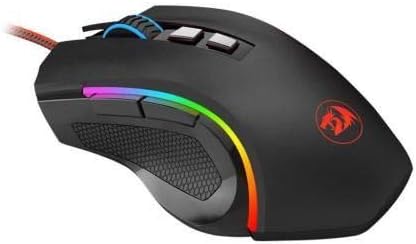
Figure 6.1: Bottom view of the mouse, illustrating the optical sensor and the glide feet.
7. Troubleshooting
If you encounter issues with your Redragon Griffin M607 mouse, please refer to the following common solutions:
| Problem | Possible Solution |
|---|---|
| Mouse not responding |
|
| Cursor movement is erratic or jumpy |
|
| DPI or RGB lighting not changing |
|
| Side buttons not working |
|
8. Specifications
| Feature | Detail |
|---|---|
| Model Number | GRIFFIN M607 |
| Connectivity Technology | USB |
| Movement Detection Technology | Optical (PMW3212 Sensor) |
| DPI Levels | 4 adjustable speeds |
| Special Feature | Backlit (RGB LED) |
| Color | Black |
| Item Weight | 7 ounces (approx. 198 grams) |
| Product Dimensions (LxWxH) | 4.96 x 3.15 x 0.1 inches (approx. 12.6 x 8.0 x 0.25 cm) |
| Power Source | DC |
| Voltage | 5 Volts |
| Compatible Operating Systems | Mac, Windows (10, 8, 7, Vista) |
| Compatible Hardware Platforms | PC, Notebook, Mac, Desktop, Computer |
9. Warranty and Support
Redragon products are manufactured to the highest quality standards. For information regarding warranty coverage, technical support, or to download the latest software and drivers for your Redragon Griffin M607 mouse, please visit the official Redragon website or contact their customer service.
Website: www.redragonusa.com (or relevant regional Redragon website)


