
1. Introduction
This manual provides detailed instructions for the installation, operation, and maintenance of your Decdeal Wi-Fi Programmable Smart Thermostat. Designed for gas boiler heating systems, this thermostat offers convenient temperature control via its LCD touchscreen, mobile application, and voice commands. Please read this manual thoroughly before installation and use to ensure proper functionality and safety.
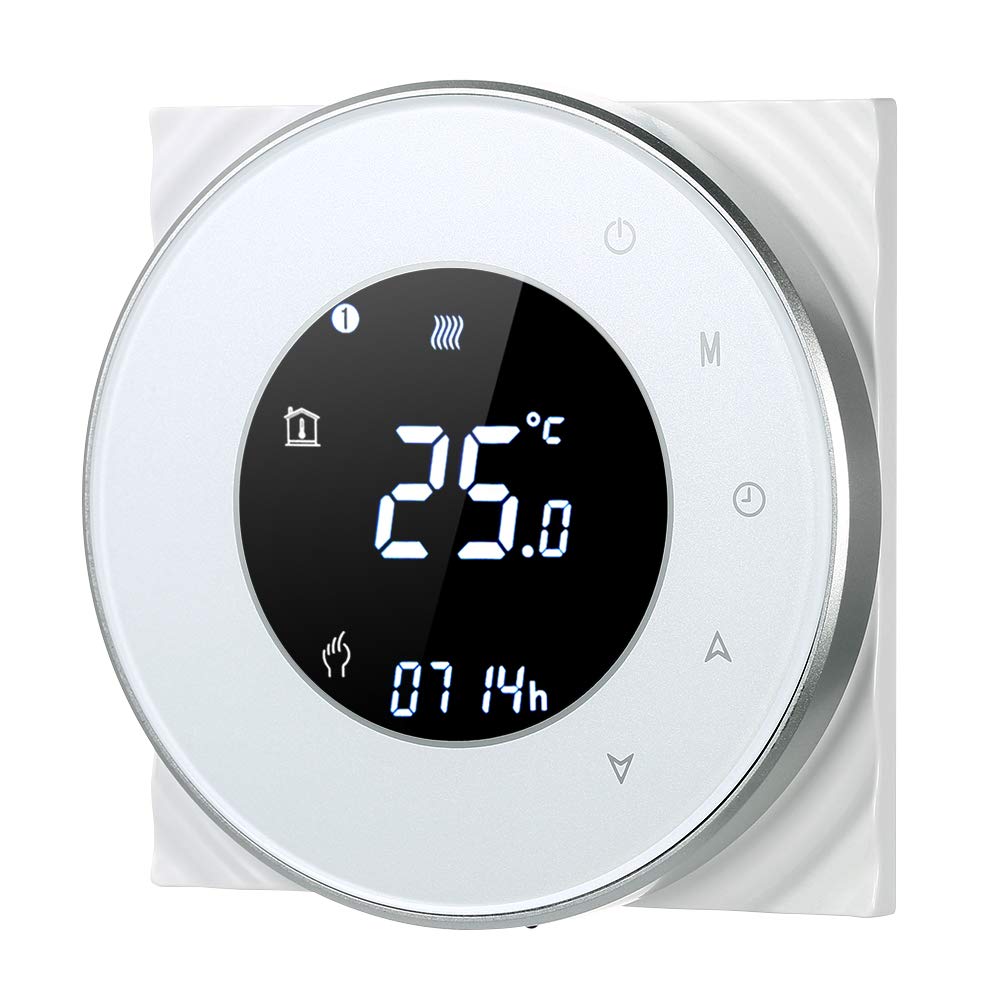
Figure 1: Decdeal Wi-Fi Programmable Smart Thermostat (White Model)
2. Product Features
- LCD Display with Backlight: Clear and easy-to-read data, even in low light conditions.
- High-Quality Thermostat: Specifically designed for gas boiler heating systems with responsive touch keys.
- Weekly Programmable: Features a 5+2 system with six programmable periods to optimize comfort and energy savings.
- High Accuracy: Maintains temperature with a precision of 0.5°C.
- Remote Control via App: Conveniently manage your thermostat using your mobile device.
- Voice Control Compatibility: Works with Amazon Echo, Alexa, Google Home, and IFTTT.

Figure 2: Key Features of the Decdeal Smart Thermostat

Figure 3: Smart Home Integration
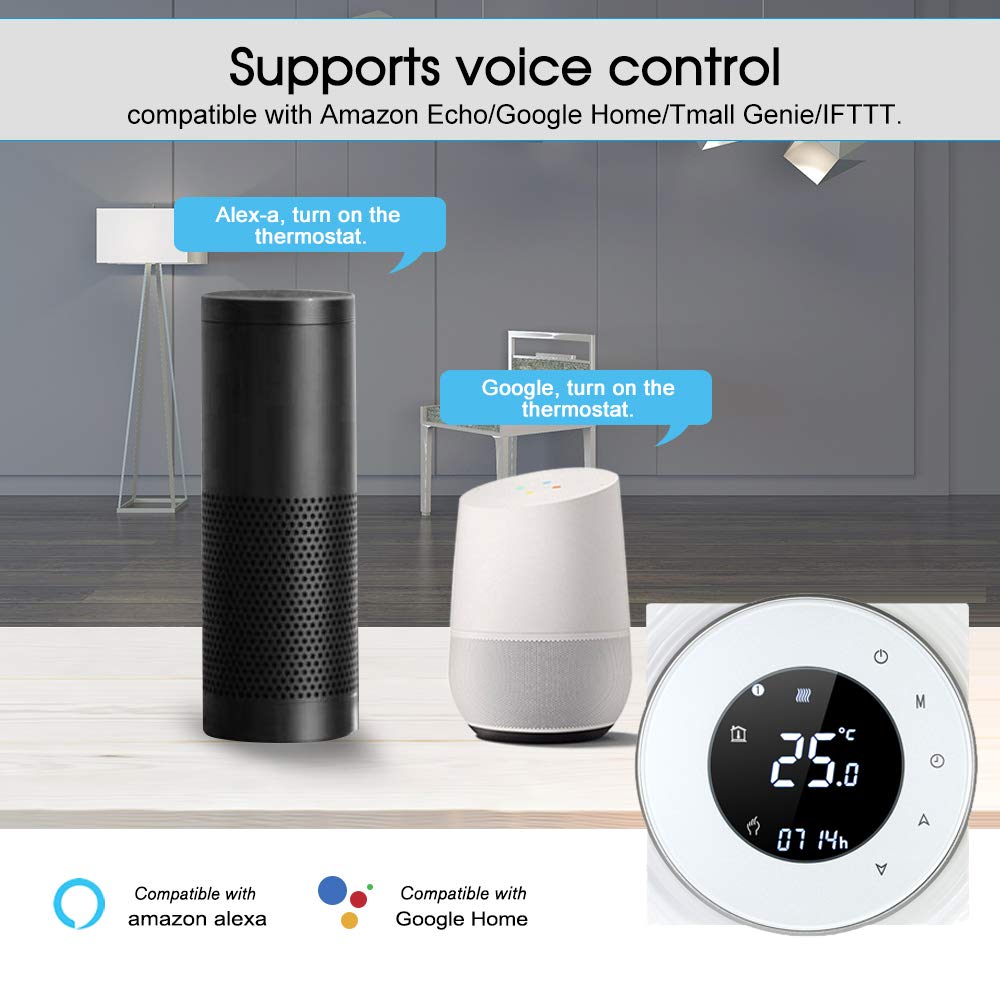
Figure 4: Voice Control Functionality
3. What's in the Box
- Decdeal Wi-Fi Programmable Smart Thermostat
- Mounting Screws
- English User Manual

Figure 5: Package Contents
4. Specifications
| Feature | Detail |
|---|---|
| Brand | Decdeal |
| Model Number | XGJ3167046817164KD |
| Product Dimensions | 3.8P x 9l x 9H cm |
| Color | White |
| Material Type | Acrylonitrile Butadiene Styrene (ABS) |
| Connectivity Technology | Wi-Fi (2.4 GHz only) |
| Power Source | Wired Electric (240 Volt) |
| Display Type | LCD with Backlight |
| Screen Size | 5 Centimeters |
| Control Method | App, Remote, Touch, Voice |
| Mounting Type | Wall Mount |
| Temperature Control Type | Programmable |
| Specific Use | Boiler Heating Systems (Model GC) |

Figure 6: Product Dimensions
5. Setup
5.1. Important Compatibility Note
This thermostat is Model GC, specifically designed for heating systems with gas boilers. Ensure your heating system is compatible before installation. The installation box should be a square 86x86mm or European round 60mm (not included).
5.2. Wiring Instructions (Model GC - Gas Boiler)
WARNING: Electrical installation should be performed by a qualified professional. Always turn off the main power supply before beginning any wiring work to prevent electric shock.
- Connect the clean contacts to terminals 1 and 2.
- Connect the neutral wire and live wire to terminals 3 and 4.
- Connect the temperature sensor to terminals 5 and 6 (if applicable).
Refer to the detailed wiring diagram in the included English User Manual for visual guidance.
5.3. App Connection
To connect your thermostat to the mobile app (e.g., Smart Life or Tuya Smart), follow these steps:
- Ensure your Wi-Fi network is 2.4 GHz. This product does not support 5G networks.
- Download the appropriate app (e.g., Smart Life or Tuya Smart) from your mobile device's app store.
- Register or log in to your account.
- On the thermostat, press and hold the "Down" button (triangle icon) for approximately 8 seconds until the Wi-Fi indicator on the display blinks rapidly, indicating pairing mode.
- In the app, tap "Add Device" or the "+" icon. The app should automatically discover the thermostat. If not, select "Small Home Appliances" then "Thermostat" or "HVAC" and follow the in-app instructions.
- Enter your 2.4 GHz Wi-Fi network password when prompted.
- Confirm the indicator is blinking in the app and proceed with the connection.
- Once connected, the thermostat will appear in your device list, and you can control it remotely.
For a visual guide on app connection, please refer to the video below:
Video 1: Demonstrating the Wi-Fi connection process for the Decdeal Smart Thermostat with a mobile app.
For additional support and an Italian language manual, you can visit this link: http://qr71.cn/o1gyMk/qVY1nSe
6. Operating Instructions
6.1. Manual Control
The thermostat features a clear LCD display and intuitive touch buttons for direct control:

Figure 7: Thermostat Button Layout and Display Indicators
- Power Button (top right): Press to turn the thermostat ON or OFF.
- Mode Button (M): Cycles through different operating modes (e.g., Manual, Programmed).
- Clock Button (Clock icon): Used for setting the time and accessing programming settings.
- Up Button (Triangle pointing up): Increases the temperature setting or navigates menu options.
- Down Button (Triangle pointing down): Decreases the temperature setting or navigates menu options.
To adjust the temperature manually, press the Up or Down buttons. The display will show the current set temperature. To switch between manual and programmed modes, use the Mode button.
6.2. App Control and Scheduling
The mobile app provides comprehensive control and scheduling capabilities:
- Remote Temperature Adjustment: Change the temperature from anywhere using your smartphone.
- Weekly Programming (5+2 System): Set up to six distinct time periods for weekdays (Monday-Friday), Saturday, and Sunday, each with its own temperature setting. This maximizes comfort and energy efficiency.
- Mode Selection: Easily switch between manual, automatic (programmed), and other modes.
- Advanced Settings: Access additional settings and features not available directly on the thermostat.

Figure 8: App Control Interface
7. Maintenance
- Cleaning: Wipe the thermostat's surface with a soft, dry cloth. Avoid using abrasive cleaners, solvents, or chemical sprays, as these can damage the display or casing.
- Avoid Obstructions: Ensure no objects block the thermostat, as this can affect its temperature readings.
- Power Supply: The thermostat requires a constant 240V wired electric supply. It does not operate on batteries.
8. Troubleshooting
| Problem | Possible Cause | Solution |
|---|---|---|
| Thermostat does not power on after connection. | Incorrect wiring or no power supply. | Verify wiring according to Section 5.2. Ensure main power supply is ON. If unsure, consult a qualified electrician. |
| Cannot connect to Wi-Fi or app. | Incorrect Wi-Fi frequency (5G instead of 2.4 GHz) or incorrect pairing procedure. | Ensure your router is broadcasting a 2.4 GHz Wi-Fi signal and your phone is connected to it during setup. Follow app connection steps in Section 5.3 carefully. Reset the thermostat if necessary (refer to app instructions for reset). |
| Temperature reading seems inaccurate. | Thermostat location or external factors. | Ensure the thermostat is not exposed to direct sunlight, drafts, or heat sources (e.g., lamps, appliances) that could affect its sensor. |
| Heating system not responding to thermostat. | Wiring issue, boiler problem, or incorrect mode. | Check wiring connections. Ensure the thermostat is in the correct operating mode (e.g., heating mode, not off). Verify your boiler is functioning correctly. |
9. Warranty and Support
For warranty information, please refer to the documentation provided at the time of purchase or contact your retailer. For technical support or further assistance, please contact Decdeal customer service through the official channels provided with your product or on the Decdeal website.