
1. Introduction
This manual provides detailed instructions for the setup, operation, maintenance, and troubleshooting of your Logitech G502 Hero High Performance Wired Gaming Mouse. Designed for precision and customization, the G502 Hero features the HERO 25K optical sensor, 11 programmable buttons, adjustable weights, and LIGHTSYNC RGB lighting.
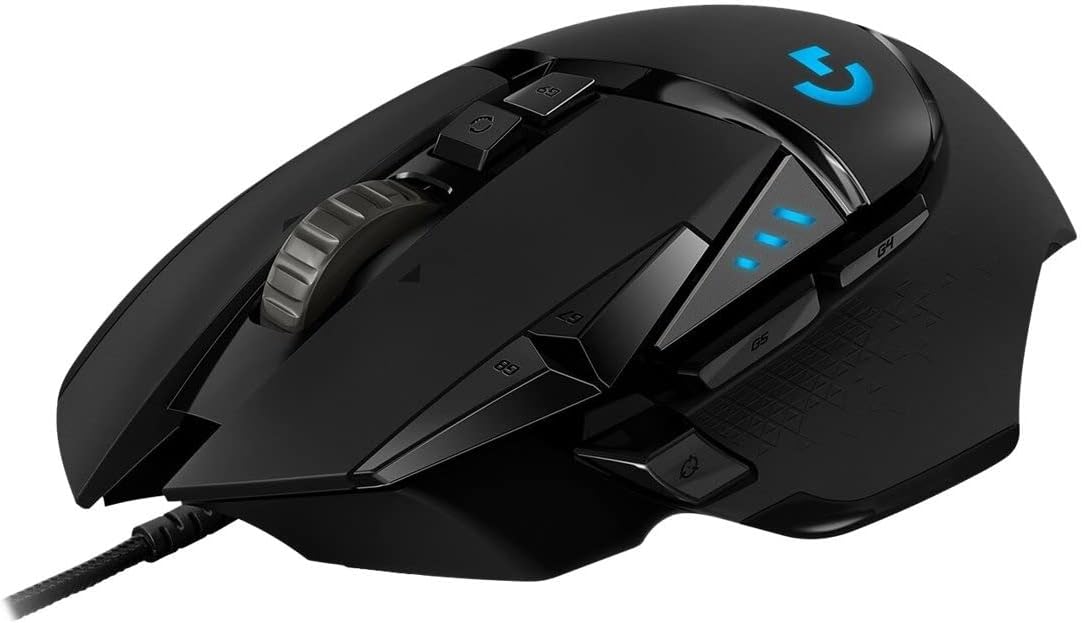
Image 1.1: Angled view of the Logitech G502 Hero Gaming Mouse, showcasing its ergonomic design and illuminated G logo.
2. Package Contents
Verify that all items are present in your product packaging:
- Logitech G502 Hero Wired Gaming Mouse
- Adjustment weight with case (five 3.6g weights)
- User documentation
3. Setup
3.1 Connecting the Mouse
- Unpack the Logitech G502 Hero Gaming Mouse.
- Plug the USB connector of the mouse cable into an available USB port on your computer (PC or Mac).
- The mouse will be automatically detected by your operating system. Basic functionality will be available immediately.
3.2 Software Installation (Logitech G HUB)
To unlock the full customization potential of your G502 Hero, including programmable buttons, DPI settings, and LIGHTSYNC RGB, install the Logitech G HUB software.
- Visit the official Logitech G website: www.logitechg.com/ghub
- Download the G HUB software compatible with your operating system (Windows or macOS).
- Follow the on-screen instructions to complete the installation.
- Once installed, launch Logitech G HUB to configure your mouse.

Image 3.1: The Logitech G502 Hero Gaming Mouse connected and ready for use on a desktop setup.
4. Features Overview
4.1 Button Layout and Functions
The G502 Hero features 11 programmable buttons. Refer to the image below for button identification.

Image 4.1: Top view of the G502 Hero, highlighting the main left/right click buttons, scroll wheel, DPI shift buttons (G7, G8), profile cycle button (G9), and additional thumb buttons (G4, G5, G6).
- Left/Right Click Buttons: Standard mouse buttons.
- Scroll Wheel: Features dual-mode functionality (hyper-fast and click-to-click).
- DPI Shift Buttons (G7, G8): Default for adjusting sensitivity on-the-fly.
- Profile Cycle Button (G9): Default for cycling through onboard profiles.
- Thumb Buttons (G4, G5, G6): Customizable for various commands.
- G-Shift Button: Located on the left side, allows for a secondary set of commands for all buttons when held.
4.2 HERO 25K Optical Sensor
The G502 Hero is equipped with the HERO 25K sensor, offering a DPI range from 200 to 25,600. This sensor provides precise tracking with zero smoothing, filtering, or acceleration, ensuring accurate cursor movement.
4.3 Adjustable Weight System
Customize the weight and balance of your mouse using the five included 3.6g weights. This allows for personalized feel and control.

Image 4.2: The G502 Hero's bottom panel removed, showing the slots for the adjustable weights and the weights themselves.
- To access the weight compartment, gently pull open the magnetic cover on the bottom of the mouse.
- Place the desired number of 3.6g weights into the designated slots.
- Close the magnetic cover securely.
4.4 LIGHTSYNC RGB Lighting
The mouse features customizable RGB lighting zones (G logo and DPI indicators) that can be synchronized with other Logitech G LIGHTSYNC devices. Configuration is done via Logitech G HUB software.
5. Software Customization (Logitech G HUB)
Logitech G HUB software provides comprehensive control over your G502 Hero.
5.1 Assigning Commands to Buttons
- Open Logitech G HUB.
- Select your G502 Hero mouse from the device list.
- Navigate to the 'Assignments' tab.
- Drag and drop commands (e.g., keyboard macros, system commands, media controls) onto the desired buttons on the mouse diagram.
- Save your changes.
5.2 DPI Sensitivity Settings
- In G HUB, go to the 'Sensitivity (DPI)' tab.
- Adjust the DPI levels for each of your preferred settings. You can set up to 5 DPI levels.
- Assign a 'DPI Shift' button for temporary DPI changes (e.g., for precision aiming).
5.3 LIGHTSYNC RGB Configuration
- Access the 'LIGHTSYNC' tab in G HUB.
- Choose from various lighting effects (e.g., fixed color, breathing, color cycle, screen sampler, audio visualizer).
- Customize colors, brightness, and speed.
- Synchronize lighting with other Logitech G LIGHTSYNC devices if applicable.
5.4 Profile Management
Create and save multiple profiles for different games or applications. G HUB can automatically switch profiles when a specific application is launched.
6. Operating the Mouse
6.1 Basic Movement and Clicks
Use the mouse on a flat, clean surface for optimal tracking. The left and right click buttons function as standard mouse clicks.
6.2 DPI Switching
Press the assigned DPI shift buttons (G7, G8 by default) to cycle through your configured DPI sensitivity levels. The DPI indicator lights on the mouse will show the current DPI level.
6.3 Scroll Wheel Modes
The button directly below the scroll wheel toggles between two modes:
- Hyper-Fast Scrolling: The scroll wheel spins freely for rapid navigation through long documents or web pages.
- Click-to-Click Scrolling: The scroll wheel provides tactile feedback for precise, controlled scrolling.
7. Maintenance
7.1 Cleaning
To maintain optimal performance, regularly clean your mouse:
- Use a soft, lint-free cloth slightly dampened with water or isopropyl alcohol to wipe the surface of the mouse.
- Avoid using harsh chemicals or abrasive materials.
- For the optical sensor, use a dry cotton swab to gently clean any dust or debris.
7.2 Cable Care
Avoid sharp bends or excessive pulling on the mouse cable to prevent damage. Store the cable neatly when not in use.
8. Troubleshooting
8.1 Mouse Not Responding
- Ensure the USB cable is securely plugged into a working USB port. Try a different USB port.
- Restart your computer.
- Test the mouse on another computer to determine if the issue is with the mouse or the computer.
8.2 Inconsistent Tracking
- Clean the optical sensor on the bottom of the mouse.
- Ensure you are using the mouse on a clean, uniform surface. Avoid highly reflective or transparent surfaces.
- Check DPI settings in Logitech G HUB; ensure they are appropriate for your usage.
8.3 Logitech G HUB Not Detecting Mouse
- Ensure the mouse is connected to your computer.
- Restart Logitech G HUB software.
- Reinstall Logitech G HUB software.
- Check for any pending operating system updates or driver updates for USB devices.
9. Specifications
| Brand | Logitech G |
| Series | G502 Hero Wired |
| Model Number | 910-005470 |
| Hardware Platform | PC, Mac |
| Operating System | Mac OS X 10.11 El Capitan and later, Windows 7 and later |
| Item Weight | 4.3 ounces (approx. 121g) |
| Product Dimensions (LxWxH) | 1.57 x 2.95 x 0.1 inches (approx. 40 x 75 x 2.5 mm) |
| Color | Black |
| Power Source | Corded Electric (USB) |
| Connectivity Technology | USB |
| Special Features | 4 Way Scrolling, LED Lights (LIGHTSYNC RGB), Adjustable Weights, 11 Programmable Buttons |
| Movement Detection Technology | Optical (HERO 25K Sensor) |
10. Warranty and Support
10.1 Manufacturer's Warranty
The Logitech G502 Hero Gaming Mouse comes with a 2-year manufacturer's warranty. Please retain your proof of purchase for warranty claims.
10.2 Customer Support
For further assistance, technical support, or warranty inquiries, please visit the official Logitech G support website:


