
TP-Link TL-SG116E
TP-Link TL-SG116E 16-Port Gigabit Easy Smart Managed Switch Instruction Manual
Model: TL-SG116E
1. Introduction
The TP-Link TL-SG116E is a 16-port Gigabit Easy Smart Managed Switch designed for expanding network connectivity in home and small business environments. This device offers a plug-and-play experience for basic functionality while providing intelligent management features for enhanced network control.
Key features include:
- 16 10/100/1000Mbps RJ45 Ports for high-speed wired connections.
- Plug and play operation, requiring no complex configuration for basic use.
- Durable metal casing for enhanced product longevity and professional appearance.
- Intelligent management capabilities accessible via a web user interface and a downloadable utility.
- Green technology designed to reduce power consumption.
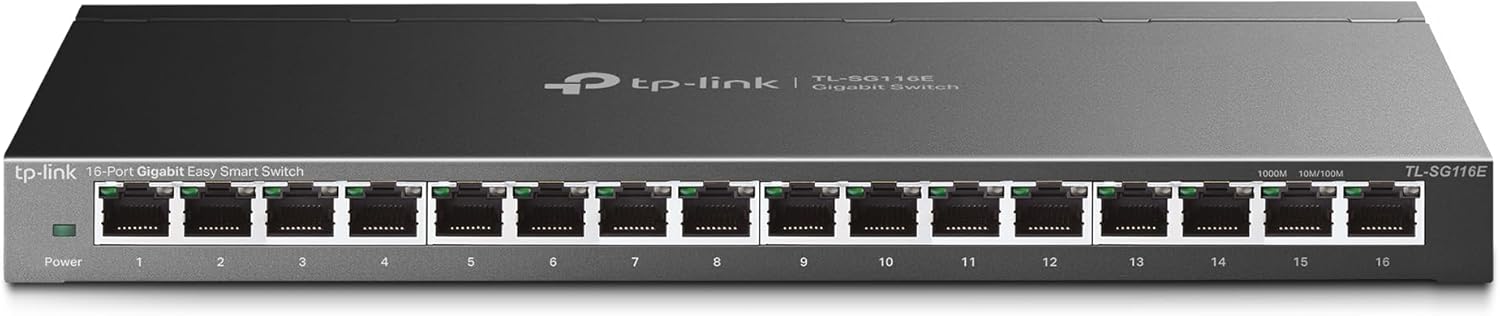
Image 1.1: Front view of the TP-Link TL-SG116E 16-Port Gigabit Easy Smart Managed Switch, showcasing its 16 Ethernet ports and power indicator.
2. Package Contents
Verify that your package contains the following items:
- TL-SG116E 16-Port Gigabit Easy Smart Managed Switch
- Power Cord
- Installation Guide
- Rubber Feet
3. Physical Features
3.1 Front Panel
The front panel of the TL-SG116E features the following components:
- Power LED: Indicates the power status of the switch.
- 16 Gigabit RJ45 Ports (1-16): These ports support 10/100/1000Mbps Ethernet connections. Each port has an associated LED indicator.
- Link/Act LEDs: For each RJ45 port, a green LED indicates a Gigabit connection and activity, while an amber LED indicates a 10/100Mbps connection and activity.
3.2 Rear Panel
The rear panel typically contains the power input connector.
4. Setup
4.1 Basic Hardware Connection
- Placement: Place the switch on a stable, flat surface or mount it to a wall using appropriate hardware (not included). Ensure adequate ventilation around the device.
- Connect Power: Connect the provided power cord to the switch's power input and then to a power outlet. The Power LED on the front panel should illuminate.
- Connect Devices: Connect your network devices (e.g., computers, printers, IP cameras, routers) to the RJ45 ports (1-16) on the switch using Ethernet cables. The corresponding Link/Act LEDs will light up, indicating a successful connection.
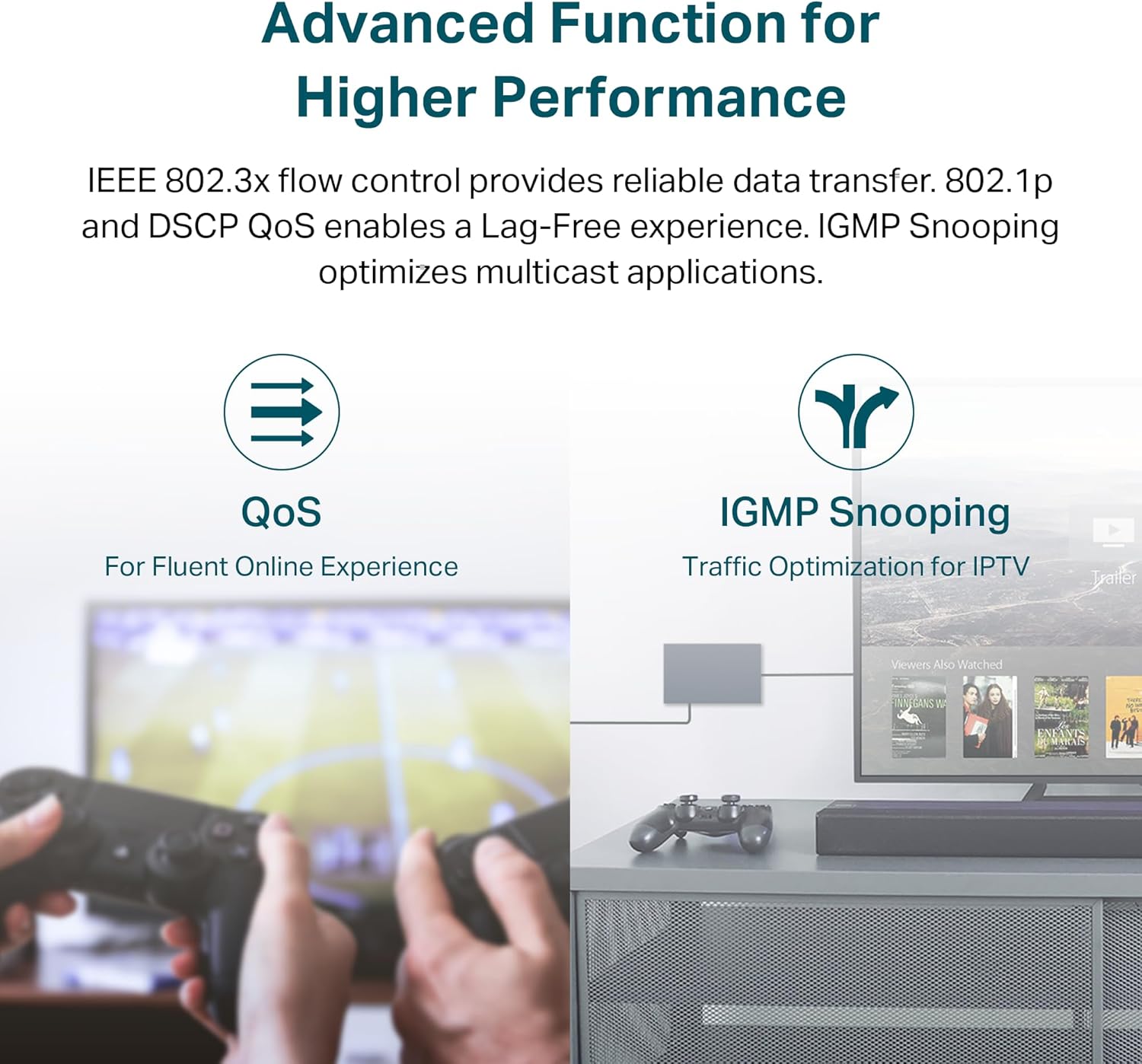
Image 4.1: Diagram illustrating the simple plug-and-play setup of the TL-SG116E, showing connections from a router to the switch, and from the switch to various network devices like IPTV, printers, and computers.
4.2 Expanding Your Network
The TL-SG116E allows for easy expansion of your wired network, providing 16 Gigabit Ethernet ports for multiple devices.

Image 4.2: Visual representation of how the TL-SG116E switch expands network capacity, connecting various devices such as computers, gaming consoles, and 4K displays to a central network.
5. Operating the Easy Smart Managed Features
The TL-SG116E is an Easy Smart Managed Switch, offering advanced features beyond basic plug-and-play. These features can be configured via a web-based user interface or a downloadable utility.
5.1 Accessing the Management Interface
To access the management interface, connect a computer to the switch and ensure it is on the same network segment. Refer to the detailed Installation Guide for specific instructions on IP address configuration and accessing the web UI or utility.

Image 5.1: Screenshot depicting the graphical user interface of the management utility, allowing users to configure and monitor the switch's advanced features.
5.2 VLAN Configuration
Virtual Local Area Networks (VLANs) allow you to segment your network into smaller, isolated broadcast domains. This can enhance security and improve network performance by separating different types of traffic (e.g., surveillance, office, guest networks).

Image 5.2: Diagram illustrating the concept of VLANs on the TL-SG116E, showing how ports can be grouped into separate virtual networks (VLAN 1 for surveillance, VLAN 2 for office, VLAN 3 for guests) to isolate traffic.
5.3 Quality of Service (QoS)
QoS allows you to prioritize certain types of network traffic, ensuring that critical applications (like video streaming or online gaming) receive sufficient bandwidth even during periods of high network congestion. The TL-SG116E supports IEEE 802.1p and DSCP QoS.
5.4 IGMP Snooping
IGMP Snooping optimizes multicast traffic delivery, preventing it from flooding all ports. This is particularly beneficial for applications like IPTV, where multicast streams are common, improving efficiency and reducing unnecessary network load.

Image 5.3: Illustration of advanced features: QoS for fluent online experiences like gaming, and IGMP Snooping for traffic optimization in IPTV environments.
6. Maintenance
6.1 General Care
- Keep the switch in a cool, dry place away from direct sunlight, heat sources, and moisture.
- Ensure proper ventilation to prevent overheating. Do not block ventilation openings.
- Clean the device regularly with a soft, dry cloth. Avoid using liquid or aerosol cleaners.
6.2 Firmware Updates
Periodically check the TP-Link official website for firmware updates. Updating the firmware can improve performance, add new features, and fix potential bugs. Follow the instructions provided with the firmware update package carefully.
7. Troubleshooting
7.1 Power LED is Off
Ensure the power cord is securely connected to the switch and a working power outlet. Verify the power outlet is functional by plugging in another device.
7.2 No Link/Activity on a Port
- Check if the Ethernet cable is properly connected at both ends (switch and connected device).
- Ensure the connected device is powered on and functioning correctly.
- Try a different Ethernet cable.
- Test with a different port on the switch.
7.3 Cannot Access Web Management Interface
- Verify your computer is connected to the switch and has an IP address within the same subnet as the switch.
- Ensure you are using the correct IP address for the switch. The default IP address is usually 192.168.0.1 or 192.168.1.1, but it may vary or be assigned by DHCP. Refer to the Installation Guide.
- Disable any firewall or antivirus software on your computer temporarily to rule out interference.
- Try a different web browser.
8. Specifications
| Feature | Detail |
|---|---|
| Model Number | TL-SG116E |
| Number of Ports | 16 |
| Interface Type | RJ45 |
| Data Transfer Rate | 1000 Megabits Per Second (Gigabit) |
| Product Dimensions | 11.26"L x 4.4"W x 1"H |
| Item Weight | 2.07 Pounds |
| Case Material | Metal |
| Voltage | 12 Volts (DC) |
| Current Rating | 1 Amps |
| Upper Temperature Rating | 40 Degrees Celsius |
| Compatible Devices | Desktop, Laptop, Printer |
9. Warranty and Support
9.1 Product Warranty
The TP-Link TL-SG116E switch is covered by a 3-year warranty. Please retain your proof of purchase for warranty claims. For detailed warranty terms and conditions, refer to the official TP-Link website or the warranty card included with your product.
9.2 Technical Support
For technical assistance, product information, or to download the latest firmware and utilities, please visit the official TP-Link support website:
- Website: https://www.tp-link.com/us/support/
- Email Support: support.USA@tp-link.com
- Phone Support: (866) 225-8139
You can also register your product and find more resources at myproducts.tp-link.com/us.
Related documentsTL-SG116E


Ask a question about this manual
Ask about setup, troubleshooting, compatibility, parts, safety, or missing instructions. Manuals+ will review the question and use this page’s manual context to help answer it.