
Cooler Master R9-NBS-E42K-GP
Cooler Master NotePal ErgoStand IV User Manual
Model: R9-NBS-E42K-GP | Brand: Cooler Master
Introduction
The Cooler Master NotePal ErgoStand IV is a versatile laptop cooling solution designed to enhance your computing experience. It features an ergonomic design with adjustable height settings, a quiet 140mm fan for efficient cooling, a full mesh board for improved airflow, and an integrated USB hub for expanded connectivity. This manual provides detailed instructions for setting up, operating, and maintaining your ErgoStand IV.
This cooling pad is compatible with notebooks up to 17 inches in size, offering both active cooling and ergonomic benefits.
Package Contents
- Cooler Master NotePal ErgoStand IV Laptop Cooler
- USB Cable (for power and USB hub connection)
- User Manual (this document)
Product Overview

Figure 1: Front view of the ErgoStand IV with the stand extended.
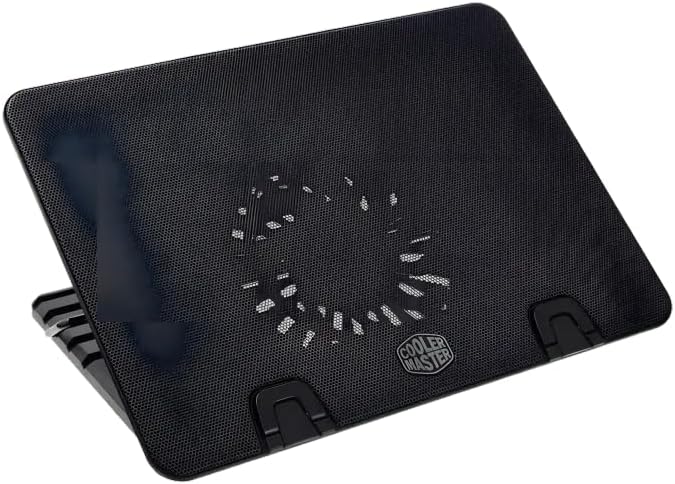
Figure 2: Top view highlighting the 140mm cooling fan beneath the mesh.

Figure 3: Side view demonstrating the adjustable height settings.
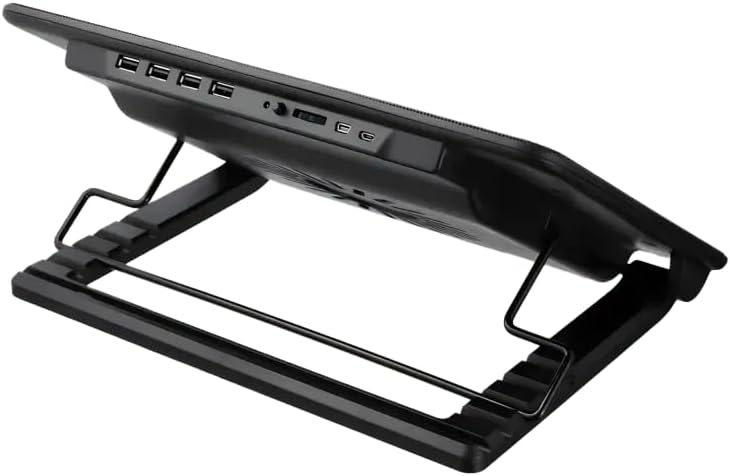
Figure 4: Rear view displaying the USB ports and fan speed controller.
Key Features:
- Adjustable Typing Angle: 5 height settings for ergonomic comfort and improved display height.
- Quiet 140mm Fan: Provides efficient cooling with minimal noise (29 dBA, 700-1400 ± 200 RPM, 46.8 CFM).
- Full Mesh Board: Enhances passive cooling and airflow.
- Integrated USB Hub: Four USB 2.0 ports, one mini-USB port, and one micro-USB power port for expanded connectivity.
- Blue LED Strip: Adds a sleek aesthetic to the cooler.
- Wide Compatibility: Supports notebooks up to 17 inches.
Setup
Step 1: Unpacking
Carefully remove the Cooler Master NotePal ErgoStand IV from its packaging. Ensure all components listed in the "Package Contents" section are present.
Step 2: Adjusting Height
The ErgoStand IV features 5 adjustable height settings. To adjust the height, lift the cooling pad and position the metal support bar into the desired notch on the base. Choose a height that provides a comfortable typing angle and optimal screen viewing for your laptop.
Figure 5: Adjusting the height of the ErgoStand IV.
Step 3: Placing Your Laptop
Place your laptop securely on the mesh surface of the ErgoStand IV. Ensure the laptop is centered and stable. The two foldable clips at the front can be extended to prevent the laptop from sliding forward, especially at higher angles.

Figure 6: Foldable clips to secure the laptop.
Step 4: Connecting Power and USB Hub
Connect the provided USB cable from the micro-USB port on the ErgoStand IV to an available USB port on your laptop. This connection powers the cooling fan and activates the integrated USB 2.0 hub. An additional mini-USB port is also available for alternative power input if needed.
Figure 7: USB ports for power and connectivity.
Operating Instructions
Fan Control
The ErgoStand IV features a fan speed controller located at the rear of the unit. Rotate the dial to adjust the fan speed from off to maximum. Adjust the speed based on your cooling needs and desired noise level.
- Turn the dial clockwise to increase fan speed.
- Turn the dial counter-clockwise to decrease fan speed or turn the fan off.
USB Hub Usage
The integrated USB hub provides four USB 2.0 ports. These ports can be used to connect peripherals such as a mouse, keyboard, external hard drive, or USB flash drive. Ensure the ErgoStand IV is connected to your laptop via the USB cable for the hub to function.
Maintenance
Cleaning
To maintain optimal performance, regularly clean the mesh surface and fan blades of the ErgoStand IV. Disconnect the cooling pad from power before cleaning.
- Use a soft, dry cloth to wipe down the exterior surfaces.
- For the mesh and fan area, use compressed air to remove dust and debris. Avoid using liquid cleaners directly on the fan or electronic components.
Storage
When not in use, store the ErgoStand IV in a cool, dry place away from direct sunlight and extreme temperatures. Ensure the adjustable stand is folded flat for compact storage.
Troubleshooting
| Problem | Possible Cause | Solution |
|---|---|---|
| Fan is not spinning / LEDs are off. | No power connection or insufficient power. |
|
| USB hub devices are not recognized. | Power issue or driver conflict. |
|
| Laptop is still overheating. | Improper fan speed, blocked airflow, or severe laptop internal issues. |
|
Specifications
| Model Number | R9-NBS-E42K-GP |
| Product Dimensions | 14.92 x 18.7 x 11.22 inches (37.9 x 47.5 x 28.5 cm) |
| Item Weight | 1.87 pounds (850 Grams) |
| Material | Metal (mesh) and Plastic (frame) |
| Fan Size | 140mm |
| Fan Speed | 700-1400 ± 200 RPM |
| Fan Airflow | 46.8 CFM |
| Fan Noise Level | 29 dBA |
| USB Ports | 4 x USB 2.0, 1 x Mini-USB (input), 1 x Micro-USB (input) |
| Compatibility | Notebooks up to 17 inches |
| Cooling Method | Air (Active and Passive) |
| Color | Black |
Warranty and Support
Cooler Master products are designed with quality and reliability in mind. For specific warranty information regarding your NotePal ErgoStand IV, please refer to the warranty card included with your product or visit the official Cooler Master website.
For technical support, troubleshooting assistance, or to inquire about replacement parts, please contact Cooler Master customer service through their official website or support channels. Please have your product model number (R9-NBS-E42K-GP) and purchase information ready when contacting support.
Cooler Master Official Website: www.coolermaster.com
Related documentsR9-NBS-E42K-GP


Ask a question about this manual
Ask about setup, troubleshooting, compatibility, parts, safety, or missing instructions. Manuals+ will review the question and use this page’s manual context to help answer it.