
1. Introduction
Thank you for choosing the Logic Life30 Smartwatch. This device is designed to integrate seamlessly into your active lifestyle, offering features such as Bluetooth calling, fitness tracking, sleep monitoring, and real-time notifications. This manual provides detailed instructions for setup, operation, and maintenance to ensure optimal performance and longevity of your smartwatch.

Image 1.1: Logic Life30 Smartwatches in multiple colors, showcasing different display options including a dialer, messages, contacts, time, date, and heart rate monitor.
2. Safety Information
- Do not attempt to disassemble, repair, or modify the device. This may void the warranty and cause damage.
- Keep the device away from extreme temperatures, direct sunlight, and high humidity.
- Avoid exposing the device to strong impacts or drops.
- Use only the provided charging cable and adapter. Using unauthorized accessories may cause damage or fire.
- Consult a medical professional before starting any new exercise regimen, especially if you have pre-existing health conditions. The heart rate monitor is for reference only and should not be used for medical diagnosis.
- Keep the device out of reach of children and pets.
- Clean the device with a soft, dry cloth. Do not use harsh chemicals or abrasive materials.
3. Package Contents
Please check the package contents upon unboxing. If any items are missing or damaged, contact customer support.
- Logic Life30 Smartwatch
- USB Charging Cable
- User Manual (this document)
4. Device Overview
Familiarize yourself with the physical components of your Logic Life30 Smartwatch.
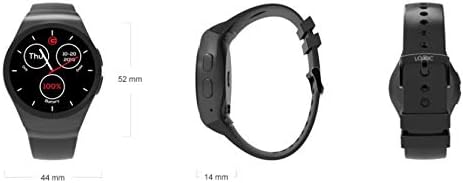
Image 4.1: Front, side, and back views of the Logic Life30 Smartwatch with dimensions (44mm width, 52mm height, 14mm thickness).
4.1 Front View
- IPS LCD Touch Display: The main interface for interacting with the smartwatch.
4.2 Side View
- Power Button: Used to power on/off the device and wake/sleep the screen.
- Microphone: For voice commands and calls.
4.3 Back View

Image 4.2: Rear view of the Logic Life30 Smartwatch, highlighting the optical heart rate sensor and magnetic charging contacts.
- Heart Rate Sensor: Monitors your heart rate.
- Charging Contacts: For connecting the magnetic USB charging cable.
- Speaker: For audio output during calls or media playback.
5. Setup
5.1 Charging the Smartwatch
- Connect the USB charging cable to a power adapter (not included) or a computer's USB port.
- Align the magnetic end of the charging cable with the charging contacts on the back of the smartwatch. It will snap into place.
- The watch display will show a charging indicator. Allow the device to fully charge before first use (approximately 2 hours).
5.2 Powering On/Off
- To Power On: Press and hold the Power Button on the side of the watch until the Logic logo appears.
- To Power Off: Press and hold the Power Button, then select "Power Off" on the screen.
5.3 Pairing with Your Smartphone (Bluetooth)
To access all features, including calls, notifications, and data synchronization, pair your Life30 Smartwatch with your smartphone via Bluetooth.
- Ensure your smartwatch is powered on and Bluetooth is enabled on your smartphone.
- On your smartwatch, navigate to the Bluetooth settings.
- On your smartphone, open Bluetooth settings and search for available devices.
- Select "Logic Life30" (or similar name) from the list of found devices on your smartphone.
- Confirm the pairing request on both your smartphone and smartwatch.
5.4 Companion App Installation
For full functionality, including fitness data tracking and advanced settings, download the recommended companion app from your smartphone's app store. Refer to the smartwatch's display or packaging for the specific app name or QR code.
- Scan the QR code displayed on the smartwatch or in the quick start guide, or search for the app name in your phone's app store.
- Install the app and follow the on-screen instructions to create an account and connect your Life30 Smartwatch.
6. Operating Instructions
6.1 Navigating the Interface
- Swipe Up/Down: Scroll through menus or notifications.
- Swipe Left/Right: Access different screens, widgets, or app lists.
- Tap: Select an item or open an application.
- Press Power Button: Return to the home screen or wake/sleep the display.
6.2 Communication Features
- Making/Receiving Calls: Once paired via Bluetooth, you can dial numbers directly from the watch or answer incoming calls.
- Messaging: View incoming text messages and social media notifications directly on your watch.
- Contacts: Access your phone's contact list from the smartwatch.
6.3 Health and Fitness Tracking

Image 6.1: The Logic Life30 Smartwatch supports fitness tracking, monitoring activities like running.
- Heart Rate Monitor: Access the heart rate app to measure your current heart rate. The watch can also log your heart rate over time.
- Pedometer: Tracks your steps, distance, and estimated calories burned throughout the day.
- Sleep Monitor: Monitors your sleep patterns, including deep sleep, light sleep, and awake times.
- Sedentary Reminder: Notifies you when you have been inactive for too long, encouraging you to move.
6.4 Multimedia and Other Features
- Camera/Remote Camera: Use the built-in camera (if available) or control your smartphone's camera remotely from the smartwatch.
- MP3/MP4 Player: Play music or videos stored on the device or control media playback on your connected smartphone.
- Sound Recorder: Record audio directly from the smartwatch.
- Calculator, Calendar, Alarm, Stopwatch: Standard utility applications.
- Anti-theft: Helps locate your phone if it's out of range or alerts you if the connection is lost.
- Voice Assistant: Access your phone's voice assistant through the smartwatch.
6.5 Customization
- Watch Faces: Personalize your smartwatch by choosing from various pre-installed watch faces or downloading new ones via the companion app.
- Themes: Adjust the overall visual theme of the smartwatch interface.
7. Maintenance
7.1 Cleaning Your Smartwatch
- Wipe the screen and body of the watch with a soft, lint-free cloth.
- For stubborn stains, slightly dampen the cloth with water. Avoid using harsh cleaning agents, solvents, or abrasive materials.
- Ensure the charging contacts are clean and dry before charging to prevent corrosion.
7.2 Storage
- When not in use for extended periods, store the smartwatch in a cool, dry place.
- Charge the device periodically (e.g., every 3 months) to prevent deep discharge of the battery.
8. Troubleshooting
| Problem | Possible Solution |
|---|---|
| Smartwatch won't turn on. | Ensure the device is fully charged. Connect it to the charger for at least 30 minutes. |
| Cannot pair with smartphone. |
|
| Notifications are not received. |
|
| Heart rate readings are inaccurate. | Ensure the watch is worn snugly on your wrist, not too tight or too loose. Clean the sensor on the back of the watch. |
| Screen is unresponsive. | Restart the smartwatch by pressing and holding the power button. If the issue persists, ensure the screen is clean and dry. |
9. Specifications
| Feature | Detail |
|---|---|
| Model Name | Life30 |
| Brand | Logic |
| Display | 1.3 Inch IPS LCD Touch Screen |
| Connectivity | Bluetooth |
| Wireless Communication | Bluetooth |
| Special Features | Email, Sleep Monitor, Notifications, Heart Rate Monitor, Pedometer, Remote Camera, MP3/MP4 Player |
| Human Interface Input | Touchscreen |
| Product Dimensions | 3.81 x 1.3 x 4.5 cm (1.5 x 0.51 x 1.77 inches) |
| Item Weight | 426 g (0.94 pounds) |
| Color Options | Silver/White (other colors may be available) |
| Shape | Round |
10. Warranty and Support
10.1 Warranty Information
The Logic Life30 Smartwatch comes with a standard manufacturer's warranty. Please refer to the warranty card included in your package or visit the official Logic website for detailed terms and conditions regarding warranty coverage, duration, and claims process.
10.2 Customer Support
For technical assistance, troubleshooting, or any questions regarding your Logic Life30 Smartwatch, please contact Logic customer support. Contact information can typically be found on the official Logic website or on the product packaging.
- Online Support: Visit the official Logic website for FAQs, support articles, and contact forms.
- Email Support: Refer to your product documentation for the customer support email address.
- Phone Support: Refer to your product documentation for customer service phone numbers.


