
1. Introduction
This manual provides comprehensive instructions for the installation, operation, and maintenance of your BrightSign XD1034 Expanded I/O Player. The XD1034 is an advanced digital signage media player designed for high-performance applications, featuring H.265 decoding, True 4K resolution support, dual video decode capabilities, and an advanced HTML5 engine with expanded input/output options.
Please read this manual thoroughly before operating the device to ensure proper usage and to maximize its performance and longevity.
2. Safety Information
Observe the following safety precautions to prevent damage to the device or injury to yourself:
- Do not expose the device to water or excessive moisture.
- Do not open the device casing. Refer all servicing to qualified personnel.
- Ensure proper ventilation around the device to prevent overheating.
- Use only the power adapter supplied with the device.
- Avoid placing the device near heat sources or in direct sunlight.
3. Package Contents
Verify that all items are present in your package:
- BrightSign XD1034 Player Unit
- Power Adapter
- Quick Start Guide
- Mounting Bracket (optional, may vary by region)
4. Product Overview
The BrightSign XD1034 features a robust set of connectivity options for various digital signage applications.
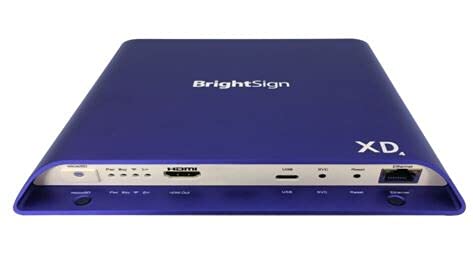
Image 1: Front and rear view of the BrightSign XD1034 player, showing various ports and indicators.
Front Panel
- Status LED: Indicates power and operational status.
- USB Ports: For connecting peripherals like touchscreens, keyboards, or storage devices.
Rear Panel
- Power Input: Connects to the supplied power adapter.
- HDMI Output: Connects to a display for video and audio output.
- Ethernet Port: For network connectivity (LAN).
- Audio Out: 3.5mm jack for analog audio output.
- RS-232 Serial Port: 3.5mm jack for serial control.
- IR In/Out: 3.5mm jack for infrared control.
- MicroSD Card Slot: For content storage.
5. Setup
5.1 Connecting Power
- Connect the power adapter to the DC IN port on the rear of the XD1034.
- Plug the power adapter into a suitable electrical outlet. The device will power on automatically.
5.2 Video Output
Connect an HDMI cable from the HDMI OUT port on the XD1034 to the HDMI input on your display device (monitor, TV, projector).
5.3 Audio Output
For analog audio, connect a 3.5mm audio cable from the AUDIO OUT port on the XD1034 to your audio system. Digital audio is transmitted via the HDMI cable.
5.4 Network Connection
Connect an Ethernet cable from the ETHERNET port on the XD1034 to your network router or switch for internet and local network access.
5.5 USB and Serial Connections
Connect USB peripherals (e.g., keyboard, mouse, touch screen, external storage) to the USB ports. Use the RS-232 port for serial control of external devices, and the IR In/Out for infrared control.
6. Operating Instructions
6.1 Basic Operation
The BrightSign XD1034 operates by playing content stored on a microSD card or delivered via a network. Content is typically created and published using BrightAuthor software.
- Insert MicroSD Card: Insert a microSD card containing your BrightAuthor presentation into the MicroSD card slot.
- Power On: Connect the power adapter. The player will boot up and automatically begin playing the presentation.
- Status LED: Observe the Status LED for operational feedback. A solid green light typically indicates normal operation.
6.2 Content Deployment
Content can be deployed to the XD1034 via:
- Local Storage: Prepare a microSD card with your presentation using BrightAuthor.
- Network Publishing: Publish presentations over a local network or BrightSign Network. Refer to the BrightAuthor documentation for detailed steps.
6.3 Advanced Features
The XD1034 supports advanced features including:
- True 4K Playback: Supports 4K resolution video playback for stunning visual quality.
- H.265 Decoding: Efficient video compression for high-quality content with smaller file sizes.
- Advanced HTML5: Capable of rendering complex HTML5 content, including interactive experiences and web-based applications.
- Expanded I/O: Utilize the RS-232, IR, and USB ports for interactive controls, external device synchronization, and more.
7. Maintenance
7.1 Cleaning
To clean the device, disconnect it from power and wipe the exterior with a soft, dry cloth. Do not use liquid cleaners or abrasive materials.
7.2 Firmware Updates
Regularly check the BrightSign website for firmware updates. Keeping your player's firmware up-to-date ensures optimal performance, security, and access to new features. Firmware updates can typically be applied via BrightAuthor or through network publishing.
8. Troubleshooting
| Problem | Possible Cause | Solution |
|---|---|---|
| No video output | Loose HDMI cable, incorrect display input, no content on SD card. | Check HDMI connection. Ensure display is on correct input. Verify SD card has valid presentation. |
| Player not powering on | Power adapter not connected, faulty outlet. | Ensure power adapter is securely connected and plugged into a working outlet. |
| Network connection issues | Loose Ethernet cable, incorrect network settings. | Check Ethernet cable connection. Verify network configuration in BrightAuthor. |
| Content not playing | Corrupt SD card, incorrect presentation settings, unsupported media format. | Re-prepare SD card. Review presentation settings in BrightAuthor. Ensure media formats are supported. |
9. Specifications
| Feature | Detail |
|---|---|
| Model | XD1034 |
| Product Dimensions | 7.1 x 8 x 0.9 inches |
| Item Weight | 2.35 pounds |
| Resolution | Up to 3840x2160 (4K) |
| Video Decoding | H.265, Dual Video Decode |
| Connectivity | Ethernet, USB (Type A and Type C), HDMI, 3.5mm RS-232 Serial Port, 3.5mm IR In/Out, 3.5mm Audio Out |
| Media Type | Video, HTML5 |
| Special Feature | Compact, Advanced HTML5 |
10. Warranty and Support
For warranty information and technical support, please refer to the official BrightSign website or contact your authorized BrightSign reseller. Keep your purchase receipt for warranty claims.
BrightSign Official Website: www.brightsign.biz


