
1. Introduction
This manual provides detailed instructions for the Blackweb SDVD1183-BW Portable Blu-ray/DVD Player. Please read this manual thoroughly before using the device to ensure proper operation and to maximize your viewing and listening experience. Keep this manual for future reference.
2. Safety Information
- Do not expose the device to rain, moisture, or extreme temperatures.
- Avoid dropping or subjecting the device to strong impacts.
- Do not attempt to disassemble or repair the device yourself. Refer all servicing to qualified personnel.
- Use only the provided power adapters and accessories.
- Ensure proper ventilation; do not block any ventilation openings.
- Dispose of batteries according to local regulations.
3. Package Contents
Verify that all items are present in your package:
- Blackweb SDVD1183-BW Portable Blu-ray/DVD Player
- AC Power Adapter
- Car Power Adapter
- A/V Cable
- Remote Control
- User Manual (this document)
4. Product Overview
4.1 Front View

Image: Front view of the Blackweb SDVD1183-BW Portable Blu-ray/DVD Player, showing the open 11.4-inch screen, integrated speakers, and control buttons on the base.
The front view displays the 11.4-inch HD screen, stereo speakers, and essential control buttons on the player's base. These buttons typically include MODE, SOURCE/CARD, SETUP, and Volume controls (VOL+, VOL-).
4.2 Side/Rear View
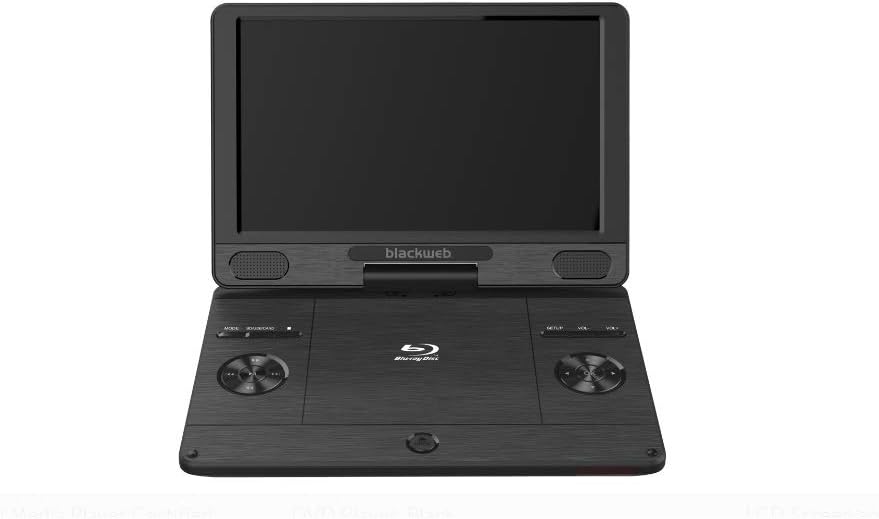
Image: Side view of the Blackweb SDVD1183-BW Portable Blu-ray/DVD Player, closed, highlighting the various input/output ports.
The side and rear panels house various connectivity ports. These include the DC IN port for power, USB port for external storage, SD/MMC card slot, HDMI OUT for connecting to external displays, AV OUT for analog video/audio, a headphone jack, and an Ethernet port for network connectivity. A power ON/OFF switch is also located on the side.
5. Setup
5.1 Charging the Battery
Before first use, fully charge the player's internal Lithium Ion battery. Connect the AC power adapter to the DC IN port on the player and plug it into a wall outlet. The charging indicator light will illuminate, typically turning off or changing color when fully charged.
5.2 Powering On/Off
To power on the player, slide the ON/OFF switch to the 'ON' position. To power off, slide the switch to the 'OFF' position.
5.3 Connecting to External Display (HDMI)
To view content on a larger screen, connect an HDMI cable (not included) from the player's HDMI OUT port to an HDMI input on your TV or monitor. Select the corresponding HDMI input on your external display.
5.4 Inserting a Disc
Gently open the disc compartment lid. Place a Blu-ray disc, DVD, or CD onto the spindle with the label side facing up. Press down gently on the center of the disc until it clicks into place. Close the lid firmly.
5.5 Using USB/SD Card
Insert a USB flash drive into the USB port or an SD/MMC card into the card slot. The player should automatically detect the media. If not, use the SOURCE/CARD button to select the appropriate input source.
6. Operating Instructions
6.1 Basic Playback
After inserting a disc or connecting USB/SD media, the player will typically begin playback automatically or display a menu. Use the navigation buttons on the player or remote control to select options and press the PLAY/PAUSE button to start or pause playback.
6.2 Using the Remote Control
The included remote control provides full functionality for the player. Point the remote control directly at the player's IR sensor. Functions include: Play, Pause, Stop, Fast Forward, Rewind, Skip Track/Chapter, Menu, Setup, Volume Up/Down, and Mute.
6.3 Adjusting Volume and Screen
Use the VOL+ and VOL- buttons on the player or remote control to adjust the audio volume. Screen brightness, contrast, and other display settings can typically be adjusted through the SETUP menu.
6.4 Media Playback
The player supports a wide range of media formats, including:
- Discs: CD-R/RW, DVD±R/RW, CD, Video CD, BD-R, BD-RE, Blu-ray Disc
- Audio: WMA, DTS, Dolby Digital, Dolby Digital Plus, Dolby TrueHD
- Video: MPEG-1, MPEG-2, MPEG-4, WMV, H.264, VC-1
- Images: GIF, JPEG, PNG
6.5 Network Connection (Ethernet)
Connect an Ethernet cable to the player's Ethernet port for wired network access. This feature may be used for firmware updates or accessing online content if supported by the player's software.
7. Maintenance
7.1 Cleaning the Player
Wipe the player's exterior with a soft, dry cloth. Do not use liquid cleaners, aerosols, or abrasive materials. For the screen, use a soft, lint-free cloth specifically designed for electronics displays.
7.2 Disc Care
Handle discs by their edges to avoid fingerprints. Keep discs clean and free of scratches. Store discs in their cases when not in use.
7.3 Battery Care
To prolong battery life, avoid fully discharging the battery frequently. Charge the battery regularly, even if the player is not used for extended periods. Avoid exposing the player to extreme heat or cold, which can degrade battery performance.
8. Troubleshooting
If you encounter issues with your player, refer to the following common problems and solutions:
- No Power: Ensure the AC adapter is securely connected and plugged into a working outlet. Check if the battery is charged. Verify the ON/OFF switch is in the 'ON' position.
- No Picture: If using an external display, ensure the HDMI cable is connected correctly and the TV/monitor is set to the correct input source. Check the player's screen brightness settings.
- No Sound: Check the volume level on the player and any connected external audio devices. Ensure headphones are fully plugged in if used. Verify audio settings in the SETUP menu.
- Disc Not Playing: Ensure the disc is inserted correctly and is clean and free of scratches. Verify the disc format is supported by the player (e.g., Blu-ray, DVD, CD). Some Blu-ray discs may have region coding; ensure it matches the player's region.
- USB/SD Card Not Recognized: Ensure the USB drive or SD card is formatted to a compatible file system (e.g., FAT32). Reinsert the media. Try a different USB port or SD card slot if available.
9. Specifications
| Feature | Specification |
|---|---|
| Model Number | SDVD1183-BW |
| Screen Size | 11.4 inches |
| Media Type | Blu-Ray, DVD, CD, USB, SD/MMC |
| Playable Formats | CD-R/RW, DVD±R/RW, CD, Video CD, BD-R, BD-RE, Blu-ray Disc, GIF, JPEG, PNG, WMA, DTS, MPEG-1, MPEG-2, MPEG-4, WMV, H.264, VC-1 |
| Connectivity Technology | Ethernet, HDMI, USB |
| Product Dimensions | 16 x 14.5 x 3.5 inches |
| Item Weight | 5.6 pounds |
| Batteries | 1 Lithium Ion battery required |
| Color | Black |
10. Warranty Information
This Blackweb product comes with a limited manufacturer's warranty. Please refer to the warranty card included in your original product packaging for specific terms, conditions, and duration of coverage. Keep your purchase receipt as proof of purchase for any warranty claims.
11. Support
For technical assistance, troubleshooting beyond this manual, or customer service inquiries, please refer to the contact information provided in your product packaging or visit the official Blackweb support website. Have your model number (SDVD1183-BW) and purchase details ready when contacting support.