
1. Introduction
Thank you for choosing the RSHTECH RSH-338H USB 3.0 HDD/SSD Docking Station. This device provides a convenient and efficient solution for accessing 2.5-inch and 3.5-inch SATA hard drives and solid-state drives. It features high-speed data transfer with UASP support, integrated USB 3.0 ports, and a multi-card reader, making it a versatile tool for data management.
2. Package Contents
Please check the package contents to ensure all items are present:
- 1 x RSHTECH RSH-338H USB 3.0 HDD/SSD Docking Station with Card Reader
- 1 x USB 3.0 B to USB 3.0 A Cable (1 meter)
- 1 x DC Power Adapter (12V/2A)
- 1 x User Manual
3. Product Overview
The RSHTECH RSH-338H docking station is designed for ease of use and broad compatibility. Key features include:
- Universal Drive Support: Compatible with 2.5-inch and 3.5-inch SATA I/II/III HDDs and SSDs.
- High-Speed Data Transfer: USB 3.0 interface with UASP support for speeds up to 6 Gbps.
- Large Capacity: Supports hard drives up to 16 TB.
- Multifunctionality: Includes 2 Super Speed USB 3.0 ports and an SD/TF card reader.
- Tool-Free Design: Easy installation and hot-swapping of drives.
- Power Management: Automatic sleep mode after 10 minutes of inactivity to conserve energy.
- LED Indicators: Clearly display operational status.
- Durable Construction: Aluminum shell for efficient heat dissipation and durability.

Image 3.1: Front view of the RSHTECH RSH-338H USB 3.0 HDD Docking Station, showing the drive slot, USB 3.0 ports, and SD/TF card slots.

Image 3.2: Top view of the docking station with labels indicating the 2.5/3.5 inch SATA connection, dust-proof spring cover, aluminum shell, and LED indicator.
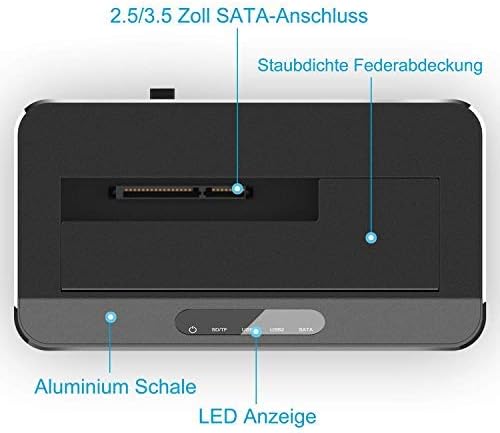
Image 3.3: Diagram showing the dimensions of the docking station (13.7cm L x 7.7cm W x 6.7cm H) and labels for the USB 3.0 ports, TF card slot, and SD card slot.
4. Setup Instructions
Follow these steps to set up your RSHTECH RSH-338H docking station:
- Insert Hard Drive/SSD: Gently slide your 2.5-inch or 3.5-inch SATA HDD/SSD into the drive slot on top of the docking station until it is firmly seated. The tool-free design allows for easy insertion.
- Connect Power Adapter: Connect the provided DC power adapter (12V/2A) to the power input port on the back of the docking station. Plug the adapter into a power outlet.
- Connect to Computer: Connect one end of the supplied USB 3.0 B to USB 3.0 A cable to the USB 3.0 port on the docking station and the other end to an available USB 3.0 port on your computer.
- Power On: Press the power button located on the back of the docking station to turn it on. The LED indicator will illuminate.

Image 4.1: Illustration of pressing the power switch located at the back of the docking station.
5. Operating Instructions
5.1. Drive Access
Once connected and powered on, your operating system should automatically detect the inserted drive. You can then access the drive like any other external storage device. For new drives, you may need to initialize and format them through your operating system's disk management tools before use.
5.2. UASP Functionality
The docking station supports the UASP (USB Attached SCSI Protocol) for enhanced data transfer speeds. To benefit from UASP, ensure your computer's operating system and USB 3.0 host controller also support UASP.
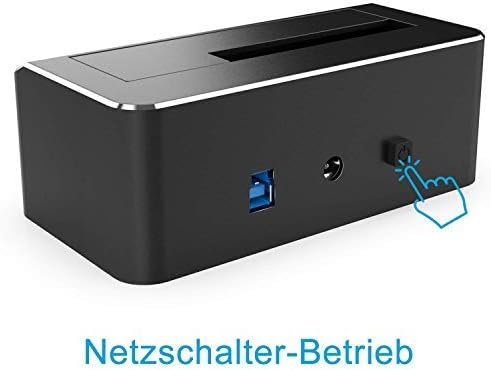
Image 5.1: A bar chart illustrating the improved read and write speeds when using UASP compared to traditional USB transfer methods.
5.3. Card Reader and USB Hub
The integrated SD and TF card slots allow direct access to memory cards. The two additional USB 3.0 ports can be used to connect other USB peripherals such as a mouse, keyboard, or USB flash drives.
5.4. Automatic Sleep Mode
To reduce power consumption and extend drive lifespan, the docking station will automatically enter sleep mode after 10 minutes of inactivity. The drive will spin down, and the LED indicator may change. It will automatically wake up when accessed.

Image 5.2: The docking station connected to a laptop, with a hard drive inserted, and a smartphone charging from one of its USB ports, illustrating the automatic sleep mode feature.
6. Compatibility
The RSHTECH RSH-338H docking station offers broad compatibility with various operating systems and devices:
- Operating Systems: Windows 2003 / XP / Vista / 7 / 8 / 10, Mac OS, Linux 9 and higher.
- Backward Compatibility: Fully backward compatible with USB 2.0 / 1.1.
- Gaming Consoles: Compatible with PS4, PS4 Pro, Xbox 360, Xbox One.
- Drive Types: Supports only SATA HDD and SSD (2.5-inch and 3.5-inch).

Image 6.1: Icons representing compatibility with Apple macOS, Microsoft Windows, and Linux operating systems, along with 2.5-inch and 3.5-inch hard drives.

Image 6.2: The docking station connected to a PS4 console for expanded storage and to a TV for media playback, demonstrating its versatility.
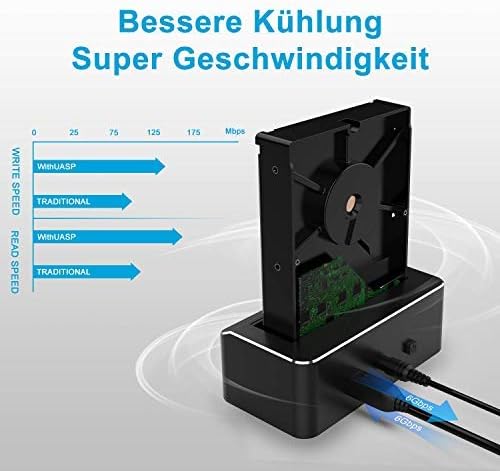
Image 6.3: The docking station with an inserted hard drive connected to an iMac, showcasing its use in a desktop computing environment.
7. Maintenance
To ensure the longevity and optimal performance of your docking station:
- Keep the device in a clean, dry environment, away from direct sunlight and extreme temperatures.
- Avoid dropping or subjecting the device to strong impacts.
- Do not attempt to disassemble or modify the device, as this will void the warranty.
- Use a soft, dry cloth to clean the exterior. Do not use liquid cleaners.
- Ensure proper ventilation around the device during operation.
8. Troubleshooting
If you encounter issues with your RSHTECH RSH-338H docking station, please refer to the following common problems and solutions:
- Drive not detected:
- Ensure the power adapter is securely connected and the docking station is powered on.
- Verify the USB cable is properly connected to both the docking station and your computer.
- Check if the hard drive/SSD is correctly seated in the slot.
- Test with a different USB port on your computer.
- For new drives, ensure they are initialized and formatted in your operating system's Disk Management (Windows) or Disk Utility (Mac).
- Try a different hard drive/SSD to rule out drive failure.
- Slow data transfer speeds:
- Ensure you are connected to a USB 3.0 port on your computer.
- Verify your operating system and USB host controller support UASP.
- Check the condition of your hard drive/SSD; older or fragmented drives may perform slower.
- Avoid transferring many small files simultaneously, as this can reduce overall speed.
- Card reader not working:
- Ensure the memory card is inserted correctly and fully into the slot.
- Test with a different memory card.
- Check your computer's Device Manager (Windows) or System Information (Mac) to see if the card reader is recognized.
- Docking station enters sleep mode too quickly/not waking up:
- The automatic sleep mode activates after 10 minutes of inactivity. Accessing the drive should wake it up.
- Ensure your computer's power settings are not interfering with USB device power.
9. Specifications
| Feature | Specification |
|---|---|
| Model Number | RSH-338H |
| Brand | RSHTECH |
| Material | Aluminum |
| Color | Black |
| Interface | USB 3.0 (backward compatible with USB 2.0/1.1) |
| Drive Compatibility | 2.5" / 3.5" SATA I/II/III HDD/SSD |
| Max Capacity | Up to 16 TB |
| Data Transfer Rate | Up to 6 Gbps (with UASP) |
| Additional Ports | 2 x USB 3.0, 1 x SD Card Slot, 1 x TF Card Slot |
| Operating System | Windows, Mac OS, Linux |
| Hardware Platform | PC, Mac, Linux, PS4, PS4 Pro, Xbox 360, Xbox One |
| Dimensions (L x W x H) | 13.2 x 7 x 4.9 cm (approx. 5.2 x 2.76 x 1.93 inches) |
| Power Adapter | DC 12V/2A |
10. Warranty and Support
This RSHTECH product comes with an 18-month warranty against manufacturer defects. For technical support or warranty claims, please contact your retailer or visit the official RSHTECH website for assistance.

