
1. Introduction and Overview
The HP Tango Smart Wireless Printer is designed for seamless integration with your mobile devices, offering convenient printing, scanning, and copying capabilities. Its compact design and smart features make it ideal for home use, allowing you to manage your printing tasks from virtually anywhere using the HP Smart app or voice commands.
Key features include:
- Mobile Remote Print, Scan, and Copy functionality.
- Compatibility with Amazon Alexa and Google Home for voice-activated printing.
- Dual-band Wi-Fi for reliable wireless connectivity.
- HP Instant Ink eligibility for automatic ink delivery.
- Borderless photo printing for true-to-life images.

Image 1.1: HP Tango printer highlighting its smart features and compact design.
2. What's in the Box
Verify that all components are present in the packaging:
- HP Tango Printer (Model 2RY54A)
- HP 64 Setup Black Instant Ink Ready Cartridge (~185 pages)
- HP 64 Setup Tri-color Instant Ink Ready Cartridge (~120 pages)
- Power Cable
- Instant Ink Flyer
- Ink Caution Flyer
- Setup Poster
3. Setup Instructions
Follow these steps for initial printer setup:
- Unpack the Printer: Remove all packaging materials, tapes, and cardboard inserts from the printer.
- Connect Power: Plug the power cable into the printer and then into a wall outlet.
- Install Ink Cartridges: Open the ink cartridge access door. Wait for the carriage to move to the center. Insert the black cartridge into the right slot and the tri-color cartridge into the left slot until they click into place. Close the access door.
- Load Paper: Lift the paper input tray and load plain white paper. Adjust the paper guides to fit the paper snugly.
- Install HP Smart App: Download the HP Smart app on your smartphone or tablet from your device's app store.
- Connect to Wi-Fi: Follow the on-screen instructions in the HP Smart app to connect your printer to your wireless network. This process typically involves selecting your Wi-Fi network and entering the password.

Image 3.1: The HP Smart app simplifies printer setup and connectivity.
Video 3.1: An overview of the HP Tango Smart Wireless Printer, demonstrating its features and ease of use.
4. Operating Instructions
4.1 Printing from Mobile Devices
Use the HP Smart app to print documents and photos directly from your smartphone or tablet. Select the item you wish to print within the app, adjust settings as needed, and initiate the print job.
4.2 Scanning Documents
The HP Tango printer supports scanning via your smartphone camera using the HP Smart app. Place the document on a flat surface, open the app, select the scan function, and capture the image. The app will guide you through cropping and saving the scanned document.
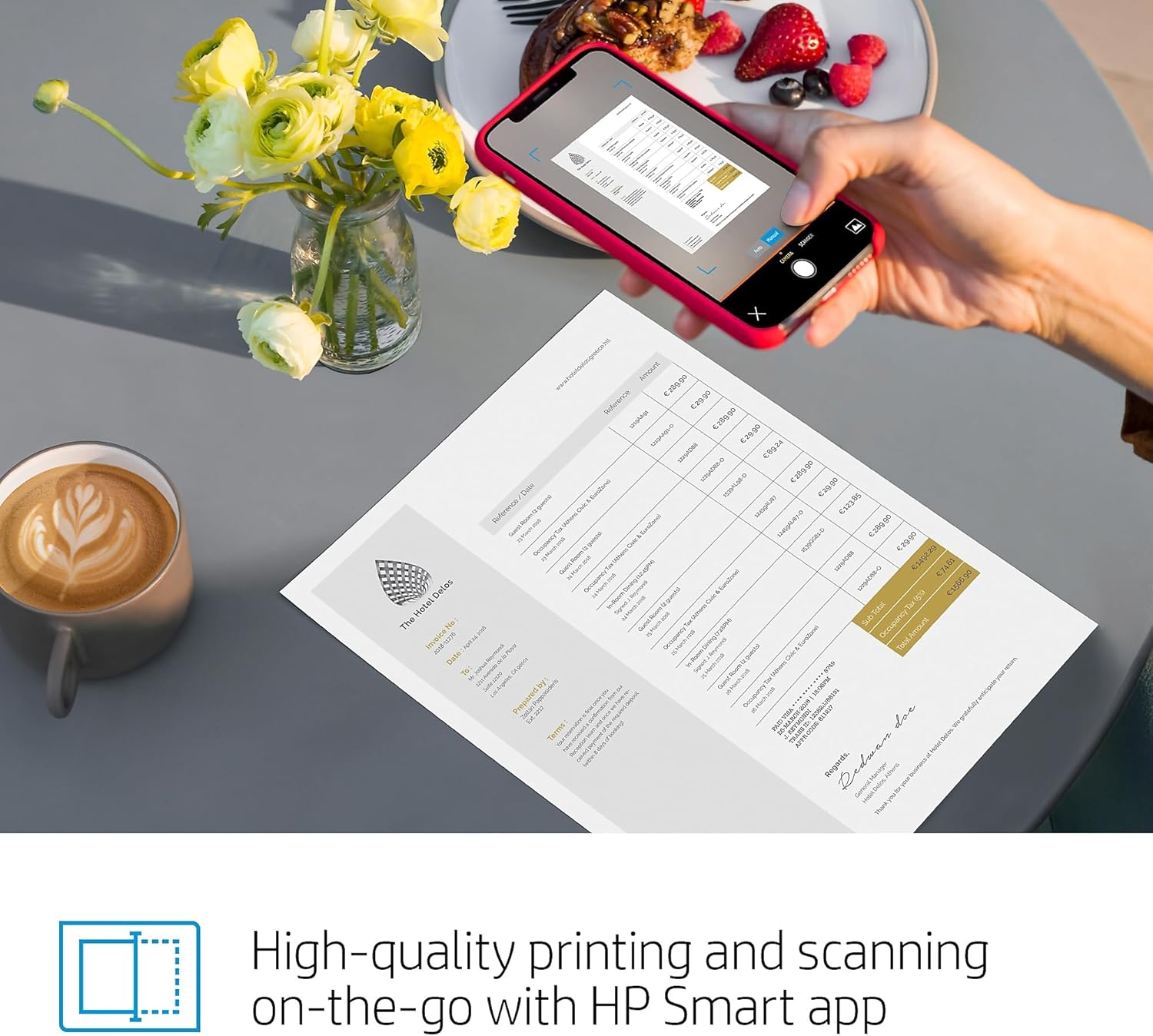
Image 4.1: High-quality scanning on-the-go with the HP Smart app.
4.3 Copying Documents
To copy a document, use the HP Smart app. Place the document on your smartphone camera's view, select the copy function in the app, and follow the prompts to print a copy using the printer.
4.4 Voice-Activated Printing
The HP Tango is compatible with Amazon Alexa and Google Home. Link your printer to your voice assistant through the HP Smart app. Once linked, you can use voice commands to print shopping lists, crossword puzzles, or receive low ink notifications.
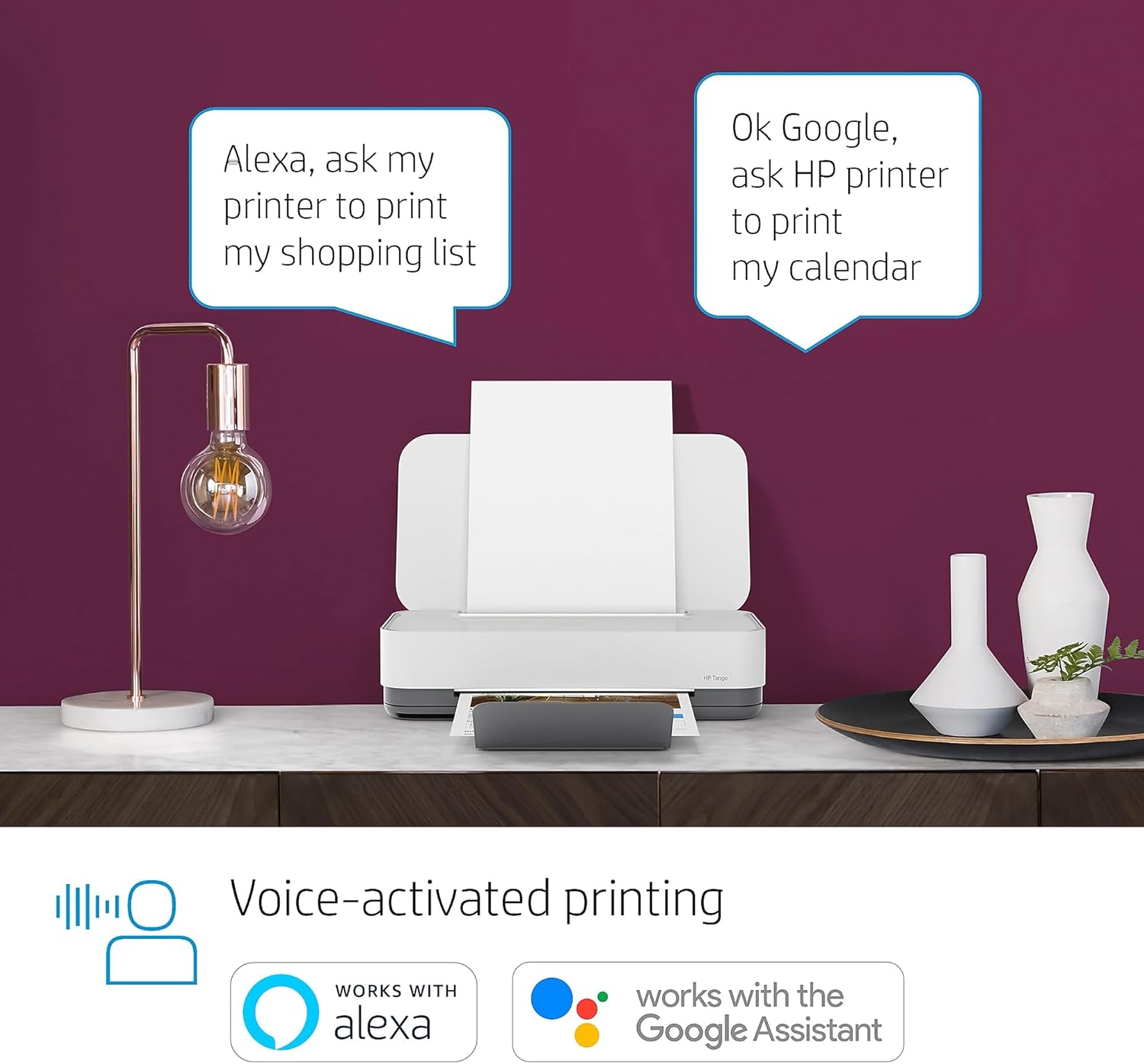
Image 4.2: Voice-activated printing with Amazon Alexa and Google Assistant.
Video 4.1: Demonstration of how the HP Tango Smart Wireless Printer operates, including its features and functionality.
5. Maintenance
5.1 Ink Cartridge Replacement
When ink levels are low, the printer will notify you. To replace cartridges, open the ink cartridge access door. Wait for the carriage to stop moving. Press down on the old cartridge to release it, then pull it out. Insert the new cartridge into the correct slot (black on the right, tri-color on the left) until it clicks into place. Close the access door.
5.2 Paper Loading
Lift the paper input tray cover. Adjust the paper guides to match the width of your paper. Load a stack of paper into the input tray, ensuring it is not overfilled. Lower the paper input tray cover.

Image 5.1: Loading ink and paper into the HP Tango printer.
6. Troubleshooting
If you encounter issues with your HP Tango printer, consider the following common solutions:
- Connectivity Issues: Ensure your printer is connected to the correct Wi-Fi network. Restart your printer, router, and mobile device. Use the HP Smart app's diagnostic tools to check network status.
- Print Quality Problems: If prints are faded or streaky, check ink levels and replace cartridges if necessary. Run a print head cleaning cycle from the HP Smart app or printer settings. Ensure you are using appropriate paper for your print job.
- Paper Jams: Carefully remove any jammed paper from the input tray, output tray, or inside the printer. Refer to the setup poster for visual guidance on clearing paper paths.
- Printer Offline: If the printer appears offline, check its power connection and Wi-Fi status. Reconnect the printer to your network via the HP Smart app.
For more detailed troubleshooting, consult the HP Smart app or the official HP support website.
7. Specifications
| Feature | Specification |
|---|---|
| Product Dimensions | 8.11"D x 14.84"W x 3.58"H |
| Item Weight | 6 pounds |
| Connectivity Technology | Wireless (Dual Band Wi-Fi) |
| Printing Technology | Inkjet |
| Printer Output | Color |
| Max Print Speed (Color) | 11 ppm |
| Max Print Speed (Monochrome) | 11 ppm |
| Maximum Color Print Resolution | 4800 x 1200 dpi |
| Maximum Black and White Print Resolution | 600 dpi |
| Scanner Type | HP Smart App Mobile Device Scanning, Photo |
| Max Input Sheet Capacity | 50 sheets |
| Dual-sided printing | Yes (Manual) |
| Compatible Devices | Smartphones |
| Control Method | Voice |
| Power Consumption | 2.73 Watts |

Image 7.1: Physical dimensions of the HP Tango printer.
8. Warranty and Support
The HP Tango Smart Wireless Printer comes with a Limited 1-year warranty. For warranty claims or detailed support, please visit the official HP support website or contact HP customer service.
HP also provides support through the HP Smart app, which offers diagnostic tools, troubleshooting guides, and access to online resources.
Important Note on Dynamic Security: This printer uses dynamic security, which may be updated periodically by firmware updates. The printer is intended to be used solely with cartridges using only original HP electronic circuitry. Cartridges with modified or non-HP electronic circuitry may not function or or may cease to function. For more information, visit www.hp.com/learn/ds.


