
1. Introduction and Overview
The Fringer EF-FX PRO II is an advanced autofocus lens adapter designed to bridge the gap between Canon EF/EF-S mount lenses and Fujifilm X-mount cameras. This second-generation adapter allows photographers to utilize their existing Canon EF-mount lenses, including those from Sigma and Tamron, on Fujifilm X-series cameras while retaining essential functionalities such as autofocus, electronic aperture control, and image stabilization. Its robust design and enhanced electronic capabilities ensure seamless integration and optimal performance.

Figure 1.1: Front view of the Fringer EF-FX PRO II Smart Adapter, showcasing its robust build and electronic contacts.
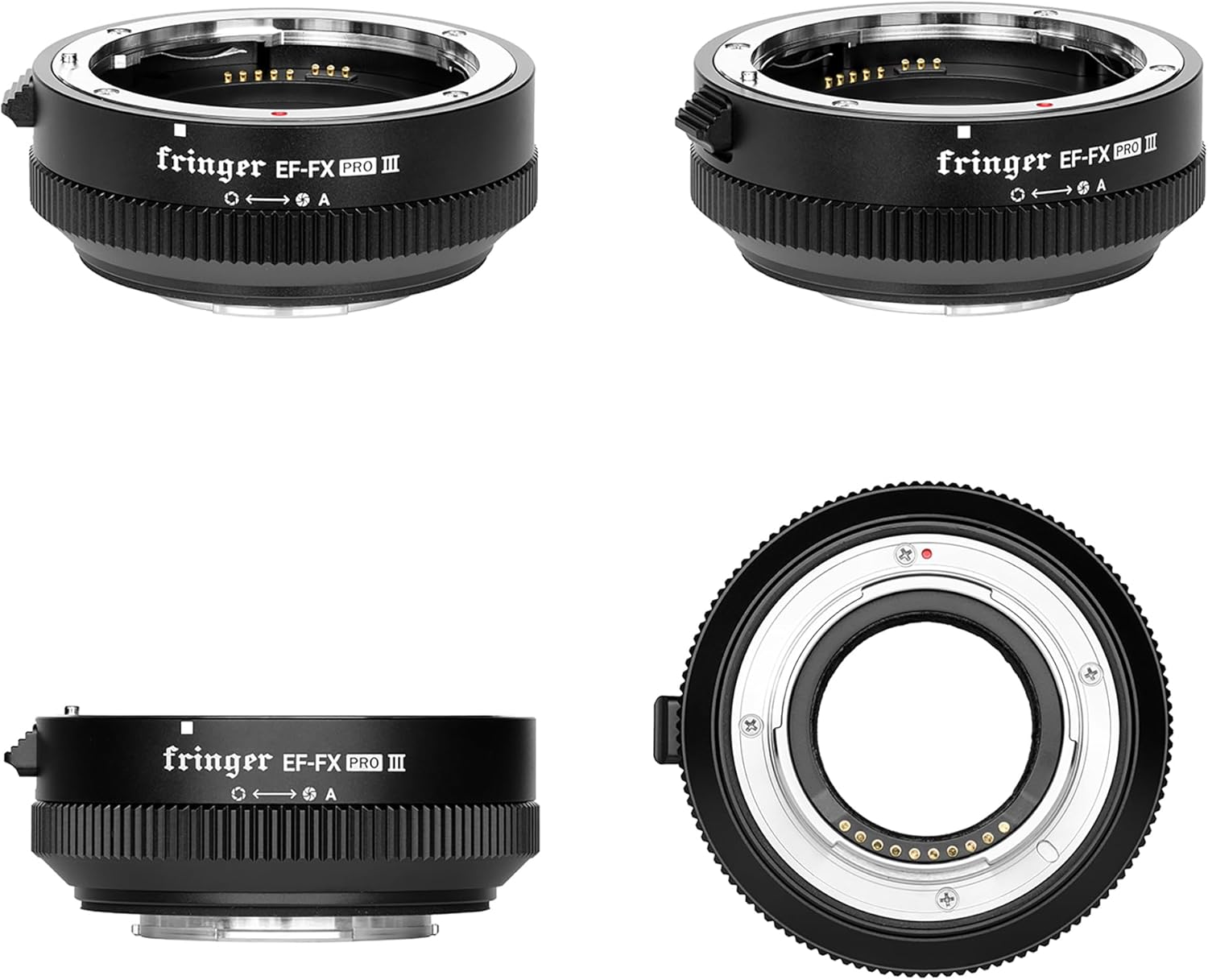
Figure 1.2: Various angles of the Fringer EF-FX PRO II adapter, highlighting its compact design and mounting surfaces.
2. Key Features
- Second Generation Enhancements: Features a redesigned aperture ring for more convenient operation, a new and more powerful MCU for improved performance and future firmware updates, and a better light-absorbing design to minimize internal reflections.
- Electronic Aperture Ring: (PRO VERSION ONLY) Functions similarly to native Fujifilm XF lenses, allowing aperture adjustments in 1/3 stop increments. Includes an 'Auto' position for automatic aperture control.
- Fast and Accurate PDAF: Supports Phase Detection Autofocus (PDAF) on Fujifilm cameras equipped with X-Trans II & III CMOS sensors (e.g., X-T2, X-T3). AF-S (single-point), AF-C (continuous), Face, and Eye autofocus are supported for optimized lenses.
- EXIF Data Recording: Ensures all relevant lens information, including lens model, focal length, and aperture settings, is accurately recorded in the image EXIF data.
- Image Stabilizer Support: Supports Image Stabilizer (IS) functions of compatible Canon EF mount lenses, enhancing stability for both stills and video.

Figure 2.1: Visual representation of the Fringer EF-FX PRO II's core functionalities.
3. Package Contents
Upon opening the package, please verify that all items listed below are present and in good condition:
- Fringer EF-FX PRO II Smart Adapter
- Front Lens Cap
- Rear Lens Cap
- Instruction Manual (this document)
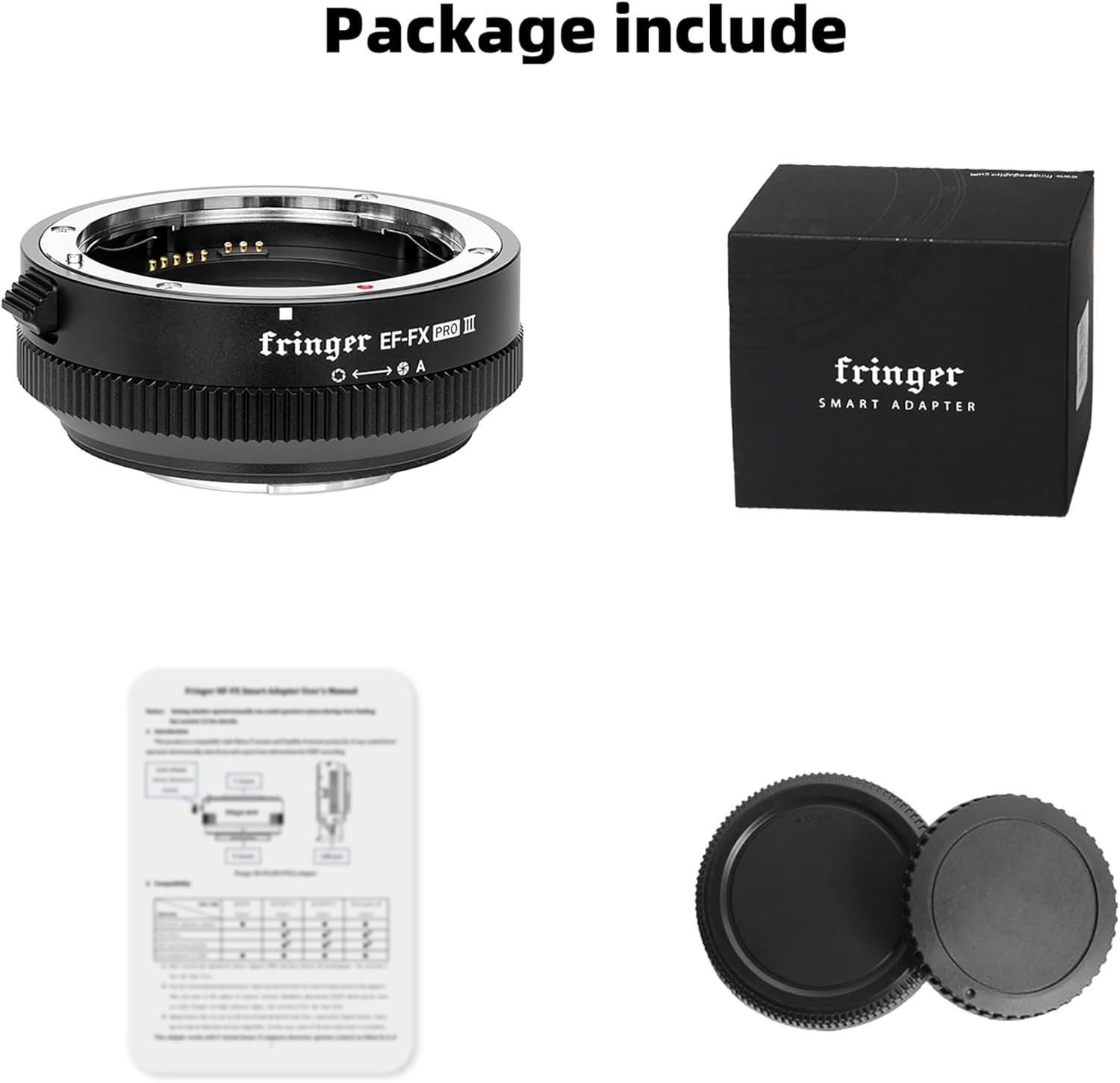
Figure 3.1: The Fringer EF-FX PRO II adapter and its accompanying accessories as found in the package.
4. Setup and Installation
Follow these steps to correctly attach your Canon EF-mount lens to your Fujifilm X-mount camera using the Fringer EF-FX PRO II adapter:
- Ensure both your camera and lens are powered off before beginning the installation process.
- Remove the rear lens cap from your Canon EF-mount lens and the front cap from the Fringer adapter.
- Align the red dot on the Fringer adapter with the red dot on your Canon EF-mount lens. Gently twist the lens clockwise until it clicks securely into place.
- Remove the rear cap from the Fringer adapter.
- Align the white square on the Fringer adapter with the white square on your Fujifilm X-mount camera body. Gently twist the adapter (with the lens attached) clockwise until it clicks securely into place.
- Your lens and adapter are now securely mounted to your camera. You may now power on your camera and begin shooting.

Figure 4.1: The Fringer adapter seamlessly connects a Canon EF lens to a Fujifilm X-mount camera, maintaining a weather-sealed connection if both the lens and camera are weather-sealed.
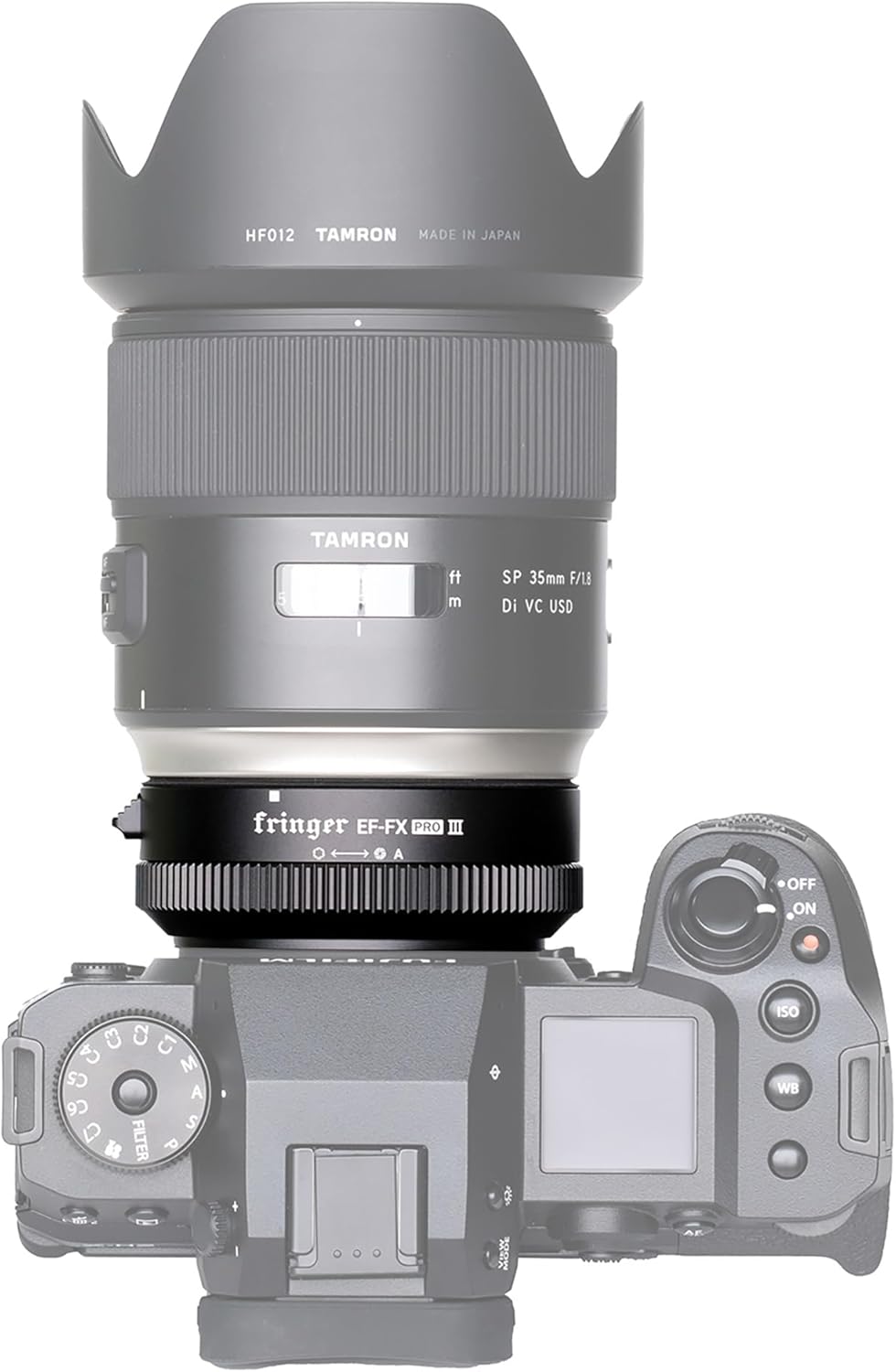
Figure 4.2: Top-down view of the Fringer adapter with a Tamron lens attached to a Fujifilm camera, demonstrating the compact integration.
Note: An official product video demonstrating the setup and installation process is available. While we cannot embed it directly here due to content restrictions, you can typically find it on the product's Amazon page or the manufacturer's official website. The video visually guides you through attaching the lens to the adapter and then the adapter to the camera body, showing the alignment points and confirming clicks.
5. Operating Instructions
5.1 Electronic Aperture Control
For the PRO version of the Fringer EF-FX adapter, an electronic aperture ring is integrated. This allows you to adjust the aperture directly from the adapter, similar to native Fujifilm XF lenses. Each click of the ring corresponds to a 1/3 stop adjustment. The final position after the smallest aperture setting is 'Auto', which allows the camera to control the aperture automatically.
5.2 Autofocus Performance
The Fringer EF-FX PRO II adapter provides fast and accurate Phase Detection Autofocus (PDAF) when used with Fujifilm cameras featuring X-Trans II & III CMOS sensors. This includes support for AF-S (single autofocus), AF-C (continuous autofocus), Face Detection, and Eye Detection autofocus. Please note that autofocus performance can vary depending on lighting conditions and the specific lens model used. Optimal performance is achieved with lenses that have been specifically optimized for the adapter.

Figure 5.1: Example of Face and Eye Detection Autofocus in action, highlighting the precise focus on the subject's eyes.

Figure 5.2: An example illustrating the fast and accurate Phase Detection Autofocus capabilities, even with moving subjects.
5.3 Image Stabilization (IS)
The adapter supports the Image Stabilizer (IS) functions of compatible Canon EF mount lenses. This feature helps to reduce camera shake, resulting in sharper images and smoother video footage, especially in low light or when using longer focal lengths.

Figure 5.3: The Image Stabilization feature helps capture clear images even with subject movement or camera shake.
5.4 EXIF Data
All lens information, including the lens model, focal length, and aperture settings, is accurately transmitted through the adapter and recorded in the EXIF data of your captured images. This ensures proper cataloging and post-processing capabilities.

Figure 5.4: A sample of EXIF data, demonstrating how the adapter ensures accurate recording of lens and exposure details.
6. Compatibility
6.1 Compatible Fujifilm Cameras
The Fringer EF-FX PRO II adapter is compatible with a wide range of Fujifilm X-mount cameras. Performance, particularly autofocus, is optimized for cameras with X-Trans II & III CMOS sensors. For cameras with X-Trans IV CMOS, full sensor covered PDAF offers even better performance.
- X-Trans IV CMOS (Full sensor covered PDAF, Better performance): X-T3, X-Pro3, X-T4, X-S10
- X-Trans III CMOS (PDAF, Good performance): X-H1, X-T2, X-T20, X-Pro2, X-E3
- X-Trans II CMOS (PDAF enabled): X-E2, X-T1, X-T10
- None X-Trans & X-Trans I CMOS (PDAF not working, Poor performance): X-A1, X-A2, X-A3, X-A5, X-A7, X-E1, X-Pro1, X-M1, X-T100, X-T200
6.2 Compatible Canon EF/EF-S Lenses
The adapter supports a broad selection of Canon EF and EF-S lenses. Refer to the table below for a detailed list of compatible Canon lenses.

Figure 6.1: Comprehensive list of Canon EF and EF-S lenses verified for compatibility with the Fringer EF-FX PRO II adapter.
6.3 Compatible Third-Party Lenses (Sigma, Tamron, Tokina, Samyang, Yongnuo)
In addition to Canon's native lenses, the Fringer EF-FX PRO II adapter also supports a selection of popular third-party EF-mount lenses from manufacturers like Sigma, Tamron, Tokina, Samyang, and Yongnuo. Consult the table below for specific models.

Figure 6.2: List of compatible third-party EF-mount lenses from Sigma, Tamron, Tokina, Samyang, and Yongnuo.

Figure 6.3: The Fringer adapter paired with a Sigma lens on a Fujifilm camera, highlighting its award-winning performance.
7. Maintenance
7.1 Cleaning
To maintain optimal performance and longevity of your Fringer EF-FX PRO II adapter, keep it clean and free from dust and debris. Use a soft, lint-free cloth to wipe the exterior. For the electronic contacts, use a clean, dry microfiber cloth or a specialized lens cleaning solution applied to a cloth (never directly to the contacts). Avoid touching the glass elements inside the adapter.
7.2 Firmware Updates
Fringer periodically releases firmware updates to improve compatibility, performance, and add new features. The adapter features a built-in USB port for easy firmware updates. Visit the official Fringer website to download the latest firmware and follow the provided instructions for installation.

Figure 7.1: The USB port on the adapter allows for convenient firmware updates, ensuring ongoing compatibility and performance improvements.
8. Troubleshooting
If you encounter issues with your Fringer EF-FX PRO II adapter, consider the following common troubleshooting steps:
- Autofocus Issues:
- Ensure your camera's firmware is up to date.
- Ensure the Fringer adapter's firmware is up to date.
- Check if the specific lens model is listed as compatible and optimized.
- Verify that the lens and adapter are securely mounted and the electronic contacts are clean.
- Autofocus performance can be affected by low light conditions or subjects with low contrast.
- Electronic Communication Errors:
- Remove and reattach the lens and adapter to ensure a proper connection.
- Clean the electronic contacts on both the lens, adapter, and camera body.
- Restart the camera.
- Aperture Control Issues:
- Confirm you are using the PRO version of the adapter, which features the electronic aperture ring.
- Ensure the lens is properly communicating with the adapter and camera.
If problems persist after attempting these steps, please contact Fringer customer support for further assistance.
9. Specifications
| Attribute | Detail |
|---|---|
| Product Model | EF-FX AF (Fringer EF-FX PRO II) |
| Product Dimensions | 5.4 x 4 x 2.4 inches |
| Item Weight | 1.1 pounds |
| Manufacturer | Fringer |
| Compatible Lens Mount | Canon EF/EF-S |
| Compatible Camera Mount | Fujifilm X-Mount |
| Autofocus Support | Yes (PDAF, Face/Eye Detection on compatible Fuji bodies) |
| Image Stabilization Support | Yes |
| Electronic Aperture Control | Yes (via adapter ring or camera body) |
| EXIF Data Transmission | Yes |
| Firmware Update Port | USB |
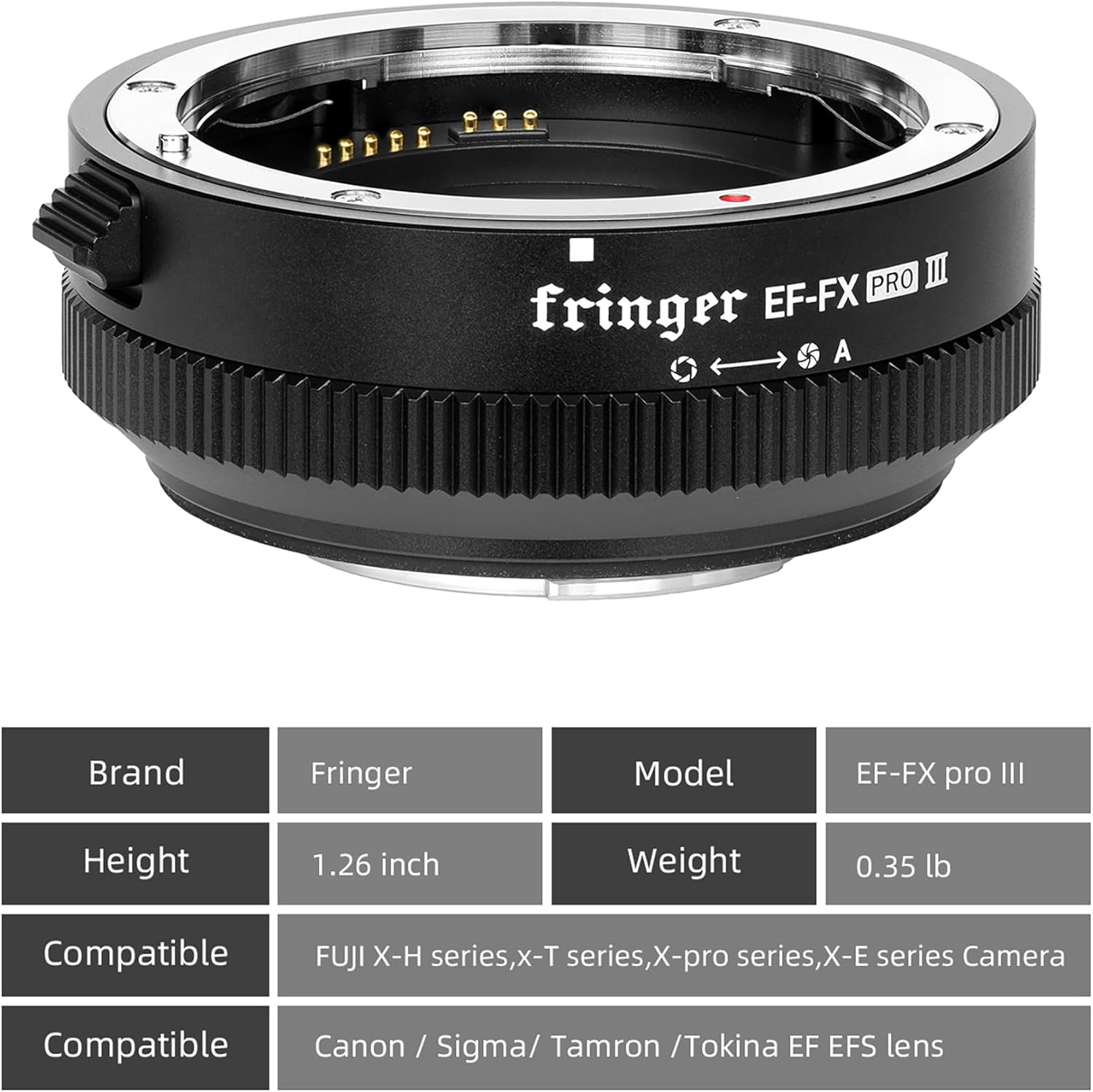
Figure 9.1: A quick reference table for the Fringer EF-FX PRO II adapter's specifications and compatibility.
10. Warranty and Support
For information regarding the product warranty, please refer to the warranty card included in your product packaging or visit the official Fringer website. For technical support, troubleshooting beyond this manual, or service inquiries, please contact Fringer customer support through their official channels. Keep your purchase receipt as proof of purchase for any warranty claims.


