
1. Introduction
The Plantronics Poly APU-76 Electronic Hook Switch (EHS) Cable is designed to provide seamless integration between your Plantronics DECT or 900 MHz wireless headset system and your Unified Communications (UC) softphone applications. This cable enables one-touch call control directly from your headset, enhancing productivity and convenience.
2. Product Overview
The APU-76 cable connects your Plantronics wireless headset base to your computer via a USB port. It facilitates electronic hook switch functionality, allowing you to answer, end, and control calls directly from your headset, even when away from your desk. This eliminates the need to manually interact with your computer or softphone application to manage calls.

Image 1: The Plantronics Poly APU-76 Electronic Hook Switch Cable, showing its USB and headset base connectors.
3. Setup Instructions
- Connect to Headset Base: Plug the RJ-9/RJ-11 connector of the APU-76 cable into the designated EHS port on your Plantronics wireless headset base. Refer to your headset system's manual for the exact port location.
- Connect to Computer: Insert the USB-A connector of the APU-76 cable into an available USB port on your computer.
- Software Installation (if required): For optimal functionality and advanced settings, download and install the latest version of the Plantronics Hub software (now Poly Lens Desktop App) from the official Poly website. This software allows for firmware updates and customization of headset settings.
- System Recognition: Your computer should automatically recognize the APU-76 cable as an audio device. Verify that your softphone application (e.g., Microsoft Skype for Business) is configured to use your Plantronics headset system as the default audio device.
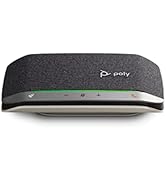
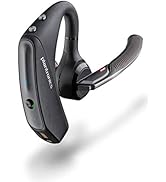
Image 2: The APU-76 cable connected to a laptop (left) and a Plantronics headset base (right).
4. Operating Instructions
Once properly connected and configured, the APU-76 cable enables the following one-touch call control features directly from your compatible Plantronics wireless headset:
- Answer/End Calls: Press the call control button on your headset to answer an incoming call or end an active call.
- Volume Control: Use the volume buttons on your headset to adjust the listening volume.
- Mute/Unmute: Press the mute button on your headset to mute or unmute your microphone.
These functions are designed to work seamlessly with a wide array of softphone applications, providing a consistent user experience.
5. Compatibility
The Plantronics Poly APU-76 Electronic Hook Switch Cable is compatible with the following Plantronics wireless headset systems and UC platforms:
- Plantronics CS500 Series
- Plantronics Savi 7200 Office Series
- Plantronics Savi 8200 Office Series
- Plantronics Voyager Office Series cordless headset systems
- DECT and 900 MHz headsets
- Microsoft Skype for Business (plug and play)
- Various other UC softphone applications
6. Maintenance
To ensure the longevity and proper functioning of your APU-76 cable, follow these simple maintenance guidelines:
- Keep the cable clean and free from dust and debris. Use a soft, dry cloth for cleaning.
- Avoid bending or kinking the cable sharply, as this can damage internal wires.
- Store the cable in a cool, dry place when not in use.
- Do not expose the cable to extreme temperatures or moisture.
7. Troubleshooting
If you encounter issues with your APU-76 cable, consider the following troubleshooting steps:
- No Call Control: Ensure the cable is securely connected to both the headset base and the computer. Verify that the Plantronics Hub (Poly Lens Desktop App) software is installed and updated. Check your softphone application's audio settings to confirm the Plantronics headset is selected as the primary communication device.
- Calls Disconnect Immediately: Some users have reported that the 'Dial Tone' setting in the Plantronics Hub software can cause immediate call disconnections with certain softphone setups. If experiencing this, try setting the 'Dial Tone' option to 'Off' within the Plantronics Hub application.
- No Audio/Poor Audio Quality: Confirm that the headset is properly paired with its base and that the base is powered on. Check volume levels on both the headset and your computer. Test with another USB port on your computer.
- Intermittent Connectivity: Ensure there are no other devices causing interference. Try restarting your computer and headset system.
If problems persist, consult the support resources on the official Poly website or contact Poly technical support.
8. Specifications
| Feature | Detail |
|---|---|
| Model Number | 211076-01 |
| Product Dimensions | 2 x 4 x 8 inches |
| Item Weight | 0.035 ounces |
| ASIN | B07GC6PFYD |
| Manufacturer | Poly |
| First Available Date | August 13, 2018 |
9. Warranty and Support
For information regarding the product warranty, please refer to the warranty documentation included with your purchase or visit the official Poly website. For technical assistance, product registration, or to access additional support resources, please visit poly.com/support.


