1. Introduction
Thank you for choosing the Bagotte SH020 3MP 1296P FHD Wireless IP Camera. This manual provides detailed instructions for setting up, operating, and maintaining your camera to ensure optimal performance and security. Please read this manual carefully before use and keep it for future reference.
2. Package Contents
Ensure all items are present in the package:
- 1 x Bagotte SH020 IP Camera
- 1 x Power Adapter
- 1 x USB Cable
- 1 x Mounting Bracket
- 2 x Screws
- 1 x User Manual
3. Product Overview
The Bagotte SH020 is a 3MP 1296P Full HD wireless IP camera designed for indoor surveillance. It features pan and tilt functionality, infrared night vision, two-way audio, motion detection, and local storage via a MicroSD card.

Image 1: Front view of the Bagotte SH020 3MP 1296P FHD Wireless IP Camera.

Image 2: Diagram illustrating the components of the Bagotte SH020 camera, including the IR sensor, lens, MicroSD card slot, antenna, network interface, power input, and reset button.
4. Setup
4.1. Powering On
- Connect the USB cable to the camera's power input port.
- Plug the power adapter into a standard electrical outlet.
- The camera will power on and initiate its startup sequence. Wait for the indicator light to flash, indicating it's ready for setup.
4.2. App Installation
Download the recommended mobile application (e.g., SriHome or MIPC, as mentioned in product reviews) from your device's app store (Google Play Store for Android or Apple App Store for iOS). Search for 'SriHome' or 'MIPC' and install the application.
4.3. Connecting to Wi-Fi
- Open the installed application and create an account or log in.
- Follow the in-app instructions to add a new device. This usually involves scanning a QR code located on the camera or manually entering the device ID.
- Ensure your mobile device is connected to a 2.4GHz Wi-Fi network. The camera does not support 5GHz Wi-Fi.
- Enter your Wi-Fi network password when prompted by the app.
- The camera will attempt to connect to your Wi-Fi network. Once connected, the indicator light will typically turn solid blue or green, and the app will confirm successful pairing.
4.4. Mounting the Camera
The camera can be placed on a flat surface or mounted to a wall or ceiling using the provided bracket and screws.
- Choose a suitable location for optimal surveillance coverage.
- Attach the mounting bracket to the desired surface using the screws.
- Securely attach the camera to the mounting bracket. Ensure it is firmly in place.
5. Operating the Camera
5.1. Live View and Control
Access the live video feed through the mobile application. You can remotely control the camera's pan (355°) and tilt (90°) movements to adjust the viewing angle. The app also supports 4x digital zoom.
Video 1: Seller's operation video demonstrating the camera's pan, tilt, auto-tracking, mobile phone view, two-way audio, MicroSD card slot, and infrared night vision features.
5.2. Two-Way Audio
The camera features a built-in microphone and speaker, enabling two-way audio communication. Use the microphone icon in the app to speak through the camera and listen to audio from the camera's location.
5.3. Night Vision
Equipped with 10 IR LEDs, the camera provides clear infrared night vision up to 10 meters, ensuring surveillance even in complete darkness. The IR-Cut filter automatically switches between day and night modes.
5.4. Motion Detection and Alarms
The camera supports motion detection with adjustable sensitivity. When motion is detected, the camera can trigger an alarm, send push notifications to your phone, and initiate recording. Advanced AI features include auto motion tracking and humanoid detection.
5.5. Recording and Storage
The camera supports MicroSD cards up to 128GB for local storage of recordings. Recording modes include motion-activated, timed, and manual recording. You can playback recorded footage directly from the app.
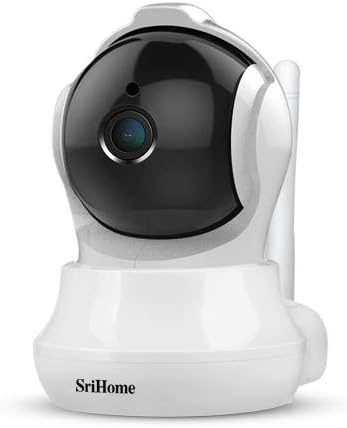
Image 3: The Bagotte SH020 camera positioned in a room, demonstrating its discreet design and wide viewing angle.
6. Maintenance
- Cleaning: Use a soft, dry cloth to clean the camera lens and body. Avoid harsh chemicals or abrasive materials.
- Firmware Updates: Regularly check the mobile application for available firmware updates to ensure your camera has the latest features and security enhancements.
- MicroSD Card: If using a MicroSD card, periodically check its status and ensure sufficient storage space. Back up important recordings as needed.
7. Troubleshooting
- Camera not connecting to Wi-Fi: Ensure your Wi-Fi network is 2.4GHz. Verify the Wi-Fi password is correct. Move the camera closer to the router. Reset the camera using the reset button and try again.
- Poor video quality: Check your internet connection speed. Ensure the camera lens is clean. Adjust video resolution settings in the app.
- Motion detection not working: Verify motion detection is enabled in the app settings. Adjust sensitivity levels and detection zones.
- No audio: Check volume settings in the app. Ensure the microphone and speaker are not obstructed.
8. Specifications
| Feature | Specification |
|---|---|
| Video Resolution | 3MP, 1296P (2304*1296), H.264 |
| Pan/Tilt Range | Pan: 355°, Tilt: 90° |
| Lens | 3.6 mm |
| Night Vision Range | Up to 10 meters (10 IR LEDs) |
| Audio | Two-way audio (built-in microphone and speaker) |
| Storage | MicroSD card (up to 128GB) |
| Wireless Connectivity | Wi-Fi (2.4GHz only) |
| Motion Detection | Yes, with AI Auto Motion Tracking and AI Humanoid Detection |
| Power Supply | DC 5V, 1A |
| Dimensions | 7.3 x 7.6 x 10 cm |
| Weight | 380 g |
9. Warranty and Support
For warranty information and technical support, please refer to the documentation included with your product or visit the official Bagotte website. Keep your purchase receipt as proof of purchase for warranty claims.


