
1. Introduction
The Logitech G PRO Wireless Gaming Mouse is engineered to meet the rigorous demands of professional esports athletes. Developed over two years with feedback from numerous pro gamers, it integrates advanced technologies for extreme performance. Featuring LIGHTSPEED wireless technology, it delivers a 1ms report rate with no latency, connectivity issues, or power concerns. The mouse is equipped with the HERO 25K sensor, Logitech's most accurate and efficient optical sensor, offering up to 25,600 DPI. Its ultra-lightweight design (80g) and ambidextrous form factor ensure comfort and durability for competitive play.

Figure 1: Logitech G PRO Wireless Gaming Mouse in use.
This image shows the sleek, black design of the Logitech G PRO Wireless Gaming Mouse, highlighting its ergonomic shape and the illuminated 'G' logo, held by a professional gamer.
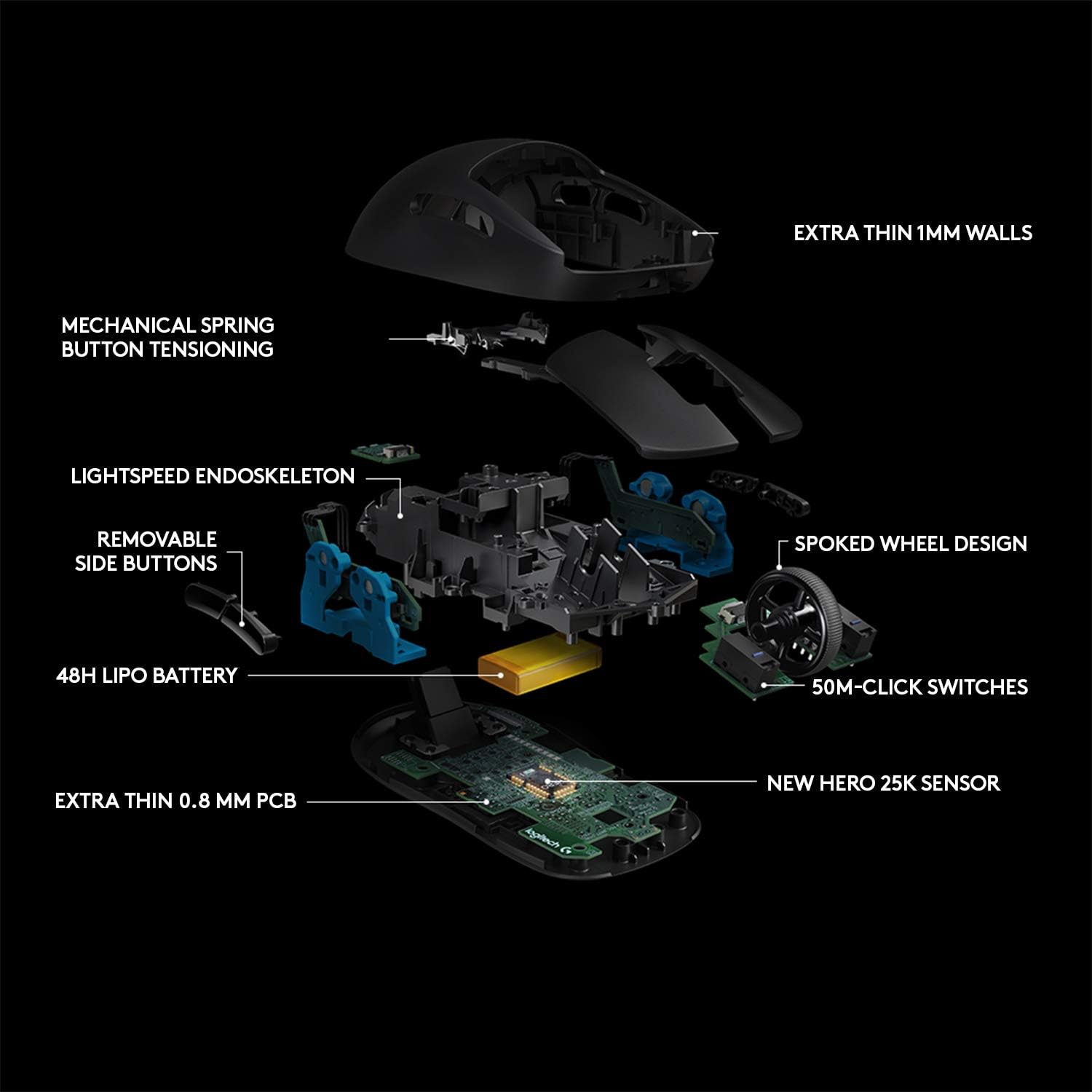
Figure 2: Internal components of the PRO Wireless Mouse.
An exploded diagram illustrating the internal structure of the mouse, including the extra-thin 1mm walls, mechanical spring button tensioning, LIGHTSPEED endoskeleton, removable side buttons, 48h LiPo battery, spoked wheel design, 50M-click switches, extra-thin 0.8mm PCB, and the new HERO 25K sensor.
2. What's in the Box
Your Logitech G PRO Wireless Gaming Mouse package includes the following items:
- PRO Wireless Gaming Mouse
- LIGHTSPEED™ USB Receiver
- USB Charging/Data Cable
- Optional Receiver Extension Adapter
- Optional Side Buttons (2 left, 2 right)
- Optional Button Covers (2 left, 2 right)
- User Documentation
- 2-Year Limited Hardware Warranty Information
3. Setup
Follow these steps to set up your Logitech G PRO Wireless Gaming Mouse:
- Connect the LIGHTSPEED USB Receiver: Plug the LIGHTSPEED USB receiver into an available USB port on your computer. For optimal signal strength, especially if your computer is under a desk, use the included receiver extension adapter and place the receiver closer to the mouse.
- Power On the Mouse: Locate the On/Off switch on the bottom of the mouse (refer to Figure 3) and slide it to the 'On' position. The mouse's RGB lighting will illuminate briefly.
- Install Optional Side Buttons: The PRO Wireless mouse features an ambidextrous design with removable side buttons. Attach the desired side buttons (left or right) using the magnetic slots. If you prefer fewer buttons, use the included button covers to fill the empty slots.
- Initial Charge: If the mouse does not power on or the battery indicator is low, connect the USB charging/data cable to the front of the mouse and to a USB port on your computer. The mouse can be used while charging.
- Software Installation (Recommended): For full customization and optimal performance, download and install the Logitech G HUB software from the official Logitech G website (logitechg.com/ghub).

Figure 3: Underside of the PRO Wireless Mouse.
This image displays the bottom of the mouse, clearly labeling key components: the USB LIGHTSPEED receiver storage compartment, the DPI button, the On/Off switch, the USB LIGHTSPEED receiver itself, POWERPLAY compatibility contacts, and PTFE feet.
4. Operating Instructions
The Logitech G PRO Wireless Gaming Mouse is designed for intuitive use. Here are its primary functions:
- Left and Right Click: Standard mouse buttons for primary interactions.
- Scroll Wheel: Used for scrolling through documents and web pages. It also functions as a middle click button.
- DPI Cycle Button: Located on the bottom of the mouse (Figure 3), this button allows you to cycle through pre-set DPI sensitivity levels. Default settings can be customized via Logitech G HUB.
- Side Buttons: Depending on your configuration, these buttons can be programmed for various functions such as forward/back in web browsers, in-game actions, or macros.
- LIGHTSPEED Wireless Technology: Provides a stable, ultra-fast 1ms report rate connection, ensuring no perceptible lag during gameplay.

Figure 4: LIGHTSPEED Wireless feature.
A close-up view of the mouse emphasizing its LIGHTSPEED Wireless capability, which provides a 1ms report rate, eliminates cable drag, and ensures latency-free connectivity.
5. Customization with Logitech G HUB
Unlock the full potential of your Logitech G PRO Wireless Gaming Mouse by using the Logitech G HUB software. G HUB allows you to:
- Adjust DPI Sensitivity: Create multiple DPI levels from 100 to 25,600 and assign them to the DPI cycle button.
- Program Buttons: Assign custom commands, macros, system shortcuts, or media controls to any of the 4 to 8 programmable buttons.
- Manage Profiles: Create game-specific profiles that automatically switch when you launch a game or application.
- Customize LIGHTSYNC RGB: Personalize the 'G' logo lighting with 16.8 million colors and various effects.
- Onboard Memory: Save your preferred settings directly to the mouse's onboard memory for use on other computers without G HUB.
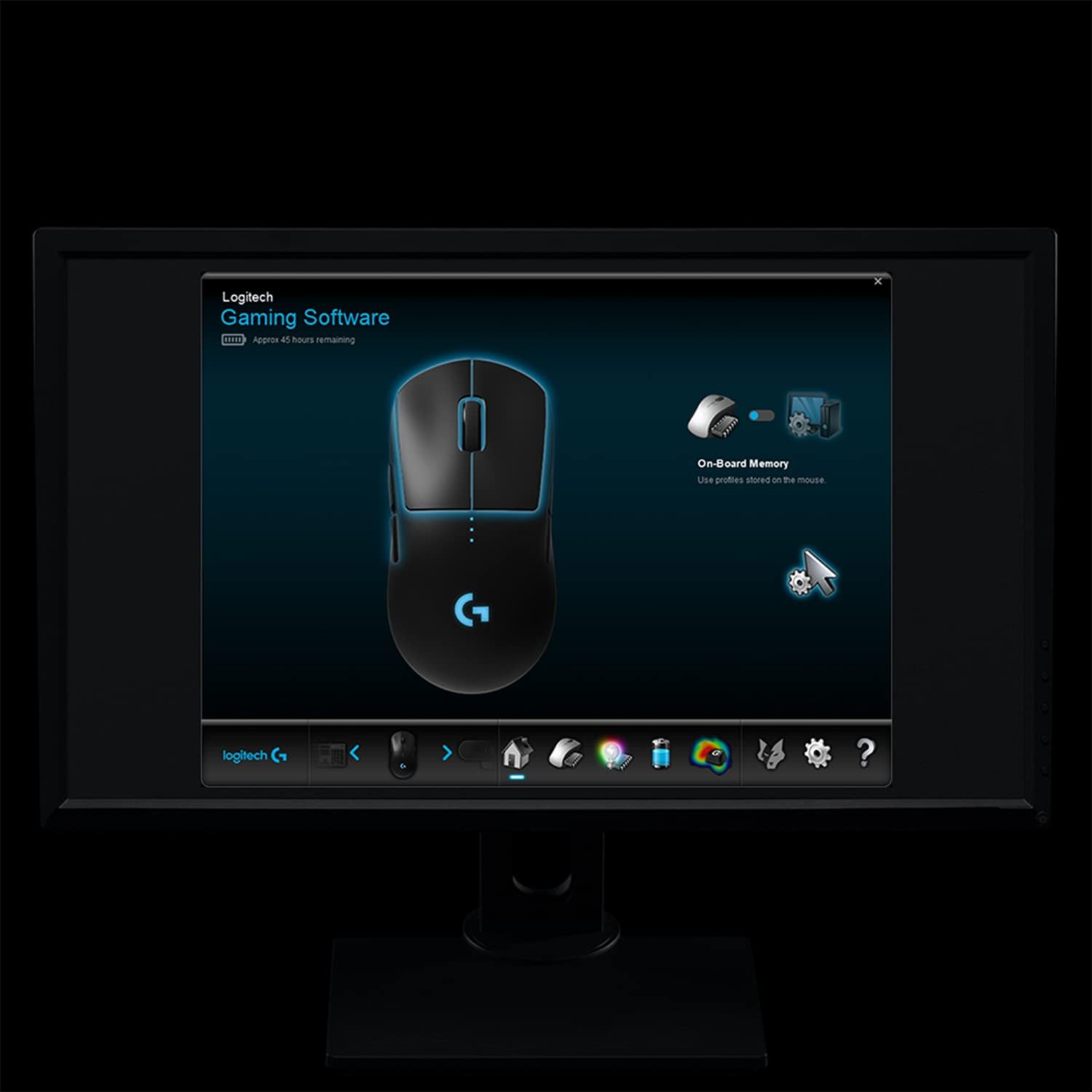
Figure 5: Logitech G HUB Software Interface.
A screenshot of the Logitech G HUB software, showing options for mouse customization, including button assignments, DPI settings, and RGB lighting controls.

Figure 6: HERO 25K Sensor.
A visual representation highlighting the HERO 25K gaming sensor, indicating its precision (400+ IPS) and the absence of smoothing, filtering, or acceleration for accurate tracking.
6. Maintenance
To ensure the longevity and optimal performance of your Logitech G PRO Wireless Gaming Mouse, follow these maintenance guidelines:
- Cleaning: Use a soft, lint-free cloth lightly dampened with water or an electronics-safe cleaning solution to wipe the surface of the mouse. Avoid harsh chemicals or abrasive materials.
- Sensor Care: Keep the optical sensor on the bottom of the mouse clean and free from dust or debris. Use a can of compressed air to gently clear any obstructions.
- Storage: When not in use for extended periods, store the mouse in a clean, dry environment away from extreme temperatures.
- Battery: Avoid fully discharging the battery frequently. For best battery health, recharge when the low battery indicator appears.
7. Troubleshooting
If you encounter issues with your Logitech G PRO Wireless Gaming Mouse, try the following solutions:
- Mouse Not Responding:
- Ensure the mouse is powered on.
- Check that the LIGHTSPEED USB receiver is securely plugged into a working USB port.
- Try plugging the receiver into a different USB port.
- Ensure the mouse is charged. Connect it with the USB cable to charge and test.
- Move the mouse closer to the receiver, or use the extension adapter to bring the receiver closer.
- Lag or Intermittent Connection:
- Reduce interference by moving other wireless devices away from the mouse and receiver.
- Ensure the receiver is not obstructed by metal objects.
- Update your computer's USB drivers.
- Logitech G HUB Not Detecting Mouse:
- Restart your computer.
- Ensure G HUB is updated to the latest version.
- Reinstall Logitech G HUB software.
- Check your operating system's device manager to ensure the mouse is recognized.
- Mouse Cursor Jumps or is Inaccurate:
- Clean the optical sensor on the bottom of the mouse.
- Ensure you are using the mouse on a suitable surface (e.g., a mouse pad). Avoid highly reflective or transparent surfaces.
8. Specifications
| Feature | Description |
|---|---|
| Brand | Logitech G |
| Model Name | PRO Wireless Gaming Mouse |
| Part Number | 910-005273 |
| Connectivity Technology | Wireless (LIGHTSPEED) |
| Sensor Technology | Optical (HERO 25K) |
| Max DPI | 25,600 DPI |
| Number of Buttons | 8 (Programmable) |
| Hand Orientation | Ambidextrous |
| Weight | 80g |
| Dimensions (L x W) | 12.5 cm x 6.35 cm |
| Battery Type | 1 CR2 (Included) |
| Compatibility | PC, Mac (Windows OS) |
| Wireless Range | 10 meters |

Figure 7: Mouse Dimensions.
An overhead view of the Logitech G PRO Wireless Gaming Mouse with its length (12.5 cm) and width (6.35 cm) clearly indicated.
9. Warranty and Support
Warranty Information:
Your Logitech G PRO Wireless Gaming Mouse comes with a 2-year limited hardware warranty from the date of purchase. This warranty covers defects in materials and workmanship under normal use. For full terms and conditions, please refer to the warranty documentation included in your product packaging or visit the official Logitech G website.
Customer Support:
For further assistance, technical support, or warranty claims, please visit the Logitech G support website:
You can also find additional resources, FAQs, and driver downloads on the support page. For detailed safety and usage instructions, refer to the PDF documents available on the product's Amazon page or Logitech's support site.


