
Introduction
This manual provides detailed instructions for the installation, operation, and maintenance of your Cooler Master MasterBox MB530P ATX Mid-Tower chassis. The MasterBox MB530P features three tempered glass panels for system visibility, front mesh intakes for airflow, and three 120mm Addressable RGB (ARGB) lighting fans. The patterned tempered glass panel behind the motherboard tray helps conceal power supply cables for a clean build.
Key Features
- Three Tempered Glass Panels: Front and side panels provide a clear view of internal components and ARGB lighting. A patterned tempered glass panel on the right side conceals cable management.
- Addressable RGB Fans: Equipped with three 120mm ARGB fans for customizable lighting effects.
- ARGB Lighting Control: Integrated ARGB controller for managing lighting effects, compatible with major motherboard ARGB software.
- Optimized Cooling Support: Designed for efficient airflow with front mesh intakes and versatile fan/radiator mounting options.
- Graphics Card Support: Accommodates various graphics card sizes for high-performance builds.
Setup and Installation
Before beginning installation, ensure you have a clean, static-free workspace. Refer to your motherboard and component manuals for specific installation instructions.
1. Unpacking and Initial Inspection
Carefully remove the chassis from its packaging. Inspect for any damage that may have occurred during shipping. Retain all packaging materials for future transport or warranty claims.
2. Removing Panels
The MasterBox MB530P features tempered glass panels. Handle them with care to prevent breakage. The side panels are typically secured with thumb screws. Unscrew these and gently pull the panels away from the chassis. The front tempered glass panel can also be removed by unscrewing its four retaining screws.

Figure 1: MasterBox MB530P chassis with dimensions. Note the overall size for planning your build.
3. Motherboard Installation
Install the I/O shield provided with your motherboard into the rear opening of the chassis. Align your ATX motherboard with the standoffs inside the case. Secure the motherboard using the provided screws. Ensure all standoffs are correctly aligned to prevent short circuits.
4. Power Supply Unit (PSU) Installation
The PSU mounts at the bottom of the chassis. It is recommended to connect all necessary modular cables to your PSU before sliding it into the bay, as space can be limited once installed. Secure the PSU with screws from the rear of the chassis.
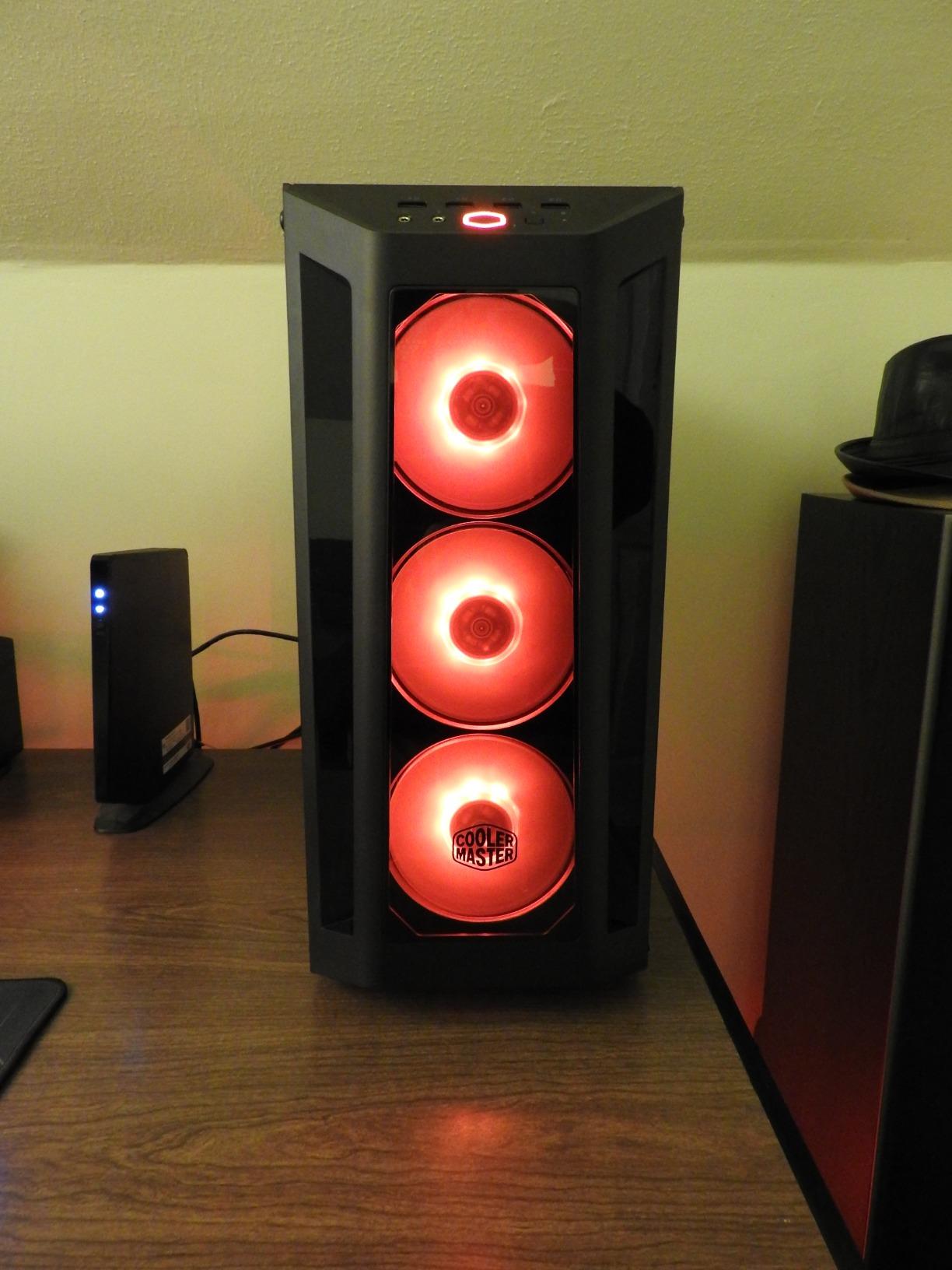
Figure 2: Internal view highlighting the PSU shroud and cable routing options. Plan your cable connections carefully.
5. Storage Drive Installation
The chassis supports 3.5-inch HDDs and 2.5-inch SSDs. Utilize the provided drive cages and mounting points. For 3.5-inch drives, slide them into the drive trays located under the PSU shroud. For 2.5-inch SSDs, dedicated mounting points are available on the motherboard tray or behind it.
6. Graphics Card and Expansion Card Installation
Remove the necessary expansion slot covers from the rear of the chassis. Insert your graphics card or other expansion cards into the appropriate PCIe slots on your motherboard and secure them with screws.
7. Fan and Radiator Installation
The MasterBox MB530P comes with three 120mm ARGB fans pre-installed in the front. Additional fans or radiators can be installed at the top and rear. Ensure proper airflow direction for optimal cooling (front intake, rear/top exhaust).

Figure 3: Front view showcasing the pre-installed ARGB fans. These fans provide intake airflow.
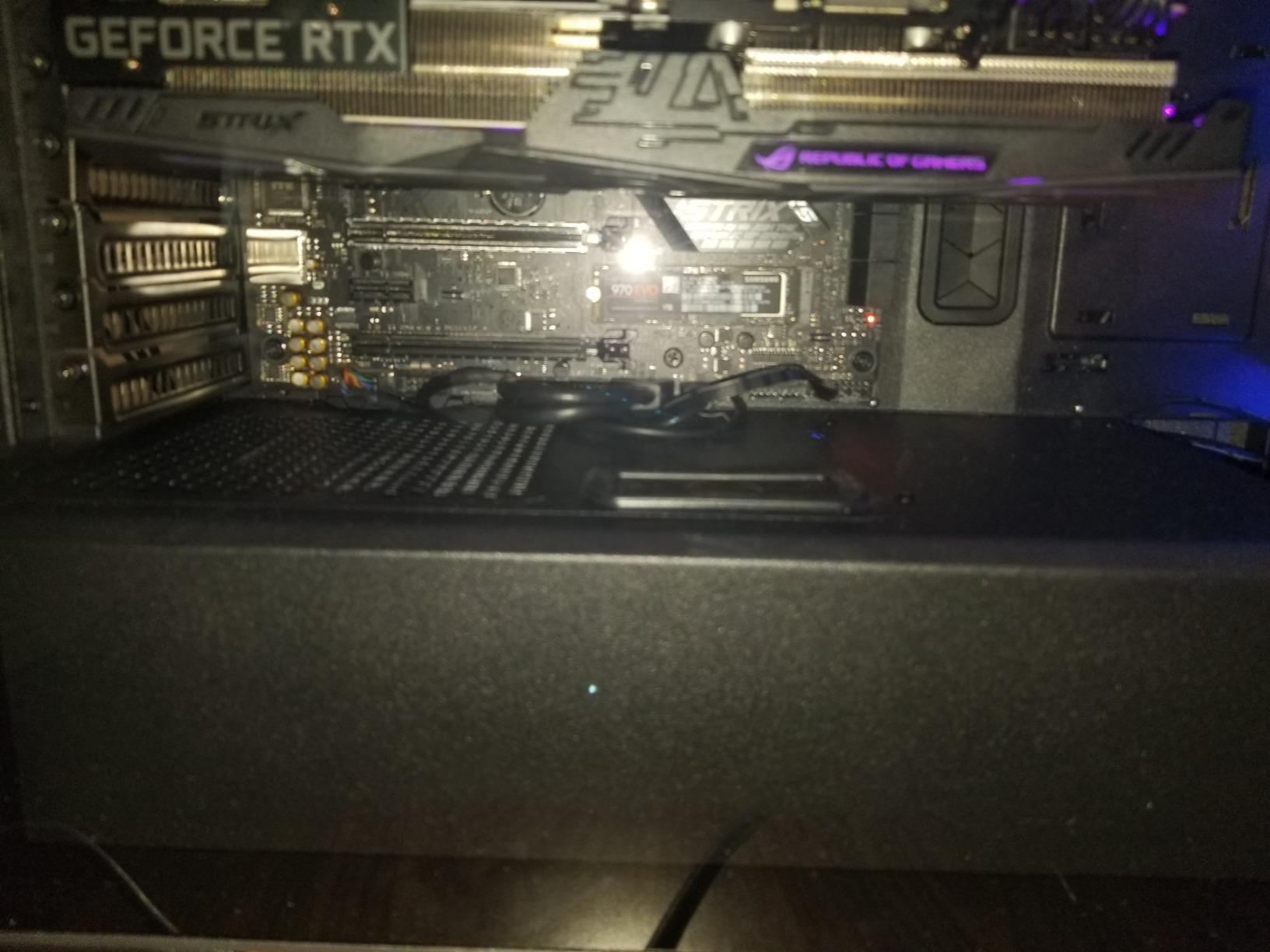
Figure 4: Example of a top-mounted radiator installation. The case supports various cooling configurations.
8. Cable Management
Utilize the cable routing cutouts and tie-down points behind the motherboard tray to organize cables. This improves airflow and aesthetics. The patterned tempered glass panel on the right side is designed to help conceal cable clutter.
9. Connecting Front I/O Panel
Connect the front panel connectors (USB 3.0, USB 2.0, Audio, Power, Reset, ARGB control) to the corresponding headers on your motherboard. Refer to your motherboard manual for header locations.

Figure 5: Front I/O panel with labeled USB 3.0, USB 2.0, and audio ports. Connect these to your motherboard.
Operating the ARGB Lighting
The MasterBox MB530P features Addressable RGB (ARGB) lighting on its front fans and can be controlled in two ways:
- Motherboard Sync: If your motherboard supports ARGB (5V 3-pin header), connect the chassis's ARGB cable to the motherboard. You can then use your motherboard's software (e.g., ASUS Aura Sync, MSI Mystic Light Sync, Gigabyte RGB Fusion, ASRock Polychrome Sync) to synchronize and customize lighting effects across all compatible components.
- Integrated Controller: If your motherboard does not have an ARGB header, or if you prefer standalone control, use the dedicated ARGB control button on the top I/O panel of the chassis. Pressing this button cycles through various pre-set lighting modes and colors.

Figure 6: Top I/O panel, including the ARGB control button (often integrated with the reset button or a dedicated button).
Maintenance
Regular maintenance helps ensure optimal performance and longevity of your PC components.
- Dust Filter Cleaning: The MasterBox MB530P includes removable dust filters (e.g., top, front, bottom). Regularly remove and clean these filters using compressed air or by washing them with water and allowing them to dry completely before reinstallation.
- Internal Cleaning: Periodically use compressed air to clear dust from internal components, especially CPU coolers, GPU heatsinks, and power supply fans.
- Tempered Glass Care: Clean tempered glass panels with a soft, lint-free cloth and a glass cleaner. Avoid abrasive materials that could scratch the surface.
Troubleshooting
This section addresses common issues you might encounter.
- ARGB Fans Not Lighting Up/Incorrect Colors:
- Ensure the ARGB cables from the fans are correctly connected to the integrated controller or your motherboard's ARGB header.
- Verify the SATA power connector for the ARGB controller is connected to your power supply.
- If using motherboard software, ensure it is up-to-date and correctly configured.
- If using the integrated controller, try cycling through modes using the dedicated button.
- Power Supply Installation Difficulty:
- The PSU area can be tight. Always connect modular cables to the PSU before installing it into the chassis.
- Ensure the drive cage under the PSU shroud is not obstructing the PSU or its cables.
- Poor Airflow/High Temperatures:
- Check that all fans are spinning and oriented correctly (front for intake, rear/top for exhaust).
- Clean dust filters regularly to prevent airflow restriction.
- Ensure internal cables are managed to avoid blocking airflow paths.
- Front Panel USB/Audio Ports Not Working:
- Verify that the front panel USB and audio cables are securely connected to the correct headers on your motherboard.
- Refer to your motherboard manual for precise header locations.
Specifications
| Feature | Detail |
|---|---|
| Brand | Cooler Master |
| Model Name | MB530P |
| Model Number | MCB-B530P-KHNN-S01 |
| Case Type | Mid-Tower |
| Motherboard Compatibility | ATX |
| Material | Tempered Glass |
| Color | ATX Mid-Tower ARGB |
| Cooling Method | Air |
| Fan Size | 120 Millimeters |
| Number of Fans (Included) | 3 (ARGB) |
| Total Expansion Slots | 6 |
| Total USB 2.0 Ports | 2 |
| Total USB 3.0 Ports | 2 |
| Hard Disk Form Factor | 3.5 Inches |
| Internal Bays Quantity | 3 |
| Item Weight | 9.9 Grams |
| UPC | 884102047138 |
Warranty and Support
The Cooler Master MasterBox MB530P comes with a 1-year warranty from the date of purchase. For warranty claims, technical support, or further assistance, please contact Cooler Master customer service or visit their official website. Keep your proof of purchase for warranty validation.
For the latest drivers, software, and detailed product information, please visit the official Cooler Master website: www.coolermaster.com


