
1. Introduction
Thank you for choosing the CHORTAU Dash Cam 007. This device is designed to provide reliable video recording of your journeys, offering enhanced safety and security for your vehicle. Featuring a Sony IMX323 Sensor, Full HD 1080P resolution, 170° wide angle, and built-in WiFi, it captures clear footage day and night. This manual will guide you through the installation, operation, and maintenance of your dash cam.
2. Package Contents
Please verify that all items are present in your package:
- CHORTAU Dash Cam 007
- Power Cable (Car Charger)
- User Manual
- Suction Cup Mount
- Removable Plate (for windshield mounting)
- USB Card Reader (may be included)
- Cable Clips (may be included)
Note: A MicroSD/SD card is required for recording and is not included in the package. Please ensure you use a high-speed card (Class 10 or higher) up to 32GB for optimal performance.
3. Product Overview
Familiarize yourself with the main components of your CHORTAU Dash Cam:

Image: The CHORTAU Dash Cam 007, showing its compact design and a smartphone mirroring its display via WiFi connection.
- Lens: Captures video footage.
- Display Screen: 2-inch LCD for live view, menu navigation, and playback.
- Control Buttons: (M) Menu, (Up), (Down), (OK) for navigation and selection.
- USB Port: For power supply and data transfer.
- MicroSD Card Slot: For inserting the memory card.
- Mounting Slot: For attaching the suction cup or removable plate.
4. Setup and Installation
4.1 Inserting the Memory Card
Before first use, insert a Class 10 or higher MicroSD/SD card (up to 32GB) into the designated slot until it clicks into place. Ensure the camera is powered off before inserting or removing the card.
4.2 Mounting the Dash Cam
The CHORTAU Dash Cam comes with a removable plate and a suction cup for easy installation on your windshield. Choose the method that best suits your needs.
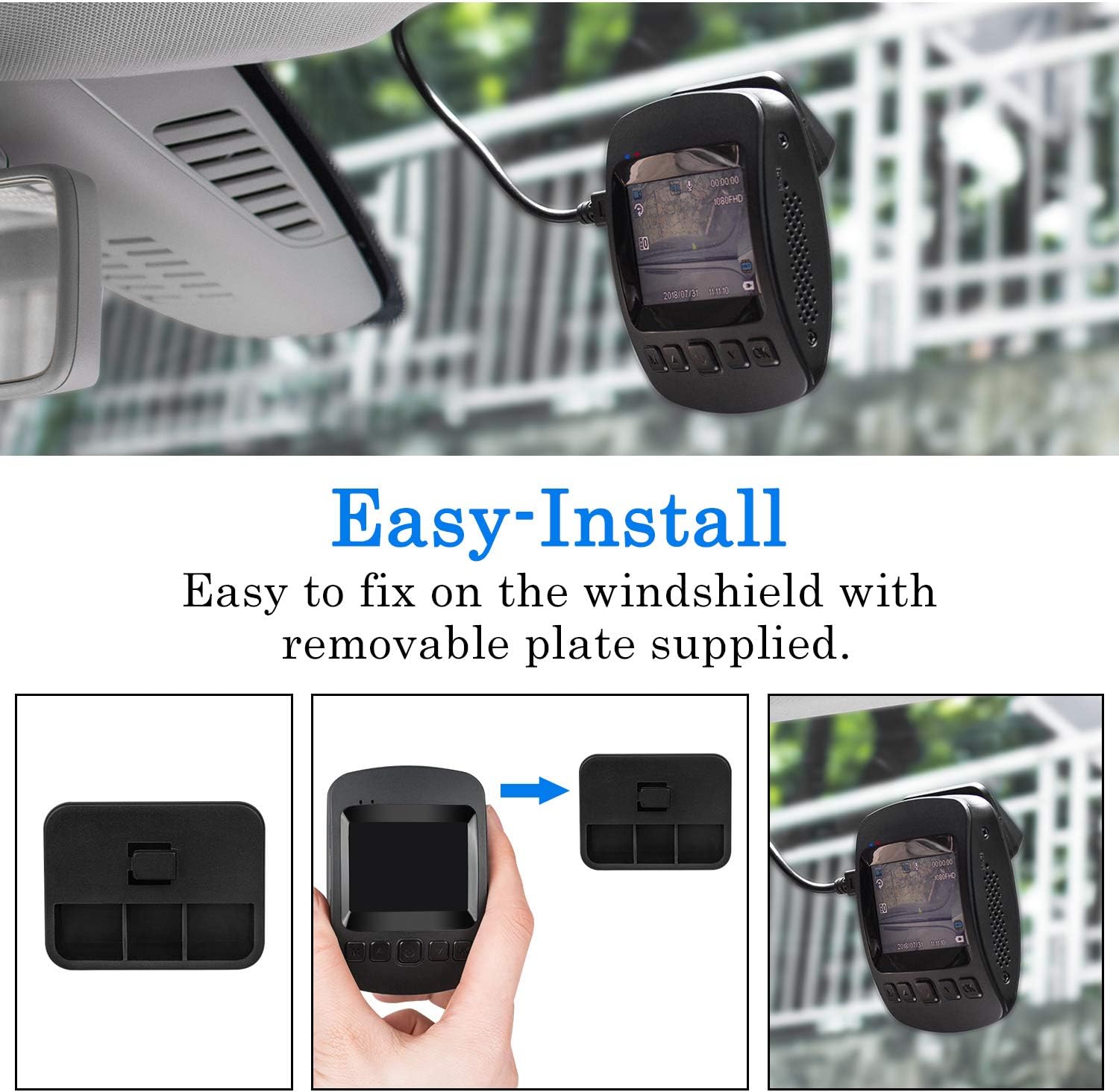
Image: Step-by-step guide on attaching the dash cam to the windshield using the removable plate.
- Clean the area on your windshield where you intend to mount the dash cam.
- Attach the removable plate or suction cup to the dash cam's mounting slot.
- Securely attach the mount to the windshield, ensuring it does not obstruct your view.
- Adjust the camera lens to capture the desired field of view (e.g., the road ahead).
4.3 Power Connection
Connect the provided car charger cable to the dash cam's USB port and plug the other end into your vehicle's 12V auxiliary power outlet (cigarette lighter socket). The dash cam will typically power on and begin recording automatically when the vehicle starts.
5. Operating Instructions
5.1 Basic Recording
Once powered on, the dash cam will automatically start loop recording. To stop recording, press the "OK" button. To access the menu settings, first stop recording by pressing "OK", then press the "M" (Menu) button.
5.2 WiFi Connection and App Usage
The built-in WiFi module allows you to connect your smartphone or tablet to the dash cam for remote control, live viewing, and file management.
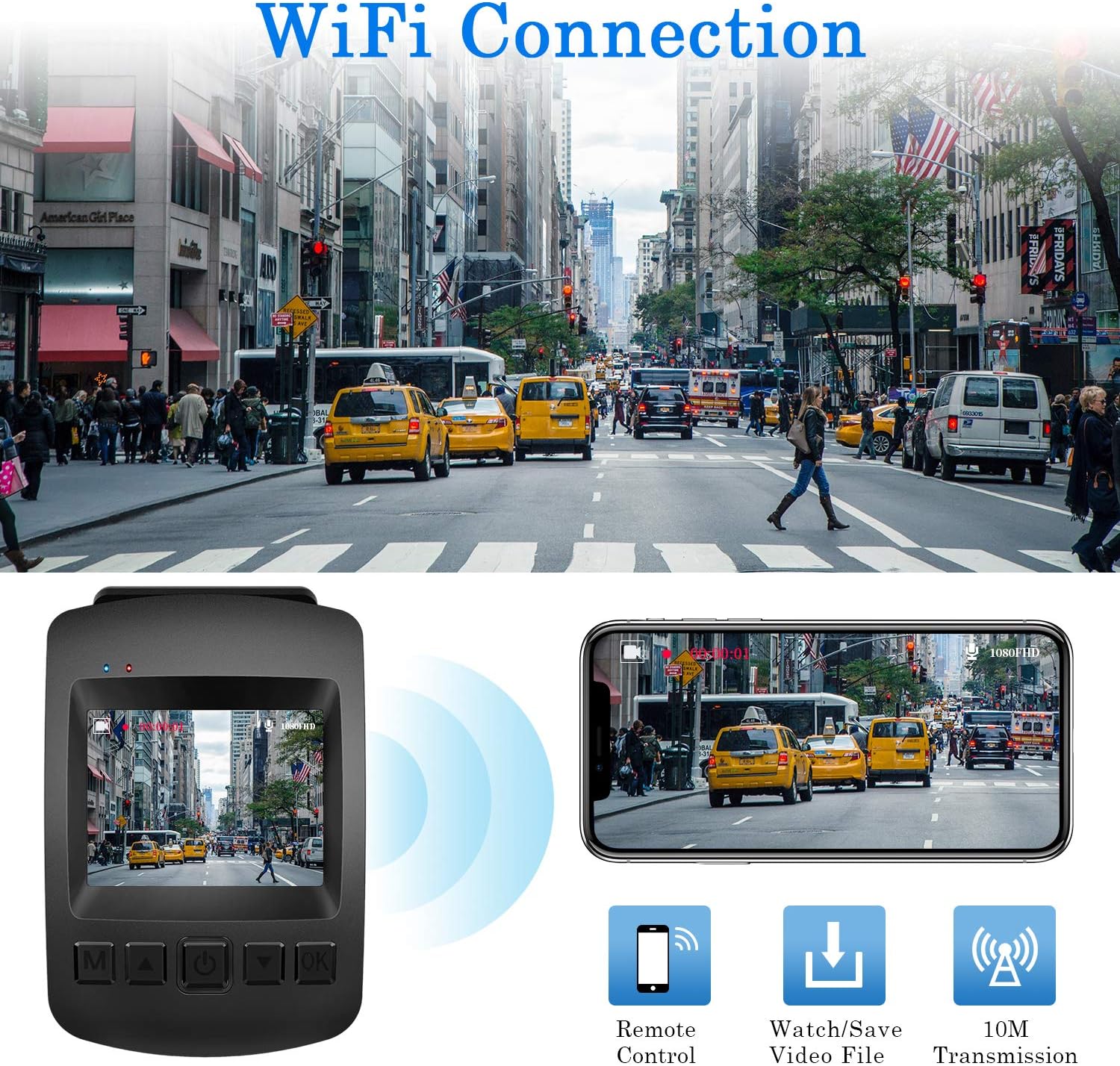
Image: The dash cam's WiFi feature enables seamless connection to a smartphone for live viewing and file management.
- Download the "RoadCam" app from your phone's app store. (If using Android and "RoadCam" is not found, try searching for "Timacam".)
- On the dash cam, enable WiFi mode through the settings menu.
- On your phone, go to WiFi settings and connect to the dash cam's WiFi network (SSID and password will be displayed on the dash cam screen).
- Open the "RoadCam" app to view real-time video, adjust settings, or download recorded files directly to your phone.
5.3 G-Sensor (Emergency Locking)
The G-Sensor automatically detects sudden shakes or collisions. When activated, it locks the current video file to prevent it from being overwritten by loop recording, preserving critical evidence of an incident.

Image: The G-Sensor automatically locks video footage during an impact, securing important event recordings.
5.4 Parking Monitor
With the Parking Monitor function enabled, the dash cam will automatically start recording if it detects any vibration or motion around your parked vehicle, providing 24-hour surveillance for your car's security.

Image: The dash cam actively monitors your vehicle for 24 hours, even when parked, detecting and recording any incidents.
5.5 Motion Detection
When Motion Detection is active, the dash cam will begin recording only when movement is detected in front of the lens, conserving memory card space. This feature is particularly useful for parking surveillance.
5.6 Night Vision
Equipped with a Sony IMX323 Sensor and F2.0 large aperture, the dash cam provides clear video quality even in low-light conditions, enhancing visibility during night driving.

Image: The advanced Sony IMX323 Sensor and F2.0 aperture contribute to superior day and night recording capabilities.
5.7 Screen Saver
To avoid distraction while driving, you can set the screen saver to automatically turn off the display after a set period, while recording continues in the background.
6. Maintenance
6.1 Formatting the Memory Card
It is recommended to format the memory card regularly (e.g., once a month) within the dash cam's settings to ensure optimal performance and prevent data corruption.
6.2 Cleaning the Device
Use a soft, dry cloth to clean the dash cam's lens and body. Avoid using abrasive cleaners or solvents that could damage the device.
6.3 Temperature Considerations
The CHORTAU Dash Cam is designed to operate within a wide temperature range of -20°C to 70°C (-4°F to 158°F). However, prolonged exposure to extreme temperatures outside this range may affect performance or longevity.

Image: The dash cam is built with advanced materials to withstand a wide range of temperatures, from hot deserts to cold snowy regions.
7. Troubleshooting
| Problem | Possible Cause / Solution |
|---|---|
| Dash cam does not power on. | Check power connection to the car's 12V outlet. Ensure the vehicle's ignition is on. |
| Recording stops unexpectedly. | Memory card may be full or corrupted. Format the card. Ensure a Class 10 or higher card is used. |
| Cannot access menu settings. | Press the "OK" button first to stop recording, then press the "M" (Menu) button. |
| WiFi connection issues with phone. | Ensure the "RoadCam" (or "Timacam" for Android) app is installed. Reconnect to the dash cam's WiFi network. Some iPhone users have reported connectivity challenges; ensure app permissions are granted. |
| Video footage is blurry or unclear. | Clean the camera lens. Ensure the protective film (if any) has been removed from the lens. Check mounting stability. |
| License plates are not clear in recordings. | While the camera records in Full HD, license plate readability can be affected by speed, distance, lighting conditions, and glare. This is common for dash cams. |
8. Specifications
| Model | 007 |
| Display Screen Size | 2 Inches LCD |
| Video Capture Resolution | 1080p Full HD (1920x1080) |
| Lens Aperture | F2.0 |
| Wide Angle | 170° (Actual viewing angle: 110 Degrees) |
| Sensor | SONY IMX323 |
| Connectivity | Wi-Fi, USB |
| Storage | MicroSD/SD Card (up to 32GB, Class 10 or higher) |
| Power Source | AC & Battery (Lithium Ion battery included) |
| Operating Temperature | -20°C ~ 70°C (-4°F ~ 158°F) |
| Dimensions (L x W x H) | 3 x 5.5 x 7.5 cm |
| Weight | 300 g |
| Special Features | Parking Monitor, Night Vision, Motion Sensing, Screen Saver, G-Sensor |
9. Warranty and Support
CHORTAU stands behind the quality of its products. Your CHORTAU Dash Cam 007 comes with a 2-Year Warranty from the date of purchase, covering manufacturing defects.
For any technical assistance, troubleshooting, or warranty claims, please contact our professional after-sales service team:
- Email: support@chortau.cc
Please provide your model number (007) and a detailed description of the issue when contacting support for faster service.


