
1. Introduction
Thank you for choosing the Kasa Smart Light Bulb KL110. This dimmable LED Wi-Fi smart bulb offers convenient lighting control, allowing you to adjust brightness and manage your home's ambiance from anywhere. Designed for ease of use, it connects directly to your home's Wi-Fi network without requiring a separate hub and is compatible with popular voice assistants like Amazon Alexa and Google Home.

Image: The Kasa Smart Light Bulb KL110 provides versatile lighting to set the mood in any room, from bright task lighting to soft ambient glow.
2. Setup Guide
2.1 What's in the Box
- 1 Kasa Smart Light Bulb, Dimmable (KL110)
- Quick Installation Guide
2.2 Installation Steps
- Screw in the Bulb: Carefully screw the Kasa Smart Light Bulb into a standard E26 light socket. Ensure the power to the fixture is off before installation.
- Power On: Turn on the power to the light fixture. The bulb should blink three times, indicating it's ready for setup.
- Download the Kasa Smart App: Download the Kasa Smart app from the App Store (iOS) or Google Play (Android).
- Create/Log In to Kasa Account: Open the Kasa Smart app and either create a new account or log in to your existing TP-Link ID.
- Add Device: In the Kasa Smart app, tap the '+' icon to add a new device. Select 'Smart Lights' and then choose the 'KL100 Series' or 'Smart Bulb' option.
- Connect to Bulb's Wi-Fi: Follow the in-app instructions to connect your smartphone to the bulb's temporary Wi-Fi network (usually named 'TP-Link_Smart Bulb_XXXX').
- Connect to Home Wi-Fi: Once connected to the bulb, the app will guide you to connect the bulb to your home's 2.4 GHz Wi-Fi network. Enter your Wi-Fi password.
- Name Your Bulb: Give your smart bulb a descriptive name (e.g., 'Living Room Lamp', 'Bedroom Light') for easy identification and voice control.

Image: The Kasa Smart Light Bulb KL110 is designed to fit into standard E26 light sockets, making installation straightforward.

Image: The Kasa Smart Light Bulb KL110 connects directly to your home's 2.4 GHz Wi-Fi network, eliminating the need for an additional hub.
3. Operating Instructions
3.1 Control via Kasa Smart App
- On/Off: Tap the power icon next to your bulb's name to toggle it on or off.
- Dimming: Tap on the bulb's name to access its control panel. Use the brightness slider or preset buttons (1%, 25%, 50%, 75%, 100%) to adjust the light intensity.
- Scheduling: Set schedules for your bulb to automatically turn on or off at specific times, or to dim gradually. This can be found under the 'Schedule' tab within the bulb's control panel.
- Scenes: Create custom lighting scenes for different activities or moods (e.g., 'Movie Night', 'Reading').

Image: The Kasa Smart app allows precise control over the bulb's brightness, from 1% to 100%.
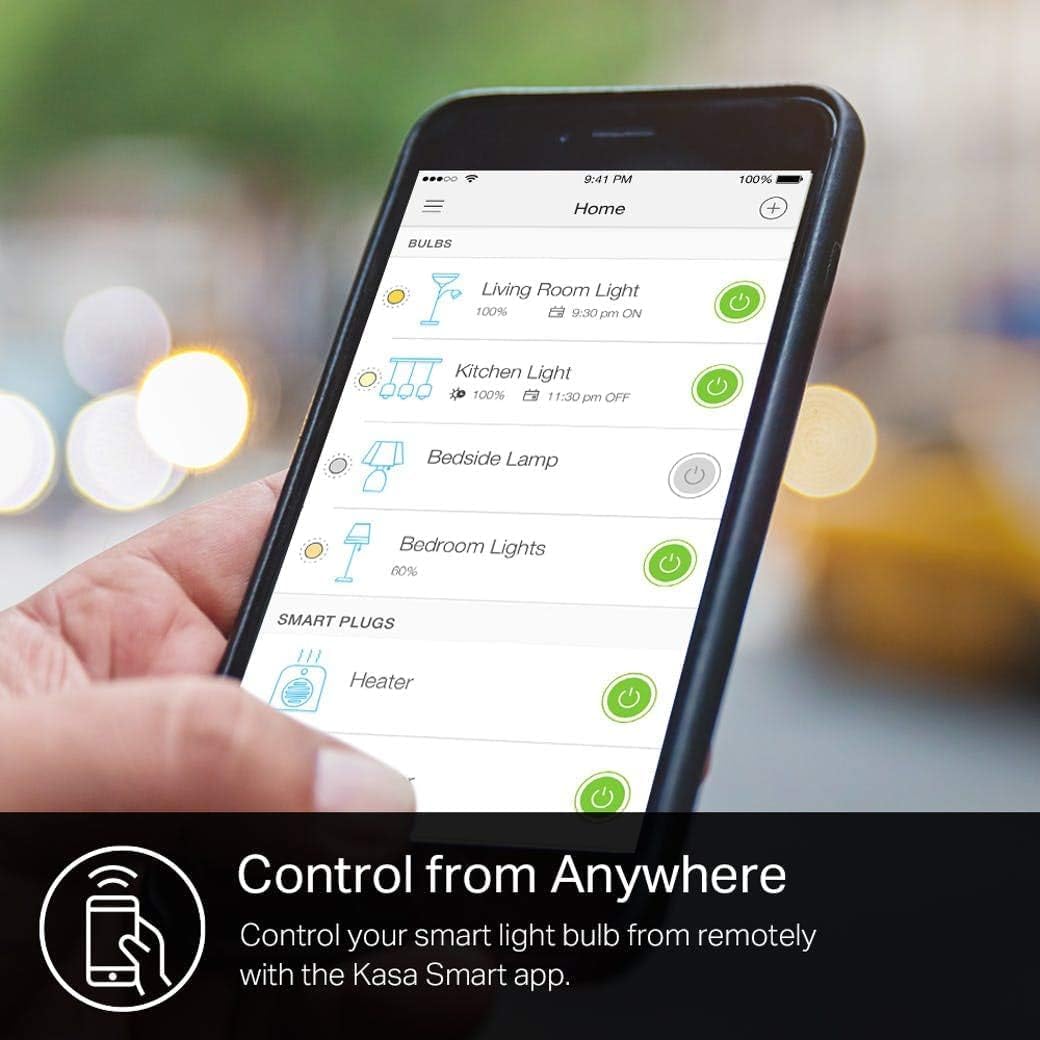
Image: Automate your lighting with custom schedules through the Kasa Smart app, setting lights to turn on or off according to your routine.
3.2 Voice Control
The Kasa Smart Light Bulb KL110 is compatible with Amazon Alexa, Google Assistant, and Microsoft Cortana. Link your Kasa account to your preferred voice assistant's app to enable voice commands.
- Turn On/Off: "Alexa, turn on the Living Room Light." / "Hey Google, turn off the Bedroom Light."
- Adjust Brightness: "Alexa, dim the Kitchen Light to 50%." / "Hey Google, set the Shed Light to 100%."

Image: Control your Kasa Smart Light Bulb KL110 using simple voice commands with Amazon Alexa or Google Assistant.
3.3 Integration with Tapo
You can integrate your Kasa devices with the Tapo app for unified smart home management. Ensure both apps are updated and you are logged in with the same TP-Link ID.
- Open the Tapo app and go to the 'Me' page.
- Tap 'Link Tapo with Kasa'.
- Tick the checkbox for the Privacy Policy and tap 'Authorize Now' to allow Tapo to access Kasa.
- Your Kasa devices will now be manageable within the Tapo app.
Video: Learn how to integrate your Kasa Smart Light Bulb KL110 into the Tapo app for centralized control of your smart home devices.
4. Features
- Dimmable: Adjust brightness from 1% to 100% to create the perfect ambiance for any occasion.
- No Hub Required: Connects directly to your home's secure 2.4 GHz Wi-Fi network, eliminating the need for additional hardware.
- Control from Anywhere: Manage your light bulb remotely using the Kasa Smart app on your smartphone (iOS, Android).
- Voice Control: Seamlessly integrate with Amazon Alexa, Google Assistant, and Microsoft Cortana for hands-free lighting control.
- Energy Monitoring: Track the energy consumption of your smart bulb through the Kasa Smart app to help manage usage and save on electricity bills.

Image: The Kasa Smart app provides detailed energy monitoring, allowing you to track the bulb's power consumption and identify potential savings.
5. Specifications
| Attribute | Value |
|---|---|
| Brand | Kasa Smart |
| Model Number | KL110 |
| Light Type | LED |
| Special Feature | Dimmable (1% to 100%) |
| Wattage | 9 watts |
| Incandescent Equivalent Wattage | 60 Watts |
| Brightness | 800 Lumens |
| Bulb Shape Size | A19 |
| Bulb Base | E26 |
| Light Color | Soft White |
| Color Temperature | 2700 Kelvin |
| Voltage | 120 Volts (100 to 120 Volts and 60 Hertz) |
| Control Method | Voice, App |
| Connectivity | Wi-Fi (2.4 GHz) |
| Average Life | 2.87 Years |
| Material | Plastic |
| Product Dimensions | 2.36"W x 4.65"H |
| Item Weight | 2.36 ounces (67 Grams) |
| Indoor/Outdoor Usage | Indoor |
6. Troubleshooting
- Bulb not connecting to Wi-Fi:
- Ensure your Wi-Fi network is 2.4 GHz. Kasa Smart bulbs do not support 5 GHz networks.
- Check that your Wi-Fi signal is strong where the bulb is installed.
- Restart your Wi-Fi router and try the setup process again.
- Perform a factory reset on the bulb (usually by cycling power on/off multiple times until it blinks differently, refer to the app for specific instructions).
- Voice control not working:
- Verify that your Kasa account is correctly linked to your Amazon Alexa or Google Assistant app.
- Ensure the bulb's name in the Kasa app is simple and easy for the voice assistant to recognize.
- Check your internet connection for both the bulb and your voice assistant device.
- Bulb unresponsive:
- Check if the light fixture's physical switch is in the 'ON' position. Smart bulbs require constant power.
- Ensure your Wi-Fi network is active and the bulb is connected.
- Try turning the bulb off and on from the physical switch to reset it.
7. Warranty and Support
7.1 Warranty Information
The Kasa Smart Light Bulb KL110 comes with a 2-year warranty from the date of purchase. This warranty covers defects in materials and workmanship under normal use. Please retain your proof of purchase for warranty claims.
7.2 Customer Support
For technical support, troubleshooting assistance, or warranty inquiries, please contact Kasa Smart customer support:
- Phone: (866) 225-8139
- Web: myproducts.tp-link.com/us
- Email: support.USA@tp-link.com
Image: Kasa Smart provides multiple channels for customer support, including phone, web, and email, to assist with any product-related queries.


