
1. Introduction
This manual provides detailed instructions for the DIERYA DK63 Wireless Mechanical Gaming Keyboard. Please read this manual thoroughly before using the product to ensure proper operation and to maximize your user experience. The DK63 is a compact 60% mechanical keyboard designed for versatility across various platforms, offering both wired and wireless connectivity options.

Image 1.1: DIERYA DK63 60% Mechanical Keyboard showcasing its compact layout and dimensions (292.8mm width, 101mm height).
2. Key Features
- 60% Compact Layout: The DK63 features a streamlined 60% layout, optimizing desk space while retaining essential functionality through function layer keys.
- Dual Connectivity Modes: Seamlessly switch between wired (USB-C) and wireless (Bluetooth 5.1) connections.
- Multi-Device Support: Connects to up to 3 devices via Bluetooth, compatible with Mac, Windows, and Android operating systems.
- True Mechanical Switches: Equipped with durable mechanical switches (available in Blue, Brown, or Red variants) for a responsive typing and gaming experience.
- Dynamic RGB Backlighting: Features 8 distinct lighting effects and supports 16.8 million colors for personalized aesthetics.
- Customizable Software: Utilize the DIERYA customizable software for macro recording and remapping keyboard buttons.

Image 2.1: The DIERYA DK63 keyboard demonstrating its ability to connect to up to 3 devices via Bluetooth, compatible with Mac, Windows, and Android.

Image 2.2: A close-up view of the true mechanical switches on the DIERYA DK63 keyboard, highlighting their design for durability and responsiveness.
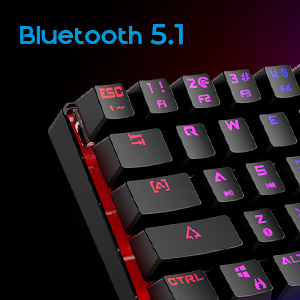
Image 2.3: Detail shot indicating Bluetooth 5.1 connectivity on the DIERYA DK63 keyboard.
3. Setup Guide
3.1 Wired Connection
- Locate the USB-C port on the keyboard.
- Connect the provided USB-C cable to the keyboard.
- Plug the other end of the USB-C cable into an available USB port on your computer.
- The keyboard will be automatically recognized by your system and is ready for use.
3.2 Bluetooth Wireless Connection
- Ensure the keyboard is charged or connected via USB-C initially.
- To switch to wireless mode, press Fn + R. The keyboard's indicator light will change to signify Bluetooth mode.
- To pair with a device, press and hold Fn + Z, Fn + X, or Fn + C for 3-5 seconds. The corresponding key's backlight will flash rapidly, indicating pairing mode.
- On your device (computer, tablet, or smartphone), enable Bluetooth and search for available devices.
- Select "DIERYA DK63" from the list of available devices to complete the pairing process.
- Once paired, the key's backlight will stop flashing and remain steadily lit.
- To switch between paired Bluetooth devices, press Fn + Z, Fn + X, or Fn + C (short press) to select the desired device.
4. Operating Instructions
4.1 Function Key Combinations
The DK63 utilizes the Fn key to access secondary functions printed on the keycaps. Hold down the Fn key and press the desired key to activate its secondary function.
- Fn + 1! to 0): F1 to F10 keys.
- Fn + -_ and =+: F11 and F12 keys.
- Fn + P: Print Screen.
- Fn + [: Home.
- Fn + ]: End.
- Fn + ;: Page Up.
- Fn + ': Page Down.
- Fn + Arrow Keys: Navigation (e.g., Fn + Up Arrow for Page Up, Fn + Down Arrow for Page Down, etc., depending on specific keycap legends).
4.2 RGB Backlighting Control
The keyboard offers various lighting effects and customization options:
- Fn + \|: Cycle through different lighting effects.
- Fn + Up Arrow: Increase backlight brightness.
- Fn + Down Arrow: Decrease backlight brightness.
- Fn + Left Arrow: Adjust lighting effect speed.
- Fn + Right Arrow: Adjust lighting effect speed.
- Specific keys may have additional lighting controls indicated on their keycaps.

Image 4.1: Screenshot of the DIERYA customizable software, showing options for lighting effects, color selection, macro recording, and key remapping.
4.3 Customizable Software
The DIERYA DK63 supports dedicated software for advanced customization. This software allows users to:
- Record and assign macros to specific keys.
- Remap individual key functions.
- Fine-tune RGB lighting effects, colors, and patterns.
Please refer to the DIERYA official website for software download and detailed instructions on its usage.
Video 4.2: Official product video showcasing the DIERYA DK63 60% Mechanical Gaming Keyboard, highlighting its design and RGB lighting effects.
5. Maintenance
To ensure the longevity and optimal performance of your DIERYA DK63 keyboard, follow these maintenance guidelines:
- Cleaning: Regularly clean the keyboard with a soft, dry cloth. For deeper cleaning, use a can of compressed air to remove dust and debris from between the keycaps. If necessary, gently wipe keycaps with a slightly damp cloth and mild soap solution, ensuring no liquid enters the keyboard.
- Avoid Liquids: Do not spill liquids on the keyboard. If a spill occurs, immediately disconnect the keyboard and allow it to dry completely before reconnecting.
- Storage: Store the keyboard in a cool, dry place away from direct sunlight and extreme temperatures.
- Cable Care: Avoid bending or twisting the USB-C cable excessively to prevent damage.
6. Troubleshooting
If you encounter issues with your DIERYA DK63 keyboard, refer to the following common solutions:
6.1 Keyboard Not Responding (Wired)
- Ensure the USB-C cable is securely connected to both the keyboard and the computer.
- Try connecting the keyboard to a different USB port on your computer.
- Test the keyboard with a different USB-C cable if available.
- Restart your computer.
6.2 Bluetooth Connectivity Issues
- Ensure the keyboard is in Bluetooth mode (Fn + R).
- Verify that Bluetooth is enabled on your device.
- Make sure the keyboard is sufficiently charged. Low battery can affect Bluetooth performance.
- If already paired, try unpairing the keyboard from your device's Bluetooth settings and then re-pairing it.
- Ensure the keyboard is within the effective range of your Bluetooth device (typically up to 10 meters).
- Avoid interference from other wireless devices.
6.3 Backlighting Not Working or Incorrect
- Increase brightness using Fn + Up Arrow.
- Cycle through lighting effects using Fn + \|.
- Ensure the keyboard is not in a mode where backlighting is intentionally off or dimmed.
- If using the customizable software, check the lighting settings within the application.
7. Product Specifications
| Feature | Detail |
|---|---|
| Model Number | DK63 |
| Brand | DIERYA |
| Wireless Type | Bluetooth 5.1 |
| Connectivity Technology | USB-C, Bluetooth |
| Hardware Platform | Laptop, PC |
| Item Weight | 1.5 pounds (approx. 0.68 kg) |
| Product Dimensions (LxWxH) | 12 x 5.6 x 1.9 inches (approx. 30.5 x 14.2 x 4.8 cm) |
| Power Source | Battery Powered (1 Lithium Ion battery included) |
| Switch Type Options | Blue (Clicky), Brown (Tactile), Red (Linear) |
| Included Components | USB Cable |
8. Warranty and Support
DIERYA products are manufactured to high-quality standards. For information regarding warranty coverage, technical support, or service inquiries, please refer to the official DIERYA website or contact their customer support directly. Keep your purchase receipt as proof of purchase for warranty claims.


